> ## Documentation Index
> Fetch the complete documentation index at: https://docs.spurtest.com/llms.txt
> Use this file to discover all available pages before exploring further.
# Email Alerts
> Configure email notifications for test results and alerts.
## Overview
The email integration keeps your team informed about test results without needing to check the Spur dashboard. You can configure notifications for specific test outcomes and control who receives alerts from which suites.
## Setup
Navigate to the [Integrations page](https://app.spurtest.com/integrations) and select **Email** from the available integrations.
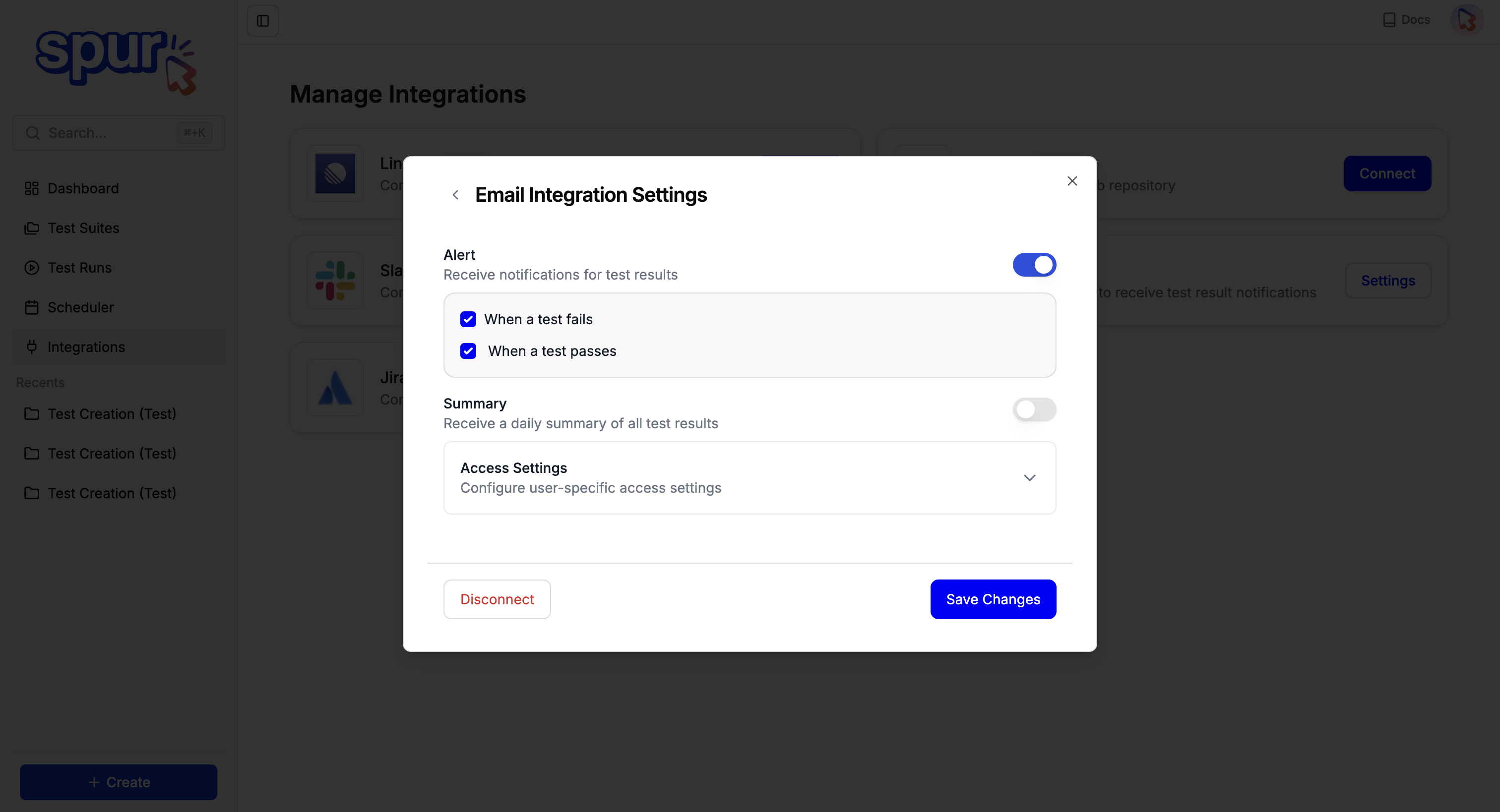
Choose which notifications you want to receive:
Immediate alerts when any test fails.
Confirmation when tests pass.
A daily digest of all test results.
Control who gets alerts from which suites.
## Per-User Access Settings
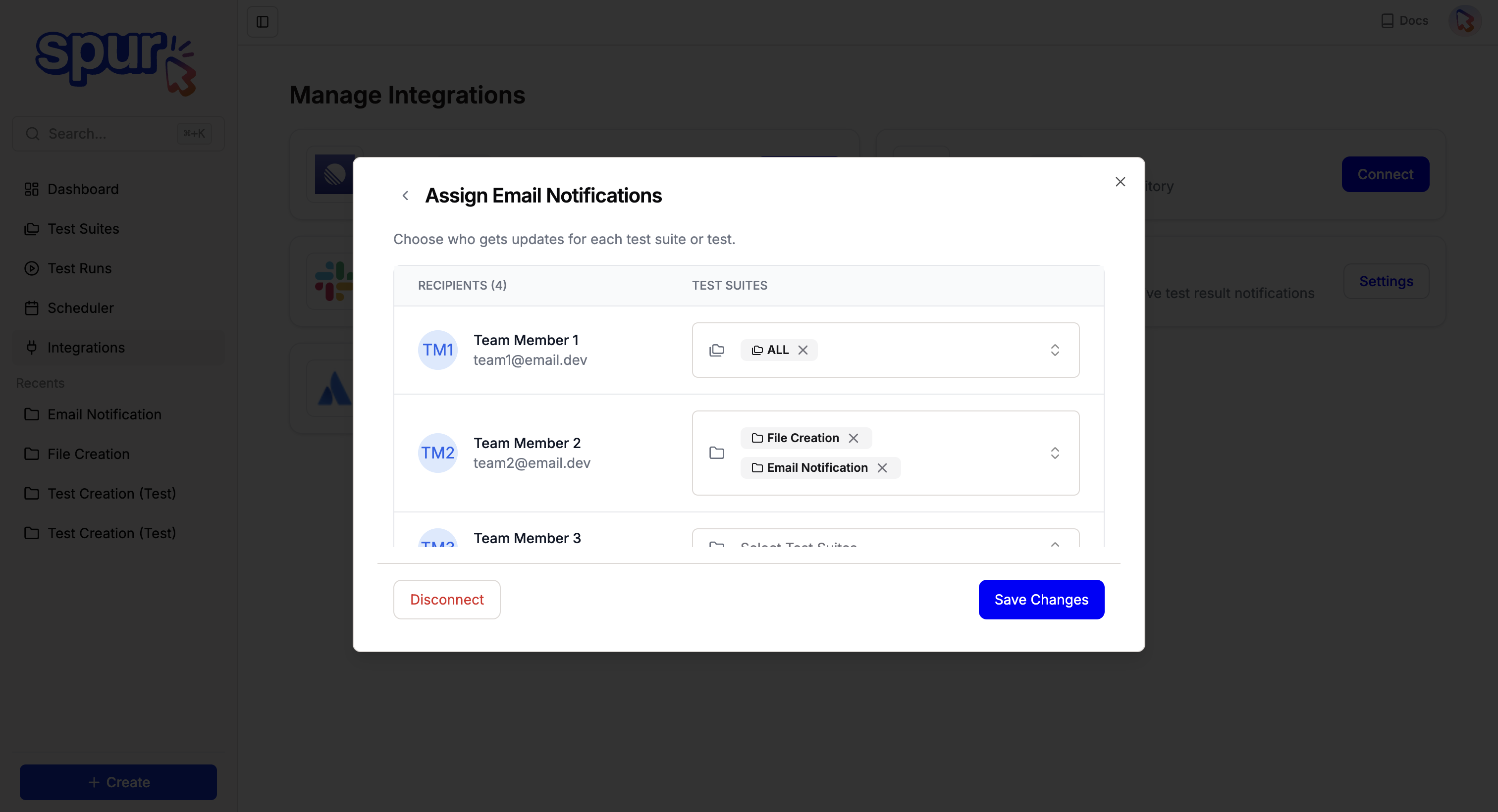
By default, every user in your application receives email notifications for all tests. You can configure specific access settings to control who gets alerts from which suites.
If you configure access for one person, make sure to configure access for everyone else as well. Otherwise, unconfigured users will continue to receive notifications for all suites.
Go to the Integrations tab and click into **Access Settings** for the email integration.
 For each user, select which suites they should receive notifications for. This gives you fine-grained control over who sees what.