> ## Documentation Index
> Fetch the complete documentation index at: https://docs.spurtest.com/llms.txt
> Use this file to discover all available pages before exploring further.
# Connecting with Other MCP Tools
> Combine the Spur MCP with GitHub, Jira, Linear, and other tools to give your AI assistant richer context for testing.
The Spur MCP becomes more powerful when your AI assistant has access to other tools alongside it. By connecting MCPs for project management, source control, or communication, your agent can pull in context from across your workflow — and make smarter decisions about what to test, when to test it, and how to interpret results.
## GitHub
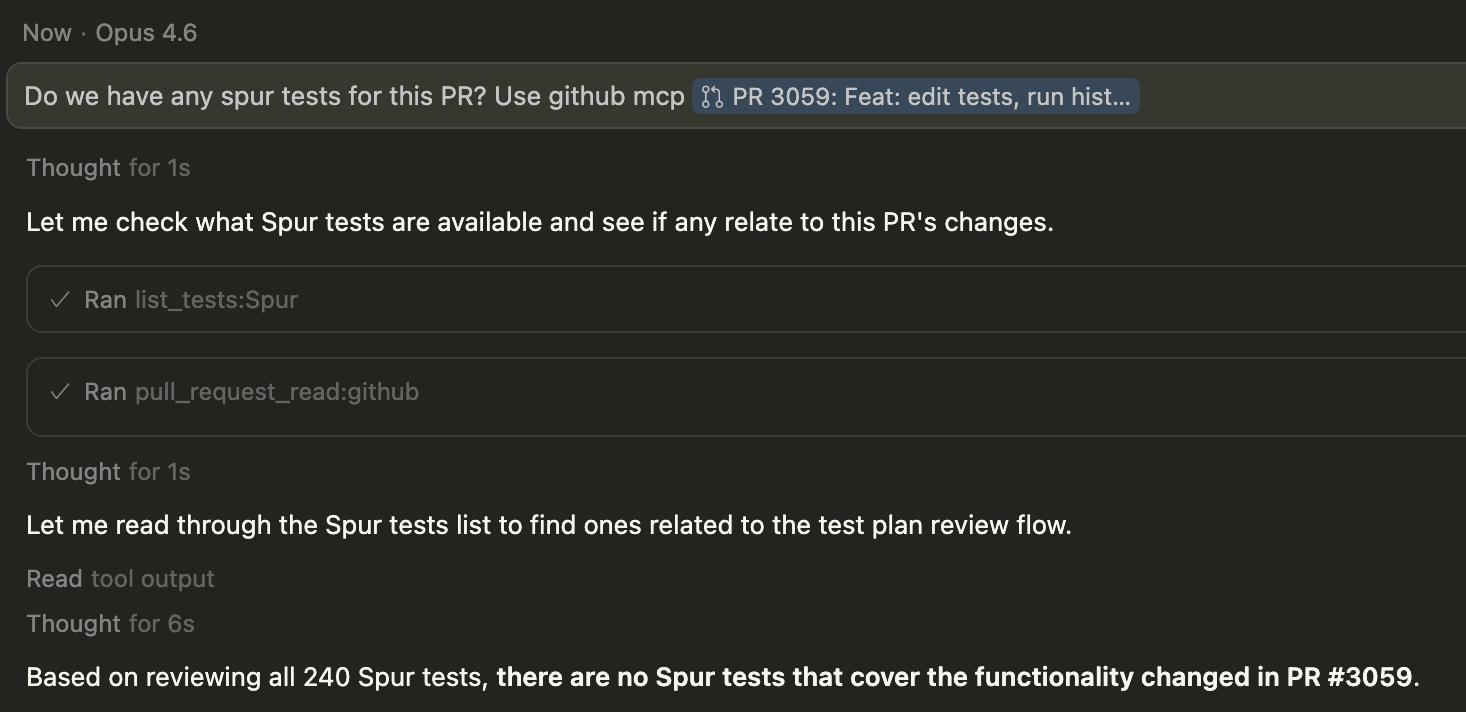
Connect a GitHub MCP so your agent can read pull requests, commits, and code changes — then match them to the right Spur tests.
 ### Example prompts
* *"Run any Spur tests that cover the files changed in this PR"*
* *"This commit broke checkout — find the relevant Spur test and show me what failed"*
* *"What Spur test coverage do I have for the code in PR #142?"*
### How it works
Your agent uses the GitHub MCP to fetch the changed files, commit messages, or PR description.
Using the context from GitHub, the agent calls `list_tests` and `get_test_details` to find Spur tests that cover the affected areas.
The agent runs the matching tests with `run_test`, then summarizes results — so you know whether your changes are safe before merging.
## Jira
Connect a Jira MCP so your agent can read tickets, acceptance criteria, and bug reports — then tie them directly to Spur test runs.
### Example prompts
* *"Run any Spur tests that cover the files changed in this PR"*
* *"This commit broke checkout — find the relevant Spur test and show me what failed"*
* *"What Spur test coverage do I have for the code in PR #142?"*
### How it works
Your agent uses the GitHub MCP to fetch the changed files, commit messages, or PR description.
Using the context from GitHub, the agent calls `list_tests` and `get_test_details` to find Spur tests that cover the affected areas.
The agent runs the matching tests with `run_test`, then summarizes results — so you know whether your changes are safe before merging.
## Jira
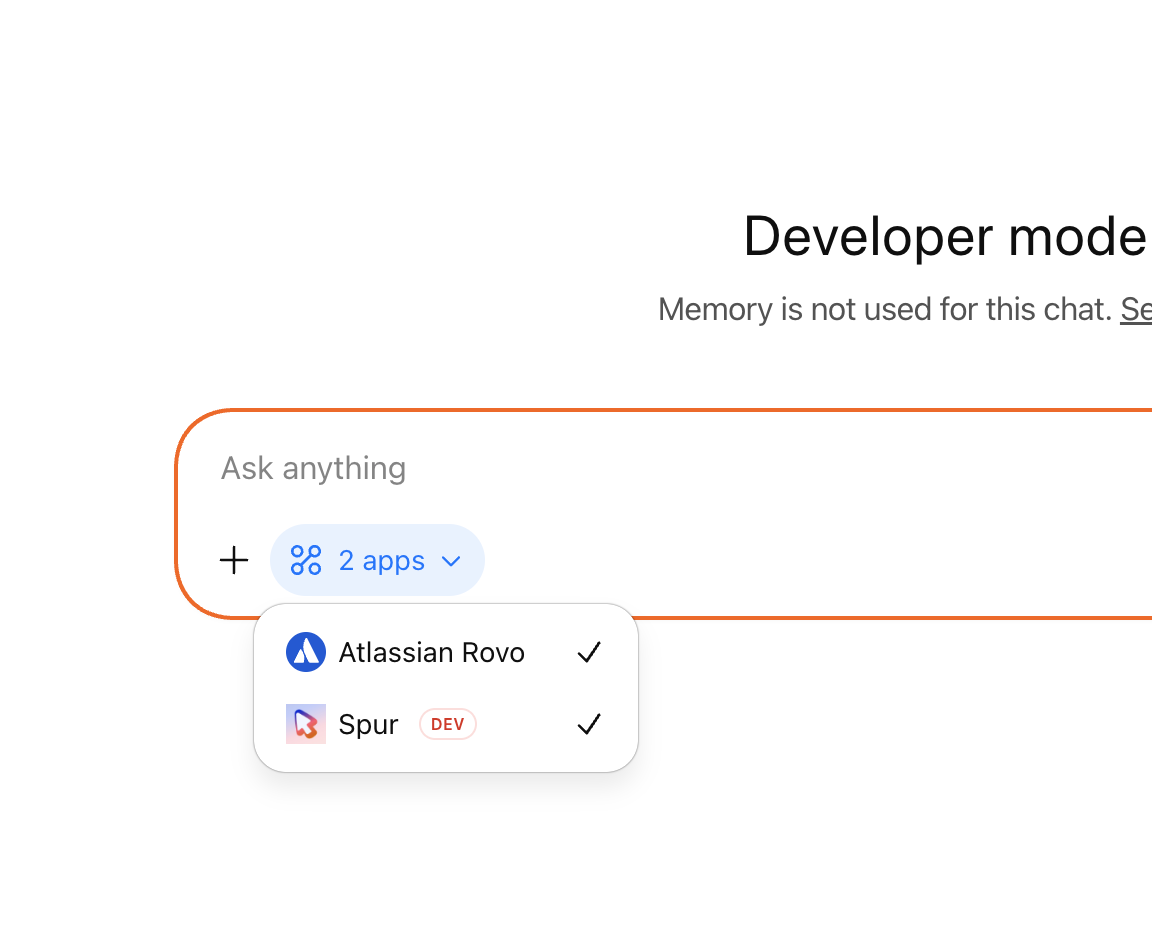
Connect a Jira MCP so your agent can read tickets, acceptance criteria, and bug reports — then tie them directly to Spur test runs.
 ### Example prompts
* *"Run the Spur test that covers Jira ticket SHOP-451"*
* *"This Jira bug says checkout is broken — find and run the relevant Spur tests"*
* *"Check if I have Spur test coverage for the acceptance criteria in SHOP-302"*
### How it works
Your agent uses the Jira MCP to fetch the ticket summary, description, and acceptance criteria.
### Example prompts
* *"Run the Spur test that covers Jira ticket SHOP-451"*
* *"This Jira bug says checkout is broken — find and run the relevant Spur tests"*
* *"Check if I have Spur test coverage for the acceptance criteria in SHOP-302"*
### How it works
Your agent uses the Jira MCP to fetch the ticket summary, description, and acceptance criteria.
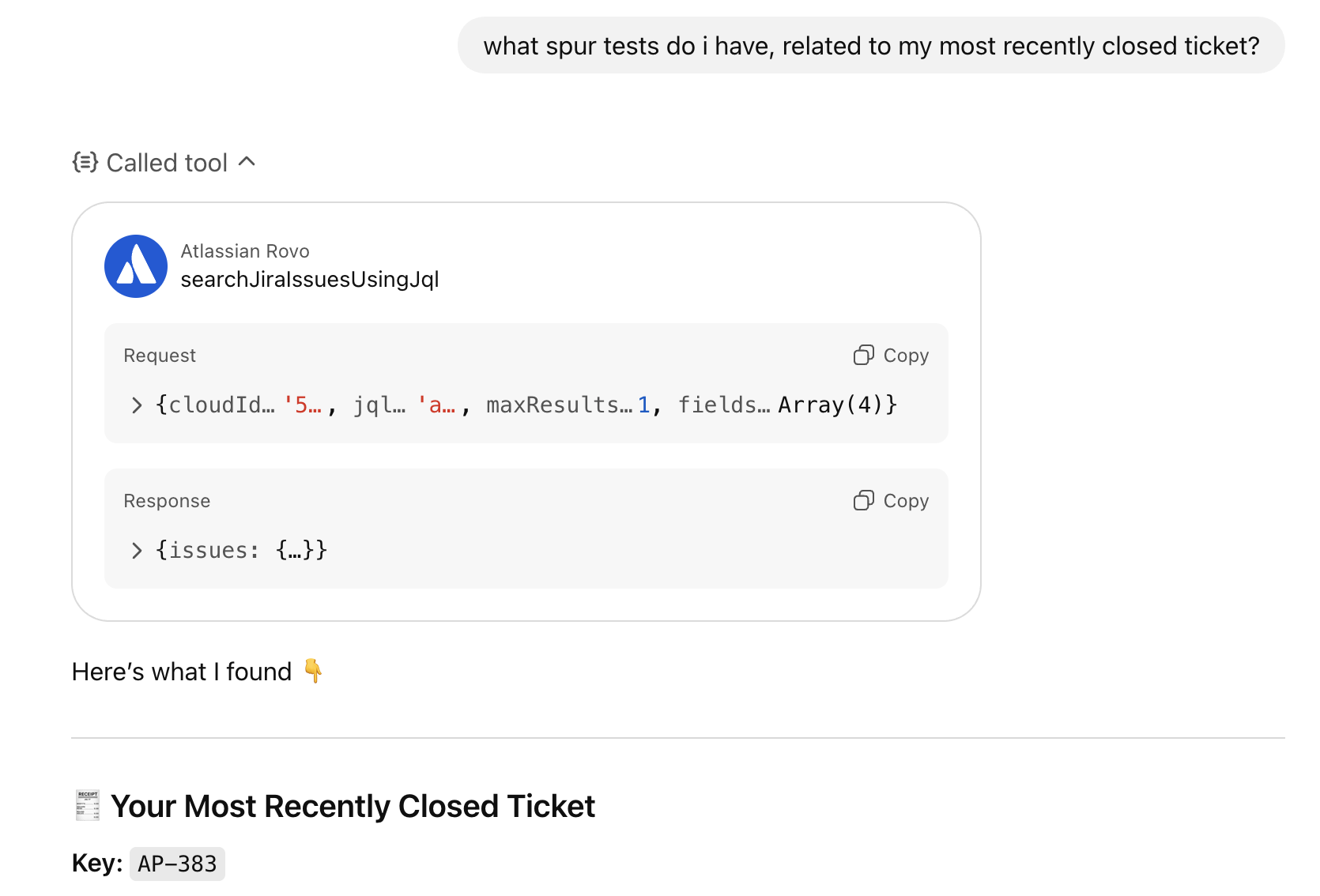 The agent calls `list_tests` and `get_test_details` to find Spur tests that match the ticket scope, then presents them for you to run.
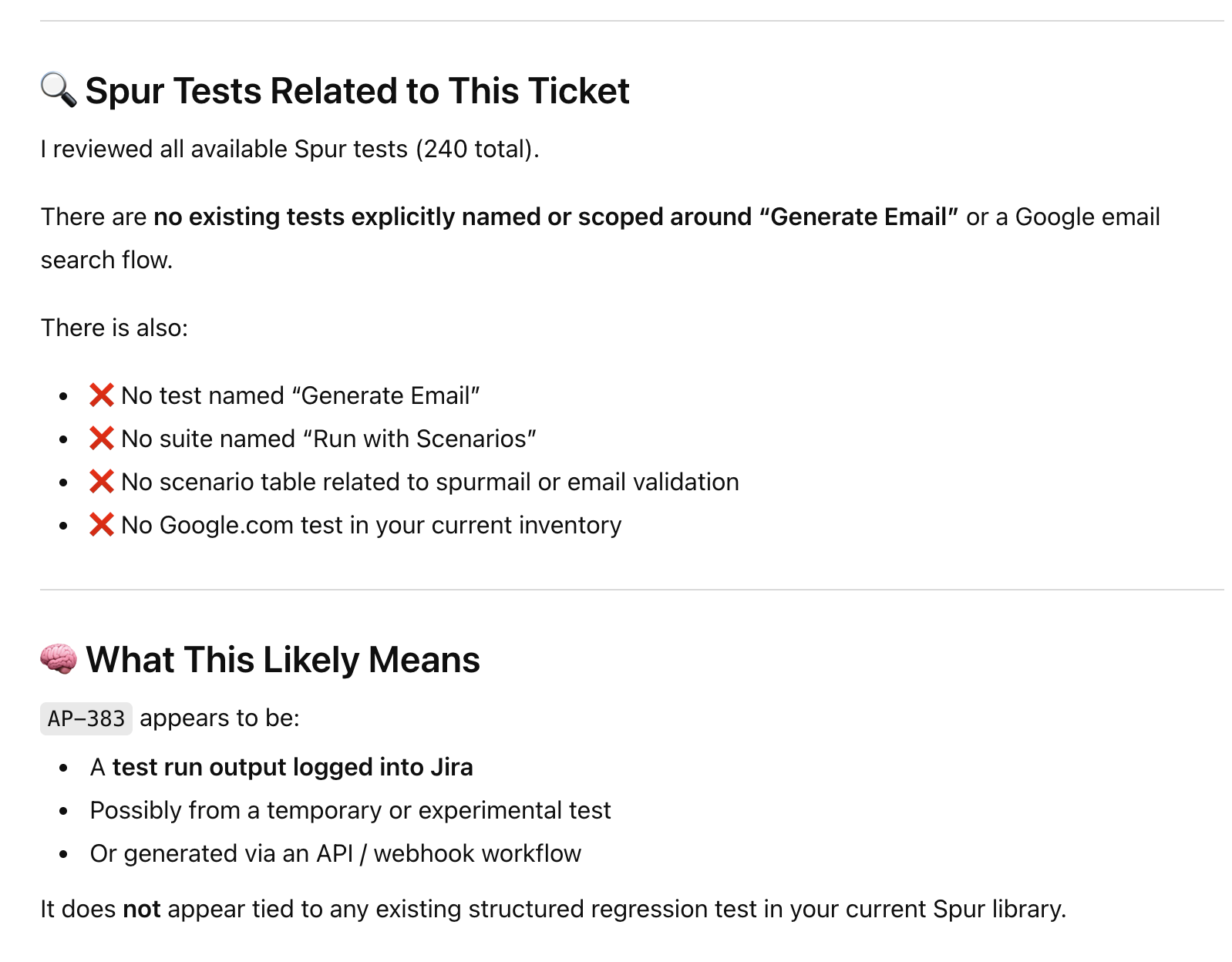 The agent runs the matching tests with `run_test`, then summarizes the results — so you know which acceptance criteria are passing and which need attention.
## Linear
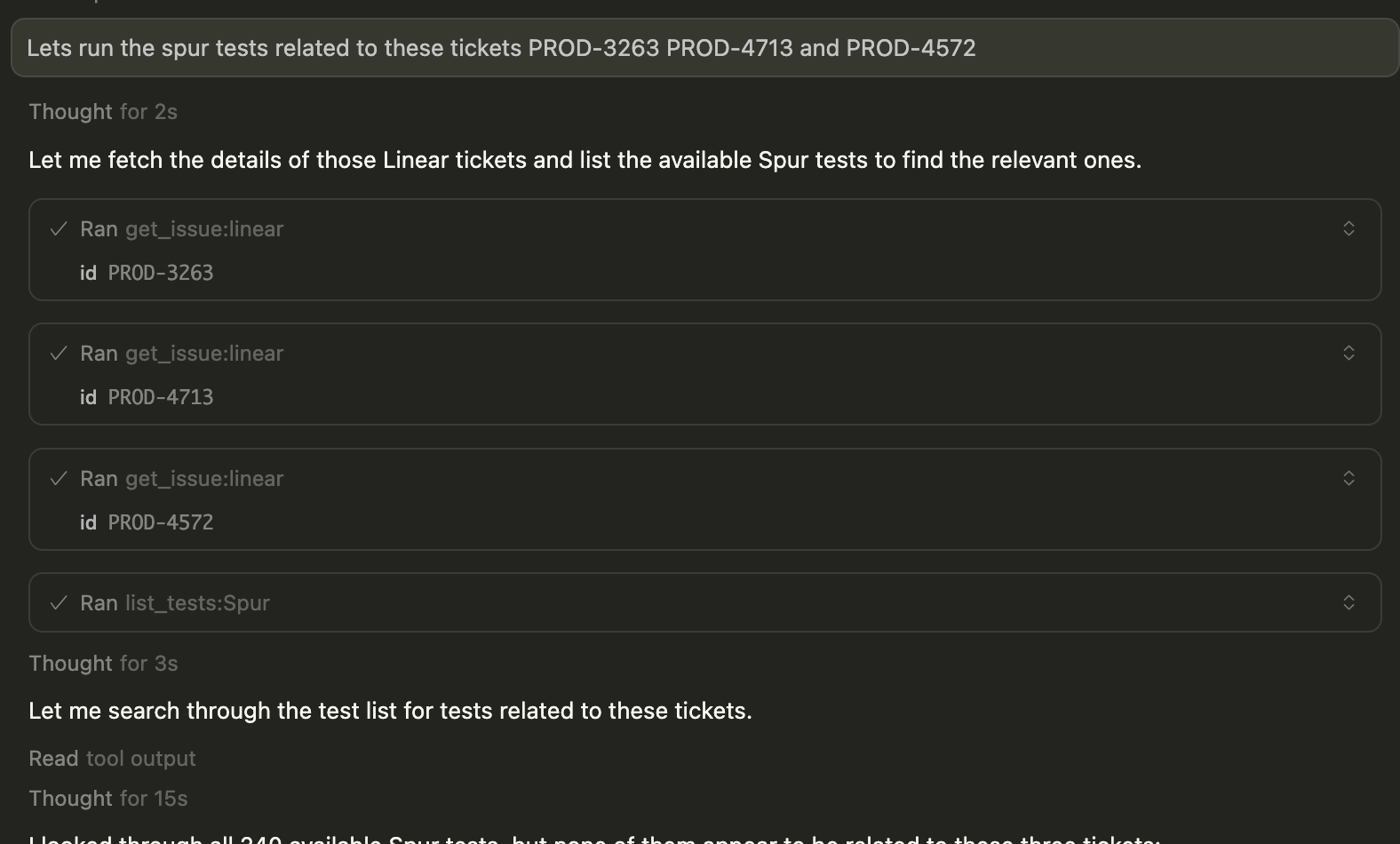
Connect a Linear MCP so your agent can read issues, project context, and cycle priorities — then link them to your Spur test suite.
The agent runs the matching tests with `run_test`, then summarizes the results — so you know which acceptance criteria are passing and which need attention.
## Linear
Connect a Linear MCP so your agent can read issues, project context, and cycle priorities — then link them to your Spur test suite.
 ### Example prompts
* *"Run Spur tests related to the issues in the current sprint"*
* *"This Linear issue says the login flow is broken — find and run the matching Spur test"*
* *"What Spur test coverage do I have for the issues assigned to me?"*
### How it works
Your agent uses the Linear MCP to fetch issue details, labels, and project context.
The agent calls `list_tests` and `get_test_details` to find Spur tests that align with the issue scope.
The agent executes the relevant tests and reports back with results mapped to the Linear issue, so you can update the issue status with confidence.
## Other tools
Any MCP that gives your agent context about *what changed* or *what matters* pairs well with Spur. The pattern is always the same: the external tool provides context, and Spur provides the testing.
Examples of other MCPs that work well alongside Spur:
* **Slack** — *"Someone reported a bug in #engineering — find and run the relevant Spur test"*
* **Notion** — *"Run Spur tests for the features listed in this Notion spec"*
* **GitLab** — *"Run tests covering the files in this merge request"*
### Example prompts
* *"Run Spur tests related to the issues in the current sprint"*
* *"This Linear issue says the login flow is broken — find and run the matching Spur test"*
* *"What Spur test coverage do I have for the issues assigned to me?"*
### How it works
Your agent uses the Linear MCP to fetch issue details, labels, and project context.
The agent calls `list_tests` and `get_test_details` to find Spur tests that align with the issue scope.
The agent executes the relevant tests and reports back with results mapped to the Linear issue, so you can update the issue status with confidence.
## Other tools
Any MCP that gives your agent context about *what changed* or *what matters* pairs well with Spur. The pattern is always the same: the external tool provides context, and Spur provides the testing.
Examples of other MCPs that work well alongside Spur:
* **Slack** — *"Someone reported a bug in #engineering — find and run the relevant Spur test"*
* **Notion** — *"Run Spur tests for the features listed in this Notion spec"*
* **GitLab** — *"Run tests covering the files in this merge request"*