> ## Documentation Index
> Fetch the complete documentation index at: https://docs.spurtest.com/llms.txt
> Use this file to discover all available pages before exploring further.

# MCP Setup

> Set up the Spur MCP server in Cursor, Claude Code, Claude Desktop, Claude.ai, GitHub Copilot in VS Code, or ChatGPT.

<Tip>
  You can launch a guided setup directly from the Spur app. Go to **Integrations → MCP** and click **Setup** to open a step-by-step modal for your platform.
</Tip>

Authentication uses OAuth. When you connect for the first time, your browser will open to authorize access to your Spur account.

## Cursor

Click the button to install, or copy the link below and paste it into your browser.

[![Install MCP Server](https://cursor.com/deeplink/mcp-install-dark.svg)](cursor://anysphere.cursor-deeplink/mcp/install?name=Spur\&config=eyJ1cmwiOiJodHRwczovL2FwcC5zcHVydGVzdC5jb20vYXBpL21jcCIsImhlYWRlcnMiOnt9fQ%3D%3D)

```
cursor://anysphere.cursor-deeplink/mcp/install?name=Spur&config=eyJ1cmwiOiJodHRwczovL2FwcC5zcHVydGVzdC5jb20vYXBpL21jcCIsImhlYWRlcnMiOnt9fQ%3D%3D
```

## Claude Code

Run this command in your terminal:

```bash theme={null}
claude mcp add Spur -- npx -y mcp-remote@latest https://app.spurtest.com/api/mcp
```

If you don't have `npx` installed, you can use the HTTP transport instead:

```bash theme={null}
claude mcp add --transport http Spur https://app.spurtest.com/api/mcp
```

## Claude Desktop and Claude.ai

<Steps>
  <Step title="Open Connectors settings">
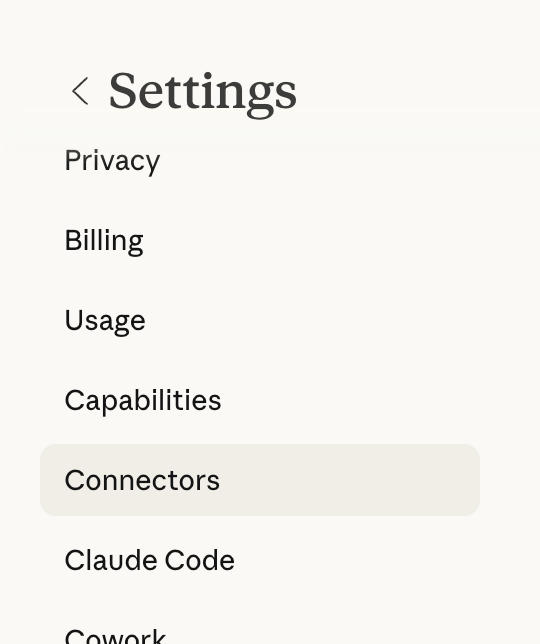
    Go to **Settings** and navigate to the **Connectors** tab. Claude.ai users can go directly to [claude.ai/settings/connectors](https://claude.ai/settings/connectors).
    <Frame>
      <img src="https://mintcdn.com/spur/DdejEY4td9WuU60C/images/MCP/claude_ai_1.png?fit=max&auto=format&n=DdejEY4td9WuU60C&q=85&s=db630955512b3219709425dc4852e7be" alt="Connectors tab in Claude settings" width="540" height="644" data-path="images/MCP/claude_ai_1.png" />
    </Frame>
  </Step>

  <Step title="Add a custom connector">
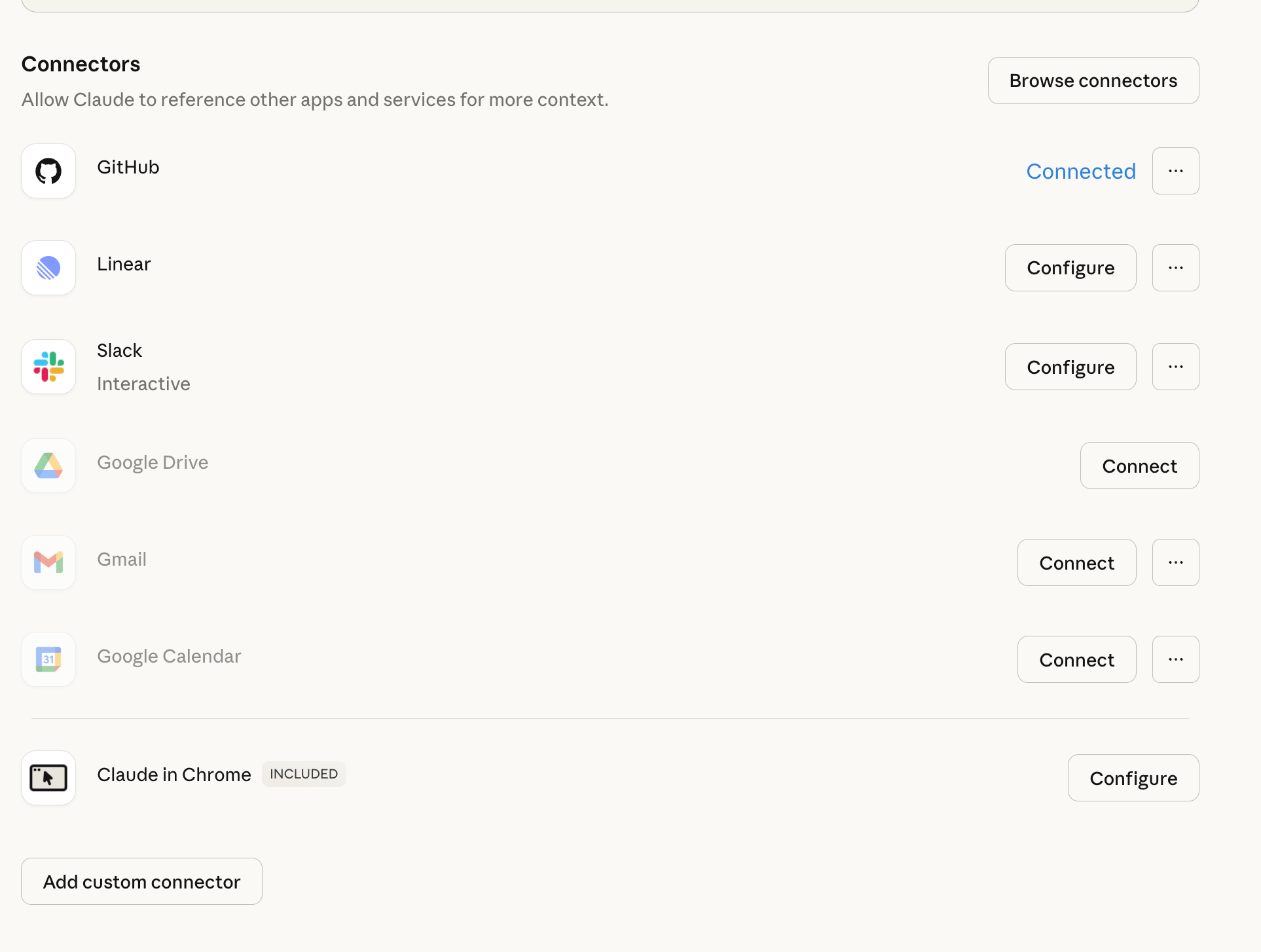
    Click **Add custom connector**.

    <Frame>
      <img src="https://mintcdn.com/spur/DdejEY4td9WuU60C/images/MCP/claude_ai_2.png?fit=max&auto=format&n=DdejEY4td9WuU60C&q=85&s=042c1bce23e5b718f5b9cd8f426633f6" alt="Add custom connector button" width="1926" height="1454" data-path="images/MCP/claude_ai_2.png" />
    </Frame>
  </Step>

  <Step title="Enter the server URL">
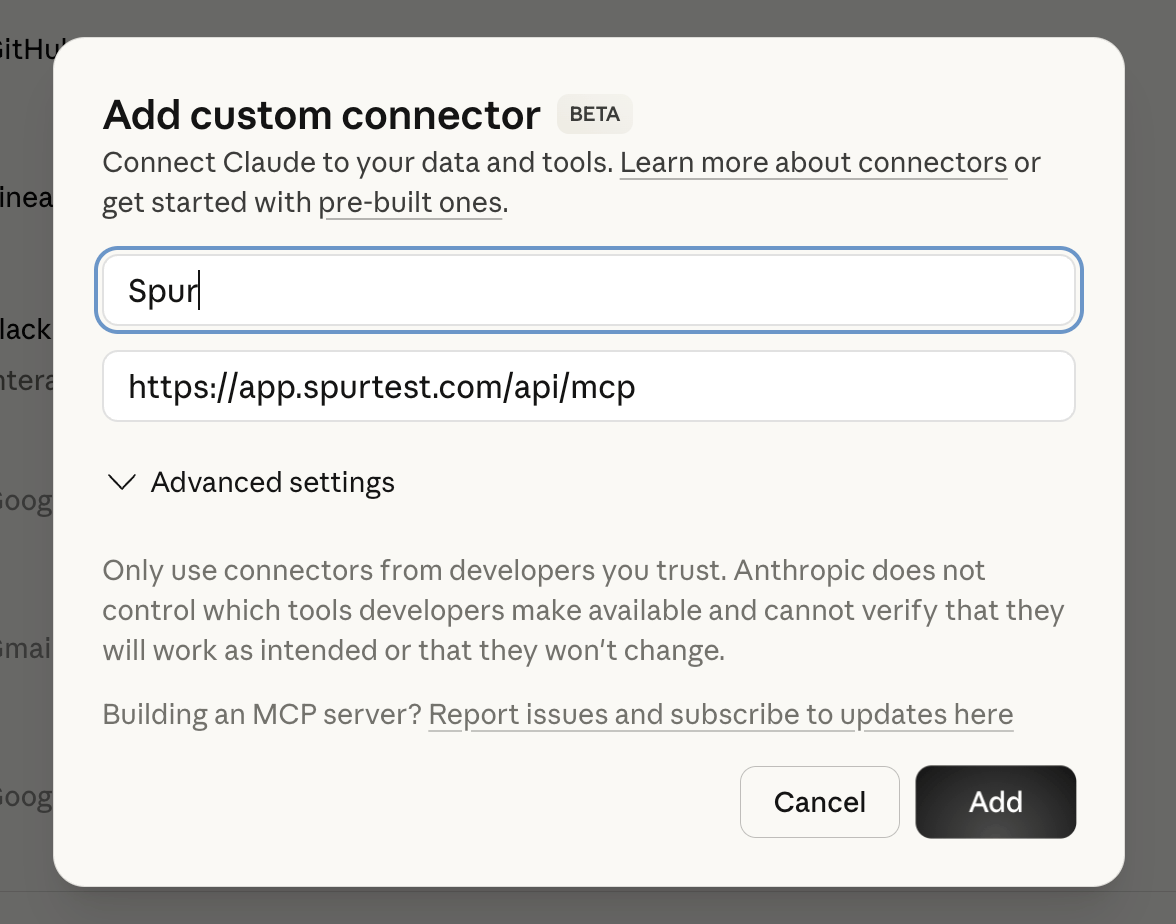
    Set the URL to `https://app.spurtest.com/api/mcp`.
    <Frame>
      <img src="https://mintcdn.com/spur/DdejEY4td9WuU60C/images/MCP/claude_ai_3.png?fit=max&auto=format&n=DdejEY4td9WuU60C&q=85&s=e079e7fa234d381d58ce6ed68312a90c" alt="Add custom connector modal with Spur MCP URL" width="1176" height="924" data-path="images/MCP/claude_ai_3.png" />
    </Frame>
  </Step>

  <Step title="Authenticate">
    Complete the OAuth authorization flow. Your browser will open to authorize access to your Spur account.
  </Step>
</Steps>

## GitHub Copilot in VS Code

<Steps>
  <Step title="Open the MCP Server section">
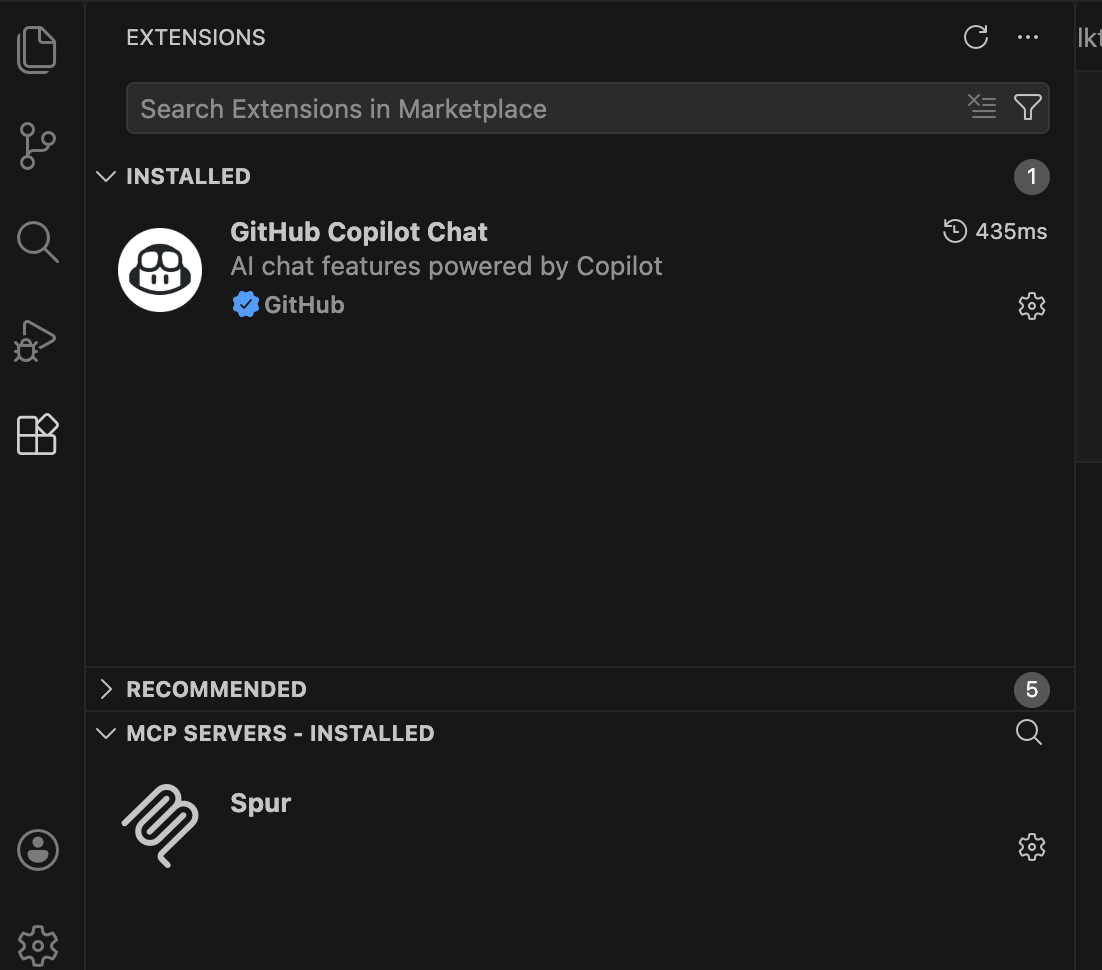
    Make sure the GitHub Copilot extension is installed. Open the Copilot panel and navigate to the **MCP Servers** section.
    <Frame>
      <img src="https://mintcdn.com/spur/oI82TdvscqBOcWNC/images/MCP/copilot_1.png?fit=max&auto=format&n=oI82TdvscqBOcWNC&q=85&s=80ed16996e517716ea7b7cc4cd65d4d2" alt="GitHub Copilot extension with MCP Server section" width="1102" height="970" data-path="images/MCP/copilot_1.png" />
    </Frame>
  </Step>

  <Step title="Add a new server">
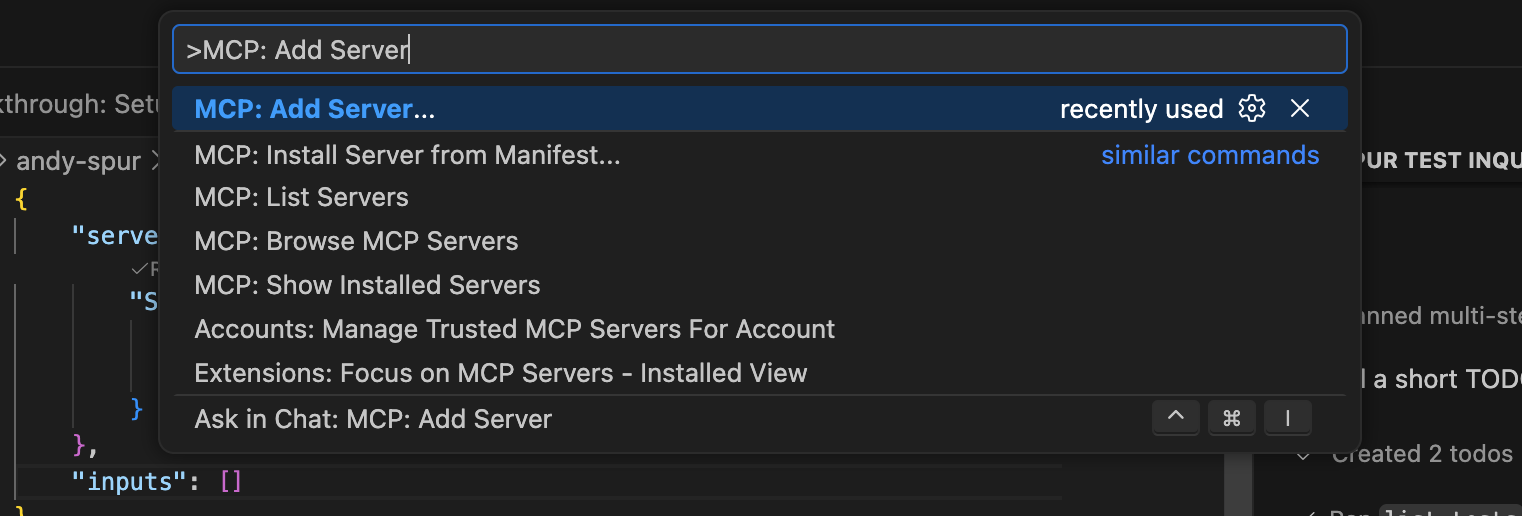
    Open the Command Palette (`Cmd+Shift+P` on Mac, `Ctrl+Shift+P` on Windows/Linux) and type **MCP: Add Server**.
    <Frame>
      <img src="https://mintcdn.com/spur/oI82TdvscqBOcWNC/images/MCP/copilot_2.png?fit=max&auto=format&n=oI82TdvscqBOcWNC&q=85&s=4bde4e2b18cb74577cff707aaff985f6" alt="MCP: Add Server in the Command Palette" width="1522" height="516" data-path="images/MCP/copilot_2.png" />
    </Frame>
  </Step>

  <Step title="Select HTTP transport">
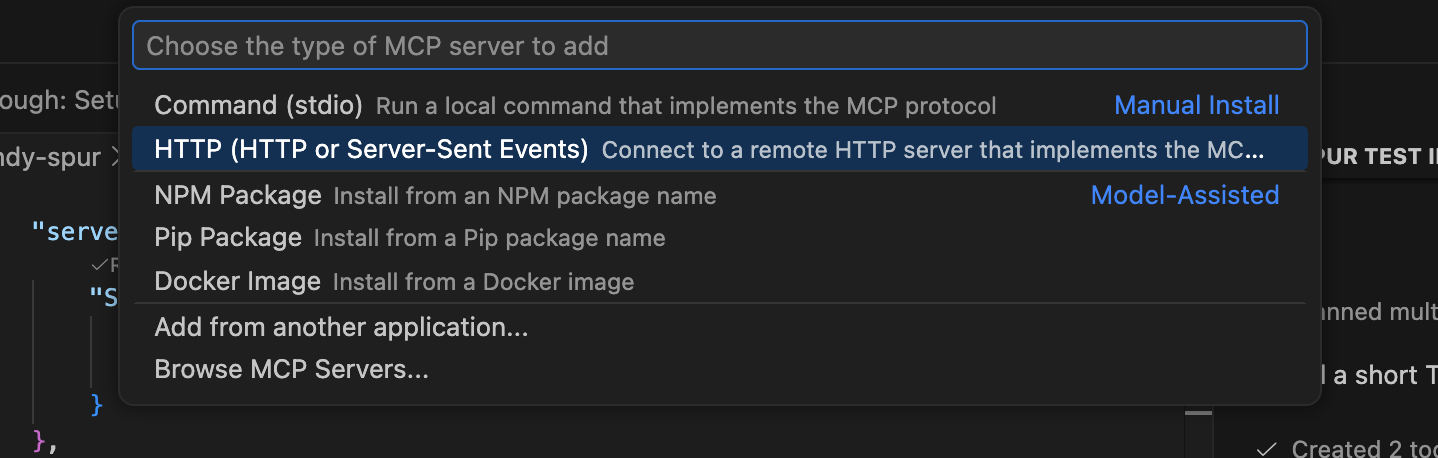
    Choose **HTTP (HTTP or Server-Sent Events)**.
    <Frame>
      <img src="https://mintcdn.com/spur/oI82TdvscqBOcWNC/images/MCP/copilot_3.png?fit=max&auto=format&n=oI82TdvscqBOcWNC&q=85&s=1aedbb81a735f170d2f3f0c8e3731148" alt="Selecting HTTP transport type" width="1438" height="458" data-path="images/MCP/copilot_3.png" />
    </Frame>
  </Step>

  <Step title="Enter the server URL">
    Set the URL to `https://app.spurtest.com/api/mcp`.

    <Frame>
      <img src="https://mintcdn.com/spur/oI82TdvscqBOcWNC/images/MCP/copilot_4.png?fit=max&auto=format&n=oI82TdvscqBOcWNC&q=85&s=2772b0178f2e54e307cb8553d1315e71" alt="Entering the Spur MCP server URL" width="1400" height="258" data-path="images/MCP/copilot_4.png" />
    </Frame>
  </Step>

  <Step title="Name the server">
    Enter a server name — **Spur** is recommended.

    <Frame>
      <img src="https://mintcdn.com/spur/oI82TdvscqBOcWNC/images/MCP/copilot_5.png?fit=max&auto=format&n=oI82TdvscqBOcWNC&q=85&s=3b6684aae24276c01551c8f8799d26b8" alt="Naming the MCP server" width="1438" height="252" data-path="images/MCP/copilot_5.png" />
    </Frame>
  </Step>

  <Step title="Authenticate">
    Complete the OAuth authorization flow. Your browser will open to authorize access to your Spur account.
  </Step>
</Steps>

## ChatGPT

<Steps>
  <Step title="Open settings">
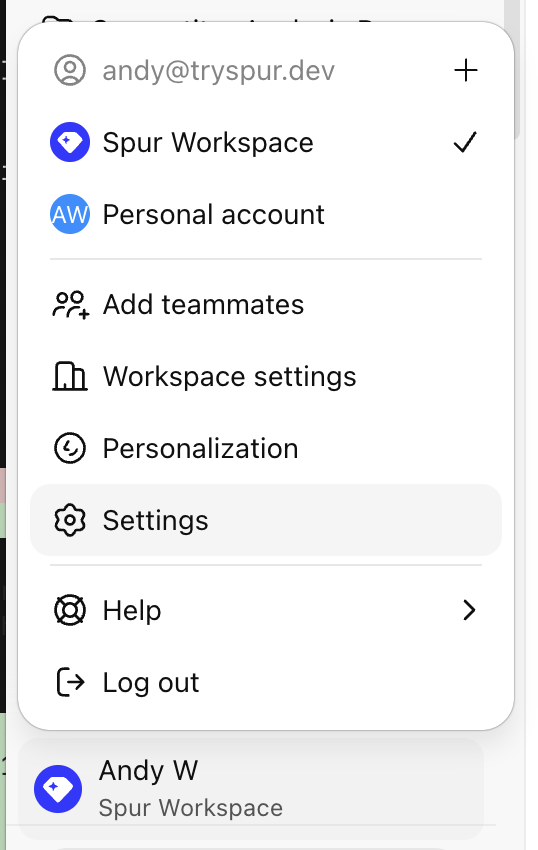
    Choose **Settings** from the drop-down menu.
    <Frame>
      <img src="https://mintcdn.com/spur/310-MD6x9ZuCaKOy/images/MCP/mcp_gpt_1.png?fit=max&auto=format&n=310-MD6x9ZuCaKOy&q=85&s=3eabeaace639d307c6c60ba4bf4b1c2d" alt="Open the ChatGPT settings menu" width="538" height="850" data-path="images/MCP/mcp_gpt_1.png" />
    </Frame>
  </Step>

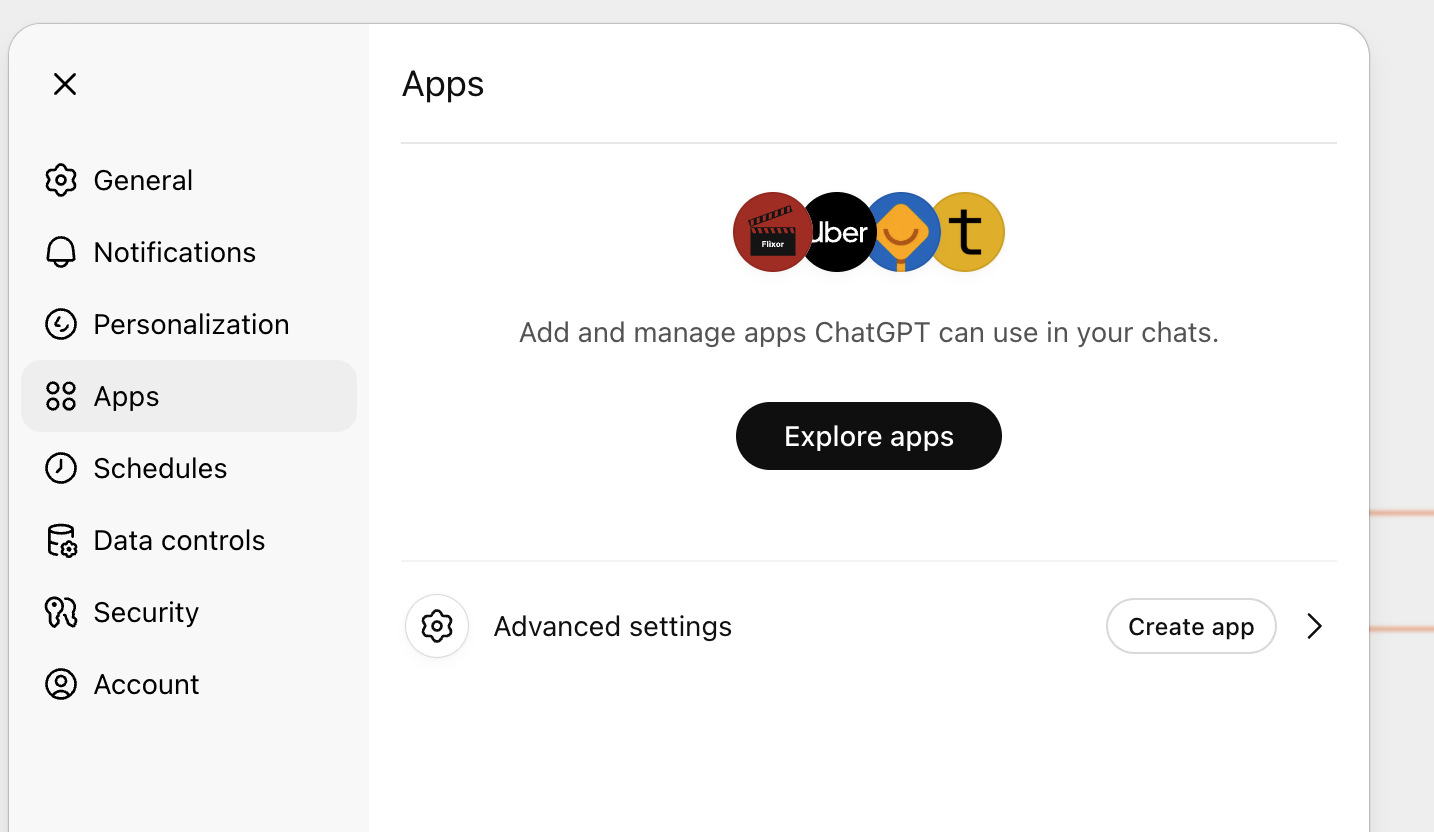
  <Step title="Navigate to Advanced Settings">
    Click **Advanced Settings** under the **Apps** tab.
    <Frame>
      <img src="https://mintcdn.com/spur/310-MD6x9ZuCaKOy/images/MCP/mcp_gpt_2.png?fit=max&auto=format&n=310-MD6x9ZuCaKOy&q=85&s=531a1471148821426cdfd7bbff17966a" alt="Advanced Settings under the Apps tab" width="1434" height="832" data-path="images/MCP/mcp_gpt_2.png" />
    </Frame>
  </Step>

  <Step title="Enable developer mode">
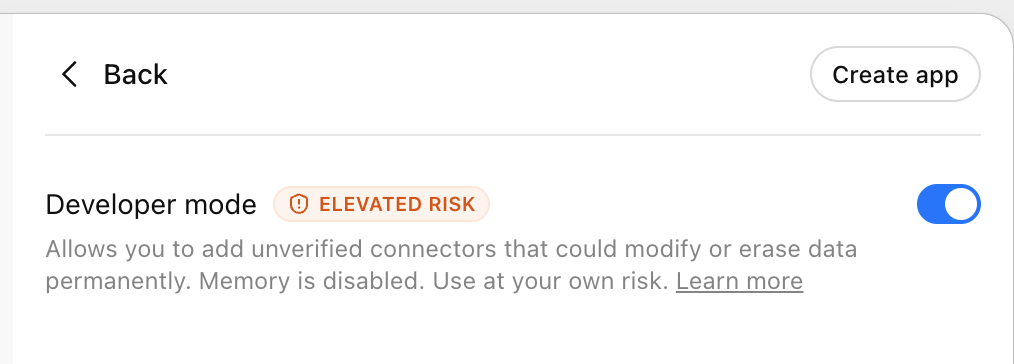
    Toggle **Developer mode** on.

    <Frame>
      <img src="https://mintcdn.com/spur/310-MD6x9ZuCaKOy/images/MCP/mcp_gpt_3.png?fit=max&auto=format&n=310-MD6x9ZuCaKOy&q=85&s=feb40dcd3fc3c22e7dd1366c2d9e8b76" alt="Enable developer mode" width="1014" height="364" data-path="images/MCP/mcp_gpt_3.png" />
    </Frame>
  </Step>

  <Step title="Create a new app">
    Click **Create app**.

    <Frame>
      <img src="https://mintcdn.com/spur/310-MD6x9ZuCaKOy/images/MCP/mcp_gpt_4.png?fit=max&auto=format&n=310-MD6x9ZuCaKOy&q=85&s=0a9d770fb28275d8d34cefdda27f1dc5" alt="Create a new app" width="982" height="186" data-path="images/MCP/mcp_gpt_4.png" />
    </Frame>
  </Step>

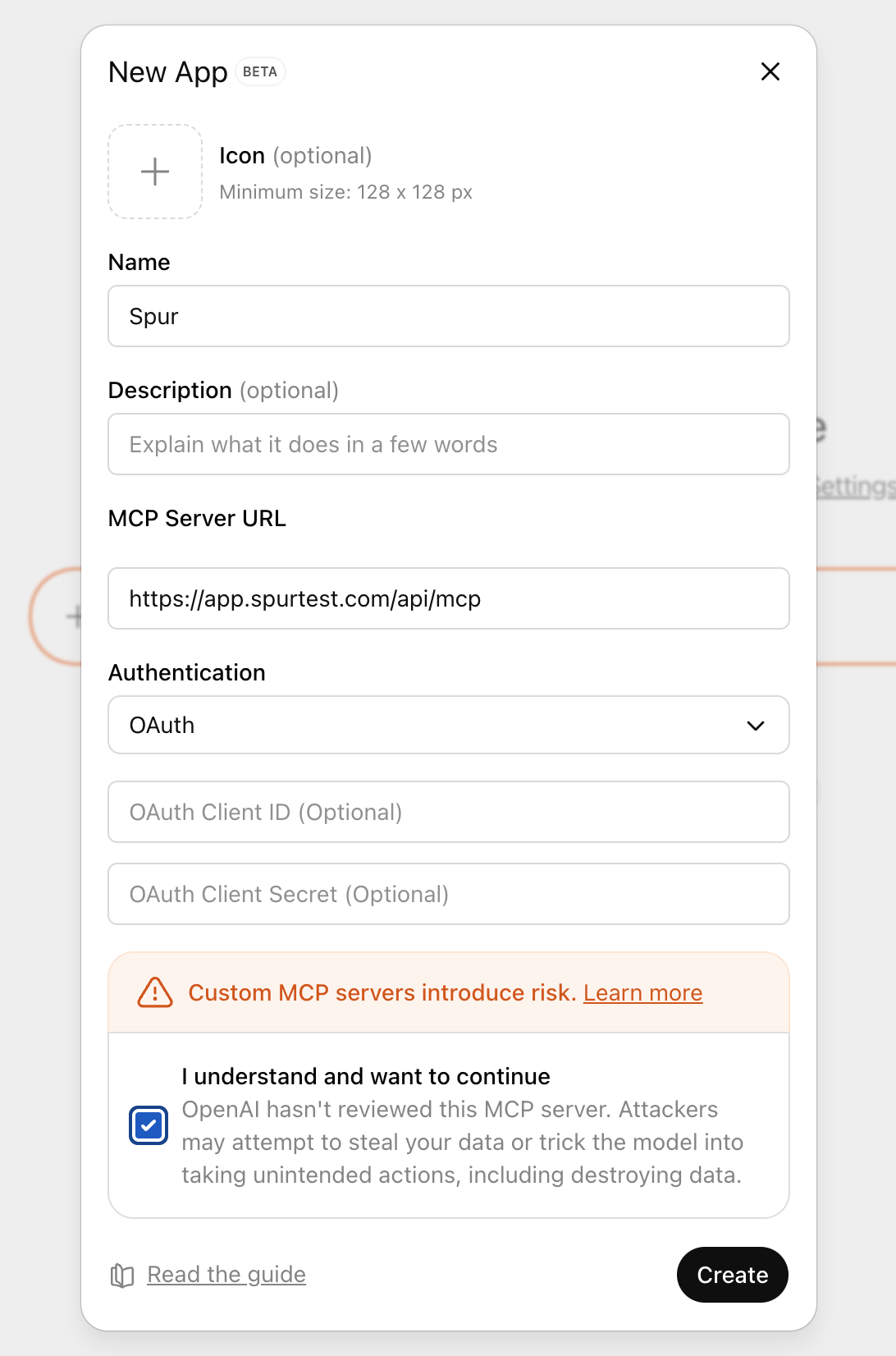
  <Step title="Enter the MCP URL">
    Set the URL to `https://app.spurtest.com/api/mcp`.
    <Frame>
      <img src="https://mintcdn.com/spur/310-MD6x9ZuCaKOy/images/MCP/mcp_gpt_5.png?fit=max&auto=format&n=310-MD6x9ZuCaKOy&q=85&s=da840544ce5ed2ffc4b00bf86b49bacf" alt="Enter the Spur MCP URL" width="1092" height="1652" data-path="images/MCP/mcp_gpt_5.png" />
    </Frame>
  </Step>

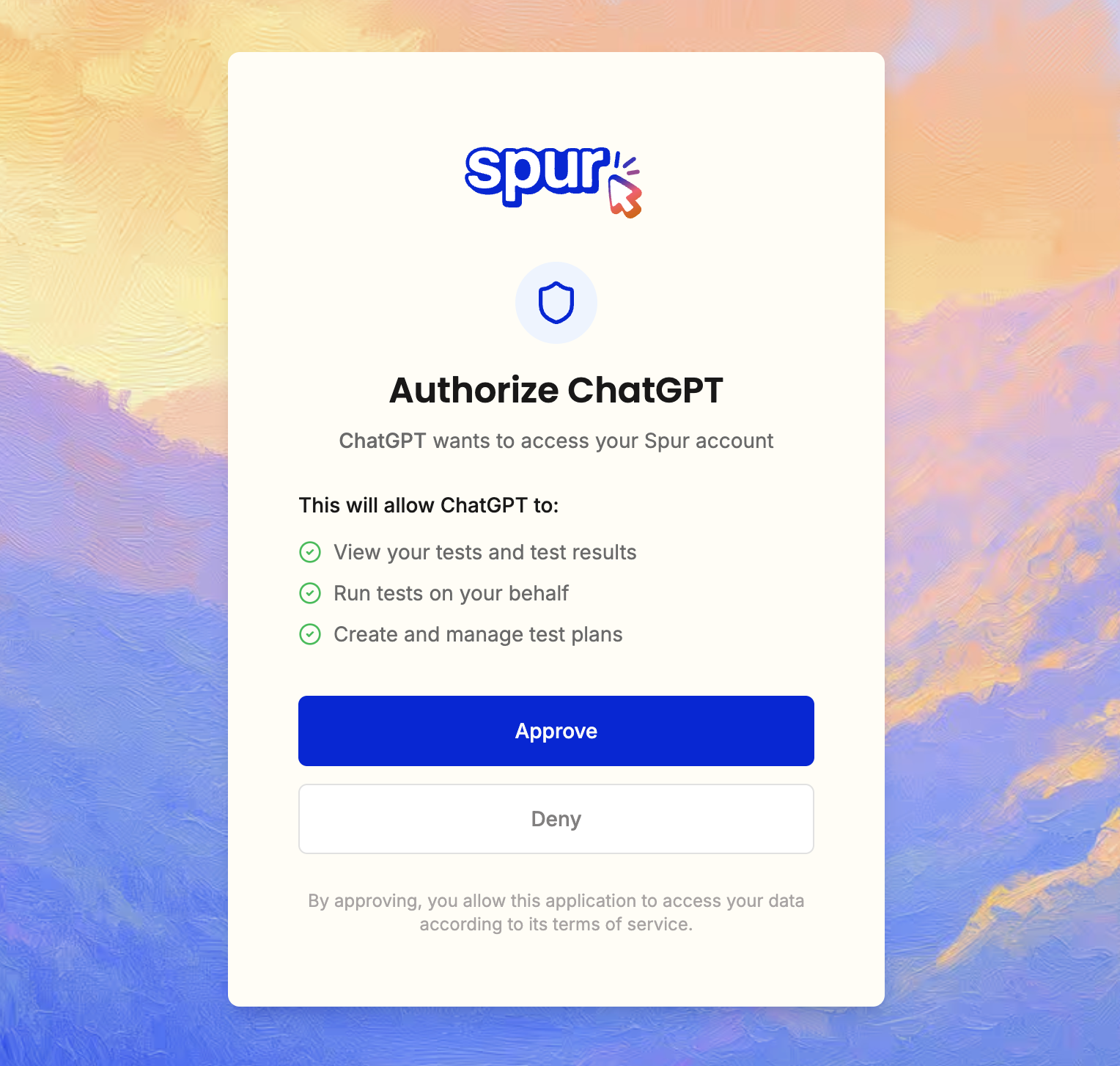
  <Step title="Authorize the Spur app">
    Complete the OAuth authorization flow.
    <Frame>
      <img src="https://mintcdn.com/spur/310-MD6x9ZuCaKOy/images/MCP/mcp_gpt_6.png?fit=max&auto=format&n=310-MD6x9ZuCaKOy&q=85&s=6a2ac339348defdd11626dfc670f2c65" alt="Authorize the Spur app" width="1528" height="1454" data-path="images/MCP/mcp_gpt_6.png" />
    </Frame>
  </Step>

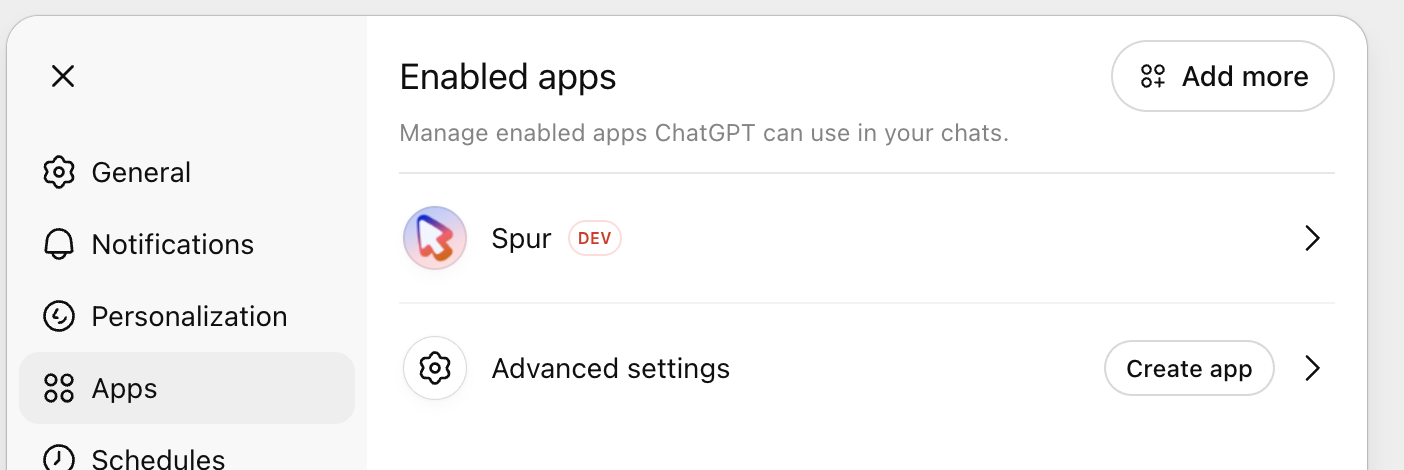
  <Step title="Confirm the new app">
    Verify the app was created successfully.
    <Frame>
      <img src="https://mintcdn.com/spur/310-MD6x9ZuCaKOy/images/MCP/mcp_gpt_7.png?fit=max&auto=format&n=310-MD6x9ZuCaKOy&q=85&s=9a87d395355f6514b87b4be68f735fab" alt="Confirm the new app" width="1404" height="470" data-path="images/MCP/mcp_gpt_7.png" />
    </Frame>
  </Step>

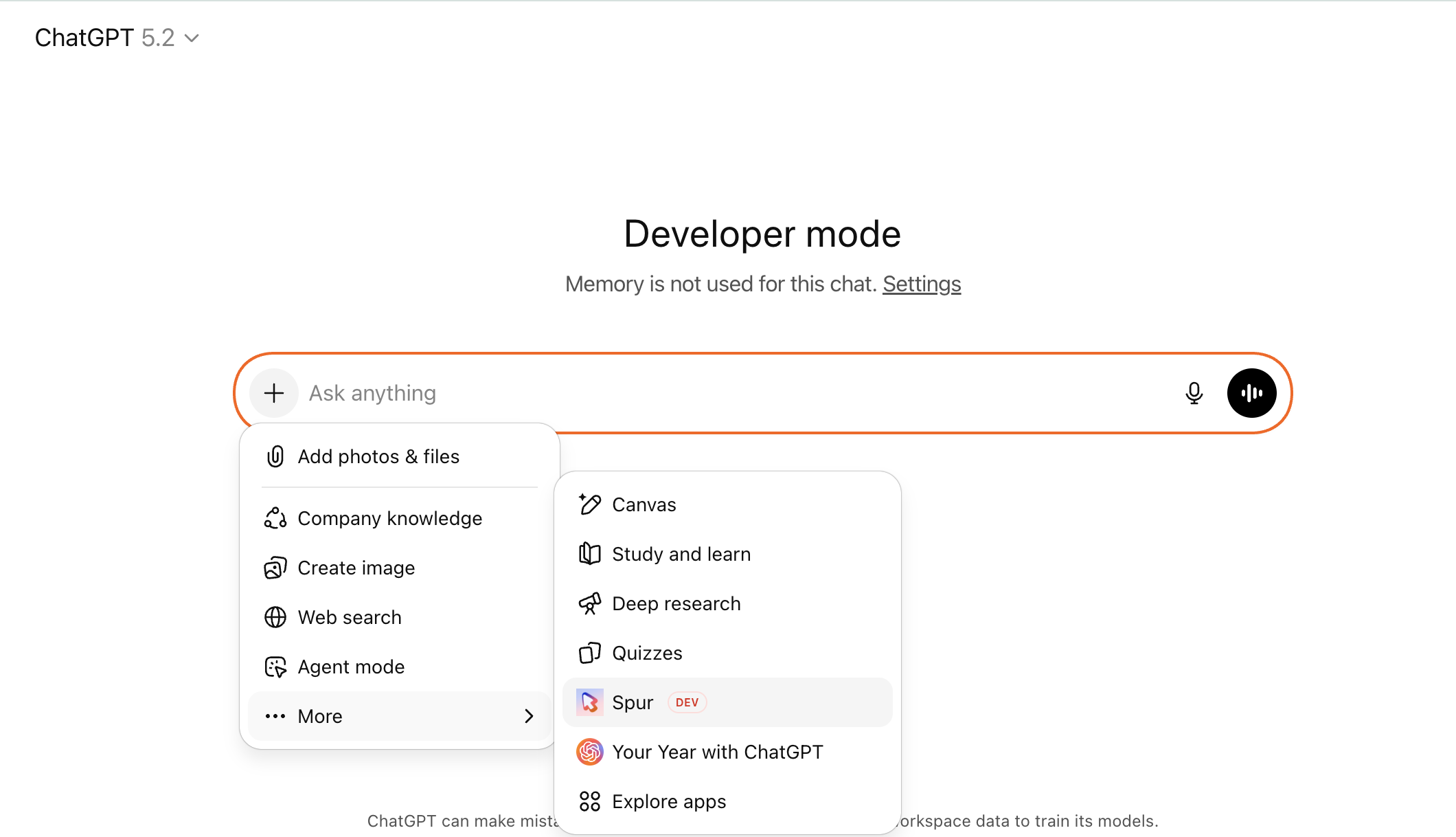
  <Step title="Choose Spur in Connectors">
    Select **Spur** from the Connectors list.
    <Frame>
      <img src="https://mintcdn.com/spur/310-MD6x9ZuCaKOy/images/MCP/mcp_gpt_8.png?fit=max&auto=format&n=310-MD6x9ZuCaKOy&q=85&s=49351233599e568a8122f65018105c15" alt="Choose Spur in the Connectors list" width="2120" height="1218" data-path="images/MCP/mcp_gpt_8.png" />
    </Frame>
  </Step>

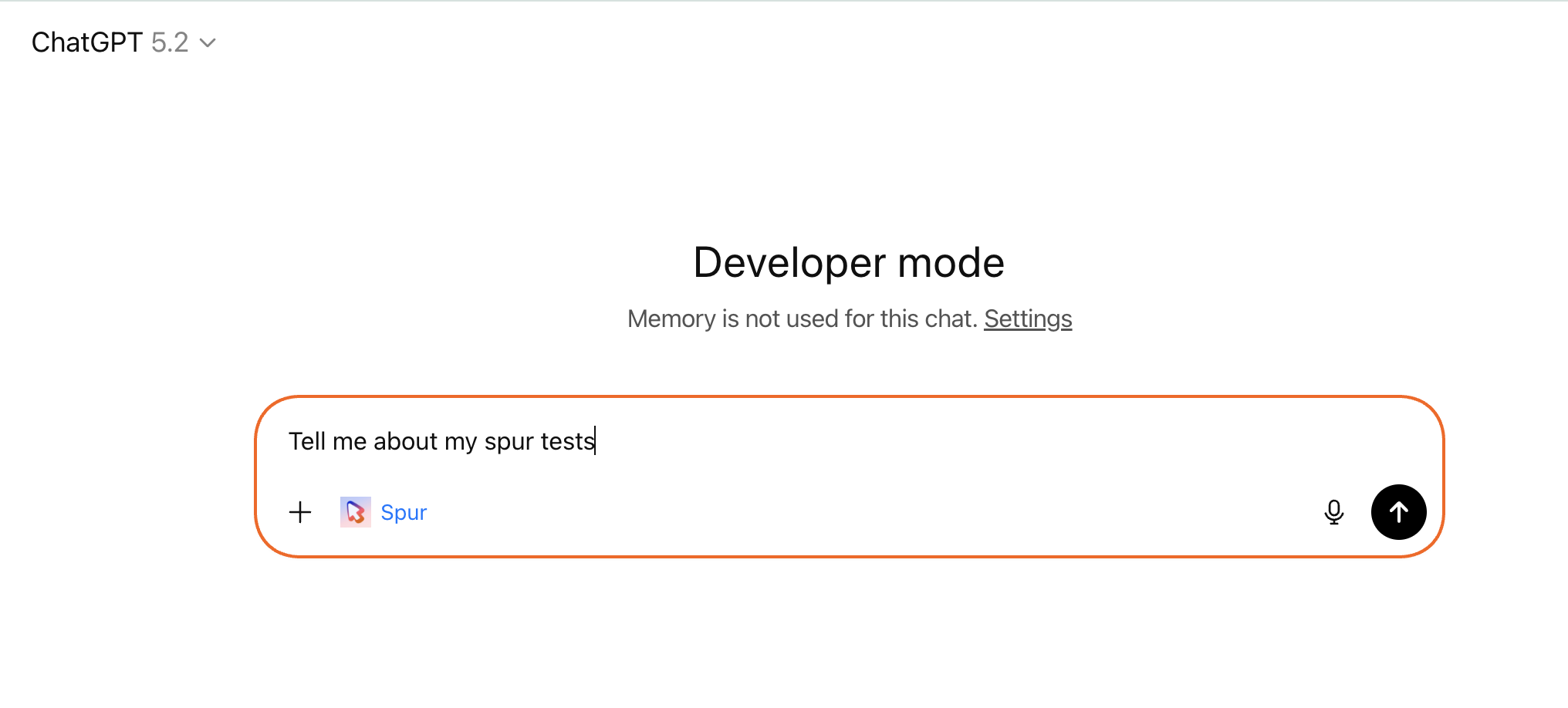
  <Step title="Start prompting">
    You're all set — start using Spur through ChatGPT.
    <Frame>
      <img src="https://mintcdn.com/spur/310-MD6x9ZuCaKOy/images/MCP/mcp_gpt_9.png?fit=max&auto=format&n=310-MD6x9ZuCaKOy&q=85&s=e0374df08029782eb1f74656dfe48fbc" alt="Prompting ChatGPT with Spur" width="2032" height="918" data-path="images/MCP/mcp_gpt_9.png" />
    </Frame>
  </Step>
</Steps>