> ## Documentation Index
> Fetch the complete documentation index at: https://docs.spurtest.com/llms.txt
> Use this file to discover all available pages before exploring further.
# Spur MCP Integration
MCP (Model Context Protocol) is a way to give your AI assistants and agents access to external tools and data — so they can take actions on your behalf, not just answer questions. With Spur's MCP server, your AI assistant can run tests, analyze results, and help you debug failures — all without leaving your editor.
 ## Common Workflows
*"Run any tests I have for checkout"*
The agent finds matching tests and lets you run them directly from the conversation.
[See this in action](/analysing-tests/mcp/spur-mcp-discover-tests)
*"What went wrong in this run?"*
The agent reviews step results, console logs, and screenshots to surface the root cause.
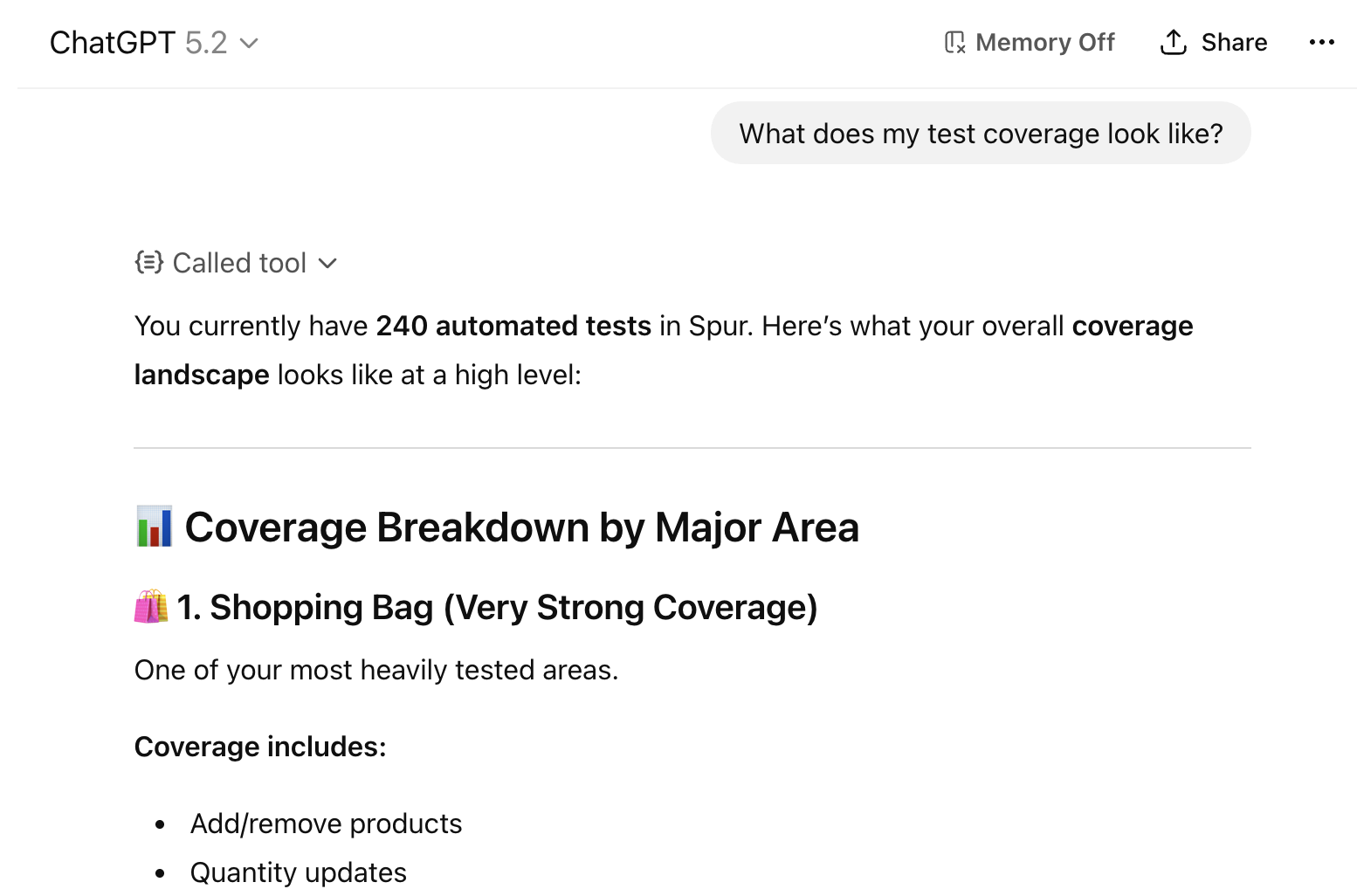
*"What is missing from my checkout flow test coverage?"*
Your agent is provided with information about all your tests across suites and environments to identify gaps.
*"Help me fix the bug from this failed test"*
The agent pulls failure details, logs, and context to help you resolve issues in your code.
[See this in action](/analysing-tests/mcp/spur-mcp-fix-bugs)
*"Generate and save tests for this PR"*
The agent analyzes your code, generates test steps, and creates them directly in Spur via `create_test` — no manual copy-paste required.
[See this in action](/analysing-tests/mcp/spur-mcp-in-sprint-testing)
*"Run the regression suite and tell me what failed"*
The agent triggers a full test plan run, then walks through every failure with detailed context for each one.
[See this in action](/analysing-tests/mcp/spur-mcp-test-plans)
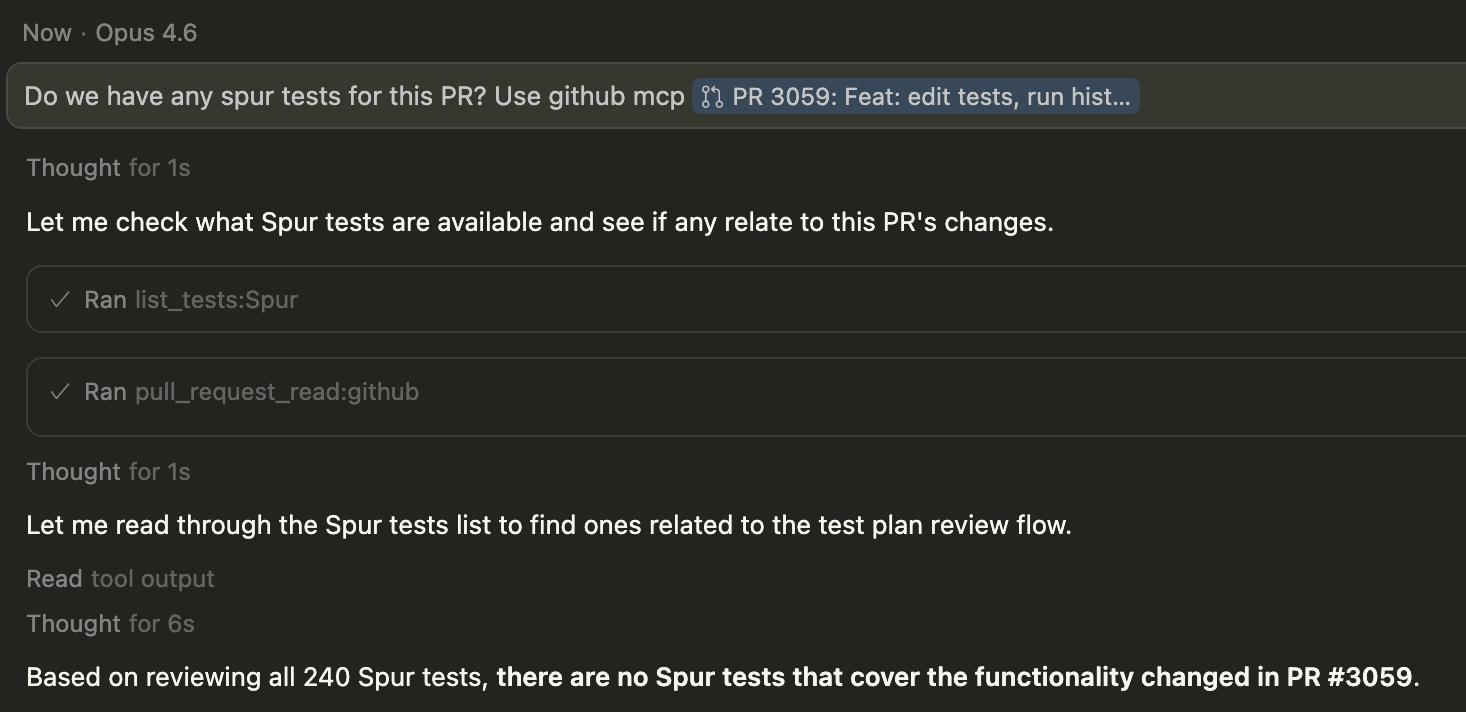
*"Run the Spur test that covers this Jira ticket and this GitHub PR"*
Connect other tools, providing additional context to optimize your testing. Let your AI agent decide what to test.
[See this in action](/analysing-tests/mcp/spur-mcp-connecting-other-mcps)
*"Here's PR #247 — generate test cases for the search modal changes"*
Use Claude Code with your codebase context to generate, run, and iterate on tests directly from PRs and tickets — all within your sprint cycle.
## Available Tools
`list_tests` – Lists all tests in the active application with IDs, suites, URLs, and scenario table status. Accepts optional filters: `test_id` for full step-level detail (replaces the old `get_test_details`), `suite_id` to scope to a single suite, and `query` for a name search
`list_suites` – Lists all suites with their allowed environments, URL keys, and connected scenario table. Pass `suite_id` to also return every test in that suite
`list_scenarios` – Lists all scenario tables with columns and row names. Pass `table_name` to see the full cell values for every row — use this when you need actual data to build test steps or configure a test plan
`list_environments` – Lists all environments with type, validity status, and how many suites can use each one. Pass `env_name` to see every property and its configured value (URLs, headers, secrets, build references)
`list_test_plans` – Lists all test plans with suite counts, environments, and last run time. Pass `plan_id` to get the full editable configuration — required before calling `update_test_plan`
`create_test` – Creates and saves a new test to a suite. Requires a `suite_id`, `title`, `env_key_name`, and `steps`. Use `list_suites` first to discover valid values. The agent will show you a full summary and ask for approval before saving
`update_test` – Updates an existing test by `test_id`. Accepts any combination of `title`, `env_key_name`, and `steps`. Replaces all steps when `steps` is provided. The agent will show you what will change and ask for approval before saving
`add_scenario_rows` – Adds new rows to an existing scenario table. Provide the `table_name` (from `list_scenarios`) and an array of rows, each with a unique `name` and a `values` map of column name → value
`connect_scenario_table` – Connects or disconnects a scenario table from a suite. A suite can only have one scenario table at a time. Use `action: "connect"` or `"disconnect"` along with the `table_name` and `suite_id`
`run_tests` – Runs one or more tests in a single collection run, grouped by shared configuration. Specify `env_name` (environment name) along with optional `viewport`, `browser`, and `scenario_row_name`
`run_test_plan` – Triggers a full test plan run across all configured suites and environments
`get_test_run_overview` – **Start here.** Summarizes a run's status, step results, warnings, and failures
`get_test_run_details` – Deep dive into steps, sub-steps, configs, and artifacts. Use after the overview
`get_test_runs` – Lists the last 50 runs for a given test
`get_test_run_console_logs` – Browser console output and JavaScript errors (last 100 entries)
`get_test_run_network_logs` – HTTP requests and responses captured during the run (last 5 entries)
`get_test_run_screenshots` – Screenshots from the test execution for visual inspection
`list_test_plans` – Lists all test plans with their names, suites, environments, and last run time. Pass `plan_id` to get the full editable configuration needed for `update_test_plan`
`create_test_plan` – Creates a new test plan grouping suites and environments for coordinated execution. The agent will show you the full plan summary and ask for approval before saving
`update_test_plan` – Updates an existing test plan. Always call `list_test_plans` with `plan_id` first to get the current configuration — the new suites list replaces the existing one entirely
`get_test_plan_runs` – Returns recent run history for a test plan: timestamps, pass/fail counts, and run IDs
`get_test_plan_run_overview` – **Key triage tool.** Shows every test result in a plan run — failures first with failure reasons. Use `task_id` values from here to drill into individual failures with the run analysis tools
`applications` – Lists all applications on your account, or switches the active one. Omit `application_name` to list; provide it to switch. All subsequent tool calls will use the newly selected application
## How to Set Up
Get started with Cursor, Claude Code, GitHub Copilot in VS Code, or ChatGPT.
Authentication uses OAuth. When you connect for the first time, your browser will open to authorize access to your Spur account.
## Best Practices
* **Allow all tool calls except test execution and authoring**: Set your MCP client to auto-approve read-only Spur tool calls. Keep `run_tests`, `run_test_plan`, `create_test`, `update_test`, `create_test_plan`, `update_test_plan`, `add_scenario_rows`, and `connect_scenario_table` on manual approval — these tools write or trigger things on your behalf, so you should review what will happen before they proceed.
* **Model quality matters**: More capable models produce better results when choosing the right tools and interpreting test output. Smaller models may need more explicit guidance.
## Common Workflows
*"Run any tests I have for checkout"*
The agent finds matching tests and lets you run them directly from the conversation.
[See this in action](/analysing-tests/mcp/spur-mcp-discover-tests)
*"What went wrong in this run?"*
The agent reviews step results, console logs, and screenshots to surface the root cause.
*"What is missing from my checkout flow test coverage?"*
Your agent is provided with information about all your tests across suites and environments to identify gaps.
*"Help me fix the bug from this failed test"*
The agent pulls failure details, logs, and context to help you resolve issues in your code.
[See this in action](/analysing-tests/mcp/spur-mcp-fix-bugs)
*"Generate and save tests for this PR"*
The agent analyzes your code, generates test steps, and creates them directly in Spur via `create_test` — no manual copy-paste required.
[See this in action](/analysing-tests/mcp/spur-mcp-in-sprint-testing)
*"Run the regression suite and tell me what failed"*
The agent triggers a full test plan run, then walks through every failure with detailed context for each one.
[See this in action](/analysing-tests/mcp/spur-mcp-test-plans)
*"Run the Spur test that covers this Jira ticket and this GitHub PR"*
Connect other tools, providing additional context to optimize your testing. Let your AI agent decide what to test.
[See this in action](/analysing-tests/mcp/spur-mcp-connecting-other-mcps)
*"Here's PR #247 — generate test cases for the search modal changes"*
Use Claude Code with your codebase context to generate, run, and iterate on tests directly from PRs and tickets — all within your sprint cycle.
## Available Tools
`list_tests` – Lists all tests in the active application with IDs, suites, URLs, and scenario table status. Accepts optional filters: `test_id` for full step-level detail (replaces the old `get_test_details`), `suite_id` to scope to a single suite, and `query` for a name search
`list_suites` – Lists all suites with their allowed environments, URL keys, and connected scenario table. Pass `suite_id` to also return every test in that suite
`list_scenarios` – Lists all scenario tables with columns and row names. Pass `table_name` to see the full cell values for every row — use this when you need actual data to build test steps or configure a test plan
`list_environments` – Lists all environments with type, validity status, and how many suites can use each one. Pass `env_name` to see every property and its configured value (URLs, headers, secrets, build references)
`list_test_plans` – Lists all test plans with suite counts, environments, and last run time. Pass `plan_id` to get the full editable configuration — required before calling `update_test_plan`
`create_test` – Creates and saves a new test to a suite. Requires a `suite_id`, `title`, `env_key_name`, and `steps`. Use `list_suites` first to discover valid values. The agent will show you a full summary and ask for approval before saving
`update_test` – Updates an existing test by `test_id`. Accepts any combination of `title`, `env_key_name`, and `steps`. Replaces all steps when `steps` is provided. The agent will show you what will change and ask for approval before saving
`add_scenario_rows` – Adds new rows to an existing scenario table. Provide the `table_name` (from `list_scenarios`) and an array of rows, each with a unique `name` and a `values` map of column name → value
`connect_scenario_table` – Connects or disconnects a scenario table from a suite. A suite can only have one scenario table at a time. Use `action: "connect"` or `"disconnect"` along with the `table_name` and `suite_id`
`run_tests` – Runs one or more tests in a single collection run, grouped by shared configuration. Specify `env_name` (environment name) along with optional `viewport`, `browser`, and `scenario_row_name`
`run_test_plan` – Triggers a full test plan run across all configured suites and environments
`get_test_run_overview` – **Start here.** Summarizes a run's status, step results, warnings, and failures
`get_test_run_details` – Deep dive into steps, sub-steps, configs, and artifacts. Use after the overview
`get_test_runs` – Lists the last 50 runs for a given test
`get_test_run_console_logs` – Browser console output and JavaScript errors (last 100 entries)
`get_test_run_network_logs` – HTTP requests and responses captured during the run (last 5 entries)
`get_test_run_screenshots` – Screenshots from the test execution for visual inspection
`list_test_plans` – Lists all test plans with their names, suites, environments, and last run time. Pass `plan_id` to get the full editable configuration needed for `update_test_plan`
`create_test_plan` – Creates a new test plan grouping suites and environments for coordinated execution. The agent will show you the full plan summary and ask for approval before saving
`update_test_plan` – Updates an existing test plan. Always call `list_test_plans` with `plan_id` first to get the current configuration — the new suites list replaces the existing one entirely
`get_test_plan_runs` – Returns recent run history for a test plan: timestamps, pass/fail counts, and run IDs
`get_test_plan_run_overview` – **Key triage tool.** Shows every test result in a plan run — failures first with failure reasons. Use `task_id` values from here to drill into individual failures with the run analysis tools
`applications` – Lists all applications on your account, or switches the active one. Omit `application_name` to list; provide it to switch. All subsequent tool calls will use the newly selected application
## How to Set Up
Get started with Cursor, Claude Code, GitHub Copilot in VS Code, or ChatGPT.
Authentication uses OAuth. When you connect for the first time, your browser will open to authorize access to your Spur account.
## Best Practices
* **Allow all tool calls except test execution and authoring**: Set your MCP client to auto-approve read-only Spur tool calls. Keep `run_tests`, `run_test_plan`, `create_test`, `update_test`, `create_test_plan`, `update_test_plan`, `add_scenario_rows`, and `connect_scenario_table` on manual approval — these tools write or trigger things on your behalf, so you should review what will happen before they proceed.
* **Model quality matters**: More capable models produce better results when choosing the right tools and interpreting test output. Smaller models may need more explicit guidance.