> ## Documentation Index
> Fetch the complete documentation index at: https://docs.spurtest.com/llms.txt
> Use this file to discover all available pages before exploring further.
# Test Plan Review
> Walk through every failure and warning in a Test Plan run, triage each result, and take action — without leaving Spur.
After running a Test Plan, the Test Plan Review flow gives you a guided way to work through every failed test and every warning. You can triage each result, edit tests inline, create bug tickets, and pick up exactly where you left off across sessions.
## Starting a Review
Open a Test Plan run from the run history. At the top of the results page you'll see the **Test Review** progress bar, which shows the number of tests remaining to review. This count includes both failures and warnings.
Click **Start** to enter the review flow.
 ## The Review Interface
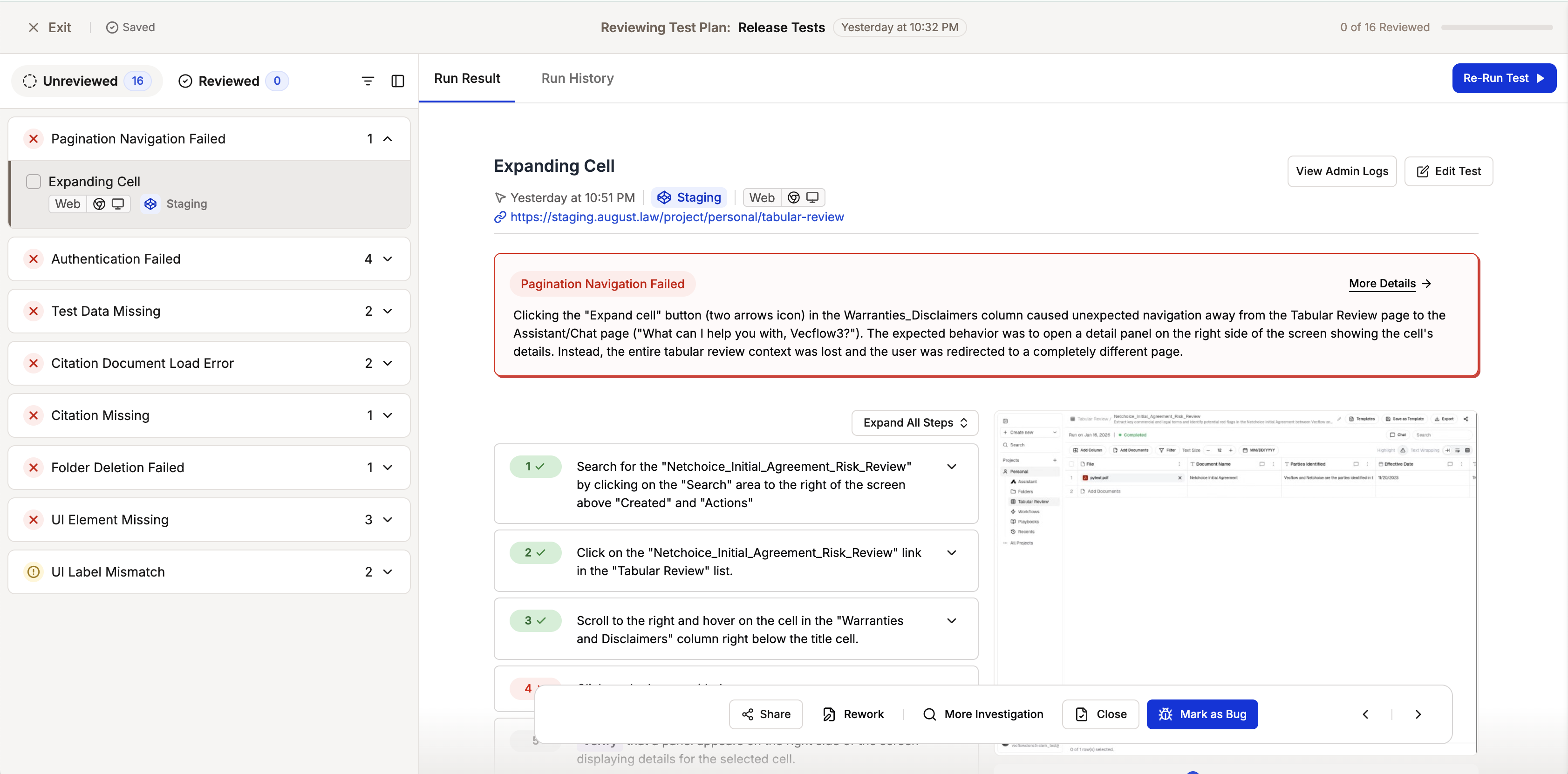
The review flow is split into two panels:
* **Left panel** — A list of all tests that failed or surfaced a warning in this run
* **Right panel** — Full details for the selected test: failure reason, steps, screenshots, video, and console and network logs
Work through tests one at a time. As you assign a status to each test, it moves to the **Reviewed** tab. The left panel updates automatically so you always know what's left.
## The Review Interface
The review flow is split into two panels:
* **Left panel** — A list of all tests that failed or surfaced a warning in this run
* **Right panel** — Full details for the selected test: failure reason, steps, screenshots, video, and console and network logs
Work through tests one at a time. As you assign a status to each test, it moves to the **Reviewed** tab. The left panel updates automatically so you always know what's left.
 ## Review Statuses
Each test can be assigned one of four statuses from the action bar at the bottom of the screen.
## Review Statuses
Each test can be assigned one of four statuses from the action bar at the bottom of the screen.
 **Bug**
Mark this when you have found a bug on your application.
**Closed**
Use this when the failure was expected or explained — for example, a deployment was in progress or the test environment was temporarily unavailable.
**Needs Rework**
Use this when the test steps themselves need to be updated. You can edit the test inline from within the review flow (see [Editing and rerunning tests](#editing-and-rerunning-tests) below).
**Needs Investigation**
Use this when you need more context before deciding — for example, you want to discuss the failure with a teammate before committing to a status.
The Reviewed tab groups tests into **Resolved** (Bug and Closed) and **Unresolved** (Needs Rework and Needs Investigation). Resolved tests are considered dealt with; Unresolved tests still require follow-up action.
## Editing and Rerunning Tests
You can fix a test and re-run it without leaving the review flow:
With a test selected in the right panel, click **Edit**. The test side peek opens so you can update the steps.
Click **Save and Run**. A confirmation modal appears before the run starts. Spur saves your changes and triggers a new run.
**Bug**
Mark this when you have found a bug on your application.
**Closed**
Use this when the failure was expected or explained — for example, a deployment was in progress or the test environment was temporarily unavailable.
**Needs Rework**
Use this when the test steps themselves need to be updated. You can edit the test inline from within the review flow (see [Editing and rerunning tests](#editing-and-rerunning-tests) below).
**Needs Investigation**
Use this when you need more context before deciding — for example, you want to discuss the failure with a teammate before committing to a status.
The Reviewed tab groups tests into **Resolved** (Bug and Closed) and **Unresolved** (Needs Rework and Needs Investigation). Resolved tests are considered dealt with; Unresolved tests still require follow-up action.
## Editing and Rerunning Tests
You can fix a test and re-run it without leaving the review flow:
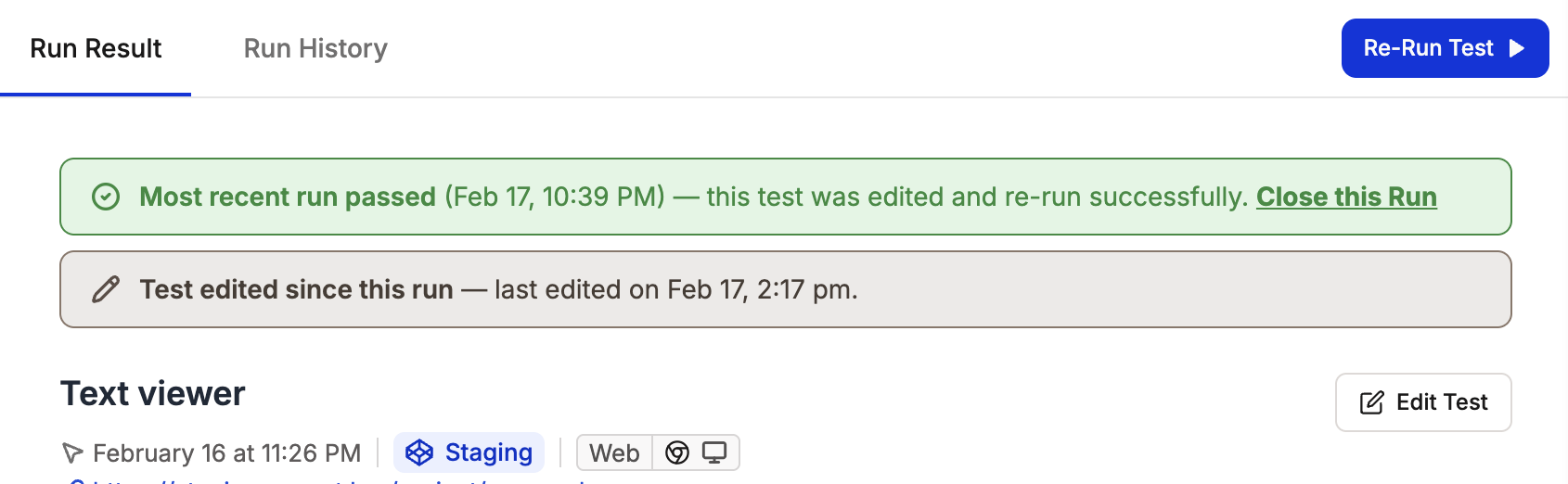
With a test selected in the right panel, click **Edit**. The test side peek opens so you can update the steps.
Click **Save and Run**. A confirmation modal appears before the run starts. Spur saves your changes and triggers a new run.
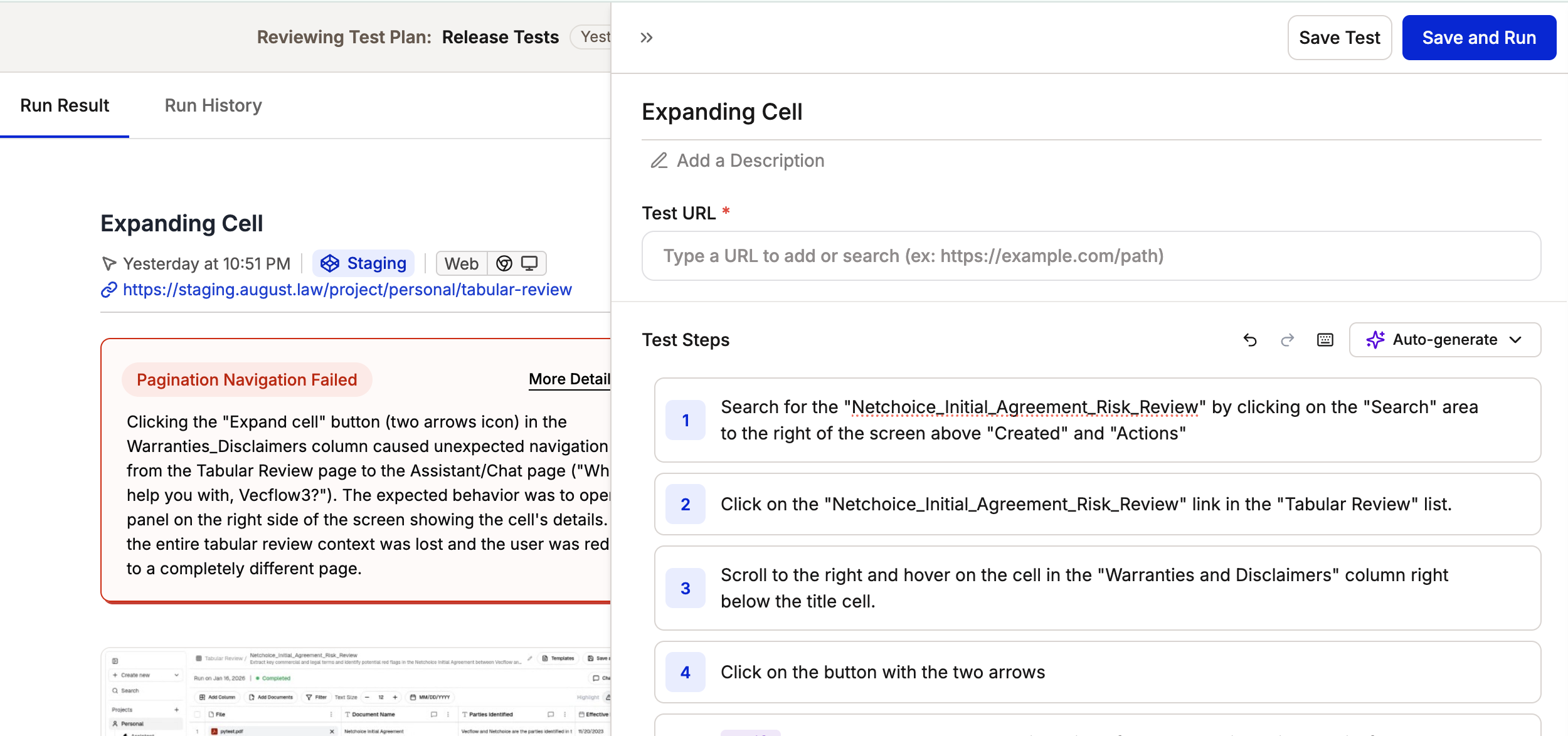 A banner appears at the top of the panel showing when the test was edited and the rerun status. Once the rerun finishes, you'll see whether it passed or failed — giving you more context to finalize the status.
 You can also open the **Run History** tab in the right panel to see all previous runs for the selected test in the same configuration (environment, browser, viewport).
## Creating Tickets
From within the review flow, you can file a Jira or Linear ticket for any test:
Click **Share** in the action bar at the bottom of the screen and select **Create a Ticket**.
Spur pre-populates the ticket with a failure reason, reproduction steps, test execution details, and a direct link to the test run. Edit any of these fields as needed.
Choose the project, priority, and assignee.
Click **Create Ticket**. The ticket identifier appears next to the test in the Reviewed tab, with a ticket icon to identify it at a glance.
Jira and Linear integrations must be connected before you can create tickets from the review flow. See the [Integrations guide](/analysing-tests/integrations/integrations) for setup.
## Saving Progress and Resuming
You don't have to finish a review in one session. Click **Exit** at any time — your progress is saved automatically.
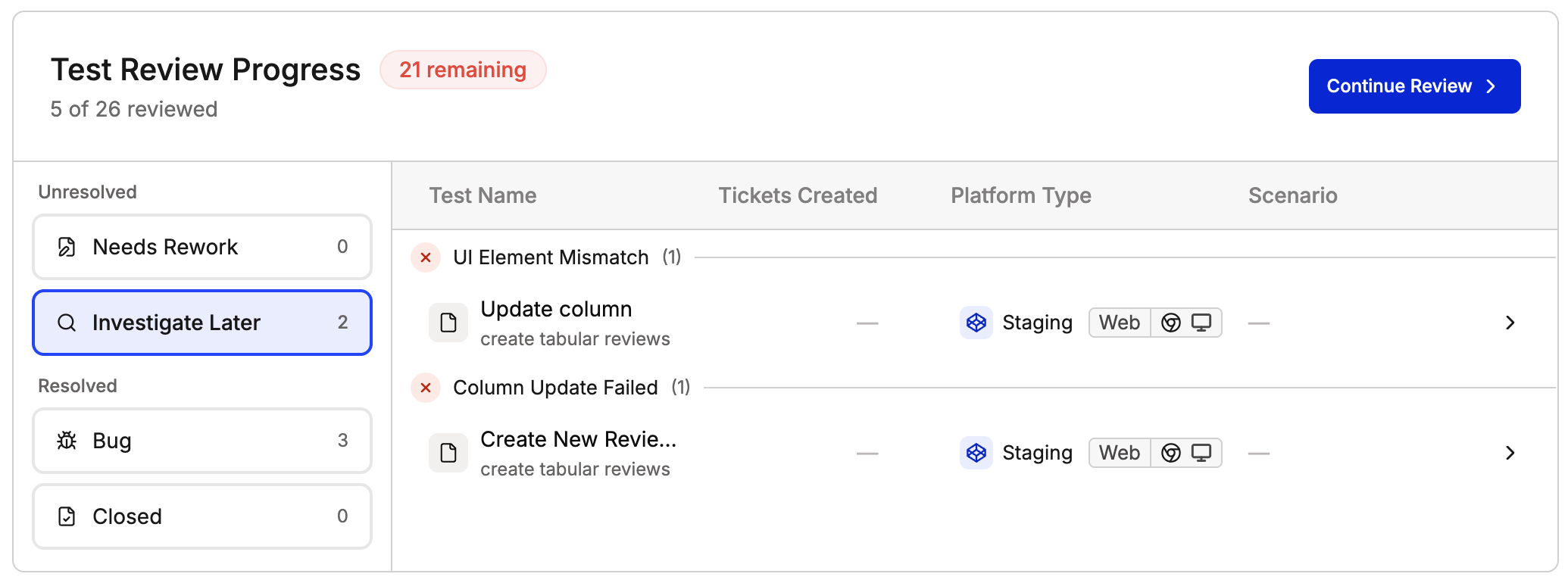
When you return to the Test Plan run page, the progress bar converts to a summary table showing all reviewed tests grouped by status. Tests with linked tickets show a ticket icon. You can re-enter the review flow from the summary to continue with the remaining tests.
You can also open the **Run History** tab in the right panel to see all previous runs for the selected test in the same configuration (environment, browser, viewport).
## Creating Tickets
From within the review flow, you can file a Jira or Linear ticket for any test:
Click **Share** in the action bar at the bottom of the screen and select **Create a Ticket**.
Spur pre-populates the ticket with a failure reason, reproduction steps, test execution details, and a direct link to the test run. Edit any of these fields as needed.
Choose the project, priority, and assignee.
Click **Create Ticket**. The ticket identifier appears next to the test in the Reviewed tab, with a ticket icon to identify it at a glance.
Jira and Linear integrations must be connected before you can create tickets from the review flow. See the [Integrations guide](/analysing-tests/integrations/integrations) for setup.
## Saving Progress and Resuming
You don't have to finish a review in one session. Click **Exit** at any time — your progress is saved automatically.
When you return to the Test Plan run page, the progress bar converts to a summary table showing all reviewed tests grouped by status. Tests with linked tickets show a ticket icon. You can re-enter the review flow from the summary to continue with the remaining tests.
 The goal of the review flow is to reach zero unreviewed tests: every failure and warning has been triaged so nothing slips through before a release.