> ## Documentation Index
> Fetch the complete documentation index at: https://docs.spurtest.com/llms.txt
> Use this file to discover all available pages before exploring further.
# Preview Editor
> The Preview Editor provides an interactive test authoring environment where you can write, execute and debug test steps in real-time.
## Overview
The **Preview Editor** combines test authoring with live execution feedback, allowing you to validate test steps as you write them.
The **Spursor (Spur Cursor) AI agent** executes your instructions in a live browser environment, providing immediate visibility into how your tests perform.
## Getting Started
Navigate to the test you want to edit and click **Open in Preview Editor**.
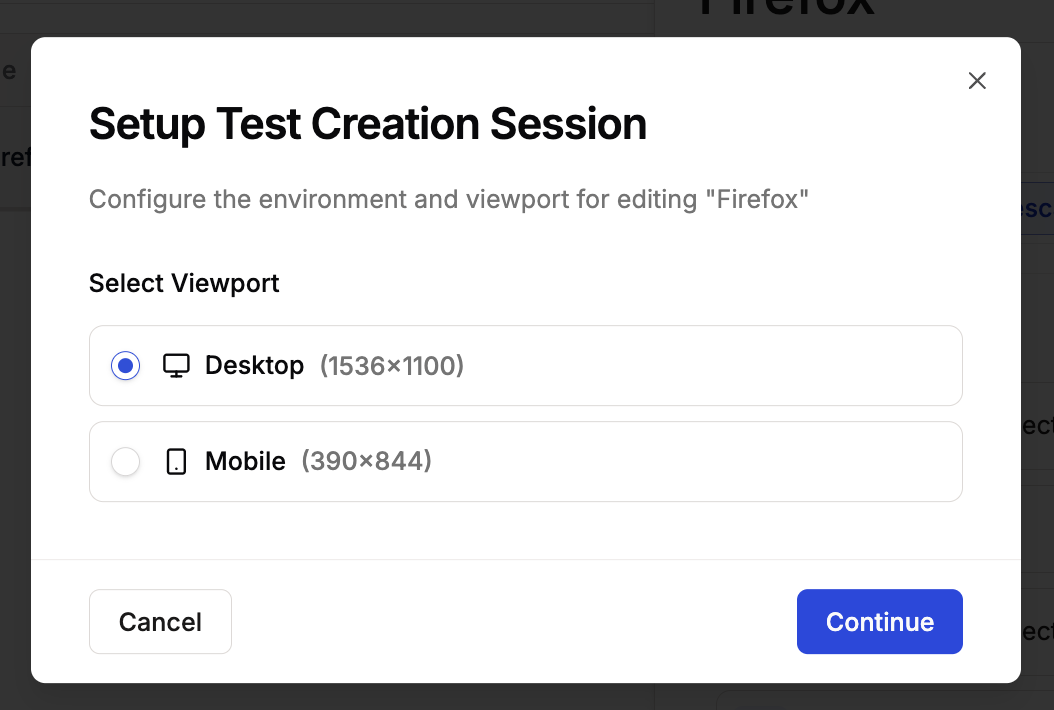
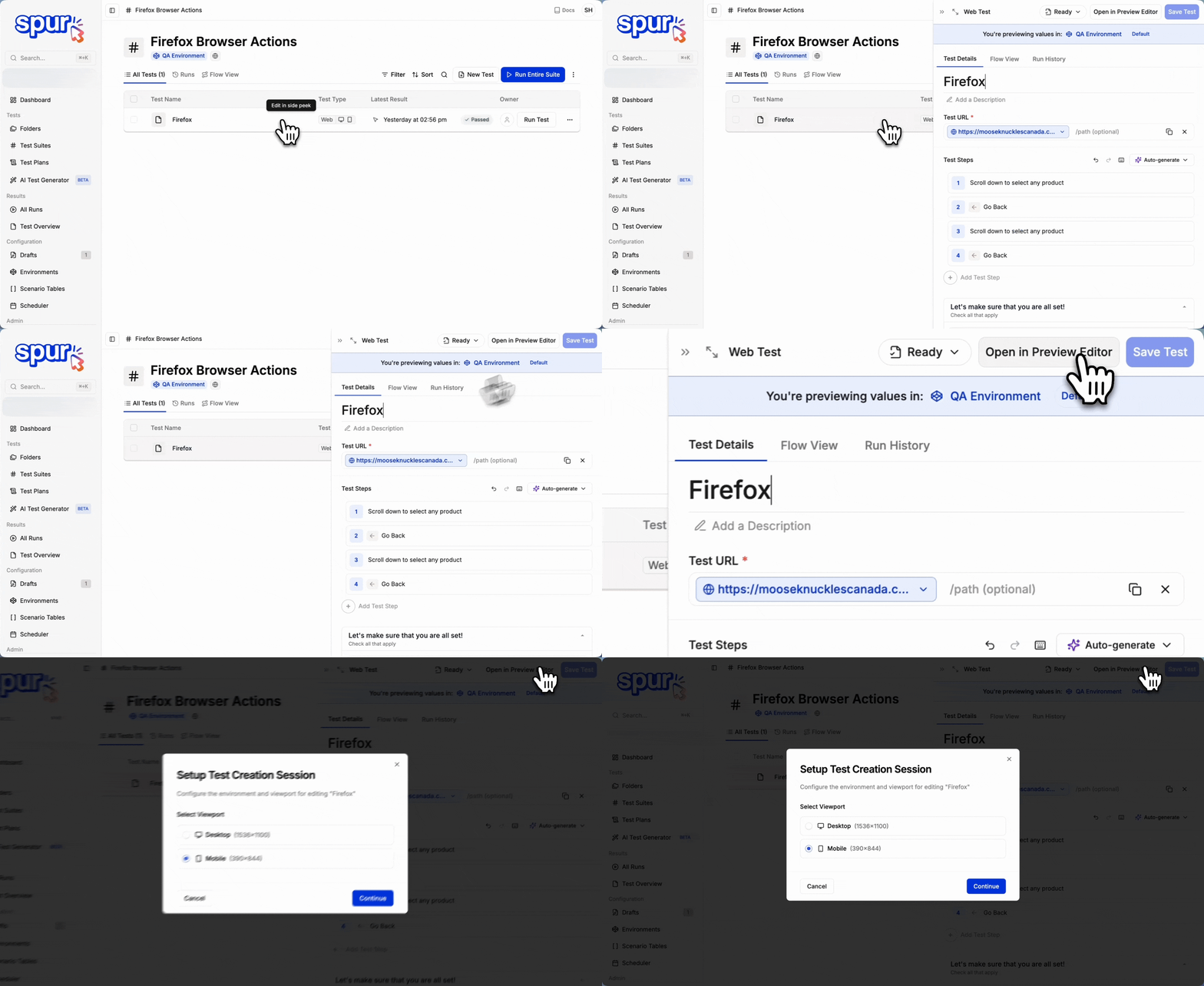 Select the viewport for your test session - either Desktop or Mobile. This determines the screen dimensions the Spursor agent will use during test execution.
You can reference the [Viewports](/authoring-tests/test-side-peek/viewports) for detailed information on viewport configurations.
Select the viewport for your test session - either Desktop or Mobile. This determines the screen dimensions the Spursor agent will use during test execution.
You can reference the [Viewports](/authoring-tests/test-side-peek/viewports) for detailed information on viewport configurations.
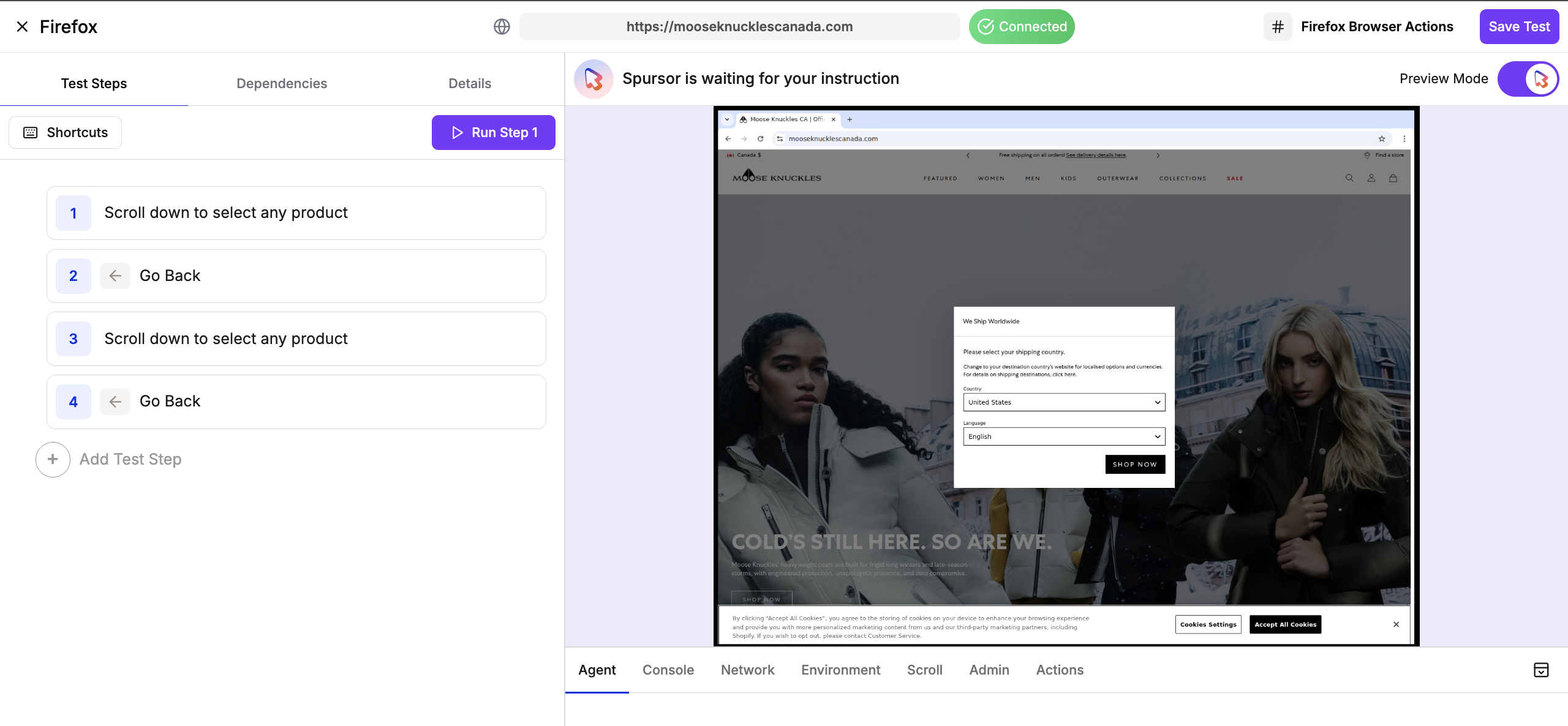
 The Preview Editor launches an interactive test authoring environment with multiple capabilities accessible through different tabs and panels.
 ## Navigating the Editing Environment
This section onsists of several key components that work together to provide comprehensive test authoring and debugging capabilities.
## Navigating the Editing Environment
This section onsists of several key components that work together to provide comprehensive test authoring and debugging capabilities.
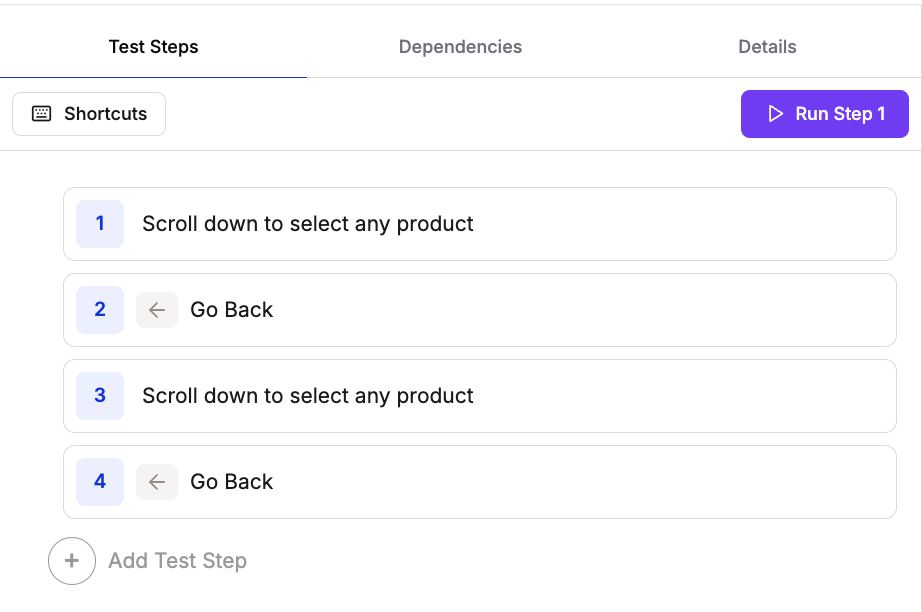
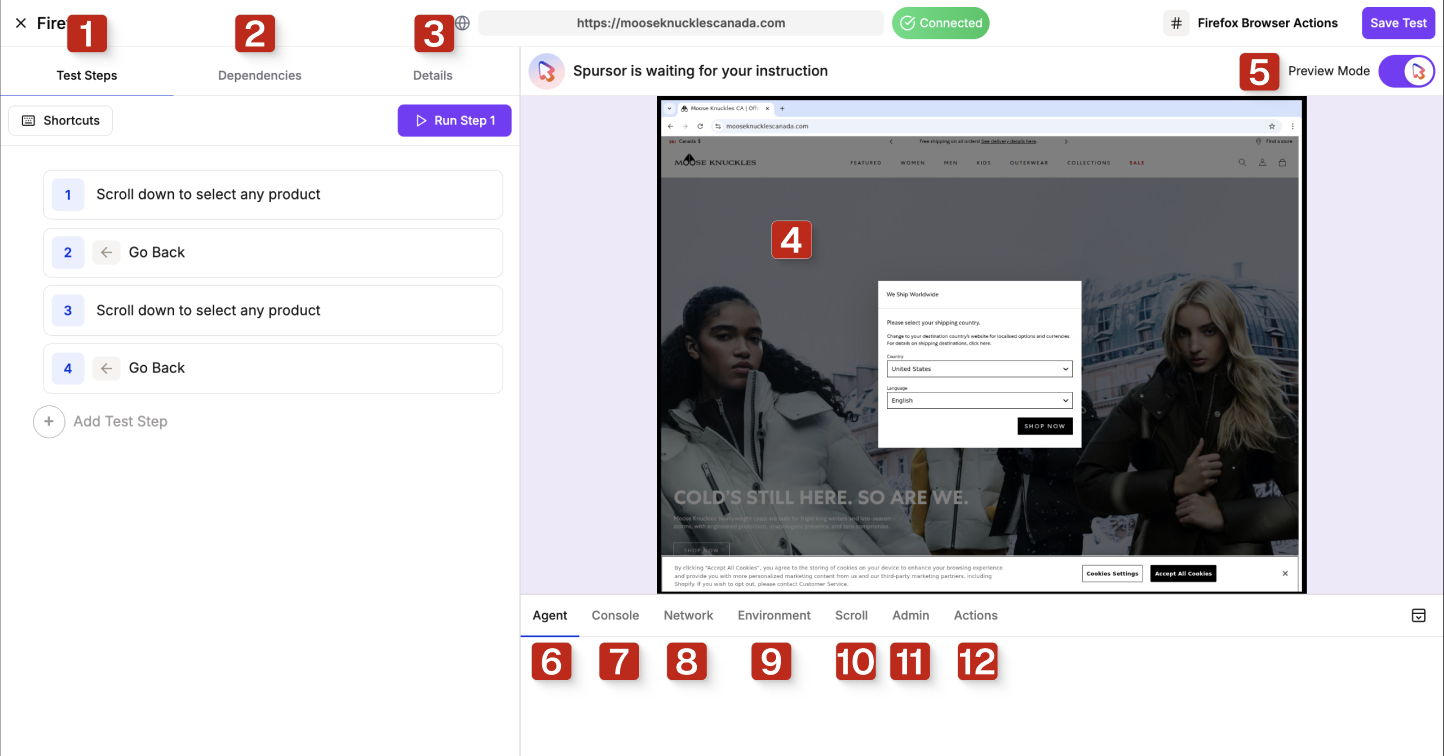 Write and execute test steps in the left panel. The editor supports adding, editing, and running individual steps or complete test sequences.
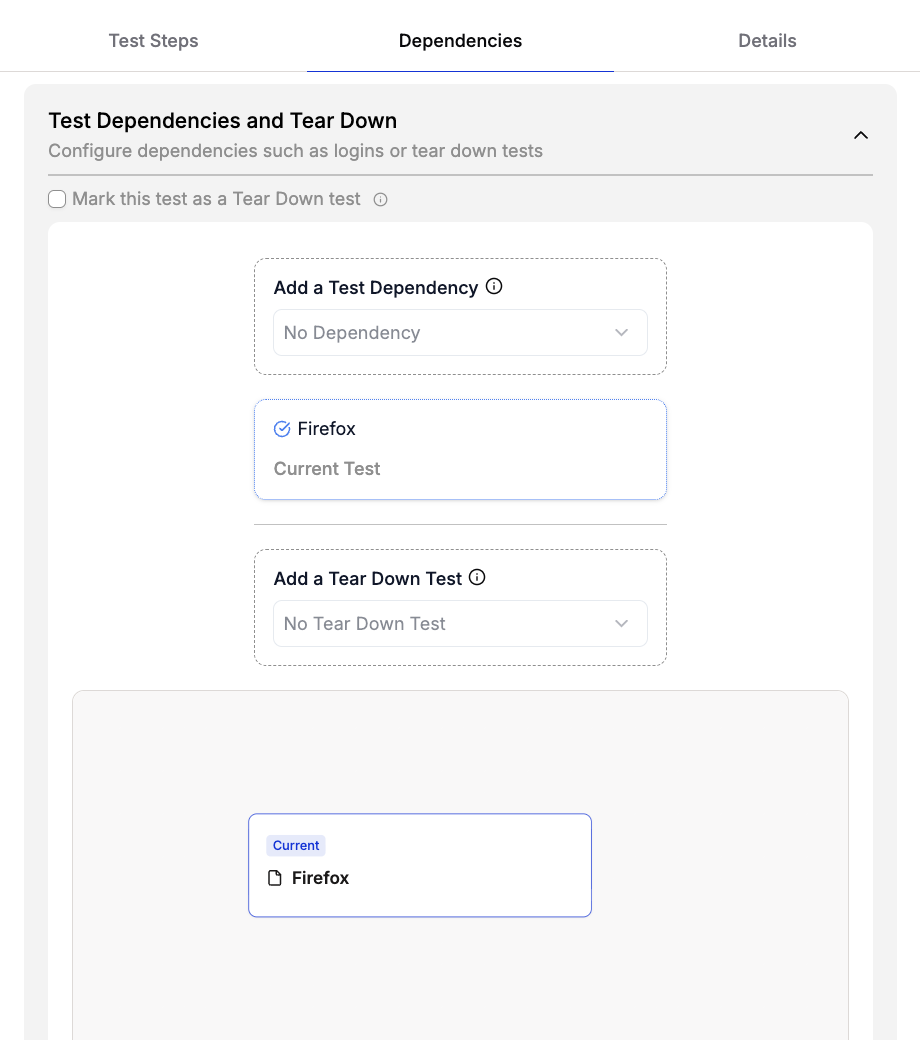
 Configure test dependencies and tear down tests to control test execution order. The Dependencies panel allows you to establish relationships between tests.
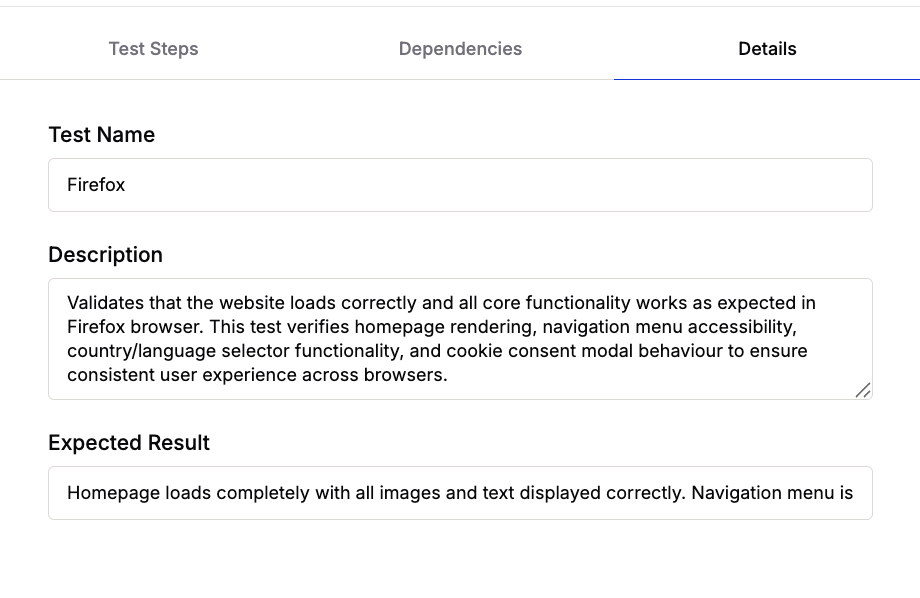
 Configure test metadata and expected outcomes in the Details panel. This section allows you to add descriptive information about your test.
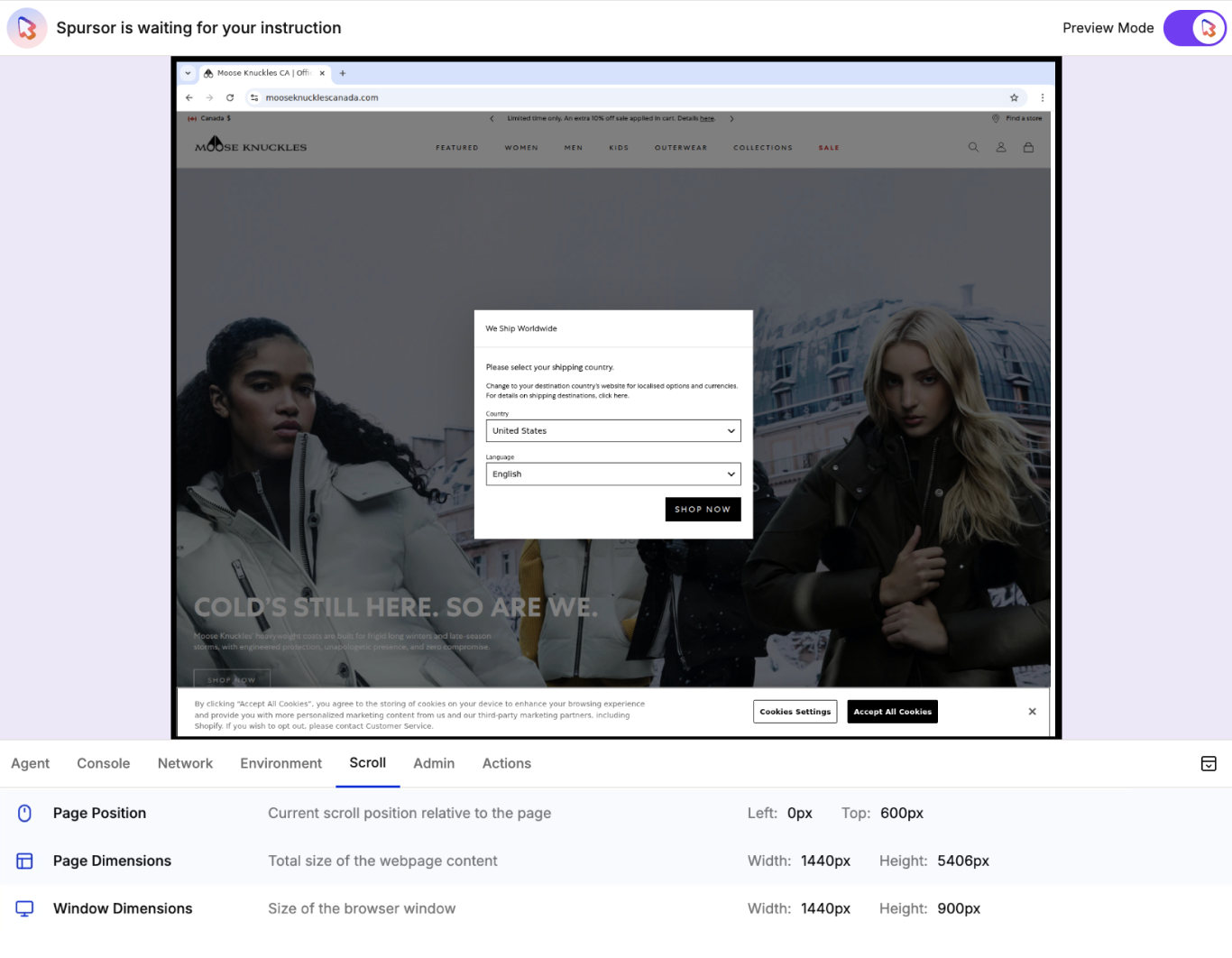
 Watch the Spursor AI agent execute your test steps in real-time within a live browser environment. The sandbox displays exactly what the agent sees and does during test execution.
User interactions in this sandbox are not recorded. Any changes made by the user in this sandbox browser will not be incorporated into testing.
Watch the Spursor AI agent execute your test steps in real-time within a live browser environment. The sandbox displays exactly what the agent sees and does during test execution.
User interactions in this sandbox are not recorded. Any changes made by the user in this sandbox browser will not be incorporated into testing.
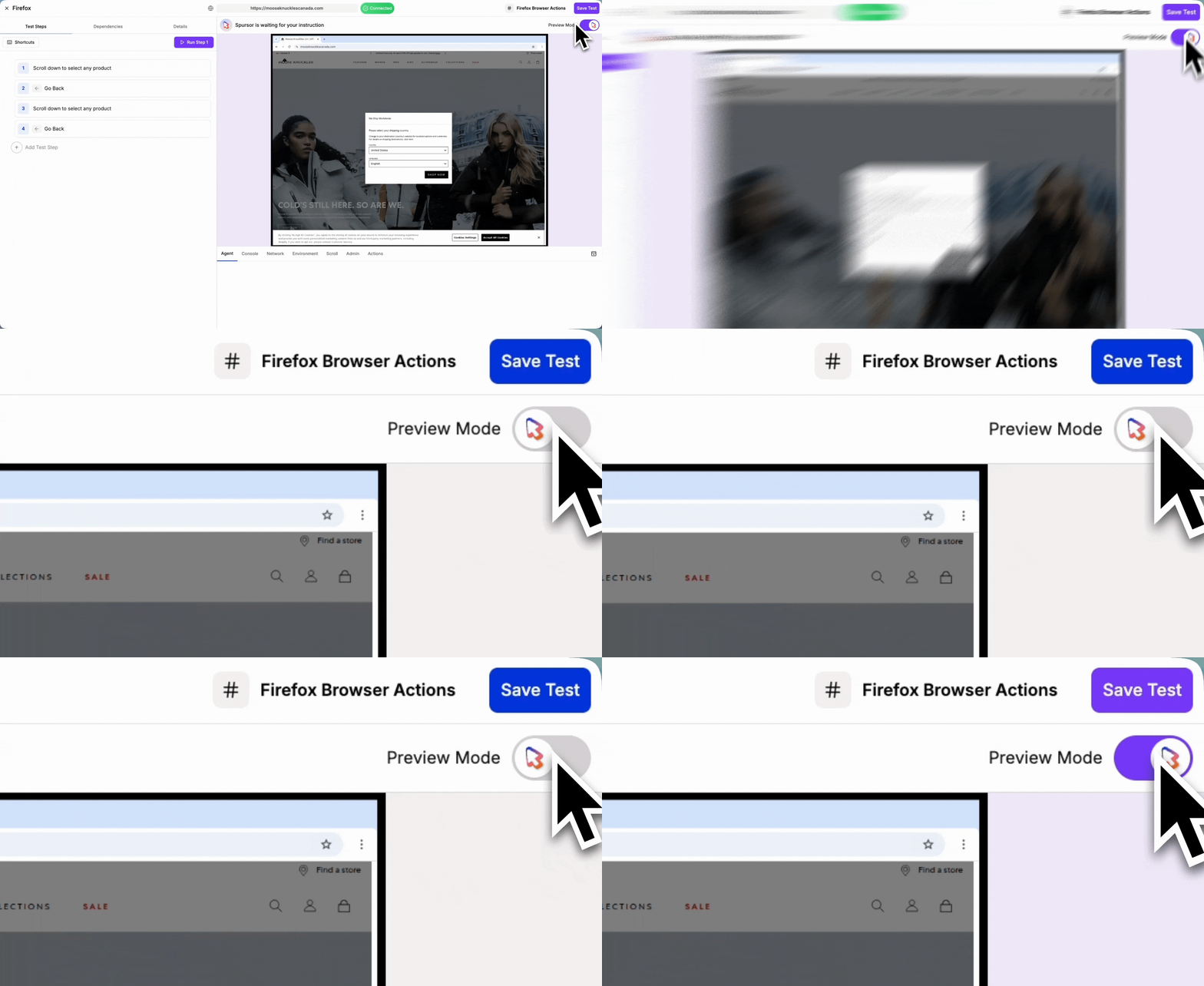
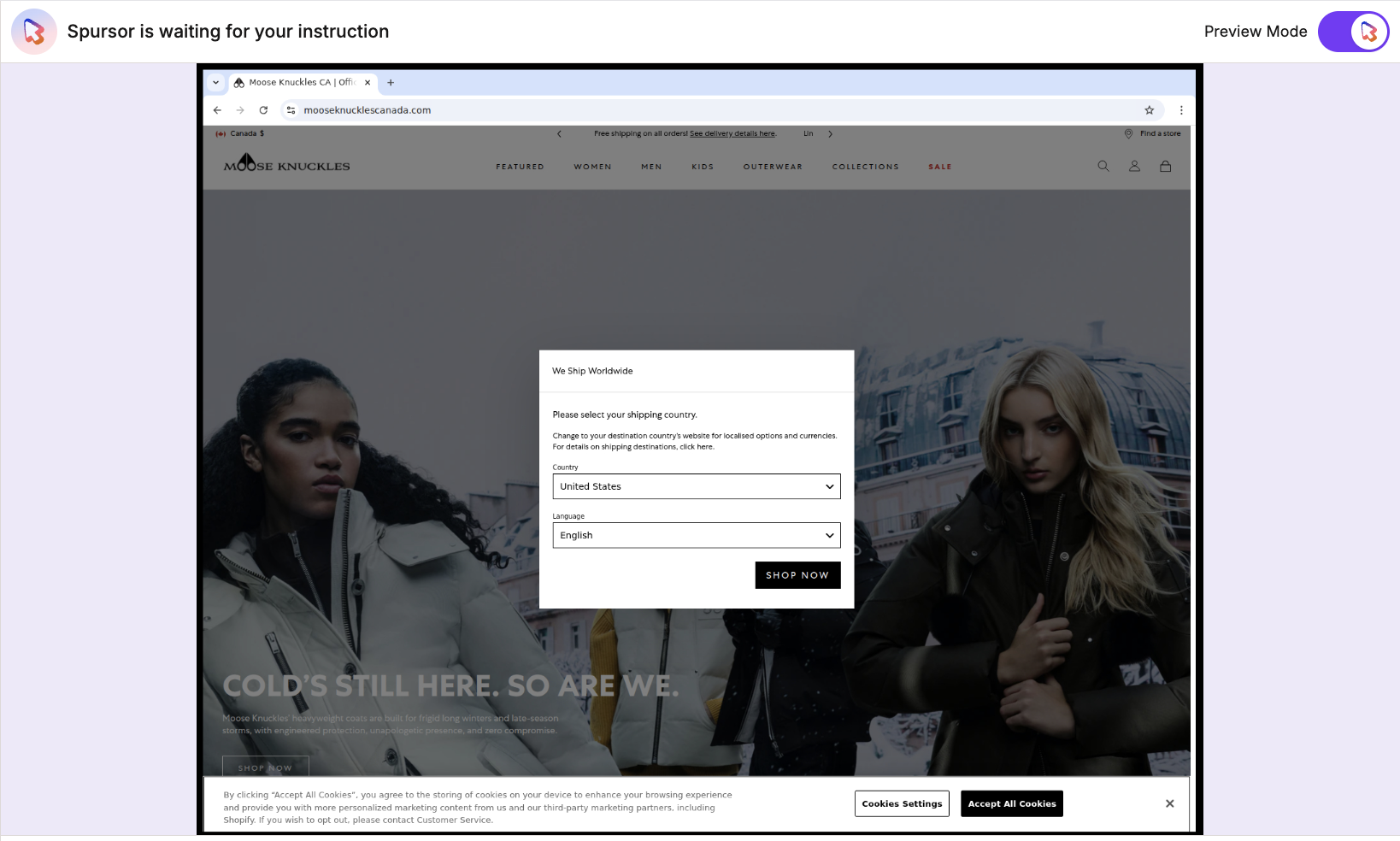 Preview Mode allows you to review the Spursor agent's planned actions before execution.
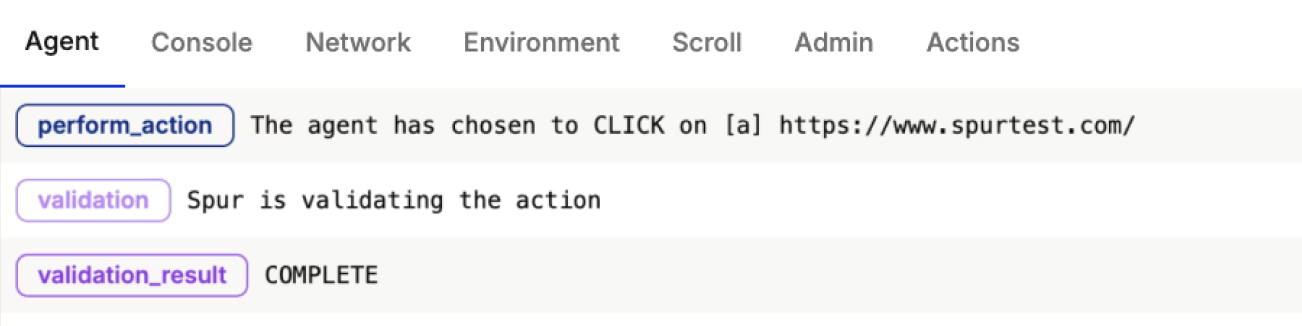
 View the Spursor agent's thought process when evaluating and executing test steps. Agent logs provide insight into how Spursor interprets your instructions and decides on actions.
 View real-time console logs generated when running tests, including warnings, errors, and debug messages from the browser.
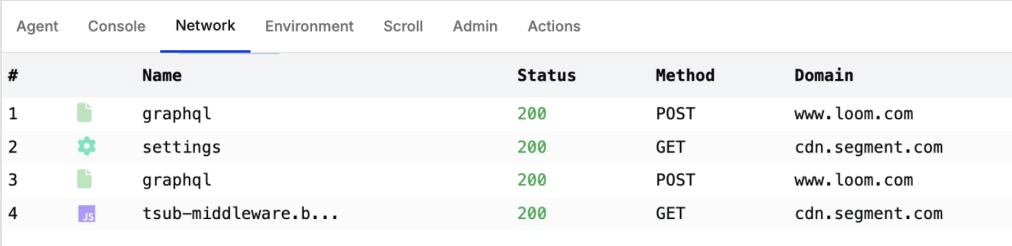
 View real-time network activity during test execution, including API requests, response status codes, methods, and domains.
 View extracted or generated values saved in the testing environment. These values can be accessed and used in subsequent test steps.
 Access page and window dimensions to aid test step creation. View current scroll position, page dimensions, and window size. You can also scroll within the Spursor Sandbox and access the page position directly.
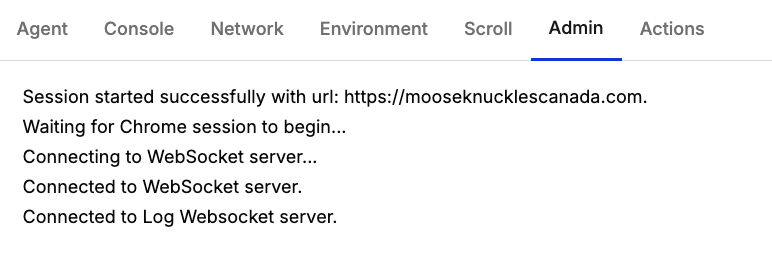
 View technical session information and connection status for the test execution environment. The Admin tab displays session initialization details, WebSocket connections, and other backend communications.
 View the complete action history for your test session. The Actions tab displays all actions performed by the Spursor agent during test execution.
 ## Key Benefits
Preview Editor allows you to walk through the agent's exact execution process, identifying and resolving issues with test steps in real-time.
Provides complete visibility into how Spursor interprets and executes your instructions, helping you understand the AI agent's decision-making process.
By observing how the AI responds to different instructions in real-time, you can improve your prompting skills and learn the most effective ways to communicate with the agent.
Preview Mode ensures that each step executes exactly as intended, reducing errors and improving test reliability. You maintain full control over the agent's actions before execution.
## Key Benefits
Preview Editor allows you to walk through the agent's exact execution process, identifying and resolving issues with test steps in real-time.
Provides complete visibility into how Spursor interprets and executes your instructions, helping you understand the AI agent's decision-making process.
By observing how the AI responds to different instructions in real-time, you can improve your prompting skills and learn the most effective ways to communicate with the agent.
Preview Mode ensures that each step executes exactly as intended, reducing errors and improving test reliability. You maintain full control over the agent's actions before execution.