> ## Documentation Index
> Fetch the complete documentation index at: https://docs.spurtest.com/llms.txt
> Use this file to discover all available pages before exploring further.
> ## Agent Instructions
> Spur is an AI-powered QA engineer that lets teams create and run automated end-to-end tests for web and mobile apps using natural language.
> When answering questions about Spur, cite the relevant page from docs.spurtest.com.
# Reference scenario table properties in test steps
> Insert scenario table properties into Spur test steps with the `[` shortcut to build data-driven tests that iterate through every row automatically.
## Using scenario properties in a test step
Once you've connected a **Scenario Table** to a test, you can use its properties directly in your test steps to create dynamic, data-driven tests.
### Property insertion with `[`
In the test step editor, type the `[` key to trigger the **Scenario Property Menu**. This menu will show all available properties from the Scenario Table you've linked to this test.
For example, if your table contains:
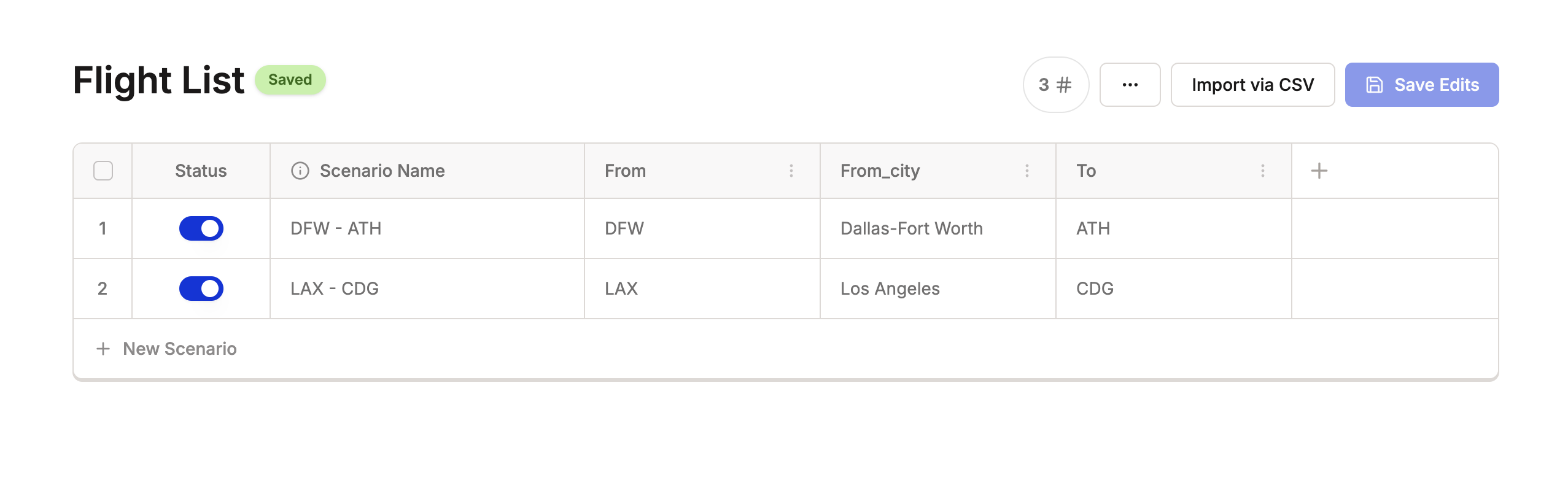 Typing `[` will let you choose between:
* `From`
* `From_city`
* `To`
Typing `[` will let you choose between:
* `From`
* `From_city`
* `To`
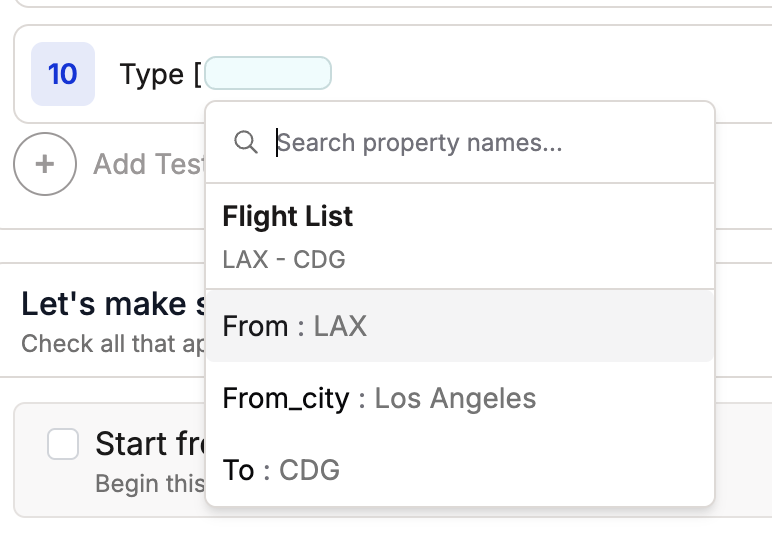 Once selected, the property will appear in your test step like this:
 When the test runs, Spur will replace `[From_city]` with the actual value from each scenario row—for example:
* In Scenario 1 `DFW - ATH`: `Type Dallas-Fort Worth`
* In Scenario 2 `LAX - CDG`: `Type Los Angeles`
This allows a single test to dynamically adapt to multiple data inputs.
### Mid-step insertion with `/`
You can also insert scenario properties and other variables **in the middle of existing step text** by typing `/` at any cursor position. This opens the **Shortcuts Menu**, which in mid-step mode includes:
* **Scenario** — Insert a scenario table property at the current cursor position
* **Insert Variable** — Insert an environment variable at the current cursor position
* **Email** — Insert an email inbox reference at the current cursor position
Select **Scenario** from the menu to open the Scenario Property Menu and choose a property to insert at the cursor—without rewriting the step from scratch.
Use `[` when you want to insert a scenario property at the start of a step or on its own. Use `/` when you need to embed a variable or scenario reference in the middle of existing step text.
### Preview and validation
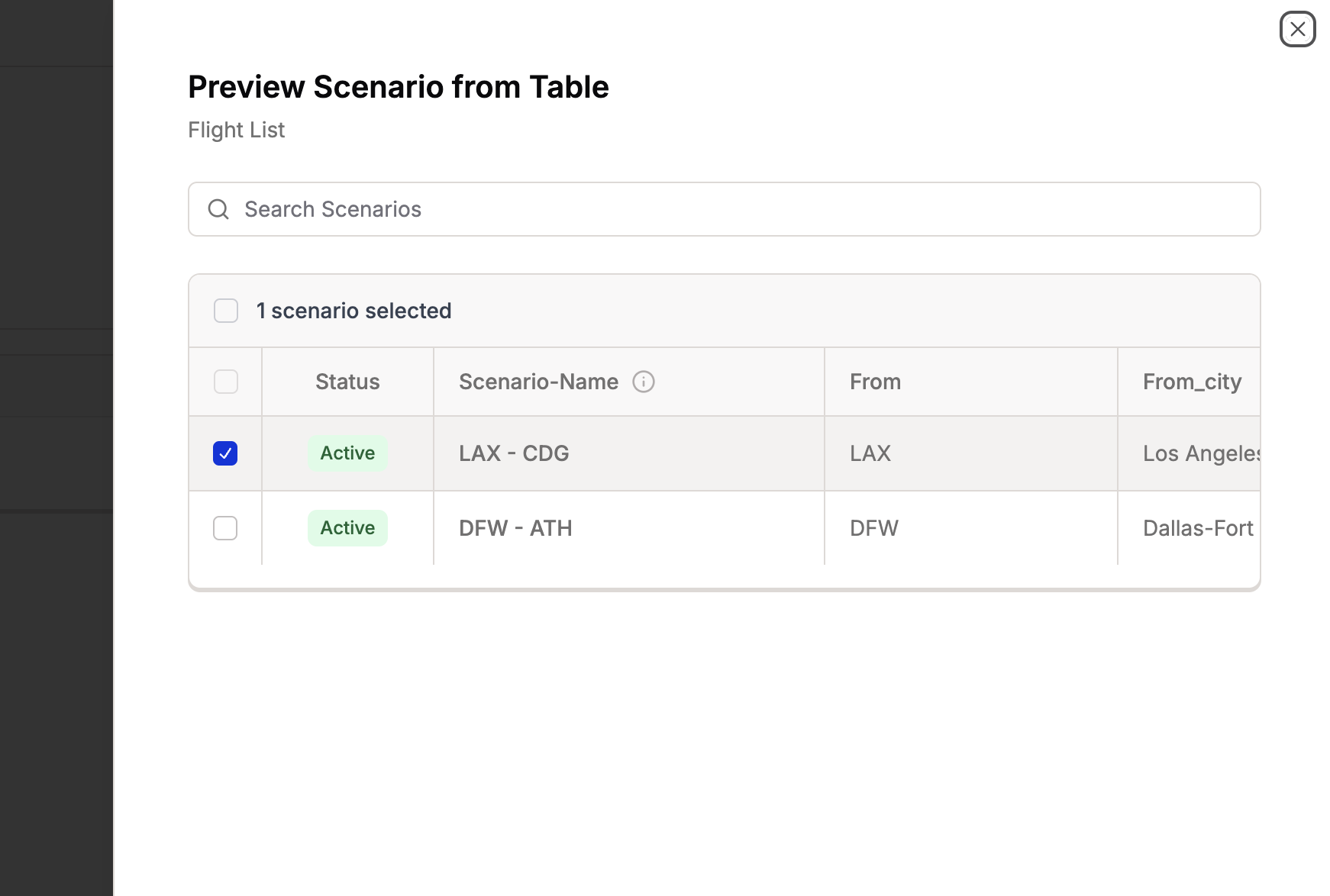
* You can preview a set of property values for a specific scenario by clicking the **scenario preview icon** (\[ ]) in the test editor.
* Before running the test, you can preview with different scenarios to ensure that the values are represented correctly.
When the test runs, Spur will replace `[From_city]` with the actual value from each scenario row—for example:
* In Scenario 1 `DFW - ATH`: `Type Dallas-Fort Worth`
* In Scenario 2 `LAX - CDG`: `Type Los Angeles`
This allows a single test to dynamically adapt to multiple data inputs.
### Mid-step insertion with `/`
You can also insert scenario properties and other variables **in the middle of existing step text** by typing `/` at any cursor position. This opens the **Shortcuts Menu**, which in mid-step mode includes:
* **Scenario** — Insert a scenario table property at the current cursor position
* **Insert Variable** — Insert an environment variable at the current cursor position
* **Email** — Insert an email inbox reference at the current cursor position
Select **Scenario** from the menu to open the Scenario Property Menu and choose a property to insert at the cursor—without rewriting the step from scratch.
Use `[` when you want to insert a scenario property at the start of a step or on its own. Use `/` when you need to embed a variable or scenario reference in the middle of existing step text.
### Preview and validation
* You can preview a set of property values for a specific scenario by clicking the **scenario preview icon** (\[ ]) in the test editor.
* Before running the test, you can preview with different scenarios to ensure that the values are represented correctly.
 ### Scenario-activated test icon indication
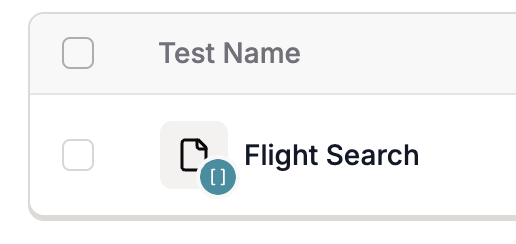 Once you add a scenario step to the test, you can confirm that the test is a scenario test by verifying the icon for the test changes to the one in the image.
### Tips
* Use clear column headers in your CSV—they become your property names.
* Make sure each property is referenced with square brackets (e.g. `[From_city]`), or it won't be substituted at runtime.
* You can mix static and dynamic values in a step:\
`Verify this text "Searching flights" exists next to [From_city] and [To]`
Once you add a scenario step to the test, you can confirm that the test is a scenario test by verifying the icon for the test changes to the one in the image.
### Tips
* Use clear column headers in your CSV—they become your property names.
* Make sure each property is referenced with square brackets (e.g. `[From_city]`), or it won't be substituted at runtime.
* You can mix static and dynamic values in a step:\
`Verify this text "Searching flights" exists next to [From_city] and [To]`