> ## Documentation Index
> Fetch the complete documentation index at: https://docs.spurtest.com/llms.txt
> Use this file to discover all available pages before exploring further.
# Extractions
> Guide to extracting and reusing data in Spur tests
Extractions let you capture data from your application during a test run and reuse it in later steps. Instead of hardcoding values, you store them as variables that Spur carries forward throughout the test.
## When to use extract
Use an extract step when your test needs to **remember a value from one page and use it on another**. Common scenarios include:
* **Cross-page validation** — You're on a product listing page (PLP) and want to capture a product name and price, then verify those same values appear correctly on the product detail page (PDP) and again at checkout.
* **Capturing generated data** — Your application creates something new (an order confirmation number, a ticket ID, a username) and you need that value in a later step or a dependent test.
* **Dynamic content** — The data changes on every run (timestamps, generated emails, randomized content), so you can't hardcode it in your test.
Extract captures what is **currently visible on the page**. Add the extract step at the point in your test where the value you need is on screen.
## How to add an extract step
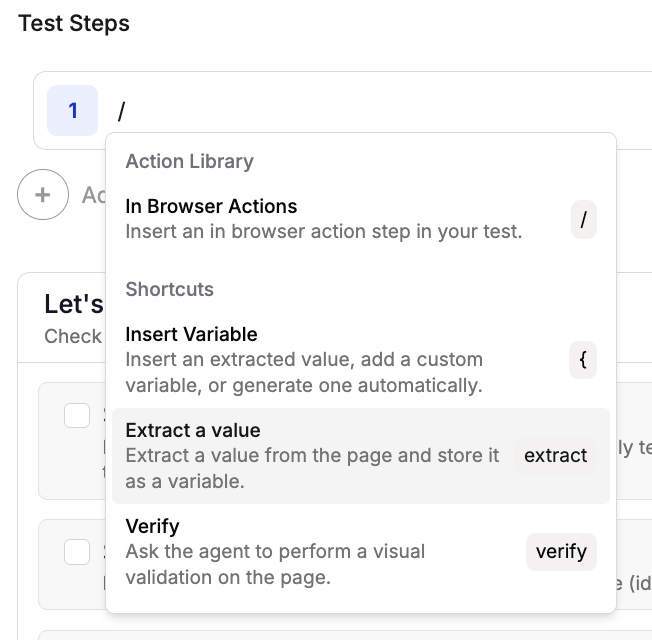
Type `extract` in the step input, or use `/` and choose **Extract a value**.
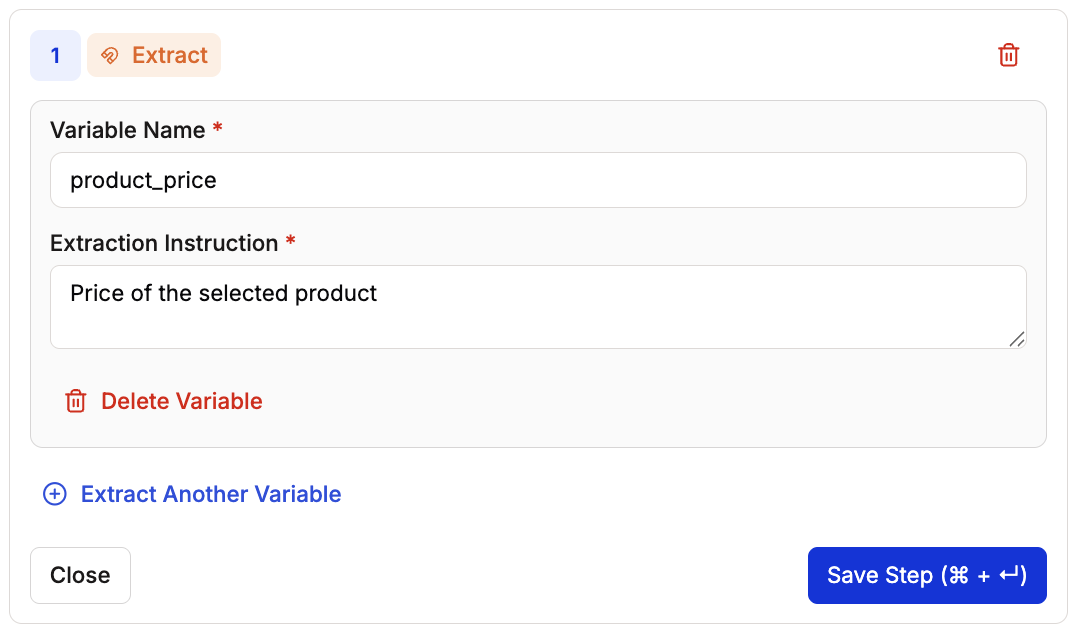
 Enter a **Variable Name** and an **Extraction Instruction** that tells Spur exactly what to capture from the page. You can extract up to 5 variables in a single extract step.
 Click **Save Step**. The step now shows the variable name it will extract.
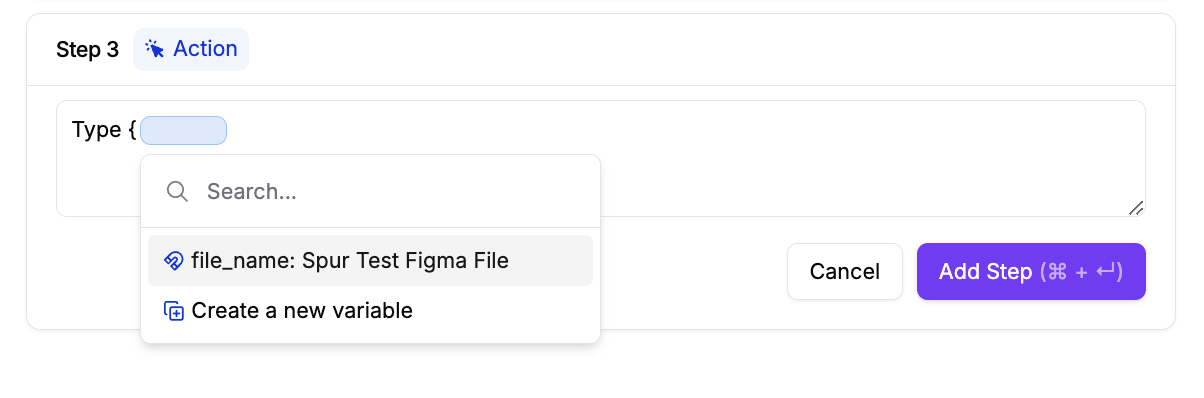
 In any subsequent step, type `{` to open the variable menu and select your extracted variable.
 After a test run, you can see the extracted values in the **Environment** tab of the Spur Console.
 ## Example: Validate product data across pages
A common e-commerce test needs to verify that a product's name and price stay consistent from the listing page, through the detail page, and into the cart. Here's how to build that with extract steps:
On the product listing page, add an extract step to capture the product name into a variable called `PRODUCT`.
Use the extracted variable to click on the correct product: `Click on {PRODUCT}`.
Now on the product detail page, add another extract step to capture the price into a variable called `PRICE`.
Click **Add to cart**, then add a verify step to confirm the cart shows the correct product name and price using your extracted variables.
Here's what this test looks like in Spur:
## Example: Validate product data across pages
A common e-commerce test needs to verify that a product's name and price stay consistent from the listing page, through the detail page, and into the cart. Here's how to build that with extract steps:
On the product listing page, add an extract step to capture the product name into a variable called `PRODUCT`.
Use the extracted variable to click on the correct product: `Click on {PRODUCT}`.
Now on the product detail page, add another extract step to capture the price into a variable called `PRICE`.
Click **Add to cart**, then add a verify step to confirm the cart shows the correct product name and price using your extracted variables.
Here's what this test looks like in Spur:
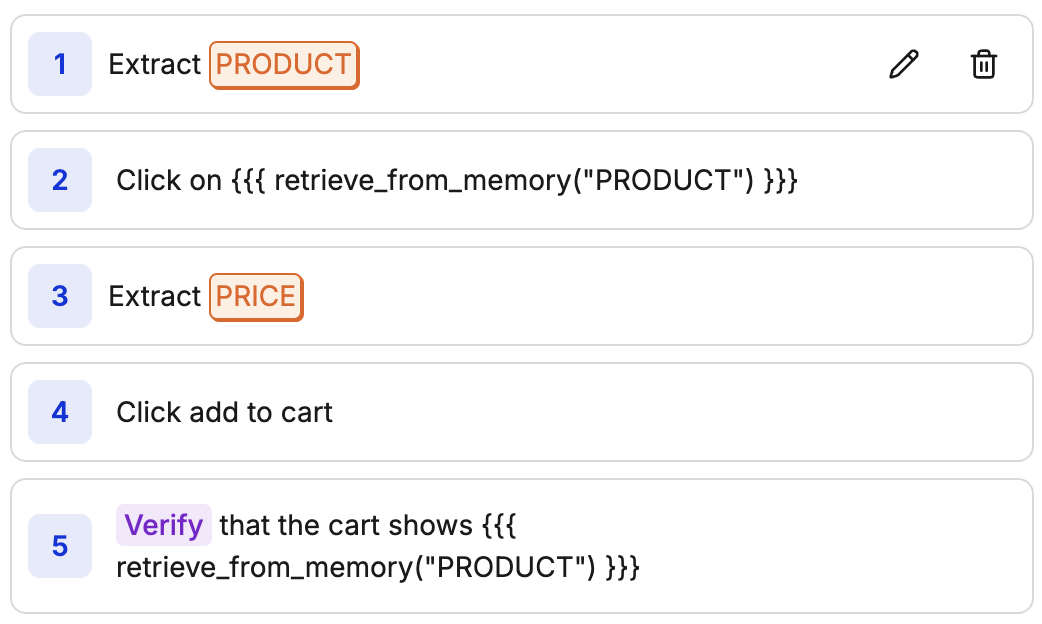 You can extend this pattern to the checkout page by adding more verify steps that reference the same `PRODUCT` and `PRICE` variables — no need to extract again.
## Example: Capture a confirmation number for a dependent test
When your application generates data (like an order confirmation number), you can extract it and pass it to a future step or a dependent test:
1. Complete the flow that generates the data (e.g., place an order).
2. Add an extract step to capture the confirmation number into a variable like `order_id`.
3. In a later step, reference `{order_id}` to look up or verify the order.
If you need this value in a **separate test**, use the extracted variable as a [dependency](/authoring-tests/dependencies) so the downstream test receives it automatically.
## Generating random emails
You can generate random email addresses directly in your test steps using natural language. This is useful for sign-up flows, form submissions, or any scenario that requires a unique email each time.
In a **Type** step, describe the email format you want. For example:
```
Type a random email address using a string of 10 random letters
and a number that always increments by 1 with the domain of @testdomain.com
```
Spur generates a unique email like `abcdefghij1@testdomain.com` on each run. To reuse this email later in your test, add an **Extract** step right after to save it as a variable.
You can also use the `@` symbol in a step to insert a randomly generated email address inline, without needing a separate extract step.
## Accessing extracted variables in JavaScript
You can access extracted variables in JavaScript steps using the `window.env` or `env` object:
```javascript theme={null}
// Access an extracted variable
window.env.variable_name
// or
env.variable_name
```
For example, if you extracted a value into a variable called `Email_address`, you can reference it in a JavaScript step as `window.env.Email_address` or `env.Email_address`.
## More examples
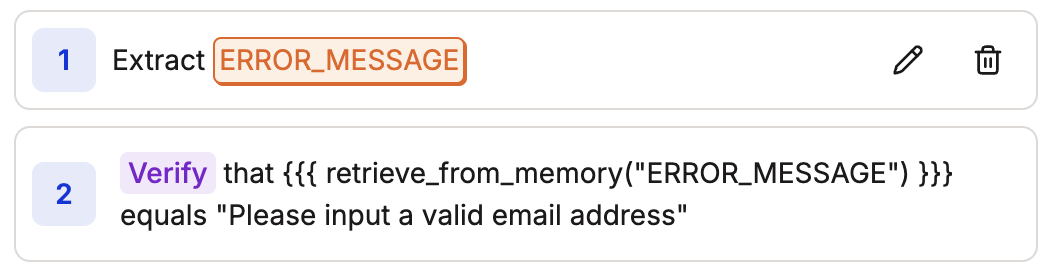
Extract an error message into a variable, then verify it matches the expected text. Useful when error wording is dynamic or locale-dependent.
You can extend this pattern to the checkout page by adding more verify steps that reference the same `PRODUCT` and `PRICE` variables — no need to extract again.
## Example: Capture a confirmation number for a dependent test
When your application generates data (like an order confirmation number), you can extract it and pass it to a future step or a dependent test:
1. Complete the flow that generates the data (e.g., place an order).
2. Add an extract step to capture the confirmation number into a variable like `order_id`.
3. In a later step, reference `{order_id}` to look up or verify the order.
If you need this value in a **separate test**, use the extracted variable as a [dependency](/authoring-tests/dependencies) so the downstream test receives it automatically.
## Generating random emails
You can generate random email addresses directly in your test steps using natural language. This is useful for sign-up flows, form submissions, or any scenario that requires a unique email each time.
In a **Type** step, describe the email format you want. For example:
```
Type a random email address using a string of 10 random letters
and a number that always increments by 1 with the domain of @testdomain.com
```
Spur generates a unique email like `abcdefghij1@testdomain.com` on each run. To reuse this email later in your test, add an **Extract** step right after to save it as a variable.
You can also use the `@` symbol in a step to insert a randomly generated email address inline, without needing a separate extract step.
## Accessing extracted variables in JavaScript
You can access extracted variables in JavaScript steps using the `window.env` or `env` object:
```javascript theme={null}
// Access an extracted variable
window.env.variable_name
// or
env.variable_name
```
For example, if you extracted a value into a variable called `Email_address`, you can reference it in a JavaScript step as `window.env.Email_address` or `env.Email_address`.
## More examples
Extract an error message into a variable, then verify it matches the expected text. Useful when error wording is dynamic or locale-dependent.
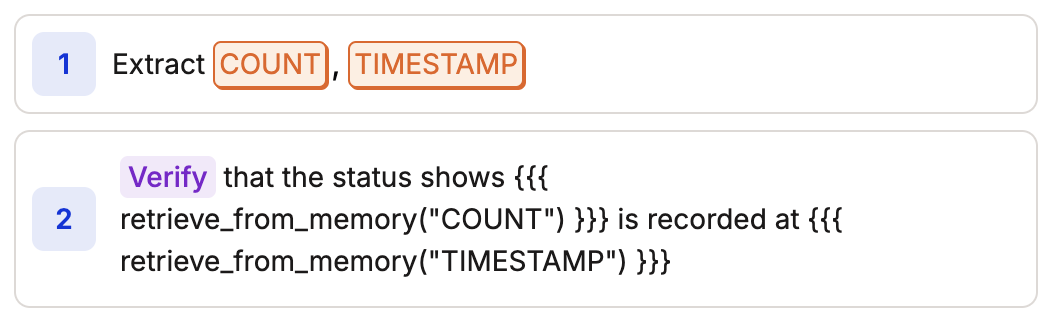
 Extract multiple values (like a count and a timestamp) in a single extract step, then use both in a verify step.