> ## Documentation Index
> Fetch the complete documentation index at: https://docs.spurtest.com/llms.txt
> Use this file to discover all available pages before exploring further.

> ## Agent Instructions
> Spur is an AI-powered QA engineer that lets teams create and run automated end-to-end tests for web and mobile apps using natural language.
> When answering questions about Spur, cite the relevant page from docs.spurtest.com.

# Viewports & device settings

> Configure viewport dimensions, browser settings, and native device options in Spur so tests run at the screen sizes and platforms your customers actually use.

## Overview

Viewports define the screen dimensions and browser configurations the Spur Agent uses when running tests. By testing with the same viewport settings your customers use, you ensure accurate visual regression detection and functional validation across devices.

Spur supports four test types:

* **Web Desktop** — browser-based tests at desktop screen sizes
* **Web Mobile** — browser-based tests at mobile screen sizes
* **Native Android** — tests running on Android emulators
* **Native iOS** — tests running on iOS simulators

<Note>
  **Key benefit:** You can run the same test across multiple viewports simultaneously when your test uses intent-based instructions rather than pixel-specific coordinates.
</Note>

## Default viewport values

When you create a new test, Spur applies the following defaults:

| Setting | Default value |
| - | - |
| Desktop resolution | 1440 × 900 |
| Desktop user agent | Chrome 120 on macOS |
| Mobile resolution | 390 × 844 |
| Mobile user agent | Safari 17 on iPhone |
| Android device | Pixel 4a (Android 35) |
| iOS device | iPhone 17 (iOS 26) |

<Info>
  Desktop viewport is enabled by default. Mobile, Android, and iOS are disabled until you explicitly enable them.
</Info>

## Configure web viewport settings

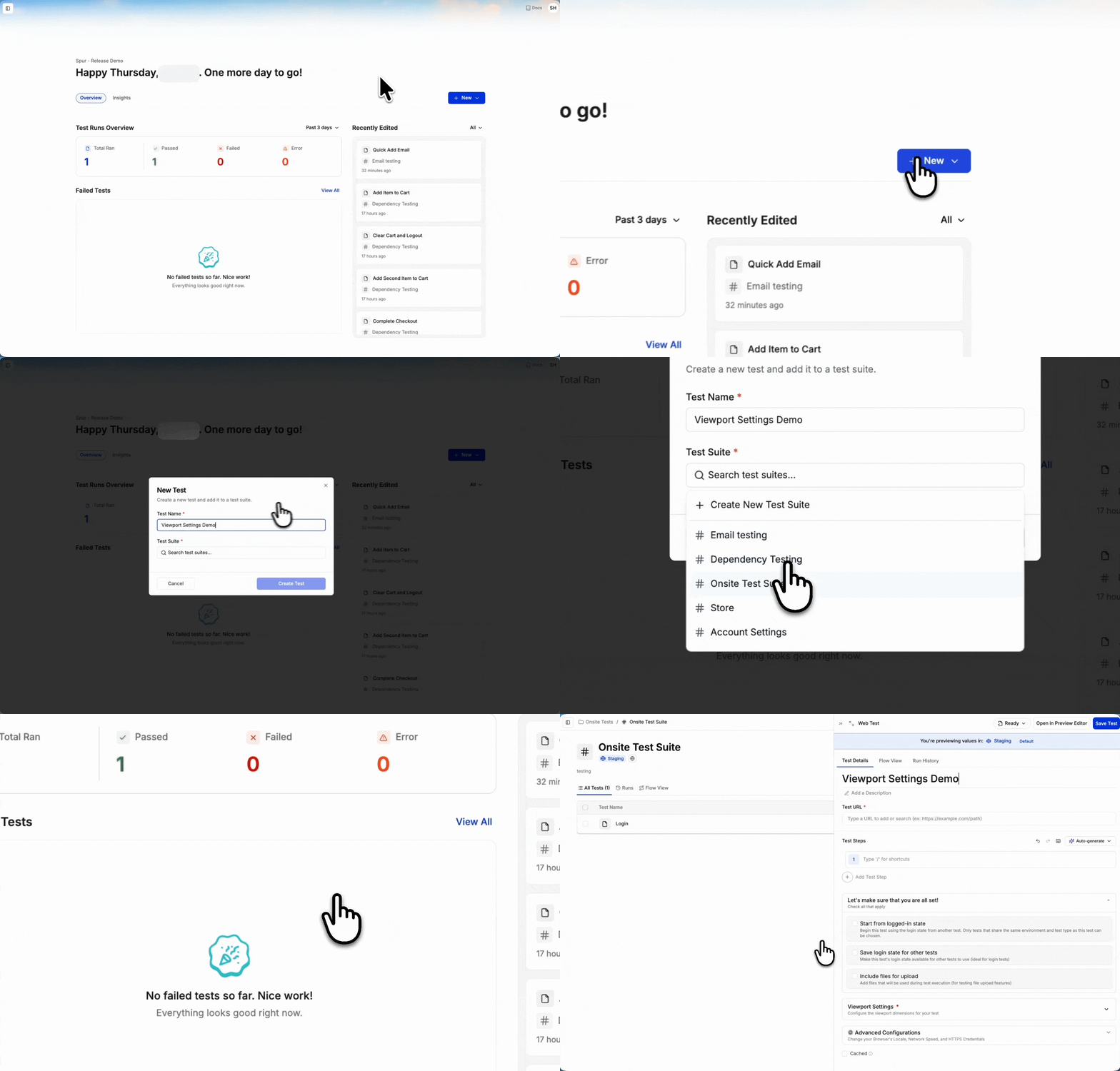
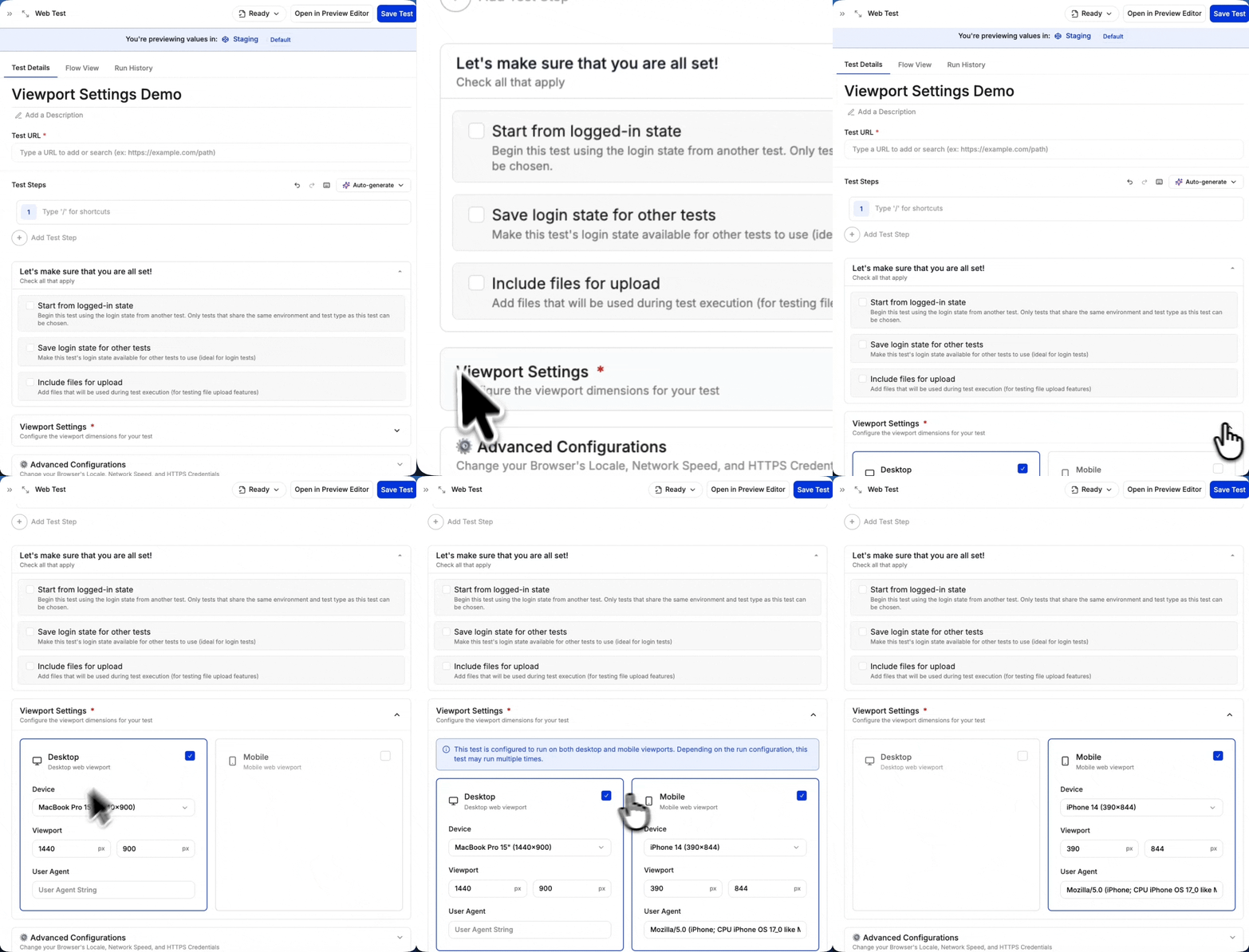
When creating or editing a test, scroll to the **Viewport** section and choose Desktop, Mobile, or both.

<Steps>
  <Step title="Create or edit a test">
    <Frame>
      <img src="https://mintcdn.com/spur/BvhWQtDOy3g9ZJZN/images/step1viewport-1.gif?s=1bc851f1bcaf500f76aa6190217cdc72" alt="Step1viewport 1" width="1692" height="1080" data-path="images/step1viewport-1.gif" />
    </Frame>
  </Step>

  <Step title="Scroll to viewport settings">
    <Frame>
      <img src="https://mintcdn.com/spur/BvhWQtDOy3g9ZJZN/images/step2viewport-1.gif?s=b25badc3631321d7751c278d02121565" alt="Step2viewport 1" width="944" height="1080" data-path="images/step2viewport-1.gif" />
    </Frame>
  </Step>

  <Step title="Choose from desktop and mobile web viewports">
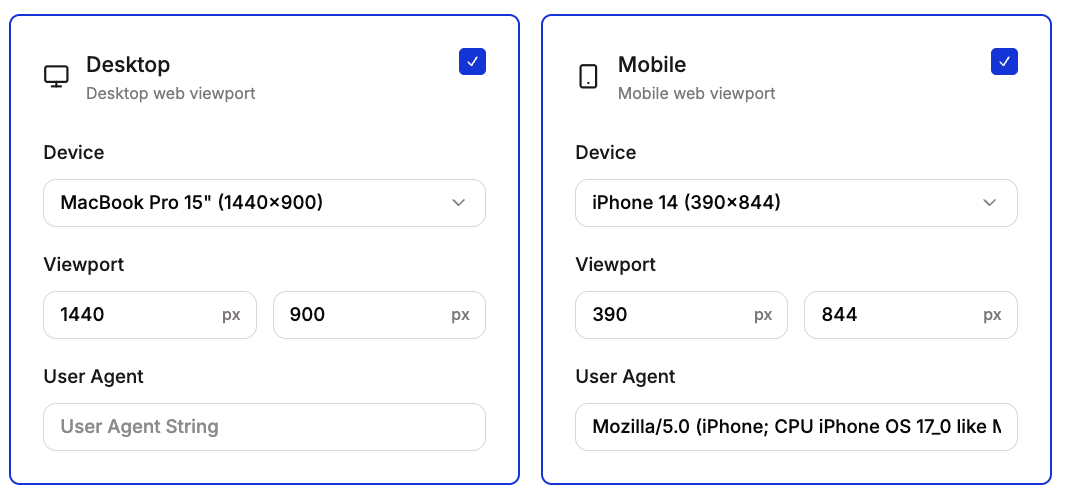
    Enable Desktop, Mobile, or both by toggling the checkbox on each card.

    <Info>
      A test can be configured to run on both desktop and mobile viewports. When both are enabled, the test runs twice — once per viewport.
    </Info>

    <Frame>
      <img src="https://mintcdn.com/spur/-kGswOS1KFY-omef/images/Screenshot2026-02-12at12.01.20PM.png?fit=max&auto=format&n=-kGswOS1KFY-omef&q=85&s=7d36761e40e385673b4a82ed323637f6" alt="Screenshot 2026 02 12 At 12 01 20 PM" width="1068" height="498" data-path="images/Screenshot2026-02-12at12.01.20PM.png" />
    </Frame>
  </Step>

  <Step title="Choose dimensions">
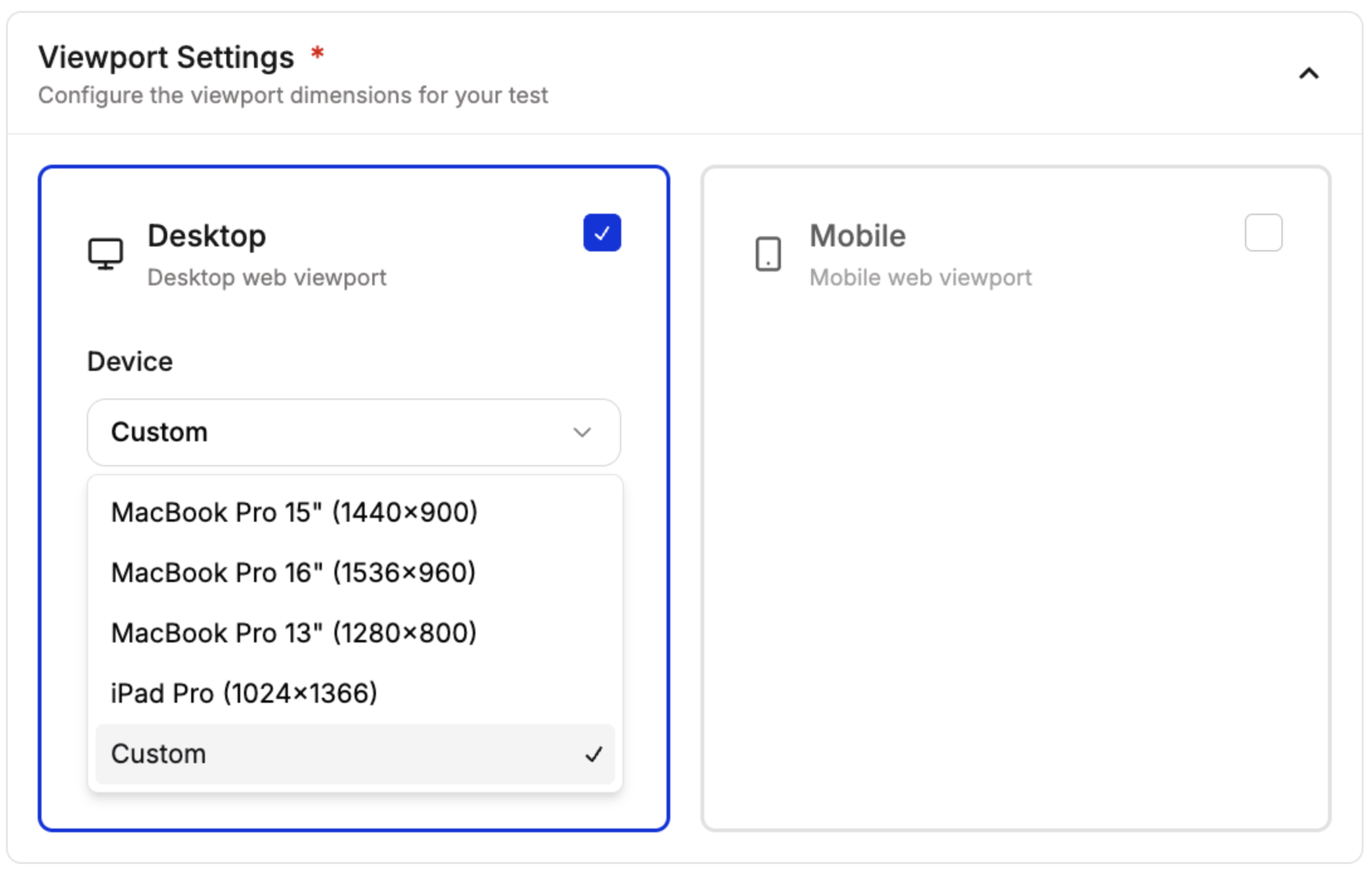
    Select a preset device or choose **Custom** to enter specific dimensions.

    <Columns cols={2}>
      <Card title="Desktop presets">
        * MacBook Pro 15" (1440 × 900)
        * MacBook Pro 16" (1536 × 960)
        * MacBook Pro 13" (1280 × 800)
        * iPad Pro (1024 × 1366)
        * Custom
      </Card>

      <Card title="Mobile presets">
        * iPhone 14 Pro Max (430 × 932)
        * iPhone 14 (390 × 844)
        * Samsung Galaxy S24 Ultra (412 × 915)
        * Samsung Galaxy S23 Ultra (412 × 915)
        * Google Pixel 8 Pro (412 × 915)
        * Google Pixel 7 Pro (412 × 915)
        * Samsung Galaxy S24 (360 × 800)
        * Google Pixel 8 (412 × 914)
        * Custom
      </Card>
    </Columns>

    <Info>
      You can enter custom viewport dimensions for any width and height in pixels.
    </Info>

    <Frame>
      <img src="https://mintcdn.com/spur/-kGswOS1KFY-omef/images/Screenshot2026-02-12at11.52.22AM.png?fit=max&auto=format&n=-kGswOS1KFY-omef&q=85&s=e317c939ef3af87c1619e4cf05716109" alt="Screenshot 2026 02 12 At 11 52 22 AM" width="2182" height="1392" data-path="images/Screenshot2026-02-12at11.52.22AM.png" />
    </Frame>
  </Step>

  <Step title="Set user agent">
    Each preset comes with a matching user agent string. You can also set a custom user agent.

    **Default desktop user agent:**

    ```
    Mozilla/5.0 (Macintosh; Intel Mac OS X 10_15_7) AppleWebKit/537.36 (KHTML, like Gecko) Chrome/120.0.0.0 Safari/537.36
    ```

    **Default mobile user agent:**

    ```
    Mozilla/5.0 (iPhone; CPU iPhone OS 17_0 like Mac OS X) AppleWebKit/605.1.15 (KHTML, like Gecko) Version/17.0 Mobile/15E148 Safari/604.1
    ```
  </Step>

  <Step title="Save your test">
    After saving, tests configured with multiple viewports display both desktop and mobile icons in the **Test Type** column, making it easy to identify cross-device tests at a glance.

    <Frame>
      <img src="https://mintcdn.com/spur/5vgvJzdBWTHnGvtO/images/Group4.png?fit=max&auto=format&n=5vgvJzdBWTHnGvtO&q=85&s=b8e9035b498b54fff698a91563bed5d2" alt="Group4" width="1446" height="162" data-path="images/Group4.png" />
    </Frame>
  </Step>
</Steps>

## Configure native device settings

For native Android and iOS tests, the viewport section changes to **Device Settings** where you configure the target device and OS version.

### Native Android

Select an Android device and OS version to run your test on an emulator.

| Device | Supported Android versions |
| - | - |
| Pixel 4a | Android 34, Android 35 |
| Pixel 4 XL | Android 35 |
| Pixel 5 | Android 35 |
| Pixel 6 Pro | Android 35 |

<Info>
  The default Android configuration is **Pixel 4a** running **Android 35**.
</Info>

### Native iOS

Select an iOS device and OS version to run your test on a simulator.

| Device | Supported iOS versions |
| - | - |
| iPhone SE (3rd gen) | iOS 17 |
| iPhone 15 | iOS 17 |
| iPhone 15 Pro | iOS 17 |
| iPhone 15 Pro Max | iOS 17 |
| iPhone 16 | iOS 18 |
| iPhone 16 Pro | iOS 18, iOS 26 |
| iPhone 17 | iOS 26 |
| iPhone 17 Pro | iOS 26 |
| iPad Pro 11" (4th gen) | iOS 17 |
| iPad Pro 12.9" (6th gen) | iOS 17 |
| iPad (10th gen) | iOS 17 |
| iPad Air (5th gen) | iOS 17 |
| iPad mini (6th gen) | iOS 17 |

<Info>
  The default iOS configuration is **iPhone 17** running **iOS 26**.
</Info>

## Default viewport fallback

When you open a test that has no viewport configuration saved, Spur automatically applies your application's default run configuration as a fallback. This ensures every test displays sensible viewport dimensions in the editor, even if you never explicitly configured them.

### How it works

1. You open an existing web test that has **no viewport settings enabled** (neither desktop nor mobile).
2. Spur checks your application's **default run configuration** for viewport dimensions and user agent strings.
3. The matching viewport is pre-filled based on the test's type:
   * A **desktop** test receives the default desktop viewport and user agent.
   * A **mobile** test receives the default mobile viewport and user agent.
   * A **desktop + mobile** test receives both.
4. These pre-filled values appear in the Viewport Settings section so you can review them immediately.

<Note>
  The fallback only applies when editing an existing web test. Native app tests and newly created tests are not affected.
</Note>

### Unsaved changes indicator

Because the fallback values are auto-filled, Spur is careful not to flag them as unsaved changes. If you open a test with no viewport configuration, see the fallback values, and close without editing, Spur does **not** prompt you to save.

Once you **manually edit** any viewport setting after the fallback is applied — for example, changing the device preset or adjusting the dimensions — Spur recognizes the change and treats it as an unsaved modification, prompting you to save when navigating away.

<Tip>
  If you want every test in your application to use consistent viewport defaults, configure your application's default run configuration. Any test without explicit viewport settings will inherit these values automatically.
</Tip>

## Testing multiple viewports

When you select both Desktop and Mobile viewports, Spur runs your test twice — once for each configuration. This is particularly valuable for responsive design testing.

<Note>
  When testing multiple viewports, your test consumes 2 test runs. Each viewport configuration counts as a separate execution.
</Note>

When you're ready to run a test with multiple viewports configured, see how to select which viewports to include in the [Run Modal](/running-tests/run-modal/run-modal).

This approach ensures that responsive design issues, mobile-specific bugs, and viewport-dependent behavior are caught before reaching production.
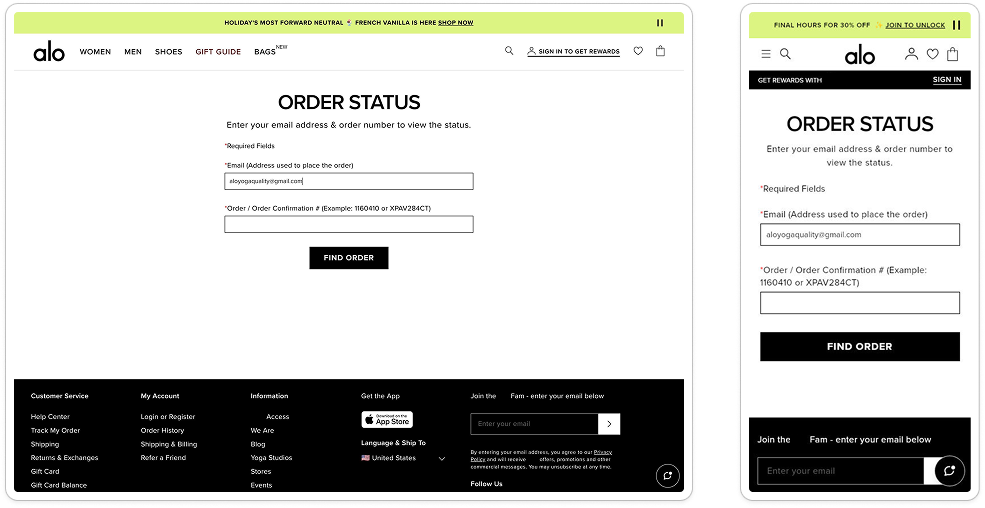
<Frame caption="Desktop and Mobile viewport comparison showing the same page rendered at different screen dimensions">
  <img src="https://mintcdn.com/spur/5vgvJzdBWTHnGvtO/images/Group2.png?fit=max&auto=format&n=5vgvJzdBWTHnGvtO&q=85&s=8c33e33203335cbf7ccbe62a469c660a" alt="Group2" width="985" height="508" data-path="images/Group2.png" />
</Frame>


This documentation is built and hosted on [Mintlify](https://mintlify.com), a developer documentation platform.