> ## Documentation Index
> Fetch the complete documentation index at: https://docs.spurtest.com/llms.txt
> Use this file to discover all available pages before exploring further.

# Drafts

> Use drafts to build and refine tests that aren't ready for active test runs yet. 

## Overview

Drafts are a way to mark tests as work-in-progress within your test suite. They are functionally identical to regular tests but are labeled as "Draft" for organization purposes.

Drafts are always added to a test suite and can be converted back to "Ready" status when complete.

<Note>
  Drafts exist within test suites from the moment you create them. The "Draft" status simply indicates the test is still being developed or refined.
</Note>

## How to Create Drafts

<Steps>
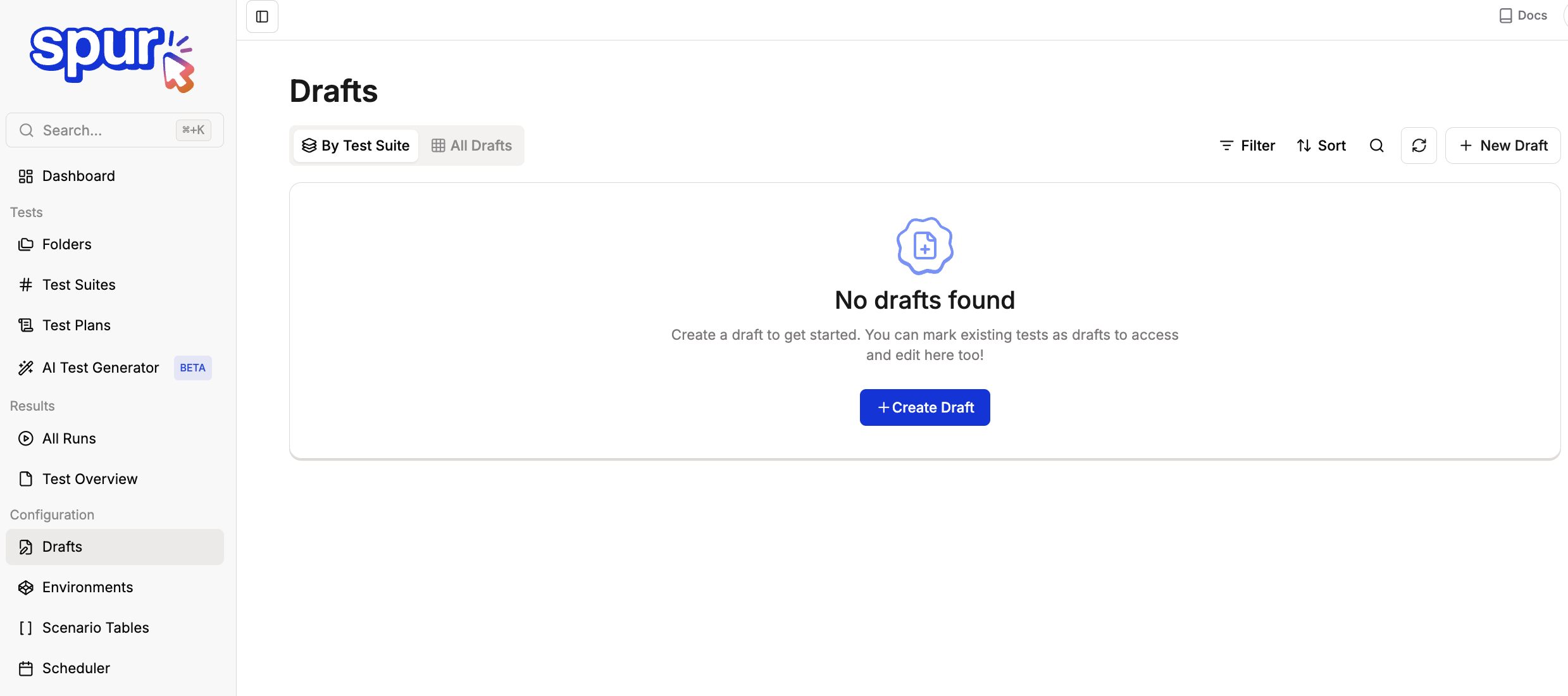
  <Step title="Navigate to Drafts under Configurations in your Spur Dashboard and click Create Draft">
    <Frame>
      <img src="https://mintcdn.com/spur/xiqFoyKXwaXlvdEw/images/Screenshot2026-01-29at4.10.37AM.png?fit=max&auto=format&n=xiqFoyKXwaXlvdEw&q=85&s=4835a6c5379df6152705543d24ee2b0a" alt="Screenshot2026 01 29at4 10 37AM" title="Drafts page with &#x22;No drafts found&#x22; message and blue Create Draft button" style={{ width:"100%" }} width="2478" height="1100" data-path="images/Screenshot2026-01-29at4.10.37AM.png" />
    </Frame>
  </Step>

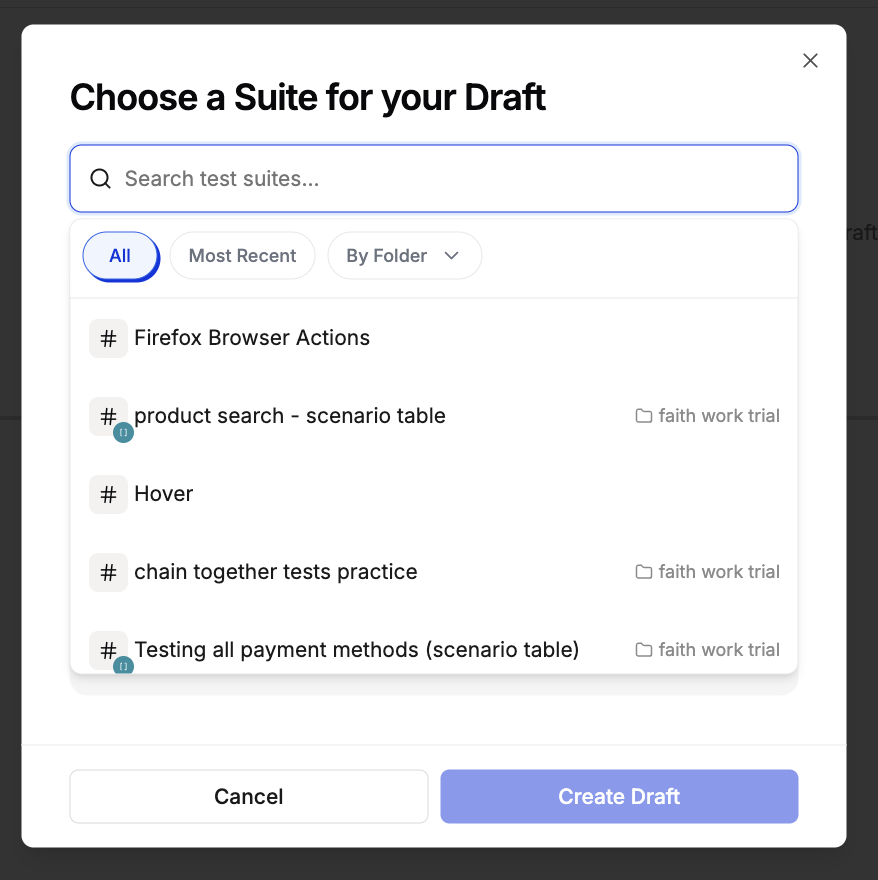
  <Step title="Choose a Test Suite for your draft and click Create Draft">
    If you don't have existing test suites, see [Test Suites](/managing-tests/suite) to create one first.
    <Frame>
      <img src="https://mintcdn.com/spur/-kGswOS1KFY-omef/images/Screenshot2026-02-05at4.21.03PM.png?fit=max&auto=format&n=-kGswOS1KFY-omef&q=85&s=a71538a9729697901d32ce79b24bde43" alt="Screenshot 2026 02 05 At 4 21 03 PM" width="878" height="880" data-path="images/Screenshot2026-02-05at4.21.03PM.png" />
    </Frame>
  </Step>

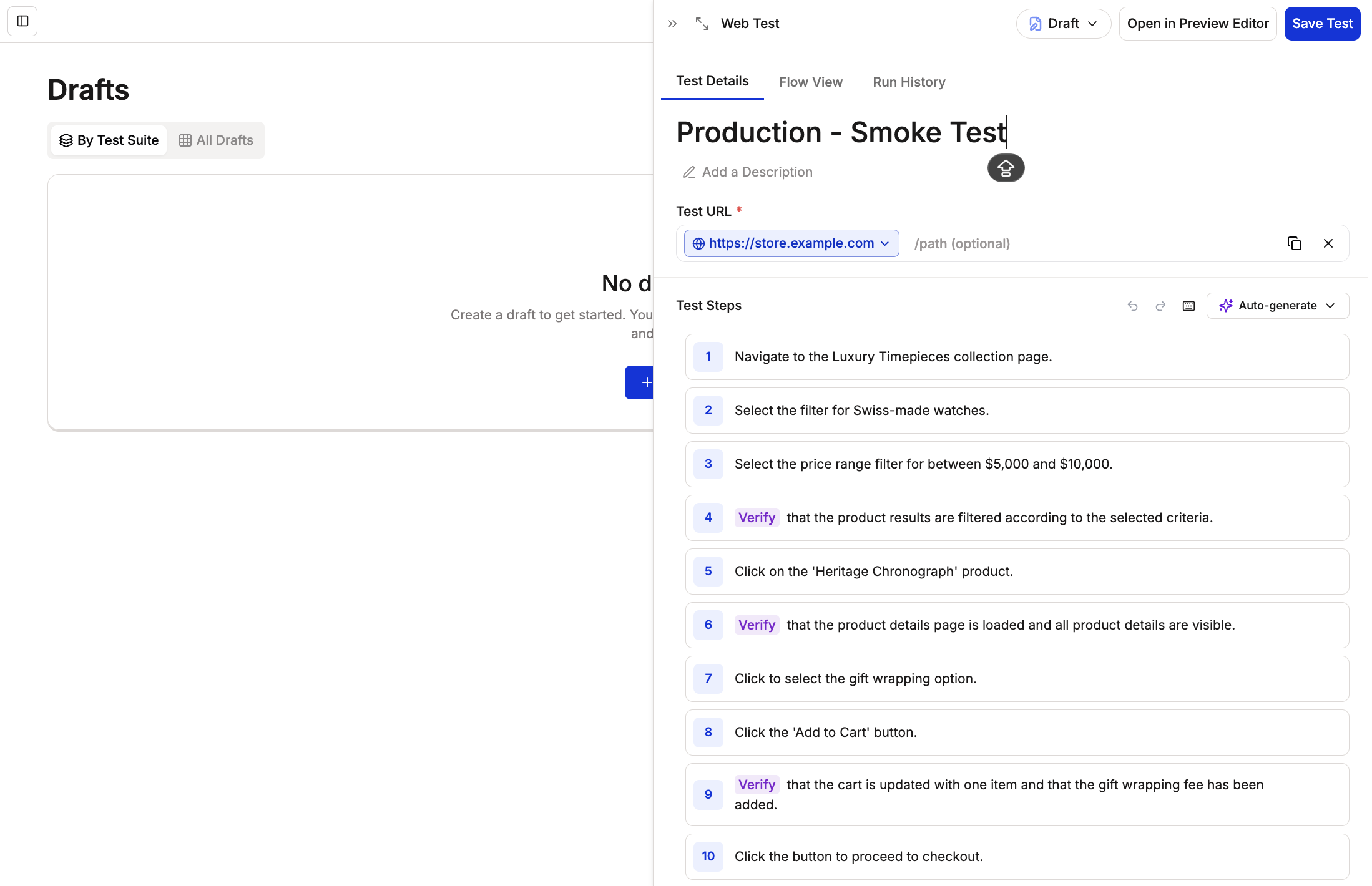
  <Step title="Write your test by adding the test name, test URL, test steps, and configuration options">
    See [How to Write Your First Test](/getting-started/first-test) for detailed guidance, then click **Save Test**
    <Frame>
      <img src="https://mintcdn.com/spur/-kGswOS1KFY-omef/images/Screenshot2026-02-05at4.23.34PM.png?fit=max&auto=format&n=-kGswOS1KFY-omef&q=85&s=a715501edd027b9a59eb0bf8cc650460" alt="Screenshot 2026 02 05 At 4 23 34 PM" width="2198" height="1420" data-path="images/Screenshot2026-02-05at4.23.34PM.png" />
    </Frame>
  </Step>

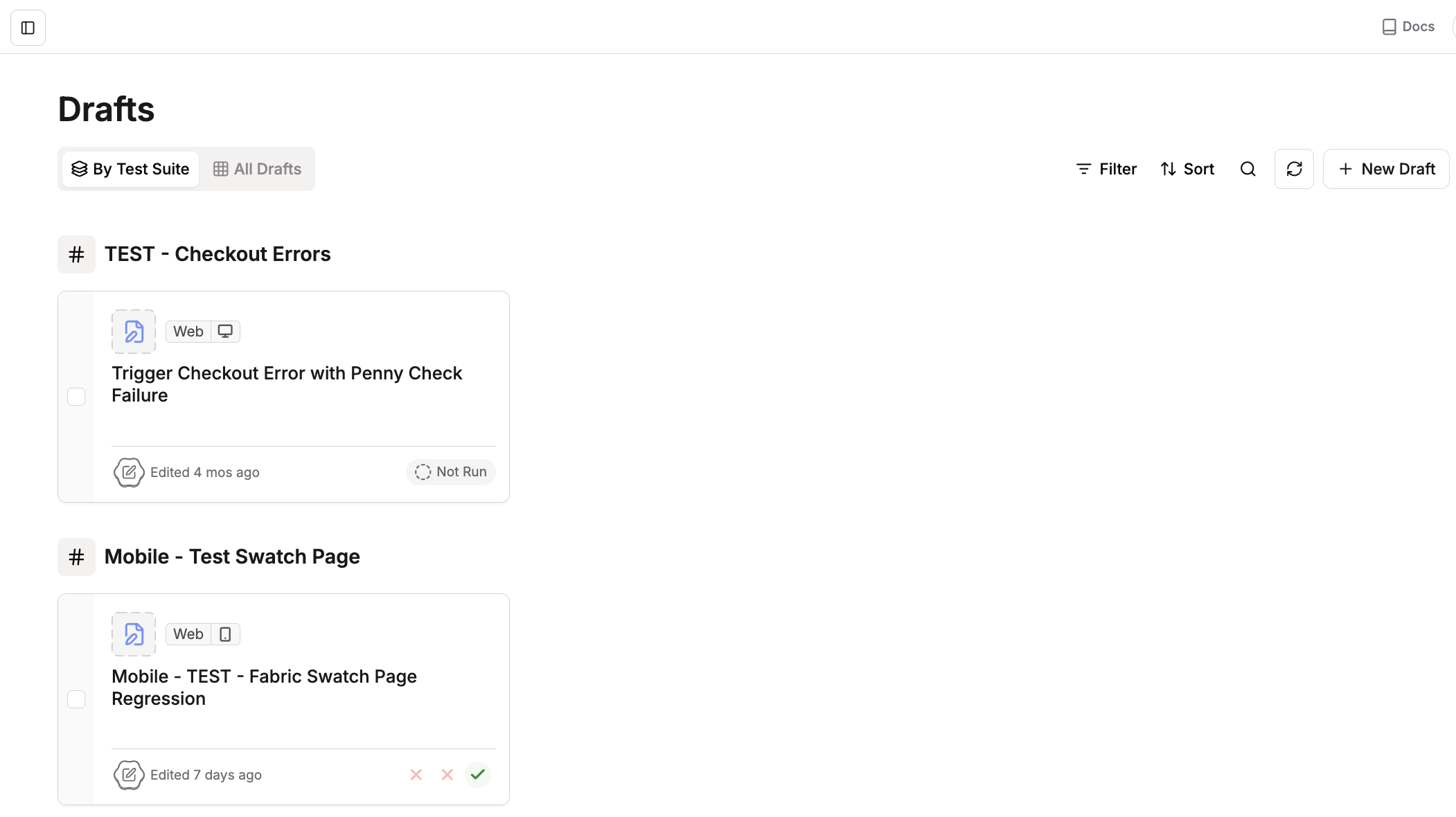
  <Step title="View your drafts by Test Suite or view all Drafts together">
    Your saved draft now appears in the Drafts section
    <Frame>
      <img src="https://mintcdn.com/spur/xiqFoyKXwaXlvdEw/images/Screenshot2026-01-29at4.25.14AM.png?fit=max&auto=format&n=xiqFoyKXwaXlvdEw&q=85&s=bf598566e4116234dd51ac8235078654" alt="Screenshot2026 01 29at4 25 14AM" title="Screenshot2026 01 29at4 25 14AM" className="mx-auto" width="2102" height="1180" data-path="images/Screenshot2026-01-29at4.25.14AM.png" />
    </Frame>
  </Step>
</Steps>

<Tip>
  Use the [AI Test Generator](/authoring-tests/ai-test-generation) to create drafts from files, existing suites, or text descriptions.
</Tip>

## Convert Existing Tests to Drafts

<Steps>
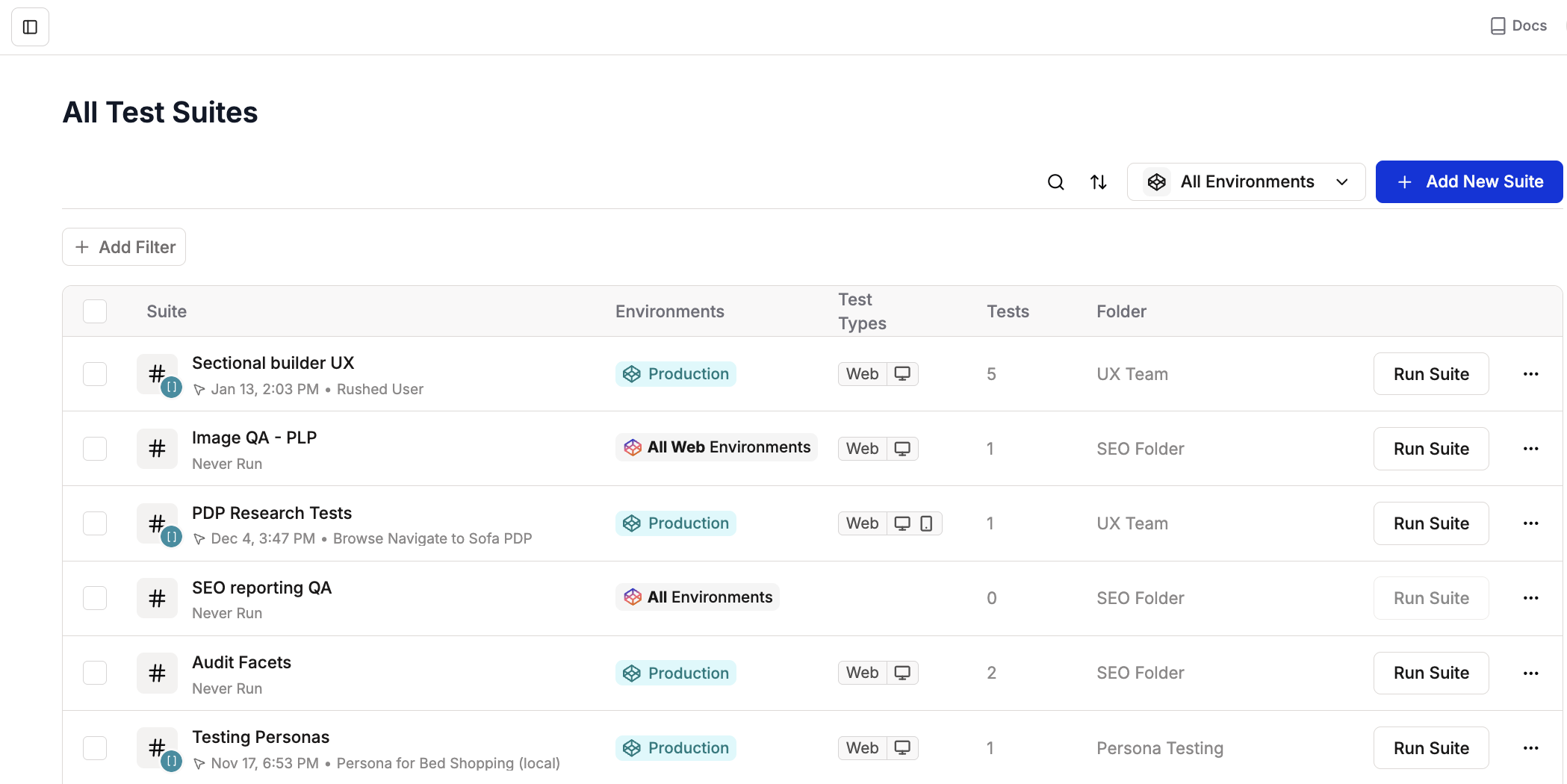
  <Step title="Navigate to Test Suites">
    Navigate to Test Suites in your Spur Dashboard. Click and open the Test Suite you want to turn to a draft.
    <Frame>
      <img src="https://mintcdn.com/spur/xiqFoyKXwaXlvdEw/images/Screenshot2026-01-29at4.34.24AM.png?fit=max&auto=format&n=xiqFoyKXwaXlvdEw&q=85&s=97b6e58d0dd597e89384153034da2c38" alt="Screenshot2026 01 29at4 34 24AM" width="2098" height="1050" data-path="images/Screenshot2026-01-29at4.34.24AM.png" />
    </Frame>
  </Step>

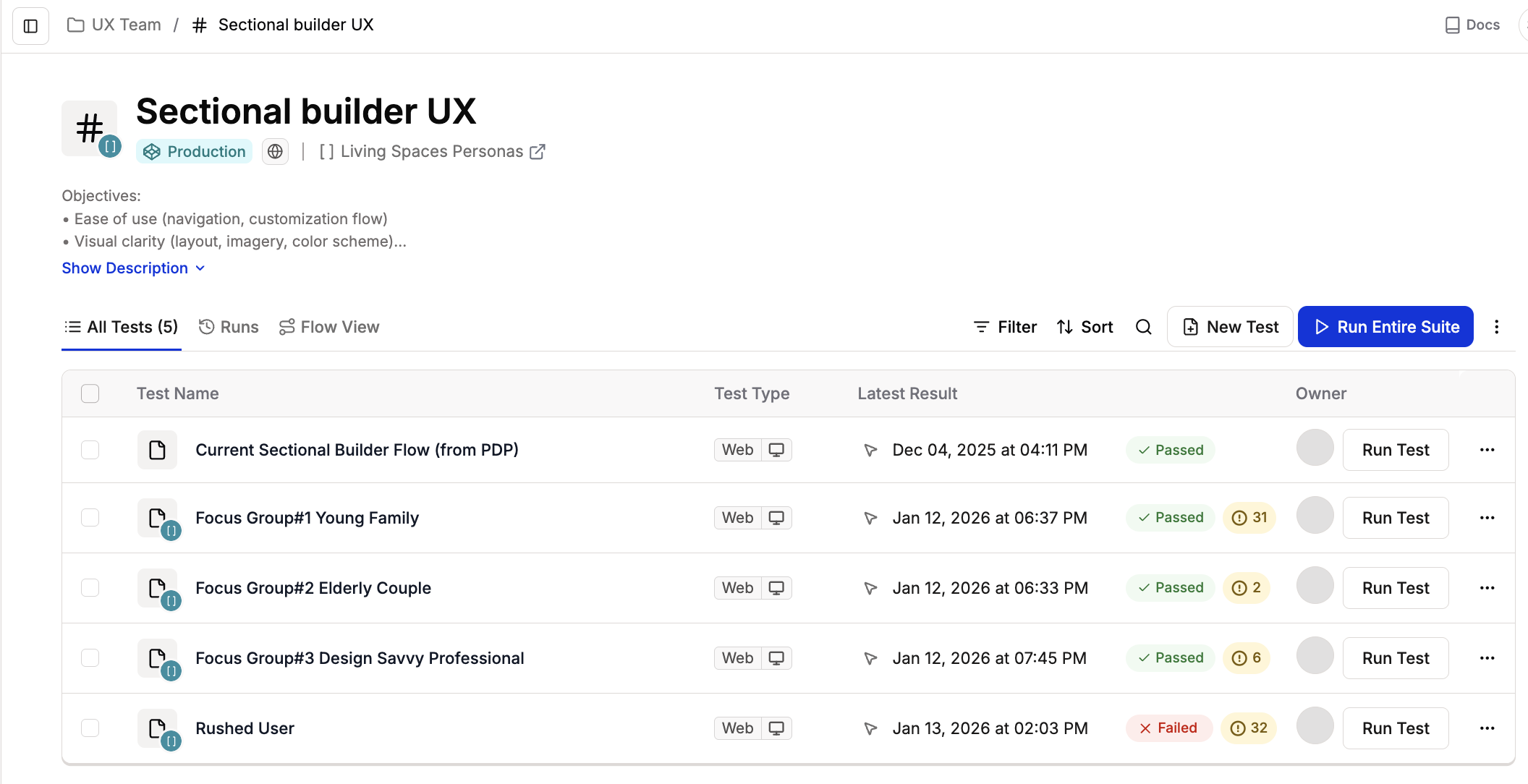
  <Step title="Choose a Test">
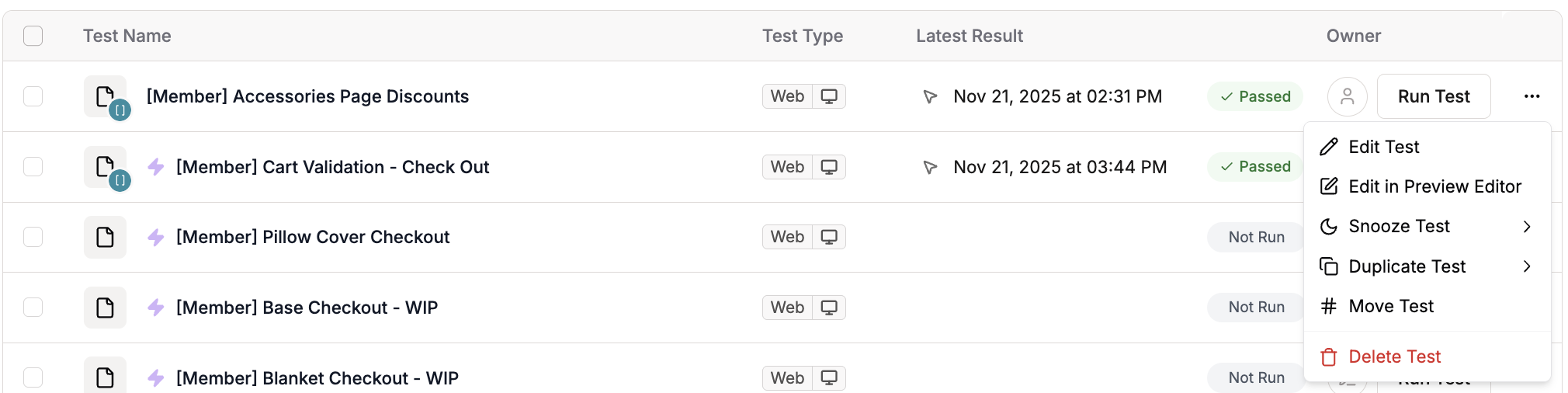
    Choose a Test you want to turn into a draft and **click the three dot menu.**
    <Frame>
      <img src="https://mintcdn.com/spur/xiqFoyKXwaXlvdEw/images/Screenshot2026-01-29at4.34.37AM.png?fit=max&auto=format&n=xiqFoyKXwaXlvdEw&q=85&s=17a341da6022b49e2cc5ce75277652a3" alt="Screenshot2026 01 29at4 34 37AM" width="2112" height="1084" data-path="images/Screenshot2026-01-29at4.34.37AM.png" />
    </Frame>
  </Step>

  <Step title="Choose edit test from the Dropdown Menu option.">
    <Frame>
      <img src="https://mintcdn.com/spur/xiqFoyKXwaXlvdEw/images/Screenshot2026-01-29at4.36.01AM.png?fit=max&auto=format&n=xiqFoyKXwaXlvdEw&q=85&s=c69af9803abfd04ad69df4cb421ed520" alt="Screenshot2026 01 29at4 36 01AM" width="2020" height="506" data-path="images/Screenshot2026-01-29at4.36.01AM.png" />
    </Frame>
  </Step>

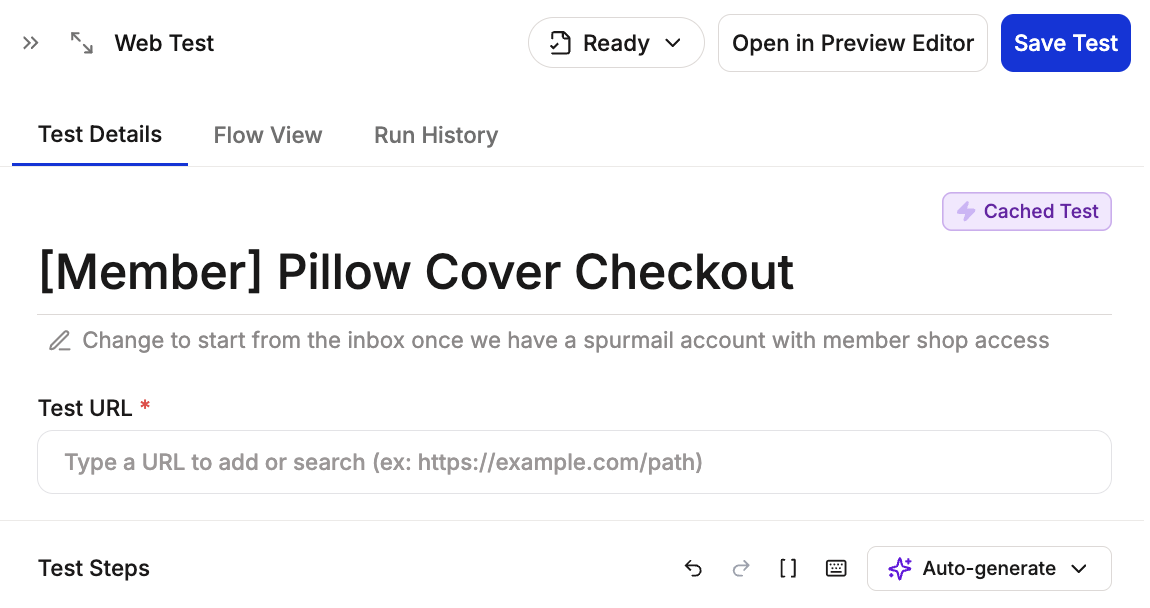
  <Step title="Open Test Side Peek">
    Test side peek window open, **click Ready** at the top of the test.
    <Frame>
      <img src="https://mintcdn.com/spur/4nwpEE0-cgs18aCd/images/Screenshot2026-01-29at4.37.25AM.png?fit=max&auto=format&n=4nwpEE0-cgs18aCd&q=85&s=0e223b3900dd951ac6af47906022f2e5" alt="Screenshot2026 01 29at4 37 25AM" width="1150" height="608" data-path="images/Screenshot2026-01-29at4.37.25AM.png" />
    </Frame>
  </Step>

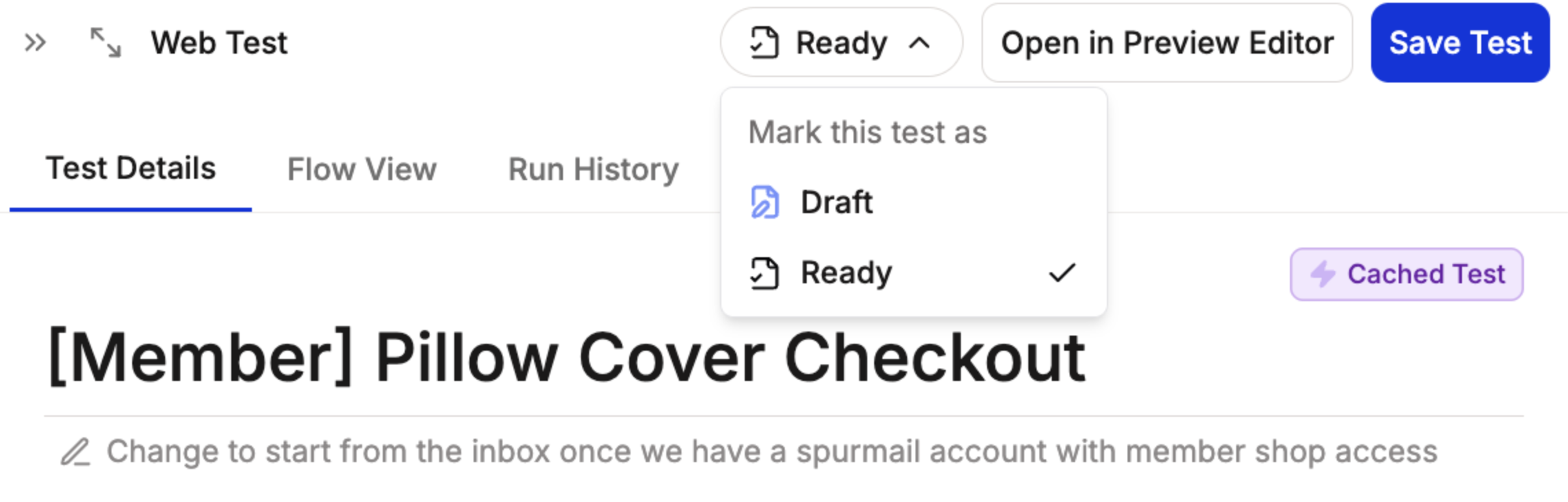
  <Step title="Choose Draft Status">
    Dropdown menu appears asking to choose between **Draft** and **Ready**. Choose draft to convert your existing test to a draft.
    <Frame>
      <img src="https://mintcdn.com/spur/-kGswOS1KFY-omef/images/Screenshot2026-02-11at3.03.59PM.png?fit=max&auto=format&n=-kGswOS1KFY-omef&q=85&s=e8bad4c712a115e9bf0dff6fed418927" alt="Screenshot 2026 02 11 At 3 03 59 PM" width="2278" height="730" data-path="images/Screenshot2026-02-11at3.03.59PM.png" />
    </Frame>
  </Step>

  <Step title="Review Draft Status">
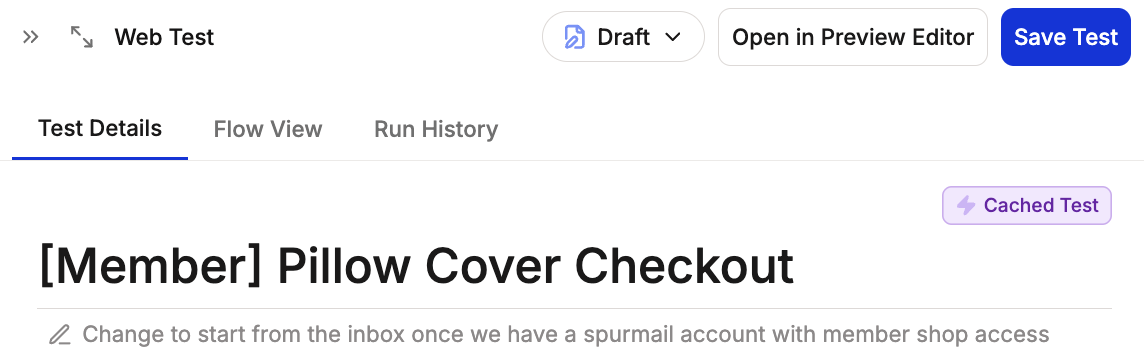
    <Warning>
      Make sure that it says **Draft** at the top.
    </Warning>

    <Frame>
      <img src="https://mintcdn.com/spur/4nwpEE0-cgs18aCd/images/Screenshot2026-01-29at4.37.50AM-2.png?fit=max&auto=format&n=4nwpEE0-cgs18aCd&q=85&s=8d489ccd11a5605fce809f44846ed0cc" alt="Screenshot2026 01 29at4 37 50AM 2" style={{ width:"100%" }} width="1146" height="362" data-path="images/Screenshot2026-01-29at4.37.50AM-2.png" />
    </Frame>
  </Step>

  <Step title="Save your Test">
    Click Save Test. Your test is now converted to a draft and appears in the Drafts section.
  </Step>
</Steps>