> ## Documentation Index
> Fetch the complete documentation index at: https://docs.spurtest.com/llms.txt
> Use this file to discover all available pages before exploring further.
# Snooze Tests
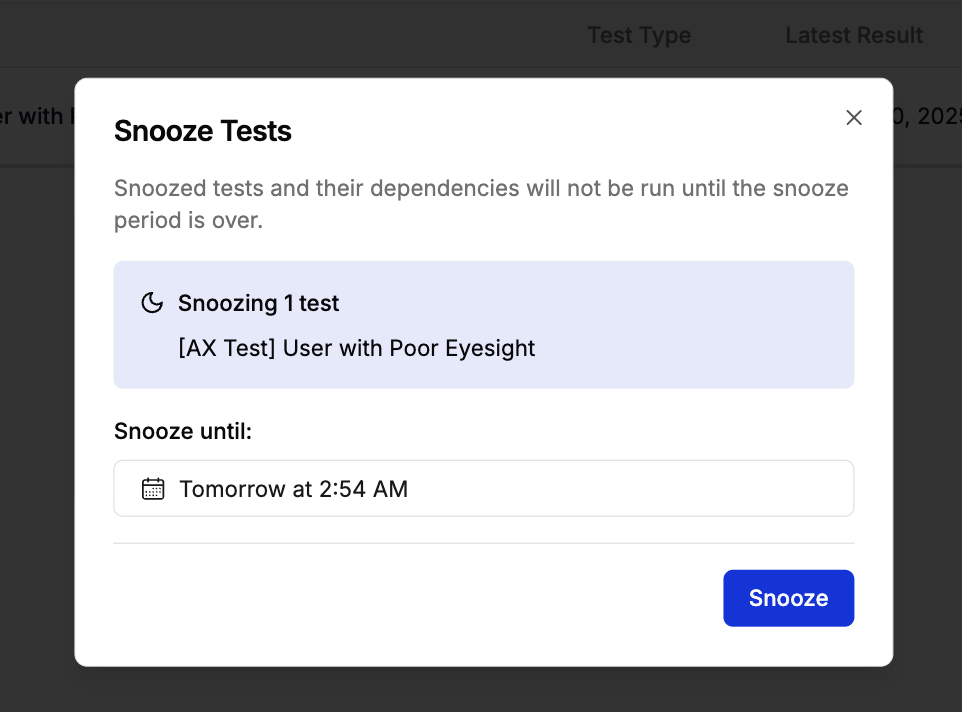
> Snoozing temporarily pauses test execution for a specified duration. This is useful when deploying new features, performing maintenance, or addressing known issues without cluttering your test results.
## How Snoozing Works
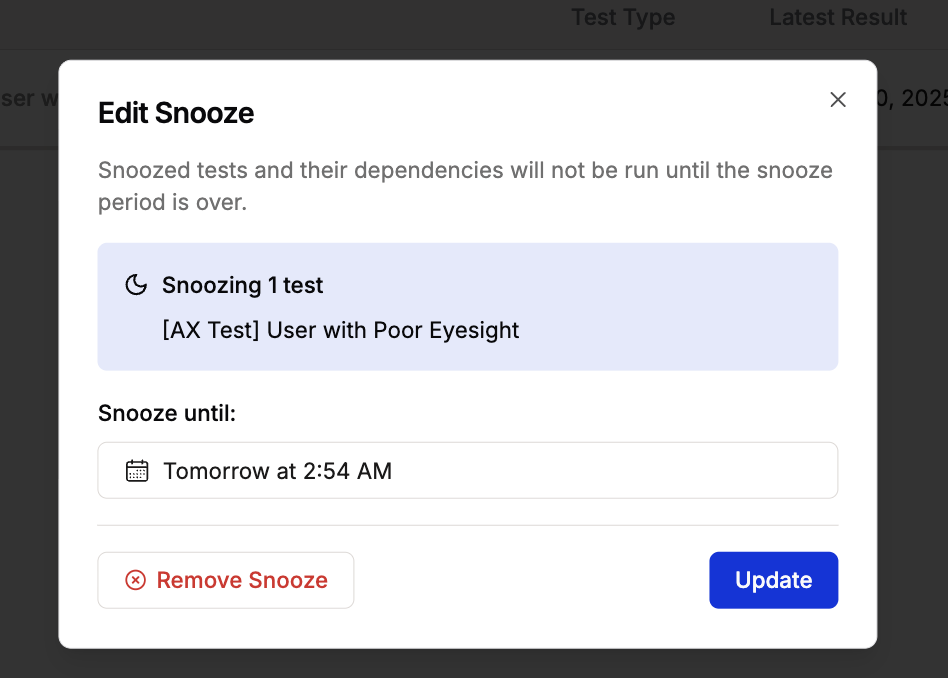
Tests can be snoozed for 1 day, 1 week, 1 month, a custom date/time, or indefinitely until manually unsnoozed.
Snoozed tests and their dependencies will not run until the snooze period expires or is manually removed.
## What Gets Paused When You Snooze
When you snooze a test, the following are also paused:
* **Test execution in all contexts**: The snoozed test will not run in scheduled suites, test plans, or CI pipelines
* **Dependent child tests**: Any tests that depend on the snoozed test as a parent will also be snoozed
* **All automated triggers**: Scheduled runs, CI integrations, and test plan executions skip the snoozed test
Snoozed tests can still be triggered manually if you run that specific test individually (not if you run the full suite).
## How to Snooze a Test
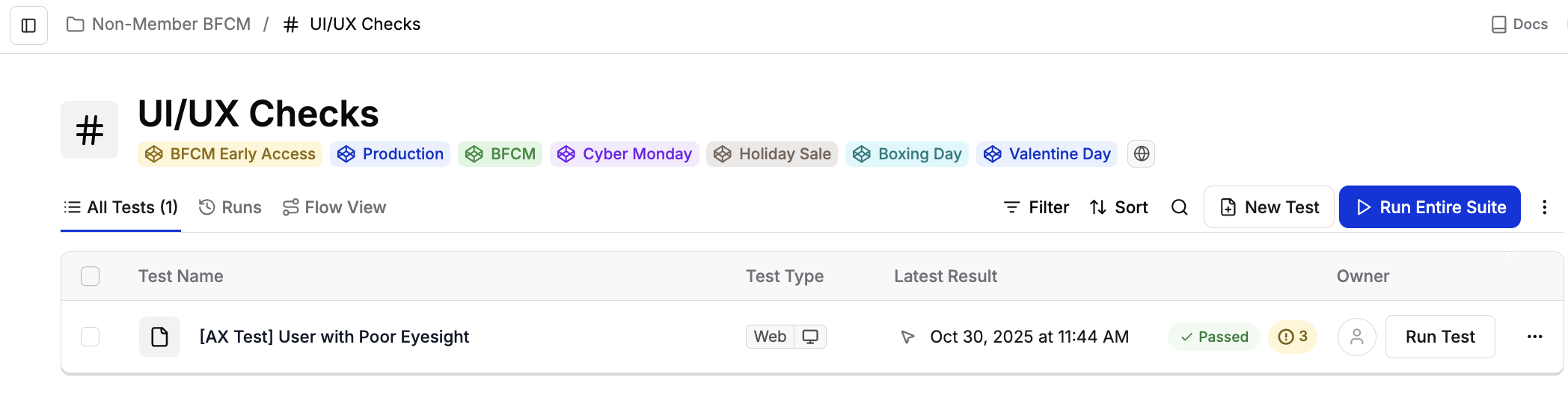 You can snooze or unsnooze multiple tests at once by selecting the checkboxes next to tests in your Test Suite.
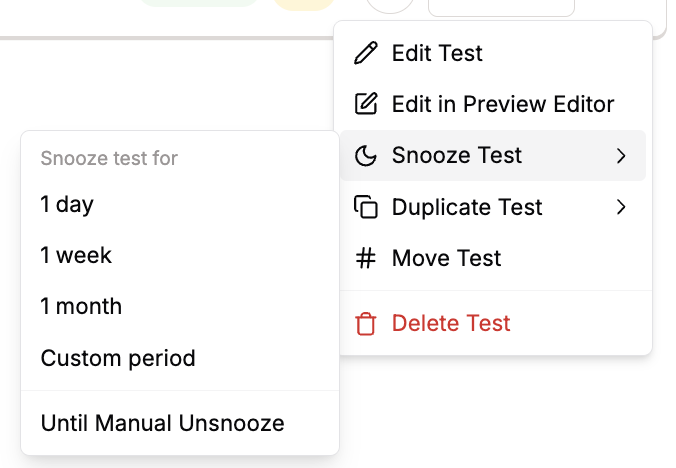
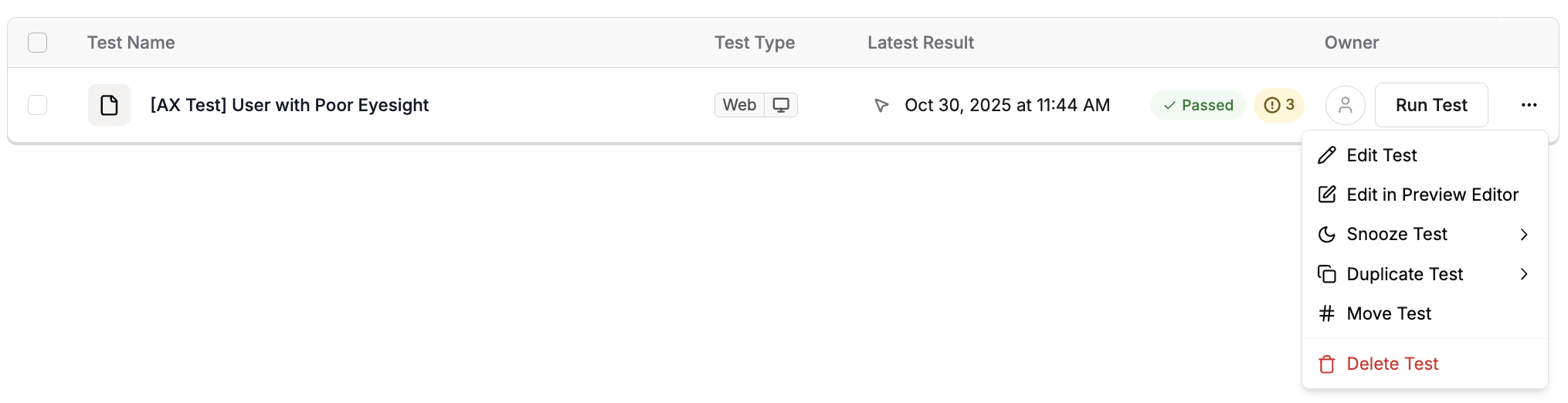 Duration for setting up snooze for a test:
* 1 day
* 1 week
* 1 month
* Custom period
* Until Manual Unsnooze
Duration for setting up snooze for a test:
* 1 day
* 1 week
* 1 month
* Custom period
* Until Manual Unsnooze
 ## Unsnooze a Test
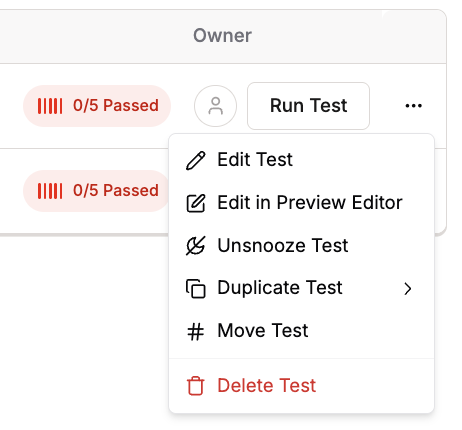 You can modify the snooze duration or click Remove Snooze to unsnooze immediately
 ## Impact on Dependencies
When you snooze a test that has dependencies:
* Child tests dependent on the snoozed parent test will not run
* The entire dependency chain below the snoozed test is paused
* This prevents failures from tests that depend on setup from the snoozed test
For more details on how dependencies work, see the [Dependencies](/authoring-tests/dependencies) section.
## Use Cases
Snooze tests that check features currently being deployed or updated. This prevents false failures during the deployment window.
Temporarily snooze tests failing due to known bugs that are being addressed. This keeps your test results clean while fixes are in progress.
Snooze tests during scheduled maintenance periods when the application or specific features are intentionally unavailable.
Snooze tests for variations not currently active in your A/B testing setup.
## Impact on Dependencies
When you snooze a test that has dependencies:
* Child tests dependent on the snoozed parent test will not run
* The entire dependency chain below the snoozed test is paused
* This prevents failures from tests that depend on setup from the snoozed test
For more details on how dependencies work, see the [Dependencies](/authoring-tests/dependencies) section.
## Use Cases
Snooze tests that check features currently being deployed or updated. This prevents false failures during the deployment window.
Temporarily snooze tests failing due to known bugs that are being addressed. This keeps your test results clean while fixes are in progress.
Snooze tests during scheduled maintenance periods when the application or specific features are intentionally unavailable.
Snooze tests for variations not currently active in your A/B testing setup.