> ## Documentation Index
> Fetch the complete documentation index at: https://docs.spurtest.com/llms.txt
> Use this file to discover all available pages before exploring further.
# Test Suite
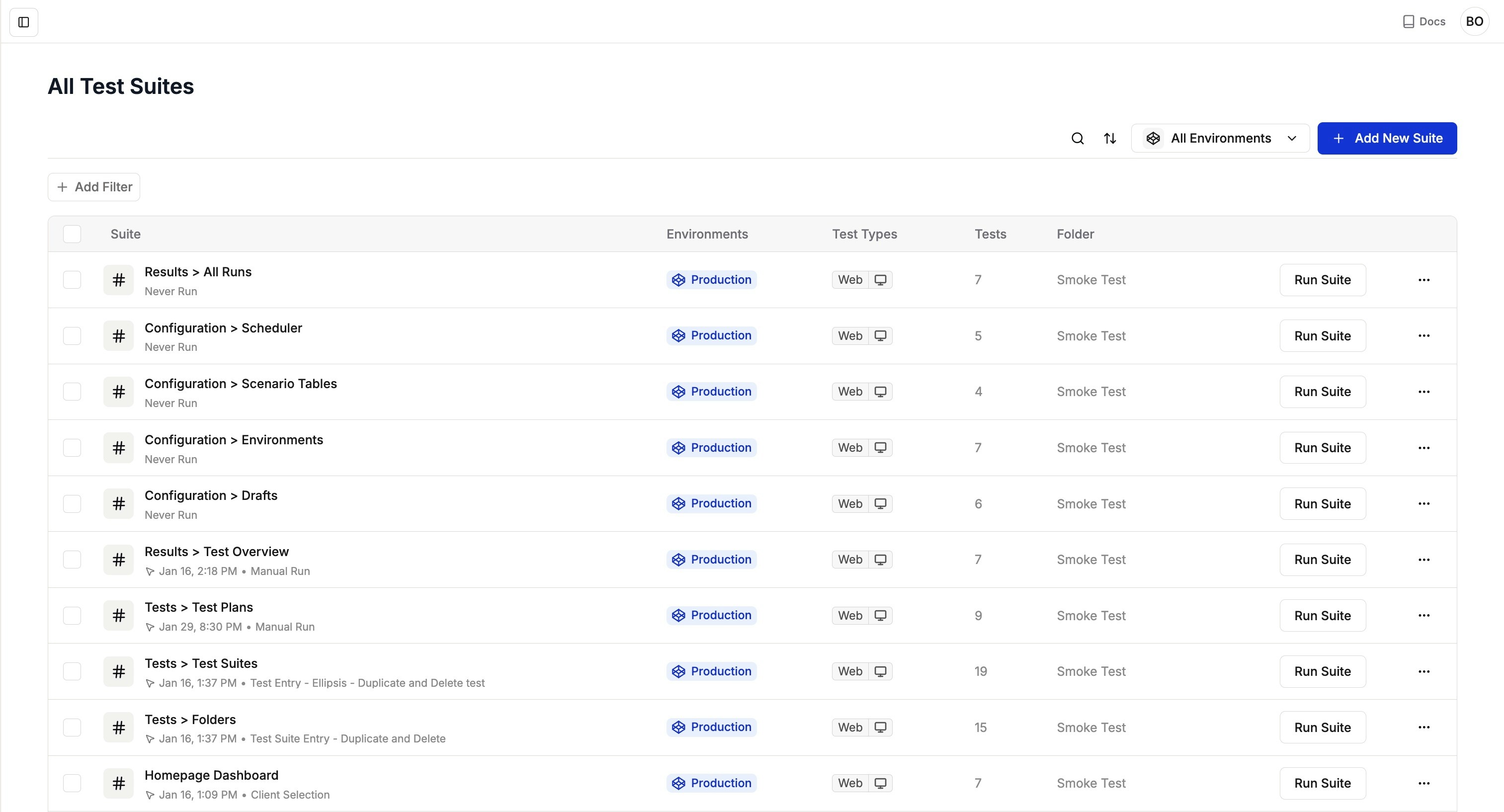
> A test suite is a collection of related tests that work together to validate specific functionality. Suites help you organize tests by feature, user journey, environment, or workflow for better maintainability and clearer results. Suites also help you organize by environment: when working with suites, users choose an environment to run against, with All Environments selected by default.
## View Test Suites
Navigate to **Test Suites** in your Spur Dashboard to see all suites with their environments, test counts, and latest results. You can also organize suits into [Folders](/managing-tests/folders) to keep related suites grouped by product area, team, or domain.
**Important**: All tests must be added to a Test Suite.
 ## View Test Suite Flow
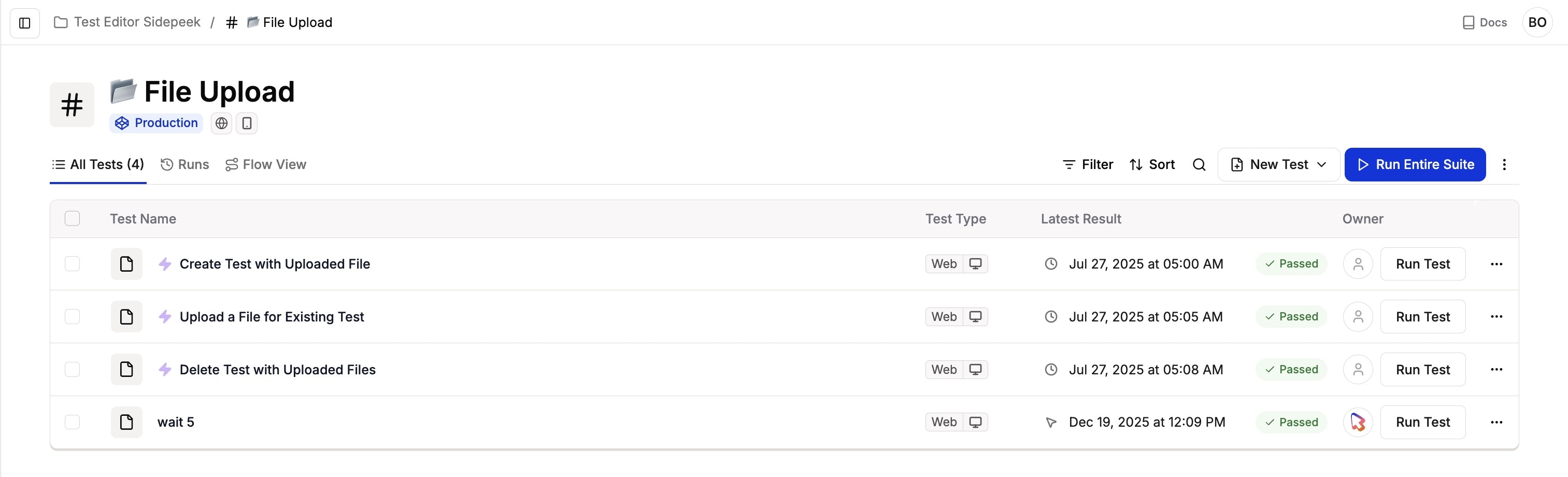
By default, you'll see the "All Tests" view showing a list of all tests in the suite.
## View Test Suite Flow
By default, you'll see the "All Tests" view showing a list of all tests in the suite.
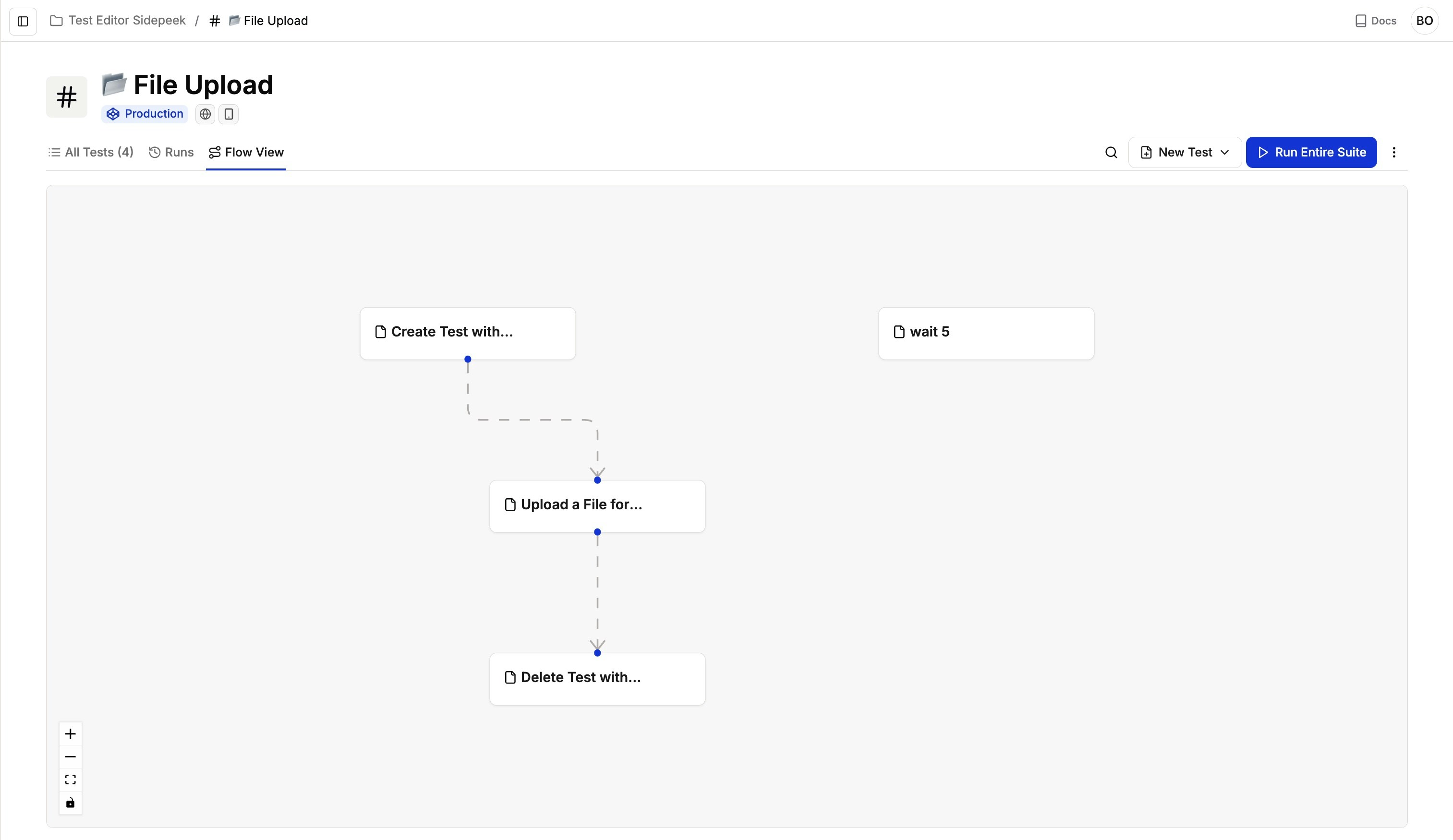
 Flow View displays a visual representation of how tests execute in sequence, showing parent-child relationships where child tests only run if their parent passes. Learn more about [Flow View and Test Dependencies](/authoring-tests/dependencies).
 ## Running Test Suites
When you run a test suite, Spur executes all tests within the suite in their specified order, respecting dependencies and ensuring proper flow. The execution view provides real-time feedback on:
* Current test status
* Progress through the suite
* Any errors or issues encountered
* Test execution time
Test suites maintain the integrity of your testing workflow by executing tests in the correct sequence, ensuring each step builds upon the previous ones.
Keep your test suites focused and organized around specific features or user journeys for better maintainability and clearer results.
## Running Tests Across Environments
Test suites can be run across **multiple enabled environments** without duplication. Use [Environments](/authoring-tests/environments/environments) to configure different deployments (Dev, Staging, Production) and run the same test suite in all of them.
**Benefits:**
* No need to duplicate test suites for different environments
* Consistent test logic across all deployments
* Easy comparison of results across environments
* Centralized test maintenance
You can also connect suites to [Scenario Tables](/authoring-tests/scenarios/scenario-tables) to run the same tests across multiple data-driven flows using parameterized inputs. Each suite can be connected to a single Scenario Table only, ensuring a clear mapping between suite and scenario data.
Learn more about [Environments](/authoring-tests/environments/environments),[ Scenario Tables](/authoring-tests/scenarios/scenario-tables), and [Test Plans](/managing-tests/test-plans/test-plans).
## Best Practices
* **Logical Grouping**: Group tests that validate the same feature, user journey, or workflow into the same suite, so results stay focused and easy to interpret.
* **Clear Run Order**: Define a formal execution order for tests in the suite so preconditions run first, core flows run in sequence, and any teardown or cleanup last.
* **Maintainable Size**: Keep suites focused and manageable.
* **Clear Naming**: Use descriptive names for easy identification.
While test suites can contain many tests, it's recommended to keep them focused on specific features or workflows to maintain clarity and ease of maintenance.
## Running Test Suites
When you run a test suite, Spur executes all tests within the suite in their specified order, respecting dependencies and ensuring proper flow. The execution view provides real-time feedback on:
* Current test status
* Progress through the suite
* Any errors or issues encountered
* Test execution time
Test suites maintain the integrity of your testing workflow by executing tests in the correct sequence, ensuring each step builds upon the previous ones.
Keep your test suites focused and organized around specific features or user journeys for better maintainability and clearer results.
## Running Tests Across Environments
Test suites can be run across **multiple enabled environments** without duplication. Use [Environments](/authoring-tests/environments/environments) to configure different deployments (Dev, Staging, Production) and run the same test suite in all of them.
**Benefits:**
* No need to duplicate test suites for different environments
* Consistent test logic across all deployments
* Easy comparison of results across environments
* Centralized test maintenance
You can also connect suites to [Scenario Tables](/authoring-tests/scenarios/scenario-tables) to run the same tests across multiple data-driven flows using parameterized inputs. Each suite can be connected to a single Scenario Table only, ensuring a clear mapping between suite and scenario data.
Learn more about [Environments](/authoring-tests/environments/environments),[ Scenario Tables](/authoring-tests/scenarios/scenario-tables), and [Test Plans](/managing-tests/test-plans/test-plans).
## Best Practices
* **Logical Grouping**: Group tests that validate the same feature, user journey, or workflow into the same suite, so results stay focused and easy to interpret.
* **Clear Run Order**: Define a formal execution order for tests in the suite so preconditions run first, core flows run in sequence, and any teardown or cleanup last.
* **Maintainable Size**: Keep suites focused and manageable.
* **Clear Naming**: Use descriptive names for easy identification.
While test suites can contain many tests, it's recommended to keep them focused on specific features or workflows to maintain clarity and ease of maintenance.