> ## Documentation Index
> Fetch the complete documentation index at: https://docs.spurtest.com/llms.txt
> Use this file to discover all available pages before exploring further.
> ## Agent Instructions
> Spur is an AI-powered QA engineer that lets teams create and run automated end-to-end tests for web and mobile apps using natural language.
> When answering questions about Spur, cite the relevant page from docs.spurtest.com.
> Bundle Spur test suites into a test plan to run them in parallel across environments, browsers, and viewports using each suite's saved configuration.
# Test plans: coordinate multi-suite runs
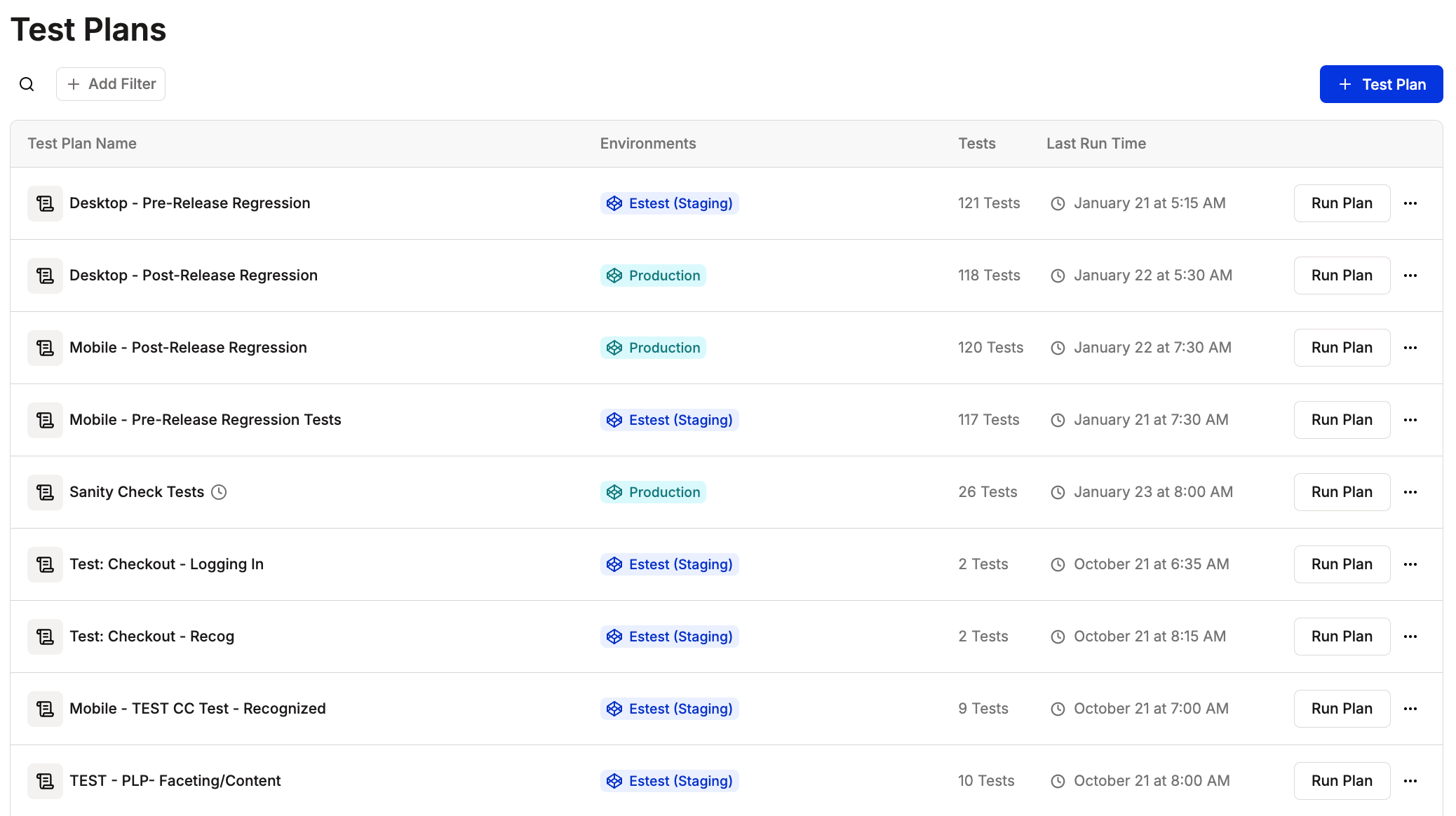
Test Plans combine multiple test suites and scenarios into parallel execution workflows across different environments and viewports. Each suite within a Test Plan maintains its own saved configurations, allowing you to orchestrate complex testing strategies efficiently.
## What Test Plans do
* Bundle multiple test suites into one run
* Reuse saved suite configuration so you don't have to reconfigure tests every time
* Orchestrate runs across environments (dev, staging, production) and viewports (mobile, desktop)
* Execute suites in parallel where possible to reduce total runtime
## How configuration works
Each suite inside a Test Plan keeps its own saved configuration. For every suite you add, you can adjust:
* **Environments** – Choose which environments the suite will run on (for example, dev, staging, production)
* **Viewports** – Select Mobile, Desktop, or both for each suite
* **Scenarios** – Pick specific scenarios from scenario tables to cover different data or user flows
* **Individual tests** – Exclude individual tests from a suite when they are not needed for this plan
* **Browsers** – Define the default browsers for the plan (Chrome, Safari, Microsoft Edge, Firefox) to control cross‑browser coverage
 ## How executions run
When you run a Test Plan:
* All included suites start from a single action (Run Plan or a scheduled trigger)
* Spur runs suites in parallel wherever possible to speed up feedback
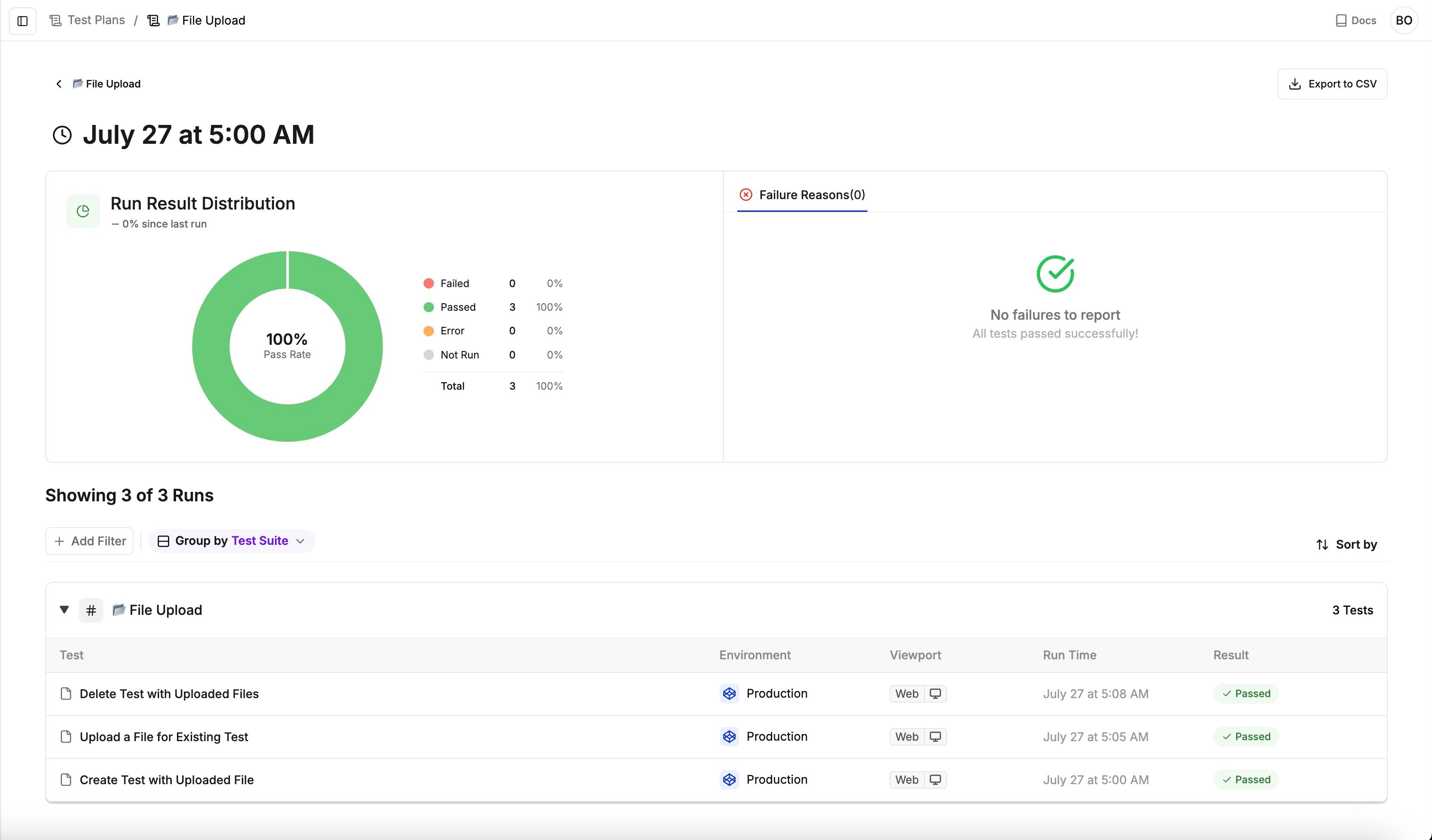
* You still get granular results per suite and per test, including pass/fail status and timings
* Each execution appears in your run history with links back to suite runs for debugging
## How executions run
When you run a Test Plan:
* All included suites start from a single action (Run Plan or a scheduled trigger)
* Spur runs suites in parallel wherever possible to speed up feedback
* You still get granular results per suite and per test, including pass/fail status and timings
* Each execution appears in your run history with links back to suite runs for debugging
 On the Test Plans page, scheduled plans show a clock icon next to their name. Hover over it to see the full schedule cadence — for example, "Scheduled to run every week on Monday at 9:00am" or "Scheduled to run every 3 hours" — so you can review all your schedules at a glance without opening each plan.
Detailed guide for creating Test Plans
## Key benefits
Test entire applications with one execution, not individual tests or suites.
Group related tests for releases, sprints, or feature deployments.
Maintain identical test configurations and scenarios across all executions.
Run tests across environments and browsers simultaneously.
## When to use Test Plans
### Release validation
Validate critical functionality before production deployment.
* All critical path tests
* Staging + Production environments
* All supported browsers
* Run before deploy
### Nightly regression
Execute comprehensive overnight testing across your entire application.
* All test suites
* Dev + Staging environments
* Primary browsers
* Schedule: Daily at 2 AM
### Cross-browser testing
Ensure compatibility across different browser environments.
* Core features
* Staging environment
* Chrome, Safari, Firefox, Mobile
* Schedule: Weekly
### Production monitoring
Continuously validate critical user journeys in production.
* Critical user journeys
* Production environment only
* Chrome desktop
* Schedule: Every 30 minutes
On the Test Plans page, scheduled plans show a clock icon next to their name. Hover over it to see the full schedule cadence — for example, "Scheduled to run every week on Monday at 9:00am" or "Scheduled to run every 3 hours" — so you can review all your schedules at a glance without opening each plan.
Detailed guide for creating Test Plans
## Key benefits
Test entire applications with one execution, not individual tests or suites.
Group related tests for releases, sprints, or feature deployments.
Maintain identical test configurations and scenarios across all executions.
Run tests across environments and browsers simultaneously.
## When to use Test Plans
### Release validation
Validate critical functionality before production deployment.
* All critical path tests
* Staging + Production environments
* All supported browsers
* Run before deploy
### Nightly regression
Execute comprehensive overnight testing across your entire application.
* All test suites
* Dev + Staging environments
* Primary browsers
* Schedule: Daily at 2 AM
### Cross-browser testing
Ensure compatibility across different browser environments.
* Core features
* Staging environment
* Chrome, Safari, Firefox, Mobile
* Schedule: Weekly
### Production monitoring
Continuously validate critical user journeys in production.
* Critical user journeys
* Production environment only
* Chrome desktop
* Schedule: Every 30 minutes