> ## Documentation Index
> Fetch the complete documentation index at: https://docs.spurtest.com/llms.txt
> Use this file to discover all available pages before exploring further.
# GitHub Agent
> Automatically generate and run Spur tests on every pull request with the Spur GitHub App.
## Overview
The Spur GitHub App analyzes every pull request the moment it's opened. It looks at the files changed and the actual code diff, then automatically generates a focused set of browser tests that cover the change. Spur also scans your existing test suite and triggers any relevant saved tests, so every PR gets both fresh, change-aware tests and proven regression coverage.
Spur reads the diff and generates tests targeting exactly what changed — uppercase handling, edge cases, new flows, etc.
Spur scans your saved tests and runs the ones related to the changed area of your app.
Spur picks up the preview deployment URL from your PR (e.g. Vercel) and runs tests against that build.
@-mention Spur in a PR comment to re-run with extra context like "log in as an admin user."
Looking for the YAML-based CI/CD setup instead? See the [GitHub CI/CD integration](/running-tests/cicd/github) — that flow runs your existing test plans on every PR via GitHub Actions. The GitHub Agent described here is a separate, AI-driven flow that generates tests on the fly.
## How it works
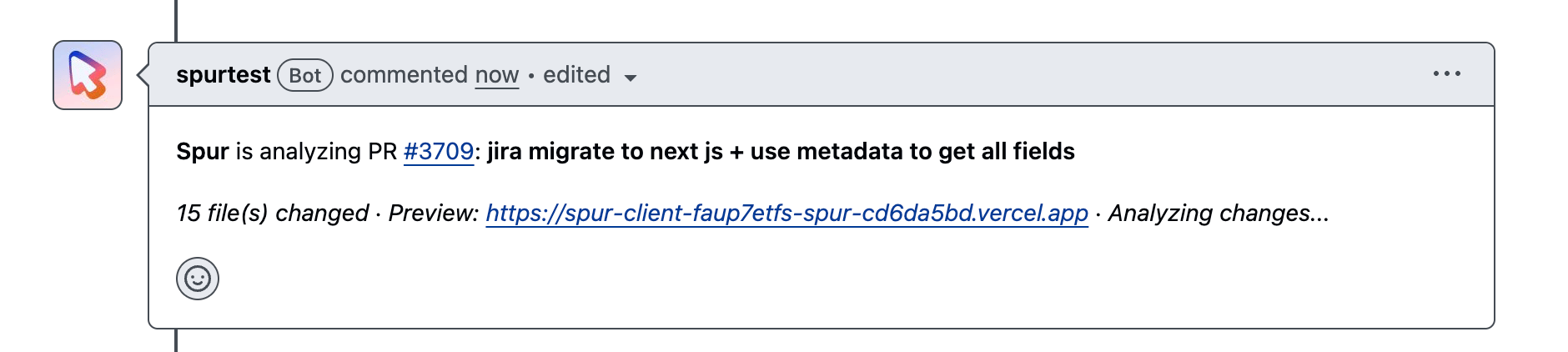
As soon as you open a PR, the Spur GitHub App reads the changed files, the diff, and the PR title and description to understand the change.
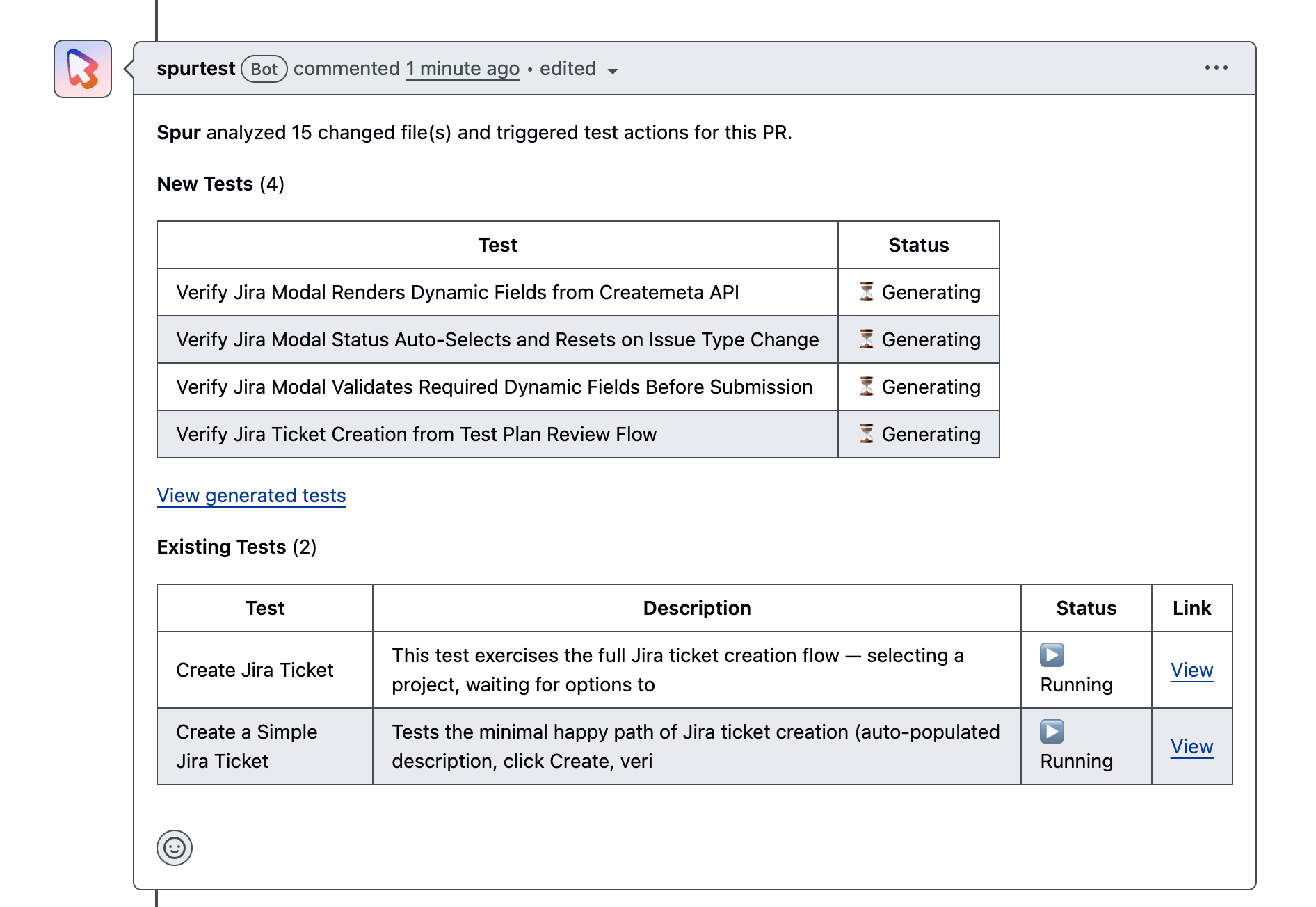
 A comment from the Spur app appears on your PR with the set of tests it generated for the change. Each test targets a specific case Spur thinks is worth verifying — for a search-input change, that might be uppercase matching, accented characters, internal whitespace, and case-insensitive matching. Spur also searches your saved tests for ones that touch the same area of the app and kicks those off as part of the same PR run — in the comment, generated tests and existing tests are listed separately so you can tell them apart.
 Spur automatically detects the preview URL from the PR (for example a Vercel preview) and runs every test against that deployment. No environment configuration is required for the per-PR run.
## Reviewing a test run
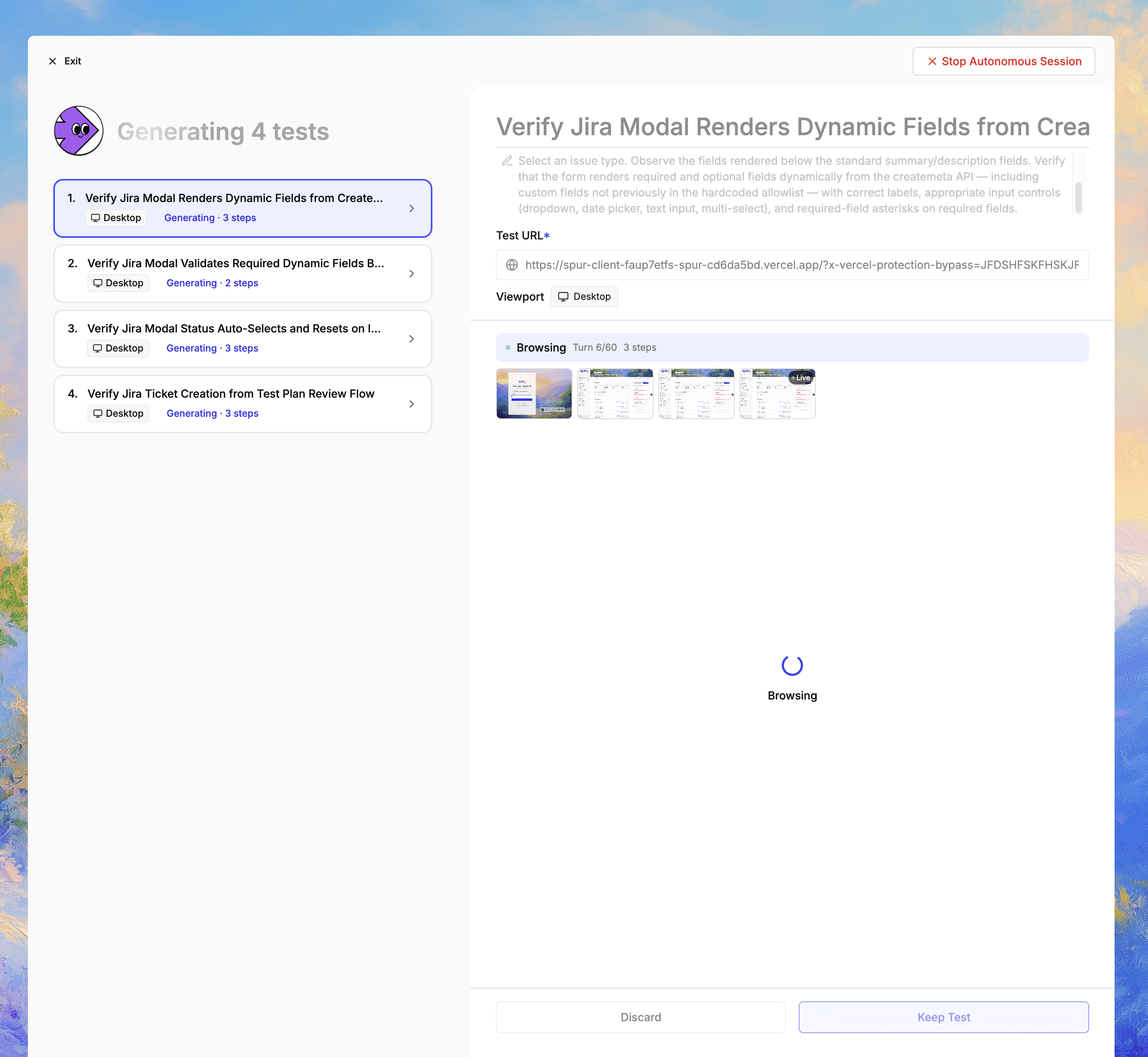
Click the **View Generated Tests** link in the Spur PR comment to open the full run on Spur. You get everything a normal Spur test run gives you:
* The full list of steps the agent executed
* Screenshots at each step
* The deployment URL the test ran against
* Pass/fail status and failure reasons
If a test fails, this is the place to dig in — step through the screenshots, read the agent's step descriptions, and figure out whether the failure is a real regression or a flaky expectation in the generated test.
Spur automatically detects the preview URL from the PR (for example a Vercel preview) and runs every test against that deployment. No environment configuration is required for the per-PR run.
## Reviewing a test run
Click the **View Generated Tests** link in the Spur PR comment to open the full run on Spur. You get everything a normal Spur test run gives you:
* The full list of steps the agent executed
* Screenshots at each step
* The deployment URL the test ran against
* Pass/fail status and failure reasons
If a test fails, this is the place to dig in — step through the screenshots, read the agent's step descriptions, and figure out whether the failure is a real regression or a flaky expectation in the generated test.
 ## Keeping a generated test
By default, generated tests are **discarded** after the PR run — they're scoped to that PR and don't pollute your suite.
If a generated test is good enough that you want it to keep running on future PRs and as part of your test plans, save it:
On the test result, click **Keep Test**.
## Keeping a generated test
By default, generated tests are **discarded** after the PR run — they're scoped to that PR and don't pollute your suite.
If a generated test is good enough that you want it to keep running on future PRs and as part of your test plans, save it:
On the test result, click **Keep Test**.
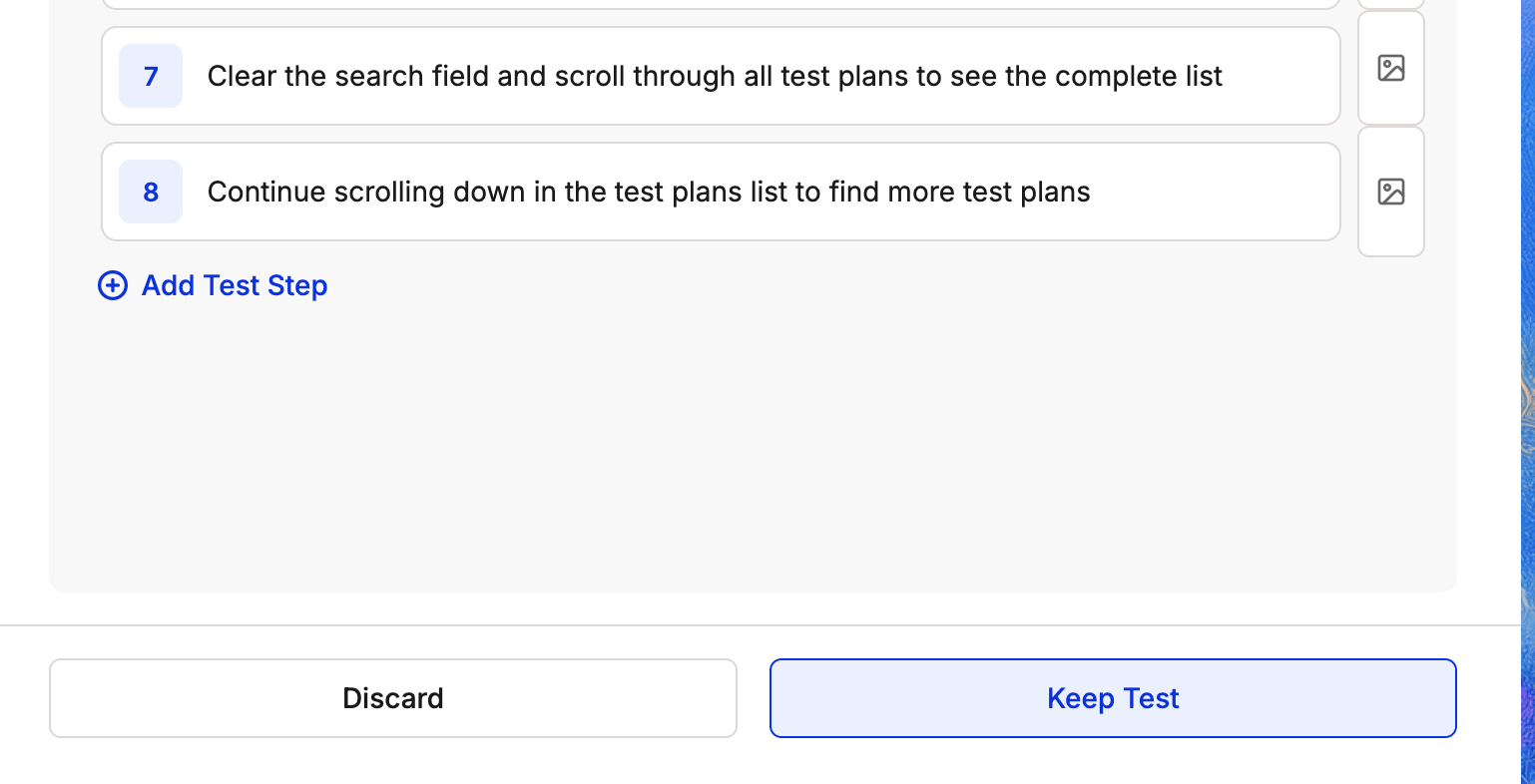 You'll be prompted to add the test to an existing suite or create a new one. Once saved, the test behaves like any other Spur test and will be re-triggered on future PRs that touch the same area of the code.
For tests that came from your existing suite, the test result is identical to a normal Spur run — no extra step needed.
## Re-triggering with extra context
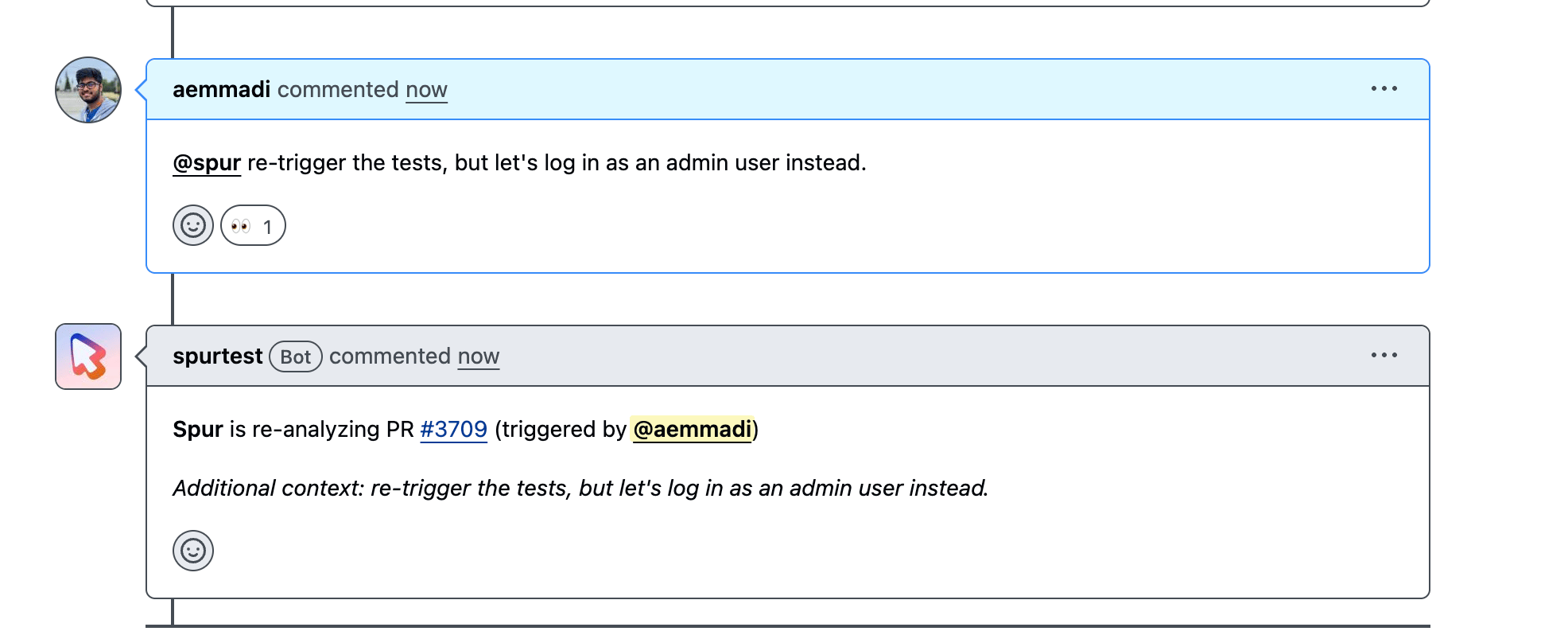
You can ask Spur to re-analyze a PR and apply new context by @-mentioning the app in a PR comment.
```text theme={null}
@spur re-trigger the tests, but let's log in as an admin user instead.
```
When you submit the comment, Spur:
1. Reacts to the comment to confirm it picked up the mention.
2. Re-reads the PR diff and preview URL.
3. Generates a fresh set of tests, applying your extra context (in the example above, logging in as admin instead of a normal user).
4. Posts the new run back to the PR.
This is useful for nudging the agent toward specific user roles, prerequisite states, or operational quirks of your app that aren't obvious from the diff alone.
You'll be prompted to add the test to an existing suite or create a new one. Once saved, the test behaves like any other Spur test and will be re-triggered on future PRs that touch the same area of the code.
For tests that came from your existing suite, the test result is identical to a normal Spur run — no extra step needed.
## Re-triggering with extra context
You can ask Spur to re-analyze a PR and apply new context by @-mentioning the app in a PR comment.
```text theme={null}
@spur re-trigger the tests, but let's log in as an admin user instead.
```
When you submit the comment, Spur:
1. Reacts to the comment to confirm it picked up the mention.
2. Re-reads the PR diff and preview URL.
3. Generates a fresh set of tests, applying your extra context (in the example above, logging in as admin instead of a normal user).
4. Posts the new run back to the PR.
This is useful for nudging the agent toward specific user roles, prerequisite states, or operational quirks of your app that aren't obvious from the diff alone.
 ## Setting default context
If you find yourself repeating the same context on every PR ("log in as admin," "the staging env requires this header," etc.), set it once as default context on the integration.
In Spur, go to **Integrations** and open **GitHub**.
Find the **Default context** section. Enter any prerequisites or operational notes you want Spur to apply on every PR run — for example, admin credentials, normal user credentials, required feature flags, or UI quirks the agent should be aware of.
## Setting default context
If you find yourself repeating the same context on every PR ("log in as admin," "the staging env requires this header," etc.), set it once as default context on the integration.
In Spur, go to **Integrations** and open **GitHub**.
Find the **Default context** section. Enter any prerequisites or operational notes you want Spur to apply on every PR run — for example, admin credentials, normal user credentials, required feature flags, or UI quirks the agent should be aware of.
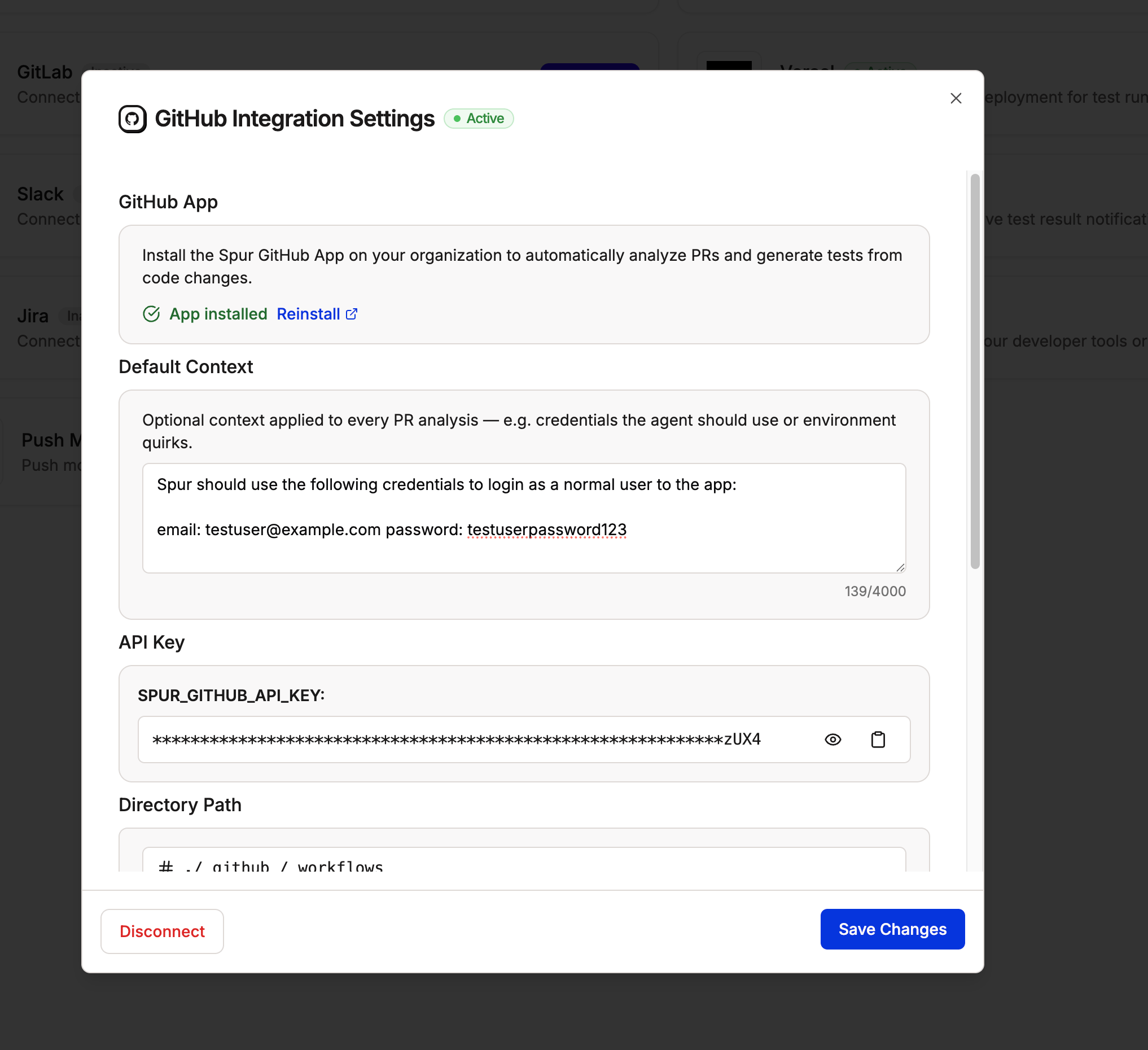 Click **Save Changes**. From now on, every PR analysis Spur runs will include this context alongside the PR diff, weighted into how it generates and selects tests.
Default context is global — it's applied to every PR. Use a PR-comment @-mention when you only want extra context for a single run.
## FAQ
No. Generated tests are discarded by default after the PR closes. Click **Keep Test** on any generated test to promote it into one of your suites.
Spur scans your saved tests and matches them against the area of the app that changed in the PR. Only tests Spur considers relevant to the diff are triggered — your full suite is not run on every PR.
Spur extracts the preview deployment URL from the PR automatically. Vercel preview deploys are supported out of the box; other providers that post a preview URL in PR comments also work.
Yes. Push new commits and @-mention Spur in a PR comment asking it to re-trigger. Spur will re-analyze the latest diff and preview URL.
Click **Save Changes**. From now on, every PR analysis Spur runs will include this context alongside the PR diff, weighted into how it generates and selects tests.
Default context is global — it's applied to every PR. Use a PR-comment @-mention when you only want extra context for a single run.
## FAQ
No. Generated tests are discarded by default after the PR closes. Click **Keep Test** on any generated test to promote it into one of your suites.
Spur scans your saved tests and matches them against the area of the app that changed in the PR. Only tests Spur considers relevant to the diff are triggered — your full suite is not run on every PR.
Spur extracts the preview deployment URL from the PR automatically. Vercel preview deploys are supported out of the box; other providers that post a preview URL in PR comments also work.
Yes. Push new commits and @-mention Spur in a PR comment asking it to re-trigger. Spur will re-analyze the latest diff and preview URL.