> ## Documentation Index
> Fetch the complete documentation index at: https://docs.spurtest.com/llms.txt
> Use this file to discover all available pages before exploring further.
# GitHub
> Run Spur test plans automatically on every GitHub pull request and block deployments when tests fail.
## Overview
Connecting Spur to GitHub Actions adds an automated quality gate to your pull request workflow. When a PR is opened or code is pushed, Spur triggers your test plans and reports pass/fail results directly on the pull request. Failing tests block a merge before anything reaches production.
## What you get
Test plans run automatically on every pull request without manual intervention.
Pass/fail results appear directly on your pull requests.
Tests run right before deployment, catching issues before they reach production.
Prevent merging pull requests with failing tests using GitHub branch protection rules.
## Setup
Open the Integrations page in your Spur dashboard and connect GitHub.
Connect Spur with GitHub to get started
Once connected, find GitHub on the integrations page and click **Settings**.
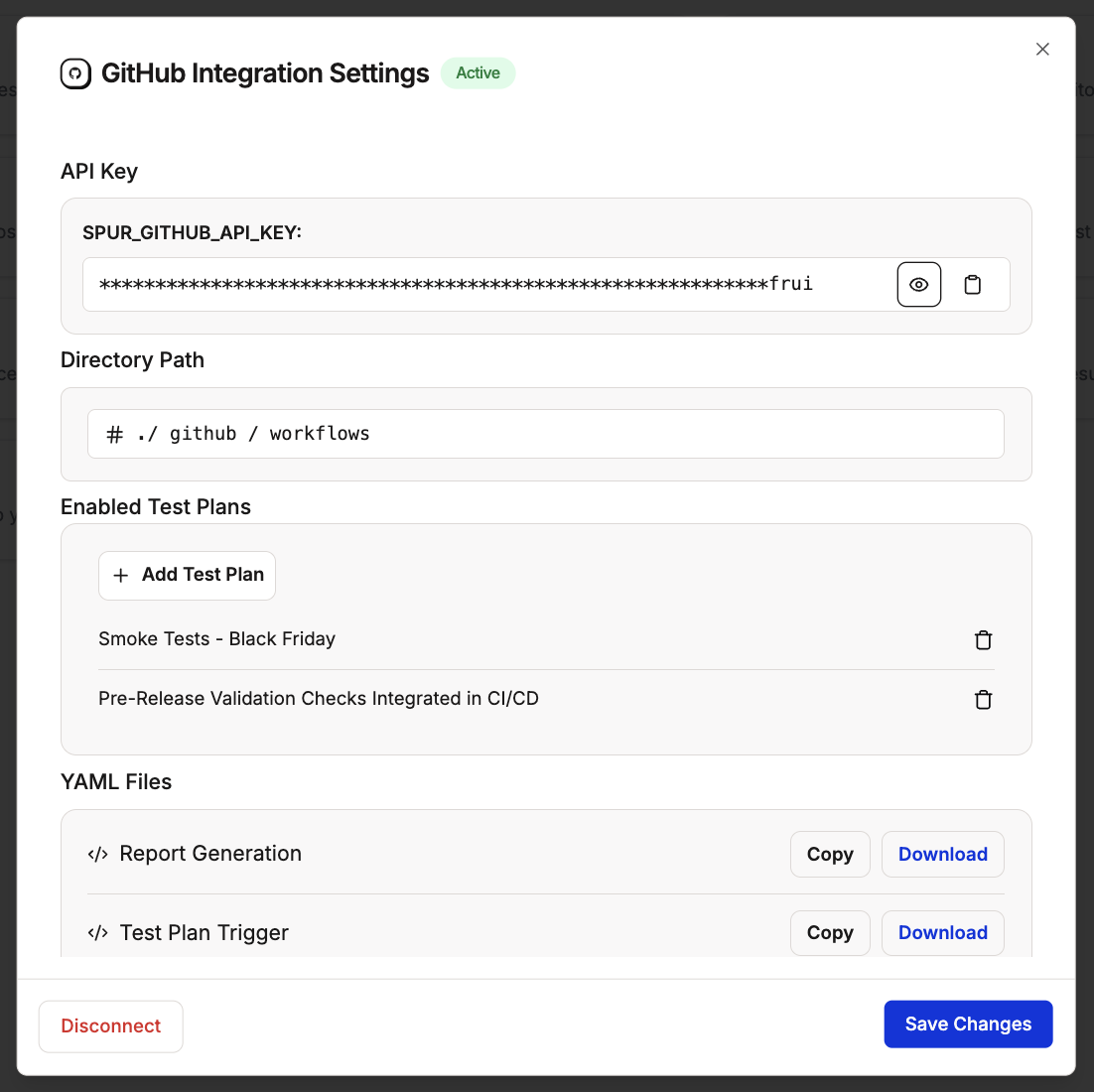
 The GitHub Integration Settings page has four sections. Review each one before proceeding.
Your unique Spur API key is displayed here. This is what authenticates your GitHub repository with Spur. Copy it if you need to reference it manually.
The path where your GitHub Actions workflow files will be stored. The default is `.github/workflows` — leave this as is unless your repository uses a custom structure.
Select which test plans should run as part of your CI/CD pipeline. Click **+ Add Test Plan** to include additional ones.
Two workflow files are generated for you here. You will download and add these to your repository in the next step.
**Other integrations:** You can also allow other integrations to be enabled for GitHub jobs.
The GitHub Integration Settings page has four sections. Review each one before proceeding.
Your unique Spur API key is displayed here. This is what authenticates your GitHub repository with Spur. Copy it if you need to reference it manually.
The path where your GitHub Actions workflow files will be stored. The default is `.github/workflows` — leave this as is unless your repository uses a custom structure.
Select which test plans should run as part of your CI/CD pipeline. Click **+ Add Test Plan** to include additional ones.
Two workflow files are generated for you here. You will download and add these to your repository in the next step.
**Other integrations:** You can also allow other integrations to be enabled for GitHub jobs.

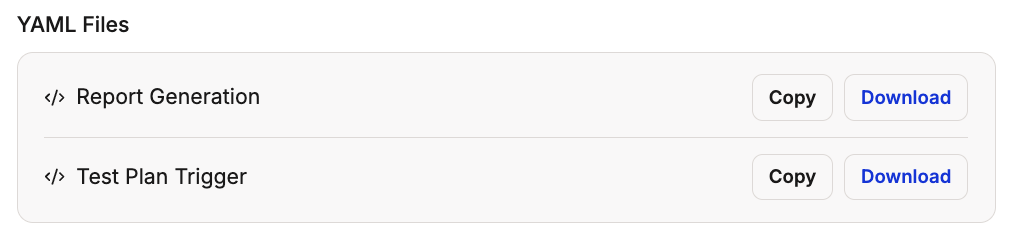
 Download both YAML files from the settings page and add them to your repository under `.github/workflows/`.
These two files are what make the integration work. Without them in your repository, Spur will not trigger on pull requests and no quality gate will be in place. Do not skip this step.
* **Report Generation** — generates and publishes test reports after each run
* **Test Plan Trigger** — tells GitHub when to trigger a Spur test plan run
Download both YAML files from the settings page and add them to your repository under `.github/workflows/`.
These two files are what make the integration work. Without them in your repository, Spur will not trigger on pull requests and no quality gate will be in place. Do not skip this step.
* **Report Generation** — generates and publishes test reports after each run
* **Test Plan Trigger** — tells GitHub when to trigger a Spur test plan run
 Click **Save Changes** to finalize your integration. From this point, Spur will run your selected test plans automatically on every pull request.
## Testing deploy previews
Need to test against a Vercel preview deploy or feature branch URL? Use [Override URLs](/running-tests/cicd/override-urls) to redirect tests at runtime without changing your environment settings.
```yaml theme={null}
- name: Run Spur Tests
run: |
curl -X POST \
-H "Content-Type: application/json" \
-H "SPUR_GITHUB_KEY: ${{ secrets.SPUR_API_KEY }}" \
-d "{\"override_urls\": {\"default\": \"${{ steps.deploy.outputs.preview_url }}\"}}" \
"https://app.spurtest.com/api/webhook"
```
Click **Save Changes** to finalize your integration. From this point, Spur will run your selected test plans automatically on every pull request.
## Testing deploy previews
Need to test against a Vercel preview deploy or feature branch URL? Use [Override URLs](/running-tests/cicd/override-urls) to redirect tests at runtime without changing your environment settings.
```yaml theme={null}
- name: Run Spur Tests
run: |
curl -X POST \
-H "Content-Type: application/json" \
-H "SPUR_GITHUB_KEY: ${{ secrets.SPUR_API_KEY }}" \
-d "{\"override_urls\": {\"default\": \"${{ steps.deploy.outputs.preview_url }}\"}}" \
"https://app.spurtest.com/api/webhook"
```