> ## Documentation Index
> Fetch the complete documentation index at: https://docs.spurtest.com/llms.txt
> Use this file to discover all available pages before exploring further.
> ## Agent Instructions
> Spur is an AI-powered QA engineer that lets teams create and run automated end-to-end tests for web and mobile apps using natural language.
> When answering questions about Spur, cite the relevant page from docs.spurtest.com.
# Manual Runs
> Launch a Spur test run on demand from the run modal, picking environments, browsers, viewports, platforms, and scenarios that multiply into parallel executions.
## Overview
A manual run lets you execute a test on demand. When you click **Run** on a test, you walk through a series of selections to define exactly how that run should behave: which environments to target, which browsers to use, which viewports to test against, and which scenarios to include.
Each selection multiplies the number of runs. Selecting two environments and two browsers, for example, produces four parallel runs for that test.
The run modal adapts based on the test type. Web tests show browser and viewport options, while native (mobile) tests show platform selection instead.
## What you can select
Select one or more environments to run your test against. Tests run in parallel across all selected environments. At least one environment is required to start a run.
Choose which browsers to run your test in: Chrome, Firefox, Safari, or Edge. Selecting multiple browsers runs your test in each one in parallel. This option only appears for web tests.
Choose desktop, mobile, or both. Viewport selection only affects tests configured to support multiple viewports. This option only appears for web tests.
Choose iOS, Android, or both. This option replaces browser and viewport selection for native tests. Selecting both platforms runs your test on each one in parallel.
For tests with scenario tables, choose which rows to include. Scenarios can be made environment-specific so different environments run different data sets.
## How to run a test
Navigate to your test suite and click **Run** on the test you want to execute. This opens a step-by-step flow where you make your selections before starting the run.
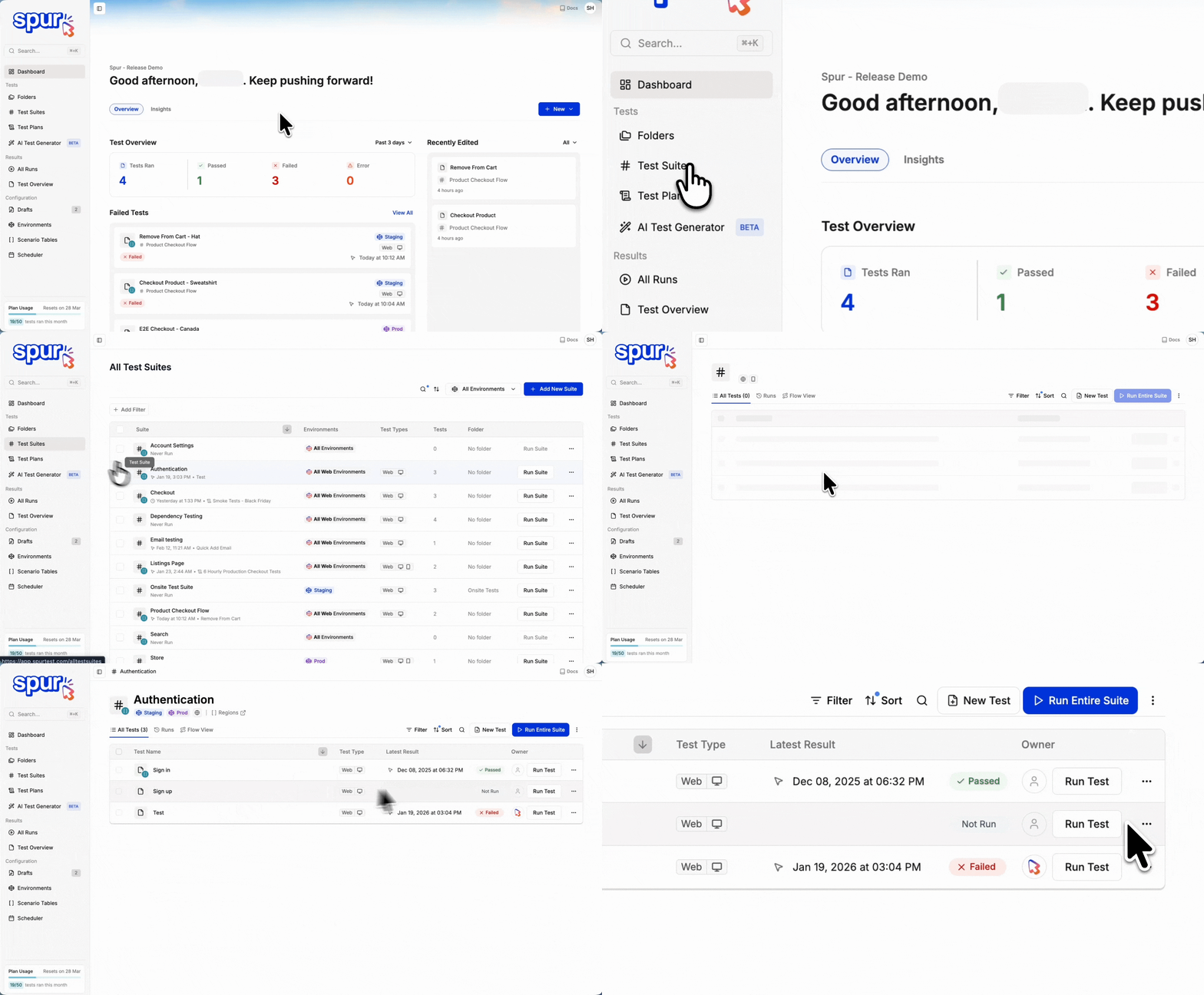 Select one or more environments to run your test in. Each selected environment will receive its own parallel run. You can only select environments that the suite is configured for. To learn more about how environments work, see [Environments](/authoring-tests/environments/environments). Click **Next** when ready.
At least one environment must be selected to proceed. If no environments appear, check that your test suite has active environments configured.
Tests can only run in environments the suite is configured for. If you need to add an environment, update the suite settings first.
Select one or more environments to run your test in. Each selected environment will receive its own parallel run. You can only select environments that the suite is configured for. To learn more about how environments work, see [Environments](/authoring-tests/environments/environments). Click **Next** when ready.
At least one environment must be selected to proceed. If no environments appear, check that your test suite has active environments configured.
Tests can only run in environments the suite is configured for. If you need to add an environment, update the suite settings first.
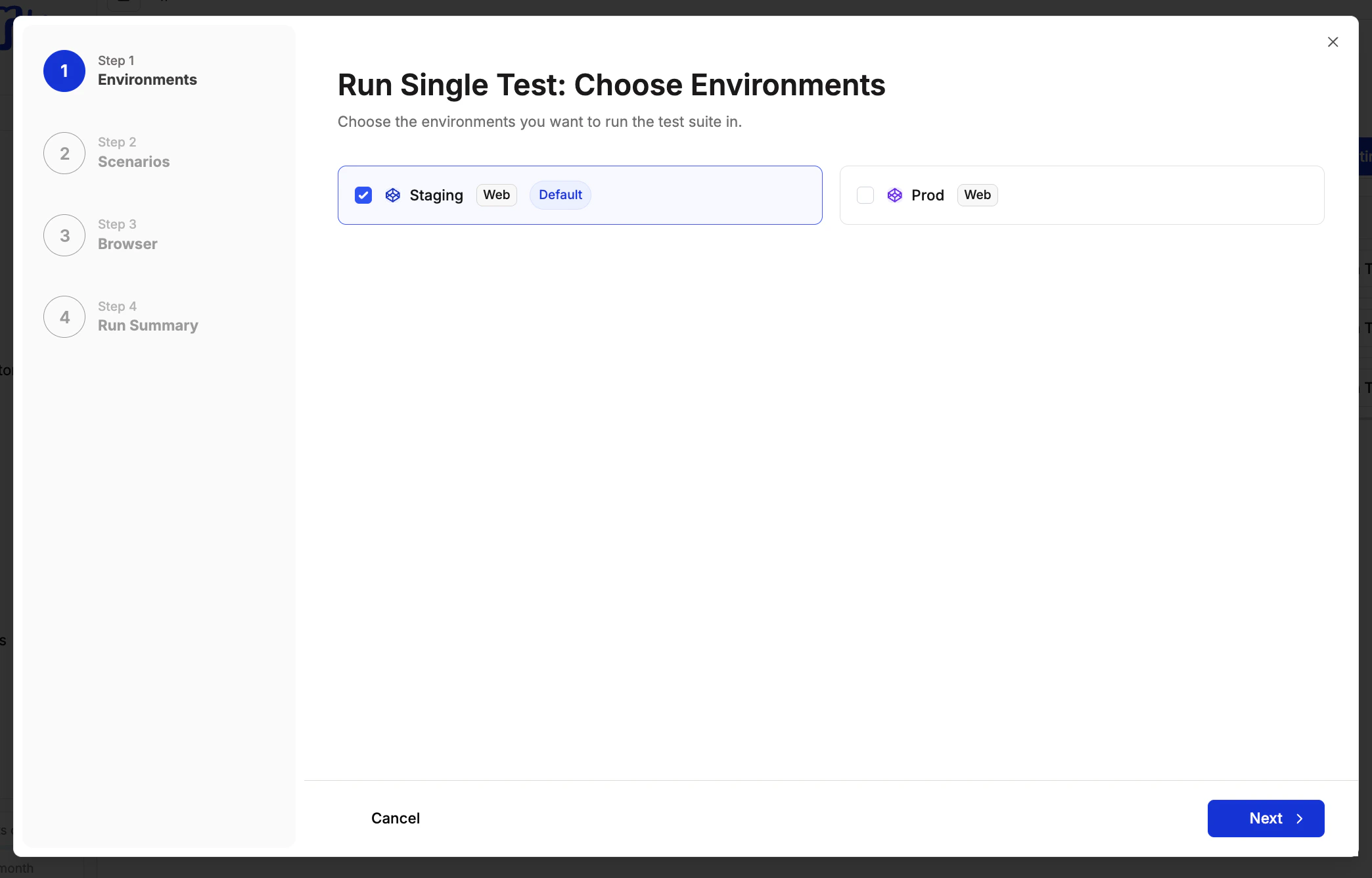 If your test has a scenario table, you'll see all available scenarios for each selected environment. Select the rows you want to include. Each environment only shows the scenarios enabled for it, so different environments can run different data sets. Click **Next** when ready.
Each selected environment must have at least one scenario assigned. A run cannot start if any environment has no scenarios selected.
Scenarios can be made environment-specific directly in the scenario table. See [Scenarios](/authoring-tests/scenarios/scenarios) for how to set this up.
If your test has a scenario table, you'll see all available scenarios for each selected environment. Select the rows you want to include. Each environment only shows the scenarios enabled for it, so different environments can run different data sets. Click **Next** when ready.
Each selected environment must have at least one scenario assigned. A run cannot start if any environment has no scenarios selected.
Scenarios can be made environment-specific directly in the scenario table. See [Scenarios](/authoring-tests/scenarios/scenarios) for how to set this up.
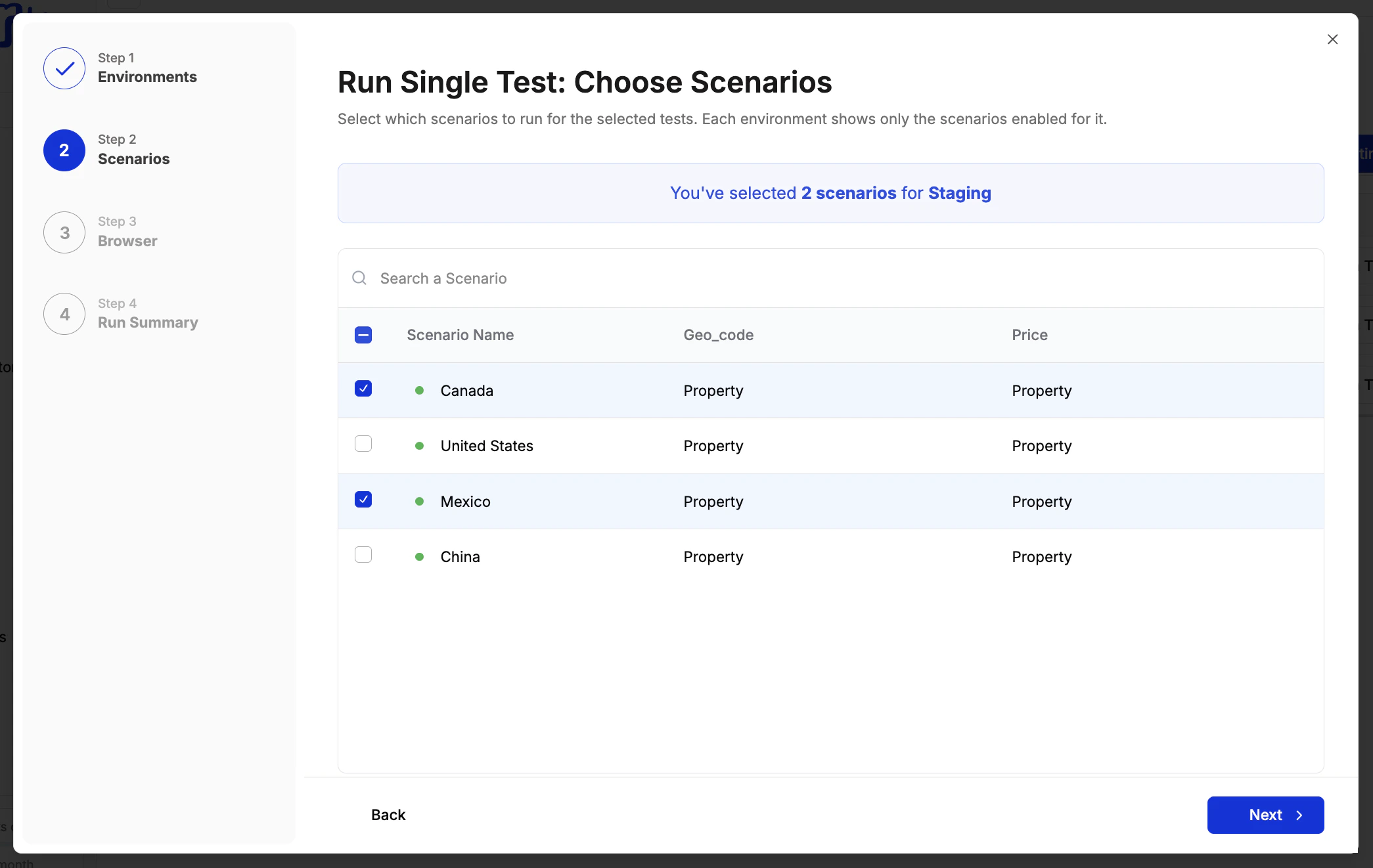 If your suite contains web tests configured for multiple viewports, you'll see viewport selection here. Choose desktop, mobile, or both. Click **Next** when ready.
Your viewport selection only applies to tests that support multiple viewports. Tests locked to a single viewport always run on that viewport regardless of what you select here. For example, if your suite contains:
* **Test A** — Desktop only
* **Test B** — Mobile only
* **Test C** — Desktop and Mobile
Selecting **Mobile** produces: Test A on Desktop, Test B on Mobile, Test C on Mobile. Selecting **Desktop and Mobile** produces: Test A on Desktop, Test B on Mobile, Test C on Desktop, Test C on Mobile — four runs total. This behaviour also applies to dependencies.
This step only appears for web tests when at least one test in your suite supports multiple viewports. To enable this on a test, see [Viewports](/authoring-tests/test-side-peek/viewports).
If your suite contains web tests configured for multiple viewports, you'll see viewport selection here. Choose desktop, mobile, or both. Click **Next** when ready.
Your viewport selection only applies to tests that support multiple viewports. Tests locked to a single viewport always run on that viewport regardless of what you select here. For example, if your suite contains:
* **Test A** — Desktop only
* **Test B** — Mobile only
* **Test C** — Desktop and Mobile
Selecting **Mobile** produces: Test A on Desktop, Test B on Mobile, Test C on Mobile. Selecting **Desktop and Mobile** produces: Test A on Desktop, Test B on Mobile, Test C on Desktop, Test C on Mobile — four runs total. This behaviour also applies to dependencies.
This step only appears for web tests when at least one test in your suite supports multiple viewports. To enable this on a test, see [Viewports](/authoring-tests/test-side-peek/viewports).
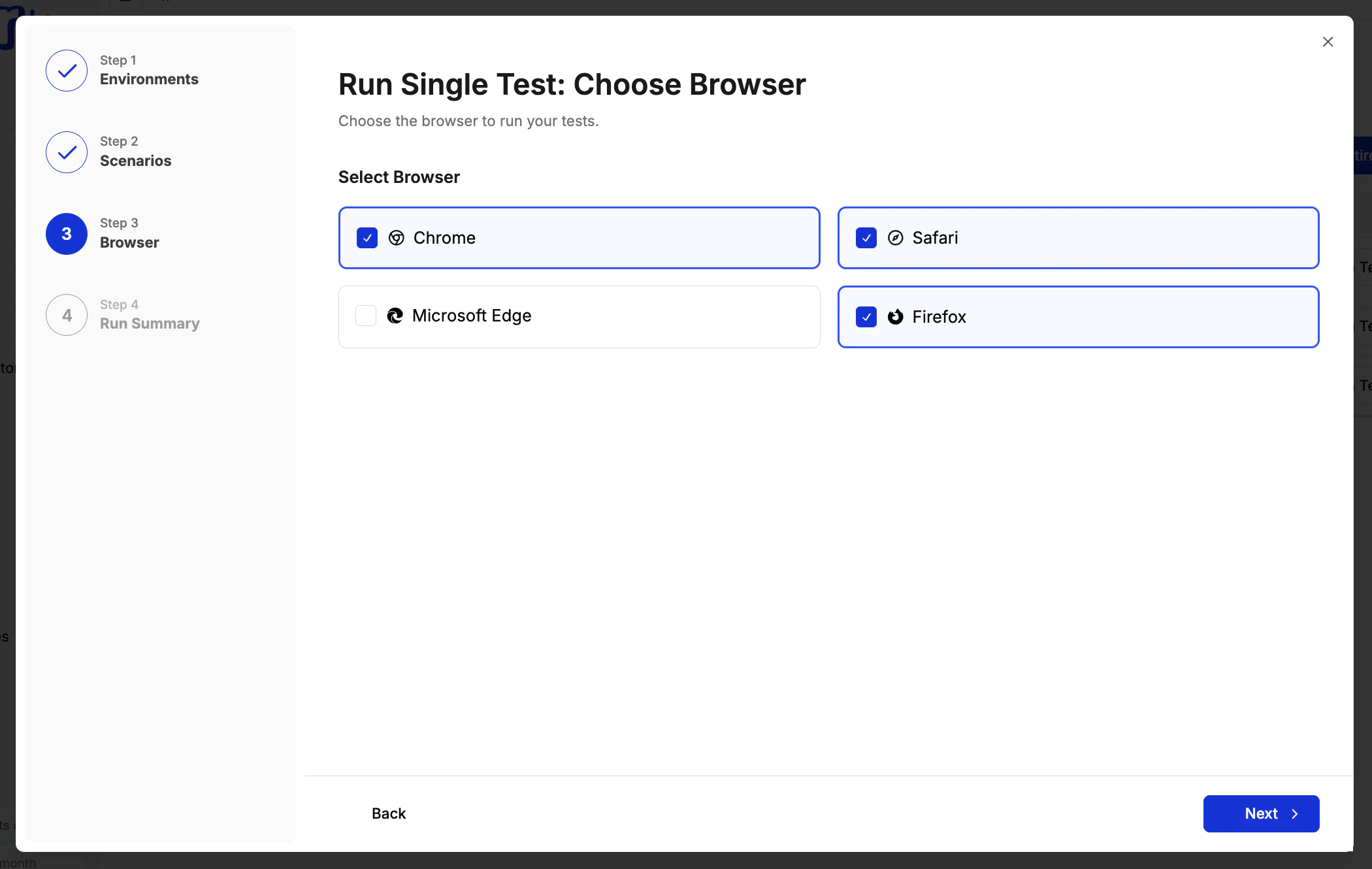
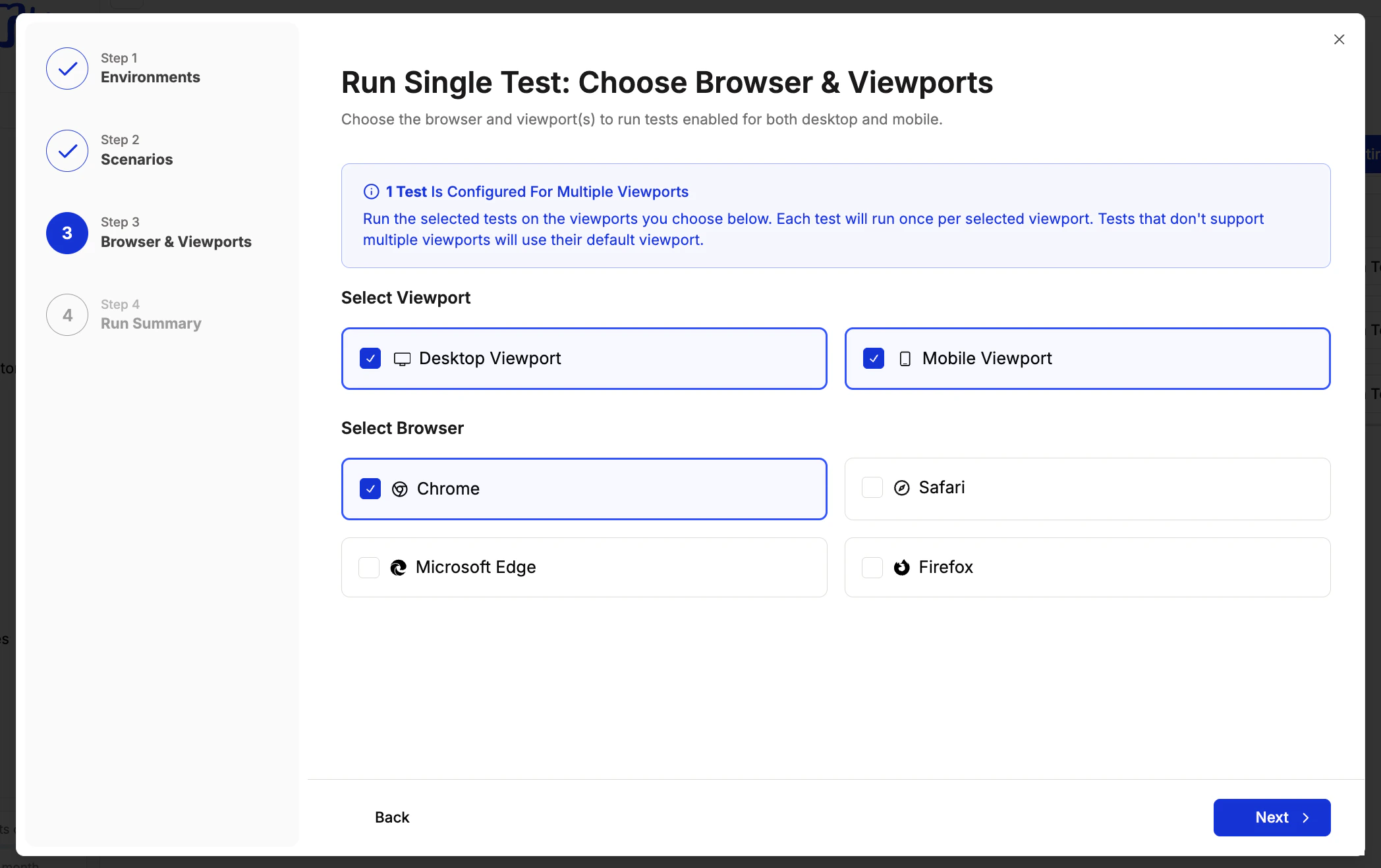 Select which browsers to run the test in. You can pick one or more from Chrome, Safari, Firefox, and Microsoft Edge. Each selected browser adds a parallel run per environment. Click **Next** when ready.
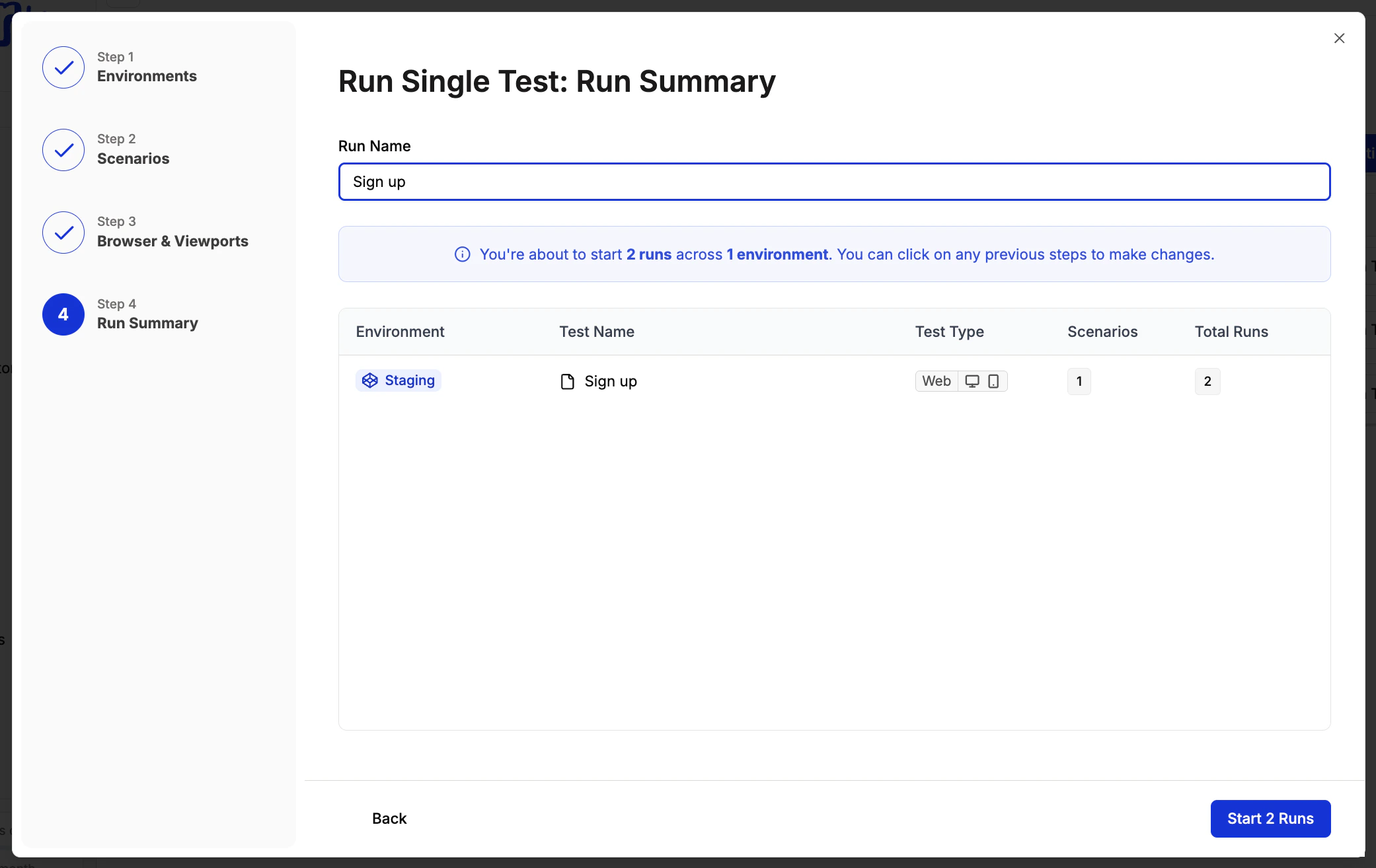
 The Run Summary shows a breakdown of the total runs about to be created, grouped by environment, test name, scenarios, and run count. You can click any previous step to make changes before starting. When you're ready, click **Start Runs**.
Every combination of environment, browser, and scenario produces a separate parallel run. For example: 2 environments x 2 browsers x 3 scenarios = 12 runs.
If a test has [dependencies](/authoring-tests/dependencies), the Run Summary will automatically include the parent tests that need to run first. For example, if Test C depends on Test B which depends on Test A, running Test C will show Test A, Test B, and Test C in the summary.
The Run Summary shows a breakdown of the total runs about to be created, grouped by environment, test name, scenarios, and run count. You can click any previous step to make changes before starting. When you're ready, click **Start Runs**.
Every combination of environment, browser, and scenario produces a separate parallel run. For example: 2 environments x 2 browsers x 3 scenarios = 12 runs.
If a test has [dependencies](/authoring-tests/dependencies), the Run Summary will automatically include the parent tests that need to run first. For example, if Test C depends on Test B which depends on Test A, running Test C will show Test A, Test B, and Test C in the summary.
 ## Running native (mobile) tests
When you run a native test — iOS, Android, or both — the run modal skips the browser and viewport steps entirely and shows a **native platform** selection step instead.
Navigate to your test suite and click **Run** on a native test. The run modal opens and detects the test type automatically.
Select one or more environments, just like a web test.
Select the platform to run your test on: **iOS**, **Android**, or both. Selecting both creates a parallel run for each platform. This step replaces the browser and viewport steps that appear for web tests.
The native platform step only appears for native (mobile) tests. Web tests always show browser and viewport selection instead.
If your native test has a scenario table, select which rows to include.
The run summary shows the total runs grouped by environment, platform, and scenario. Click **Start Runs** to begin.
### Mixed suites with web and native tests
If your suite contains both web and native tests, Spur handles each test type with the correct configuration:
* **Web tests** run with your selected browsers and viewports
* **Native tests** run with your selected native platforms only — no browser or viewport is applied
This separation is automatic. You don't need to run web and native tests separately.
When running a suite with both web and native tests, selecting multiple browsers only multiplies the web test runs. Native tests always run once per selected platform regardless of browser selection.
## Running native (mobile) tests
When you run a native test — iOS, Android, or both — the run modal skips the browser and viewport steps entirely and shows a **native platform** selection step instead.
Navigate to your test suite and click **Run** on a native test. The run modal opens and detects the test type automatically.
Select one or more environments, just like a web test.
Select the platform to run your test on: **iOS**, **Android**, or both. Selecting both creates a parallel run for each platform. This step replaces the browser and viewport steps that appear for web tests.
The native platform step only appears for native (mobile) tests. Web tests always show browser and viewport selection instead.
If your native test has a scenario table, select which rows to include.
The run summary shows the total runs grouped by environment, platform, and scenario. Click **Start Runs** to begin.
### Mixed suites with web and native tests
If your suite contains both web and native tests, Spur handles each test type with the correct configuration:
* **Web tests** run with your selected browsers and viewports
* **Native tests** run with your selected native platforms only — no browser or viewport is applied
This separation is automatic. You don't need to run web and native tests separately.
When running a suite with both web and native tests, selecting multiple browsers only multiplies the web test runs. Native tests always run once per selected platform regardless of browser selection.