> ## Documentation Index
> Fetch the complete documentation index at: https://docs.spurtest.com/llms.txt
> Use this file to discover all available pages before exploring further.
# Scheduled Tests
> Run your test plans automatically at set intervals — no manual triggering required.
## Overview
The Scheduler lets you run test plans on a recurring basis. Set a frequency, pick your start time, and Spur handles the rest. Use it for continuous monitoring, regression testing, or pre-deployment validation across any environment.
## How to Schedule a Test Plan
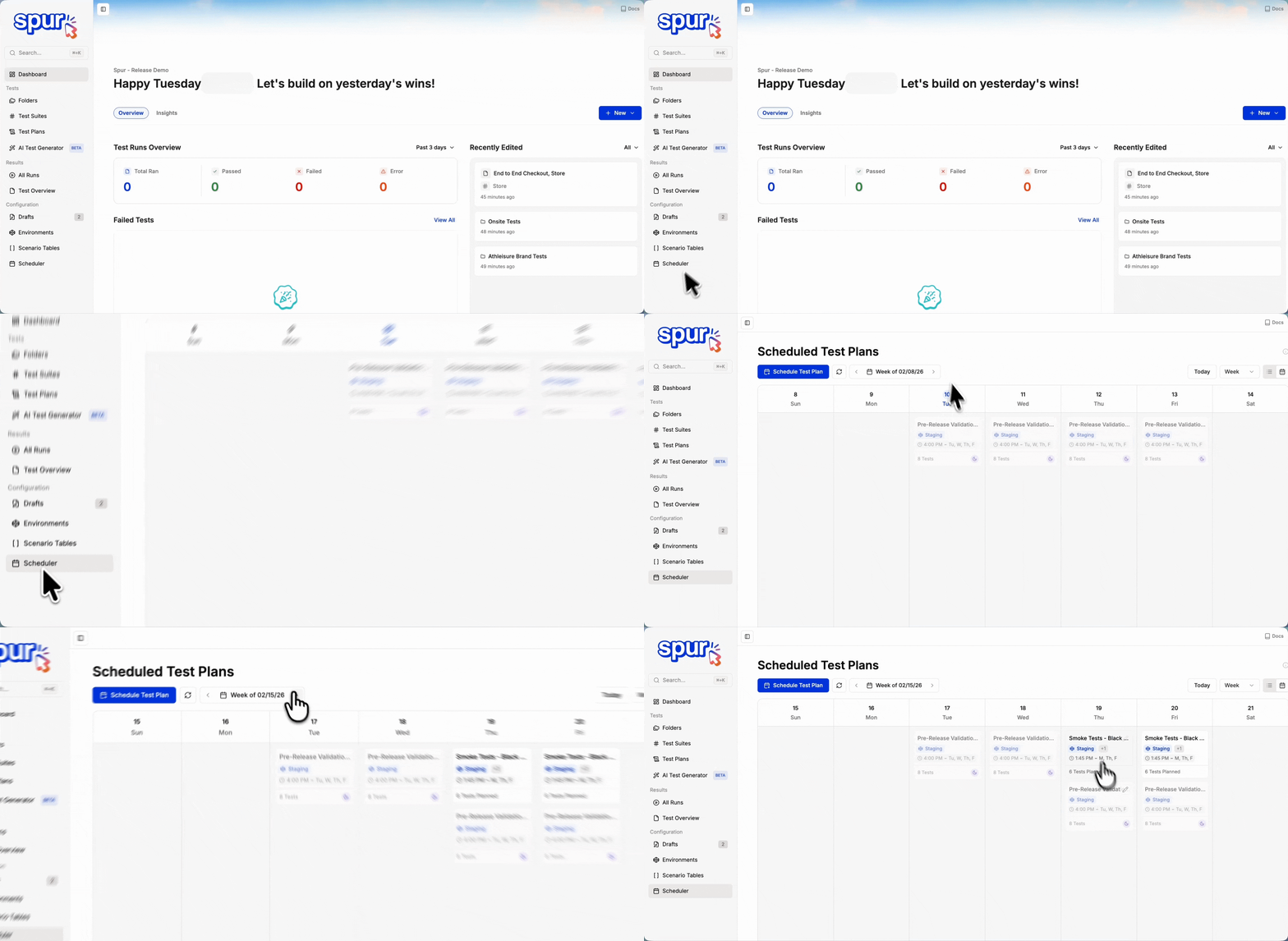
From your Spur dashboard, click **Scheduler** in the left navigation.
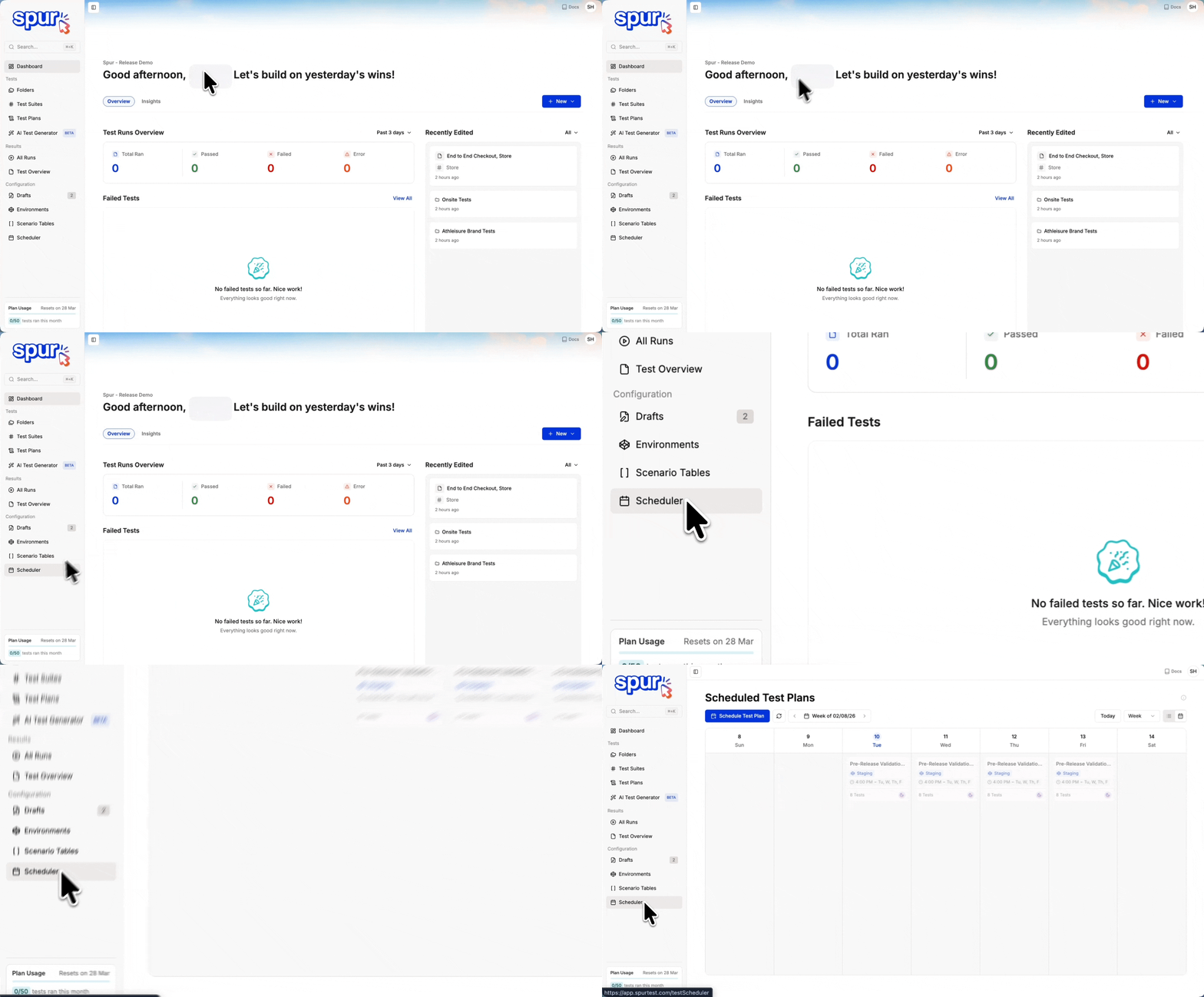 Click **Schedule Test Plan** to open the schedule configuration modal.
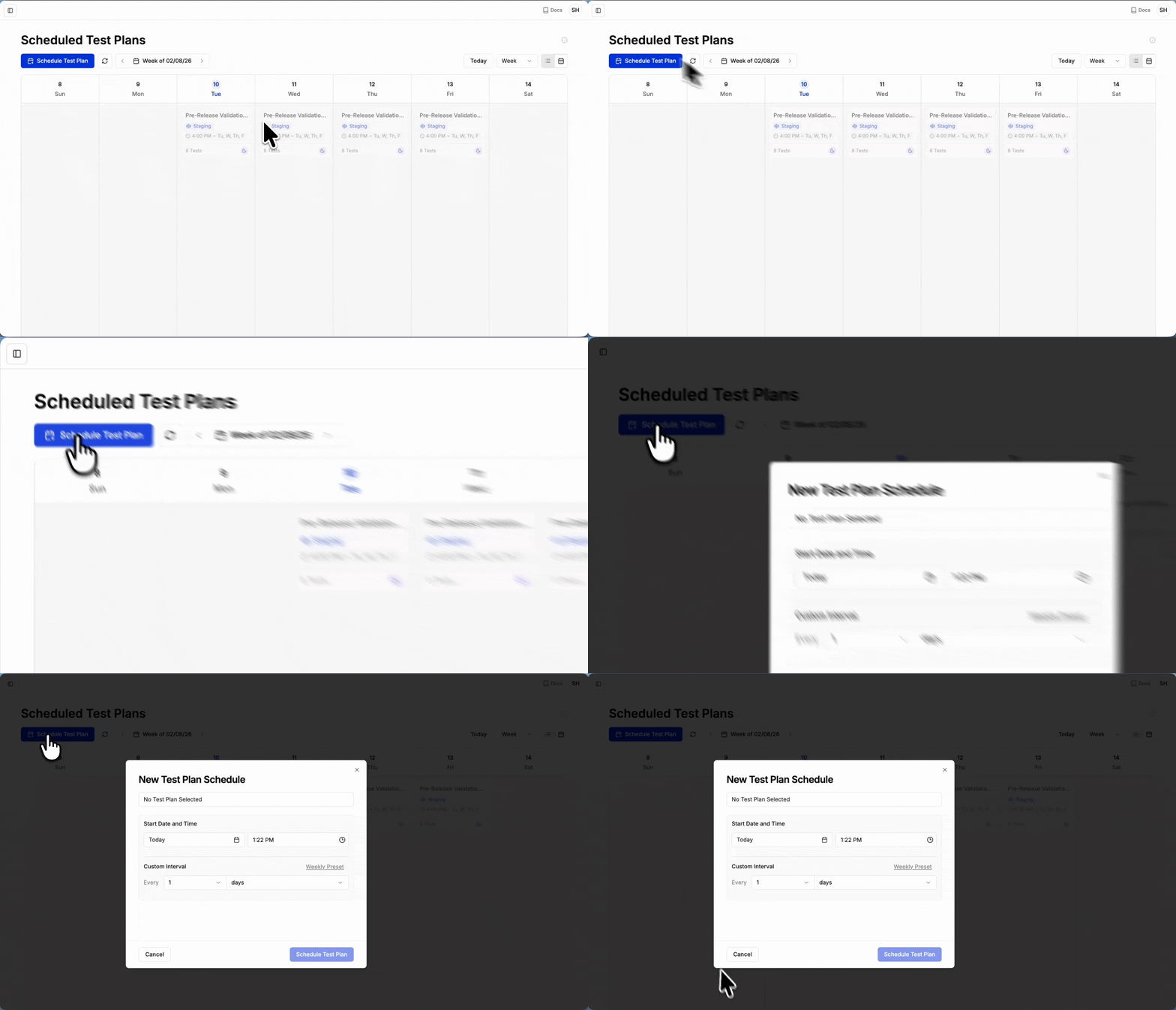 Fill in the schedule details:
* **Test Plan** — Select the test plan you want to schedule
* **Date and Time** — Set when the first execution should occur
* **Interval** — Choose how often to run the test plan
Fill in the schedule details:
* **Test Plan** — Select the test plan you want to schedule
* **Date and Time** — Set when the first execution should occur
* **Interval** — Choose how often to run the test plan
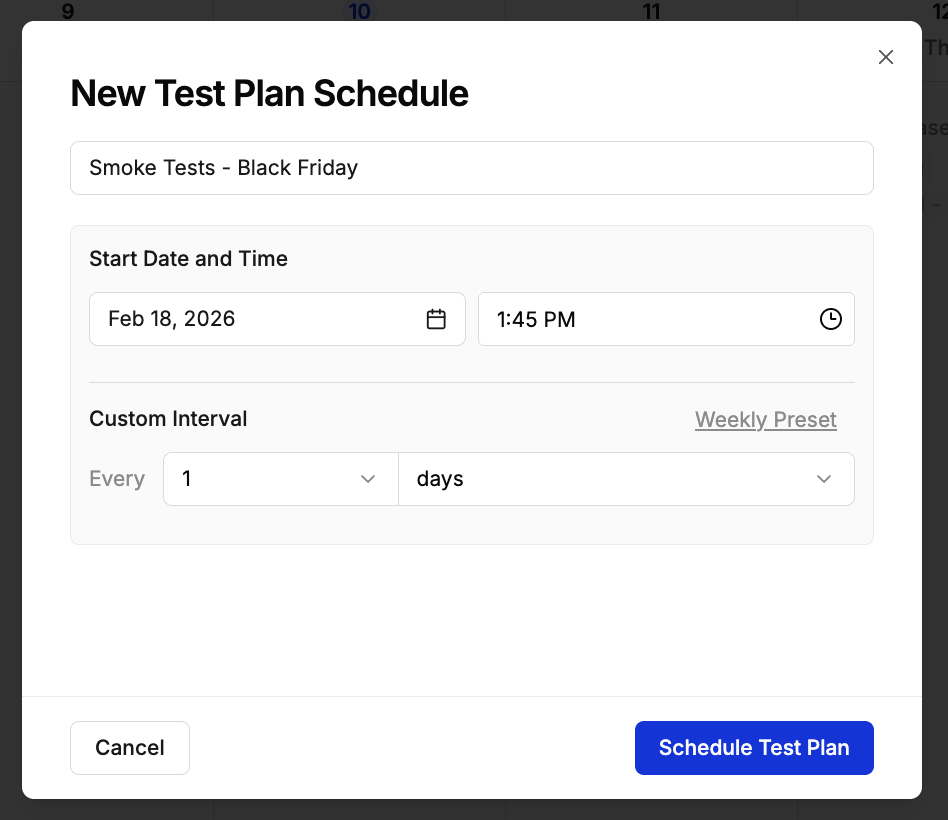 There are two interval options:
**Custom Interval**
Set a specific cadence in hours, days, weeks, or months between executions.
There are two interval options:
**Custom Interval**
Set a specific cadence in hours, days, weeks, or months between executions.
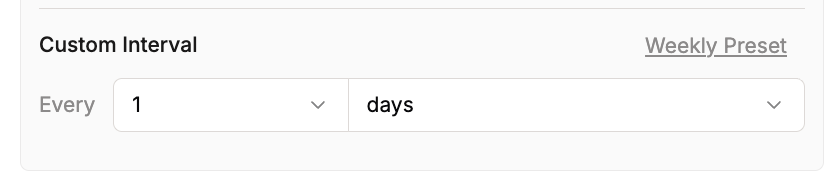 **Weekly Preset**
Choose specific days of the week for the test plan to run.
**Weekly Preset**
Choose specific days of the week for the test plan to run.
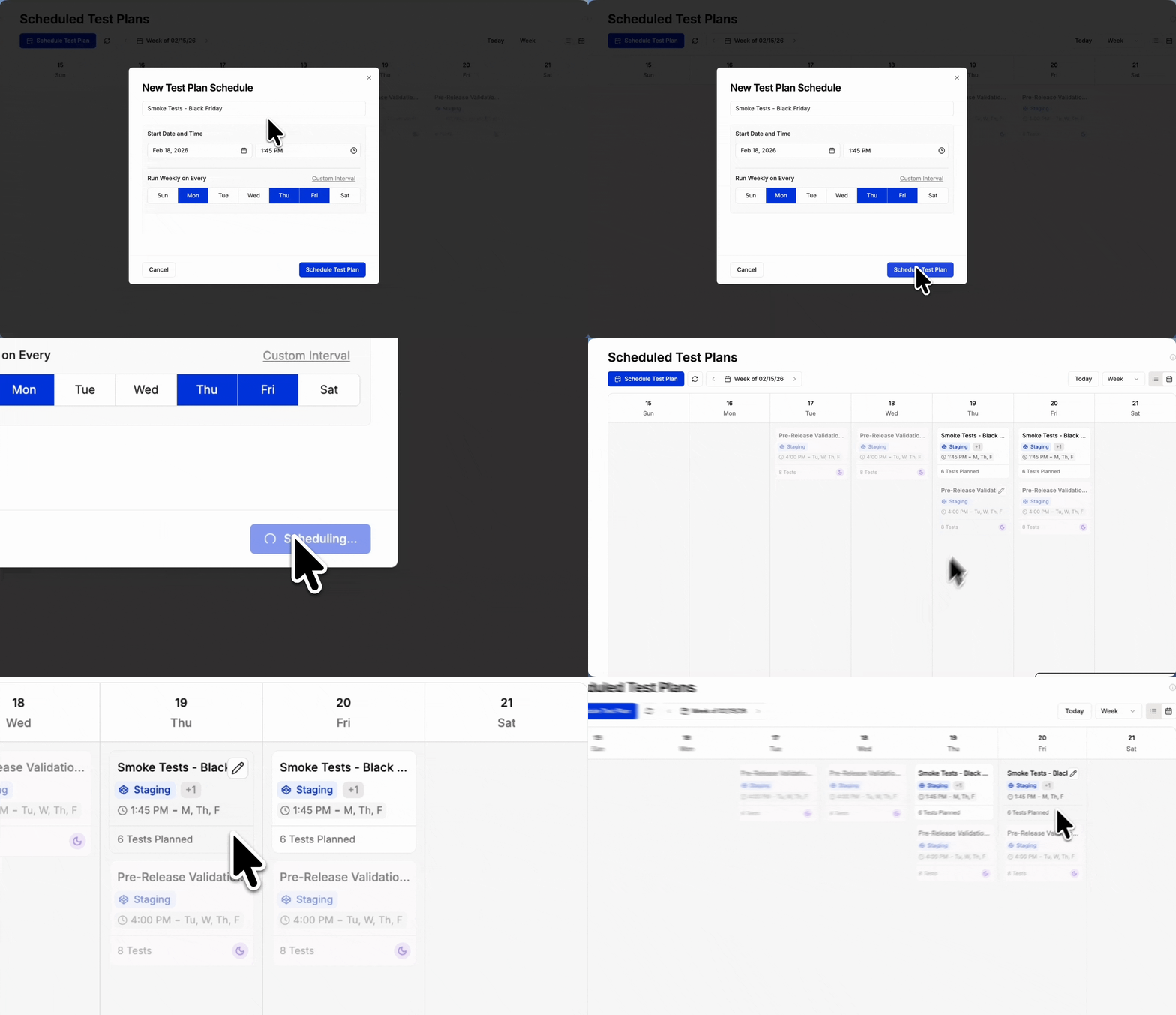
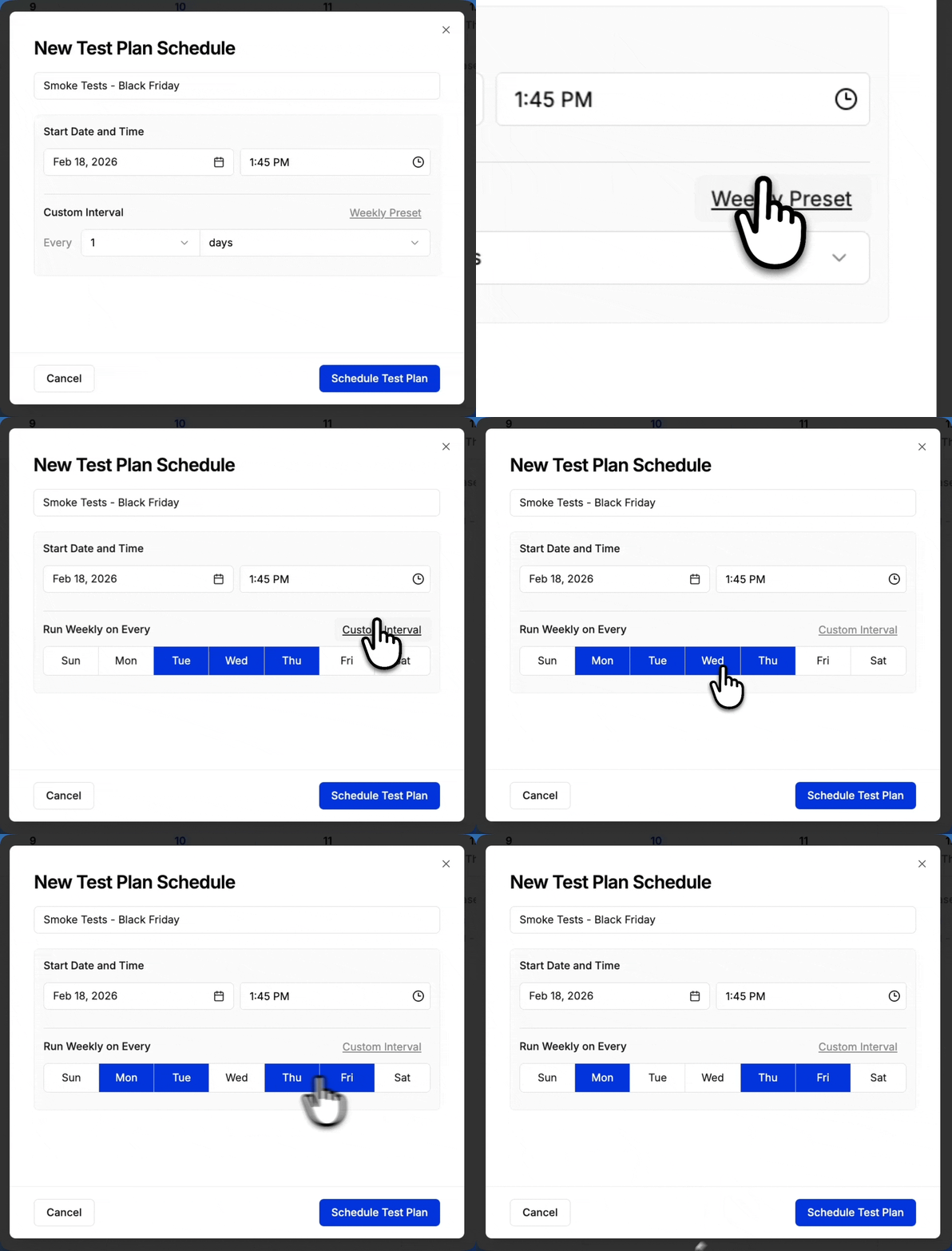 Click **Schedule Test Plan** to confirm. Your test plan will now run automatically on the schedule you configured.
 ## Scheduling from a Test Plan
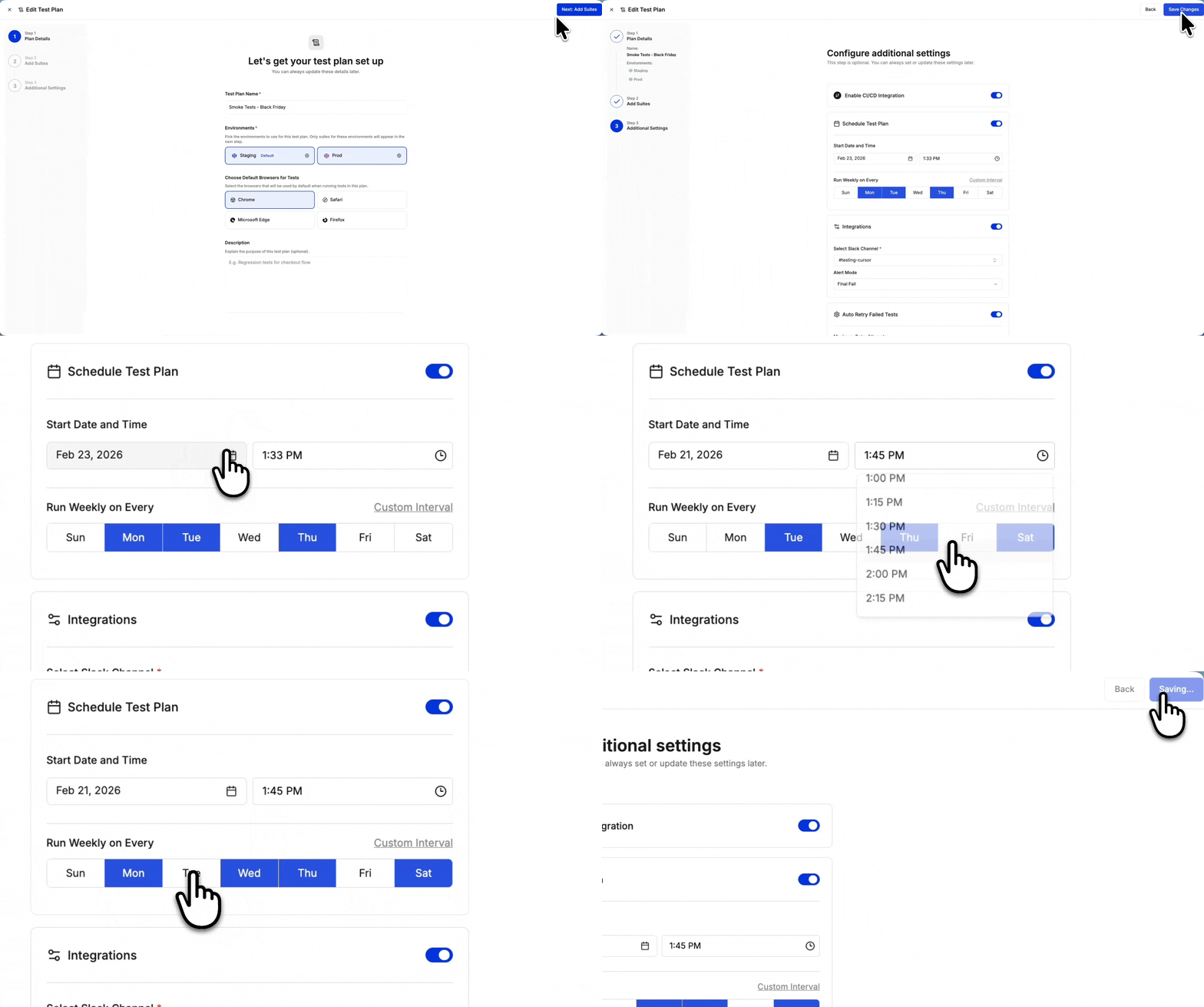
You can also schedule a test plan directly from the Test Plan settings without navigating to the Scheduler.
Navigate to [Test Plans](/managing-tests/test-plans/test-plans), find the plan you want to schedule, and click the **three-dot menu**.
## Scheduling from a Test Plan
You can also schedule a test plan directly from the Test Plan settings without navigating to the Scheduler.
Navigate to [Test Plans](/managing-tests/test-plans/test-plans), find the plan you want to schedule, and click the **three-dot menu**.
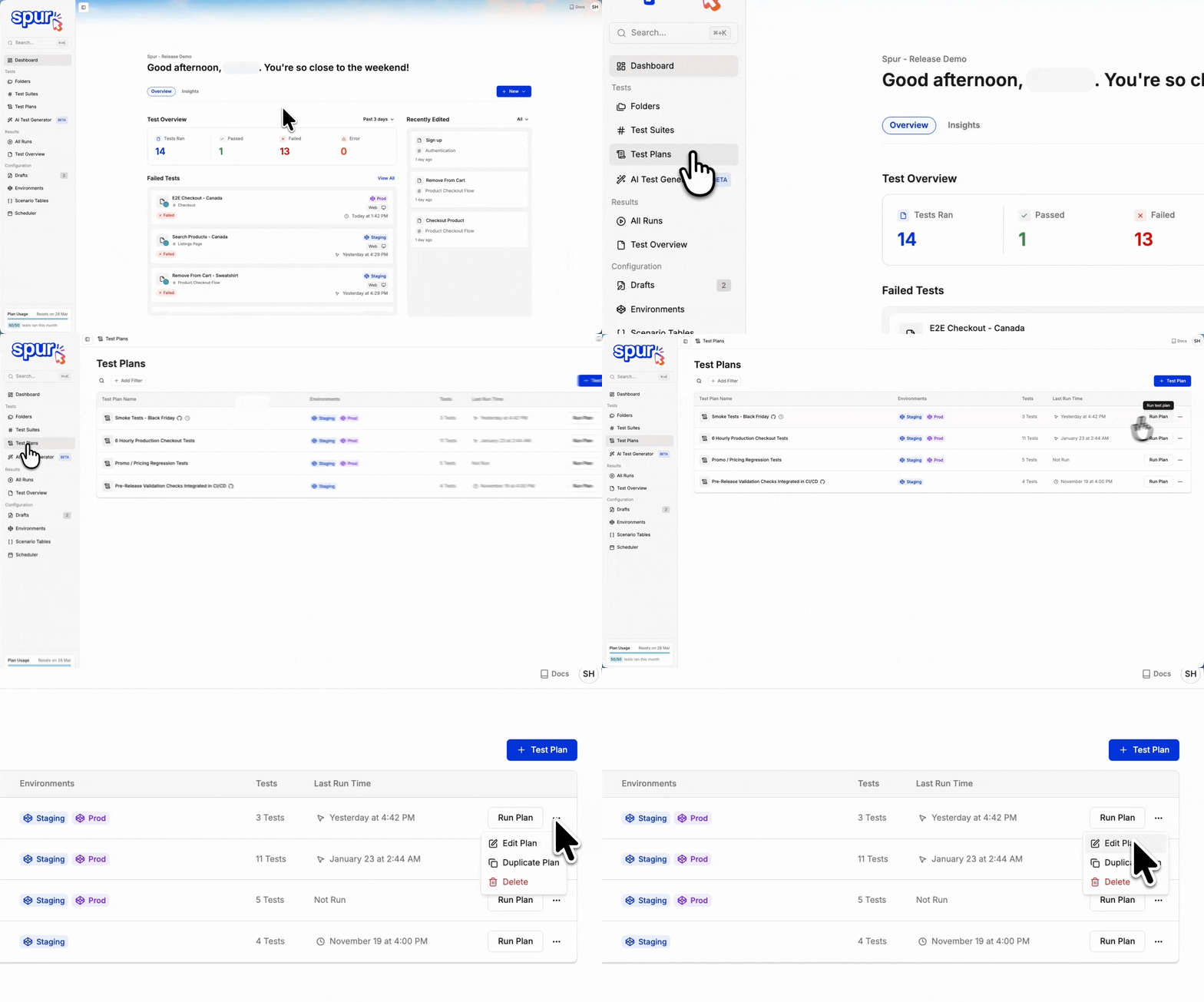 Click **Edit Test Plan** to open the Test Plan configuration modal.
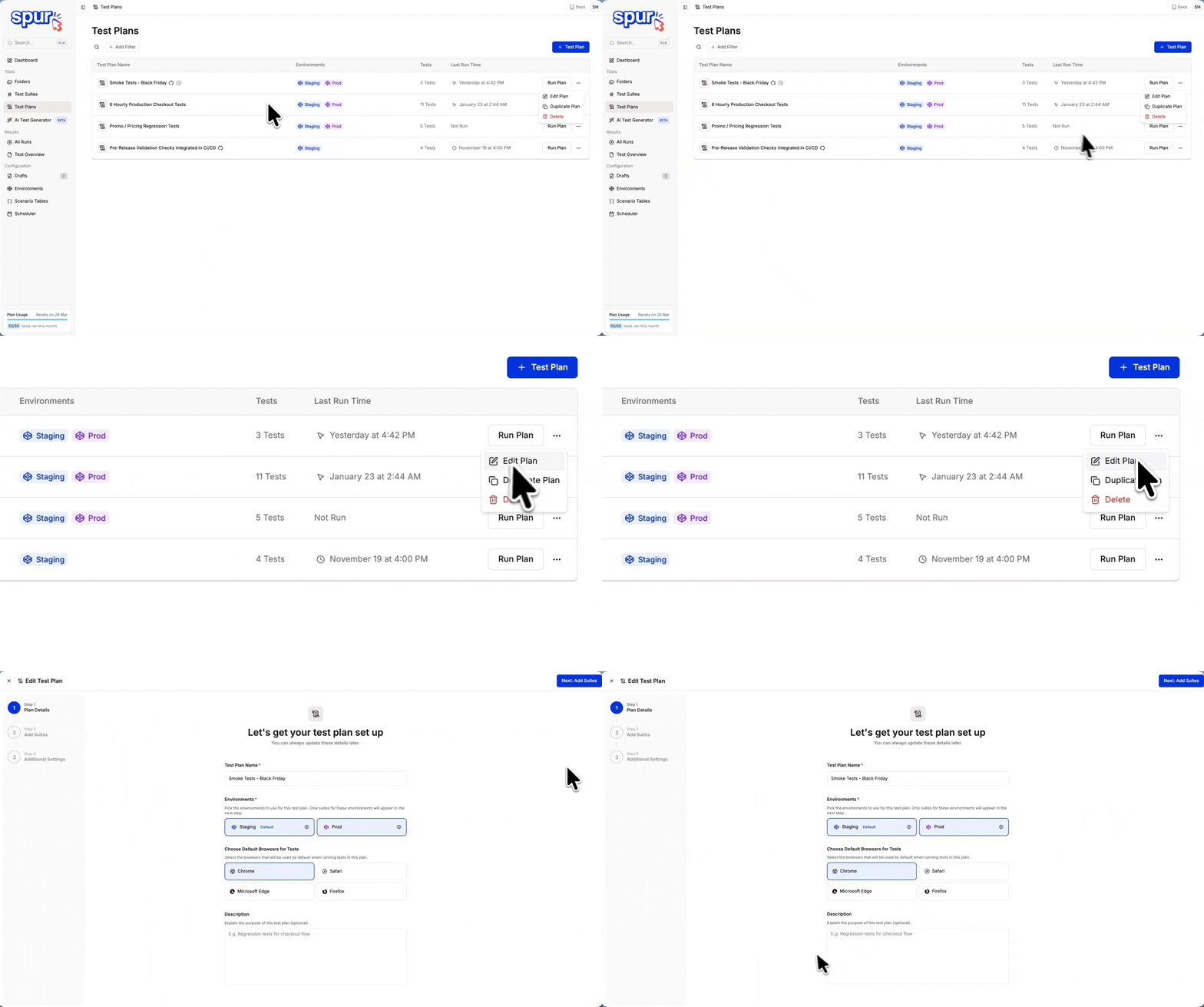 Navigate to the **Additional Settings** tab where you can configure the schedule, along with [alert notifications and auto retry](/running-tests/test-plans#alert-notifications). Click **Save Changes** to activate the schedule.
 ## How to Edit a Schedule
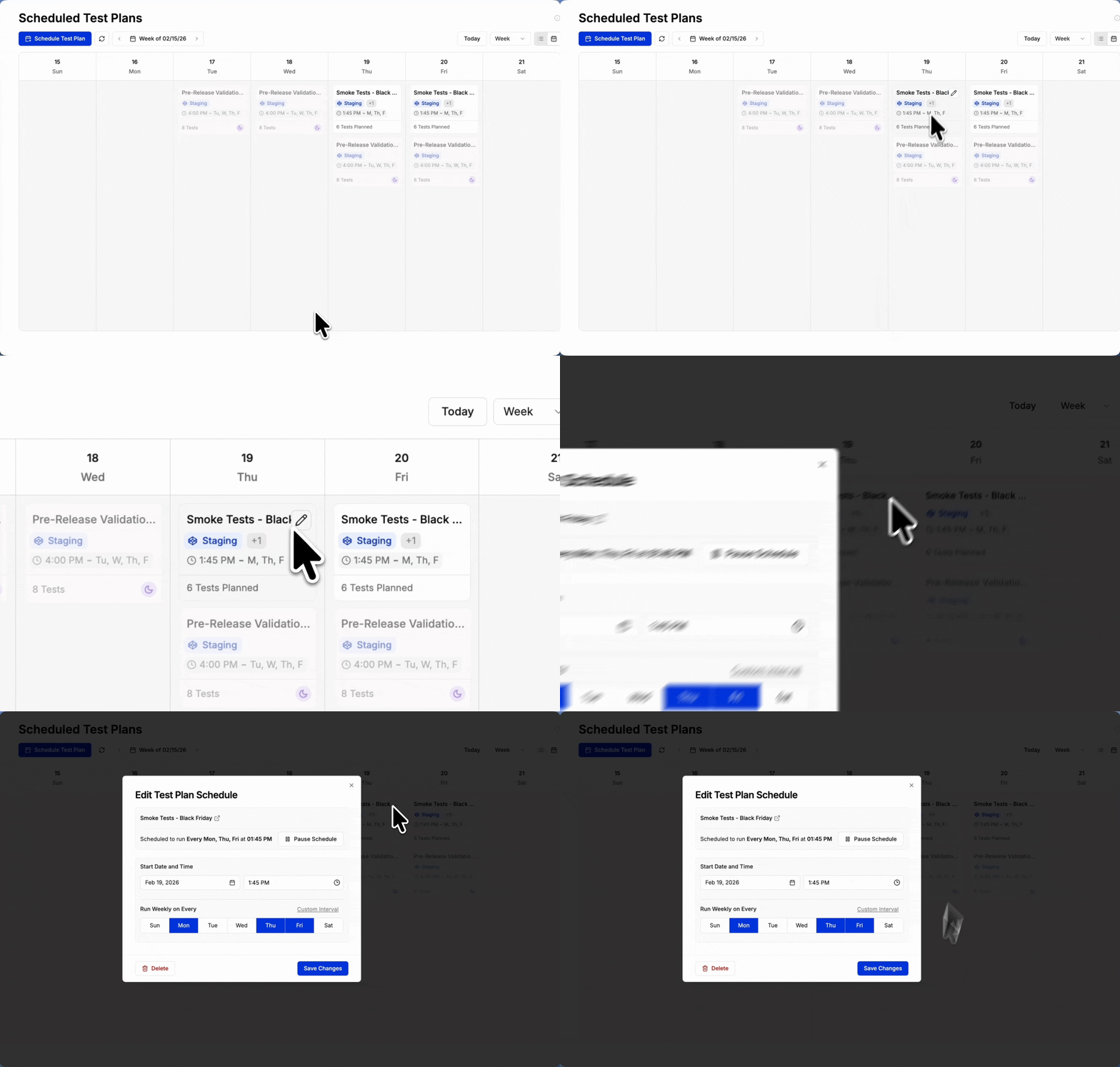
Go to **Scheduler** and locate the test plan you want to edit. Hover over it to reveal the edit icon.
## How to Edit a Schedule
Go to **Scheduler** and locate the test plan you want to edit. Hover over it to reveal the edit icon.
 Click the edit icon to open the schedule configuration modal.
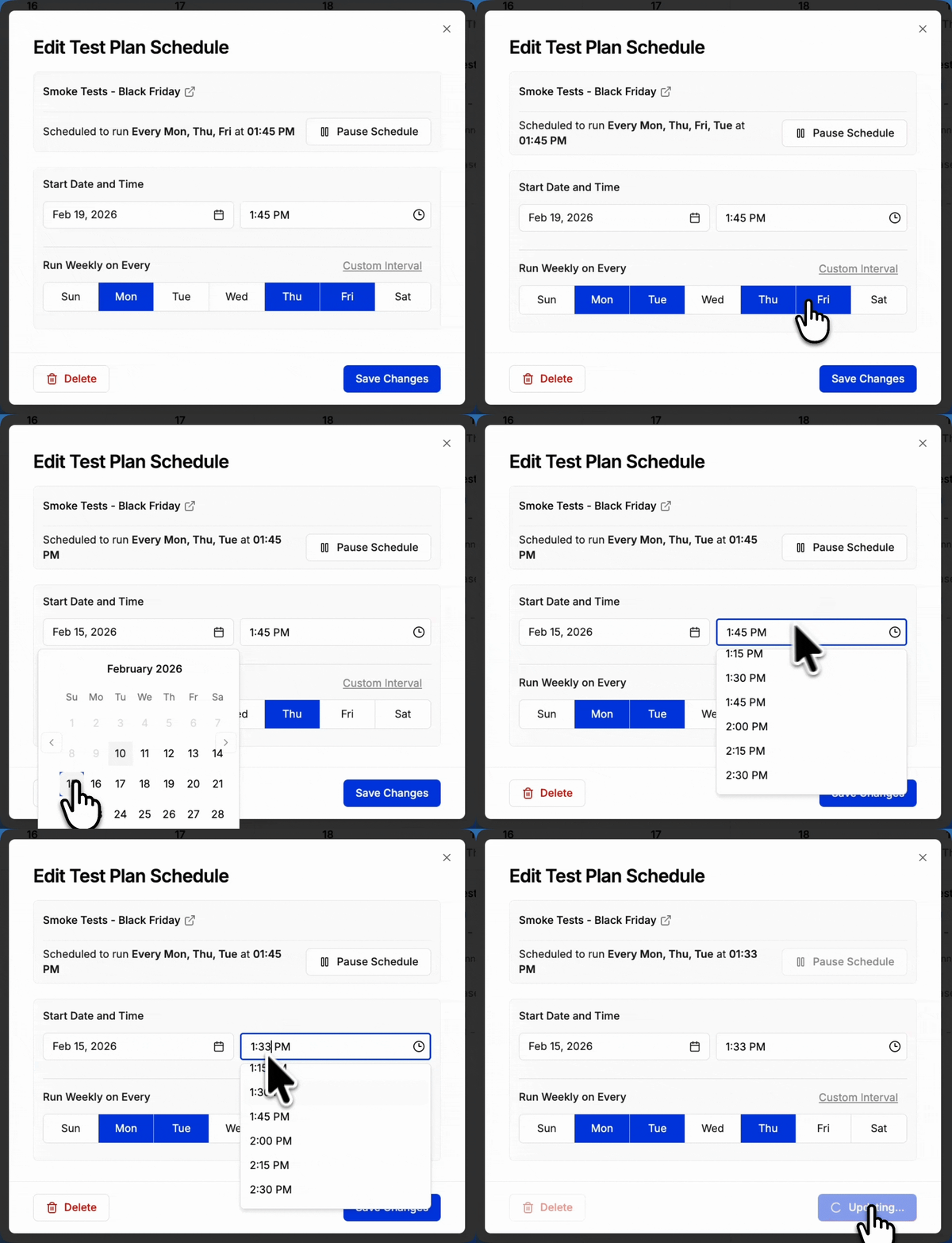
 Make your changes and click **Save Changes**.
Use the pause button to temporarily stop a schedule without deleting it.
Make your changes and click **Save Changes**.
Use the pause button to temporarily stop a schedule without deleting it.
 ## Best Practices
Use high-frequency schedules (every 30 min to 2 hours) for critical production monitoring, daily for regression, and weekly for full browser matrix runs.
Use separate schedules for production and pre-production. Different environments often need different run frequencies and notification channels.
Ensure test data is available at scheduled run times. For pre-production, use cleanup scripts to reset state between runs.
Regularly review pass/fail trends. Investigate consistently failing tests, update schedules as test plans evolve, and remove obsolete ones.
## Best Practices
Use high-frequency schedules (every 30 min to 2 hours) for critical production monitoring, daily for regression, and weekly for full browser matrix runs.
Use separate schedules for production and pre-production. Different environments often need different run frequencies and notification channels.
Ensure test data is available at scheduled run times. For pre-production, use cleanup scripts to reset state between runs.
Regularly review pass/fail trends. Investigate consistently failing tests, update schedules as test plans evolve, and remove obsolete ones.