
View Folders
All created folders appear on the Folders page as cards showing the folder name, number of suites and last edited date.Folders are an organizational tool, not a runnable object. Use Test Plans to run multiple suites together.
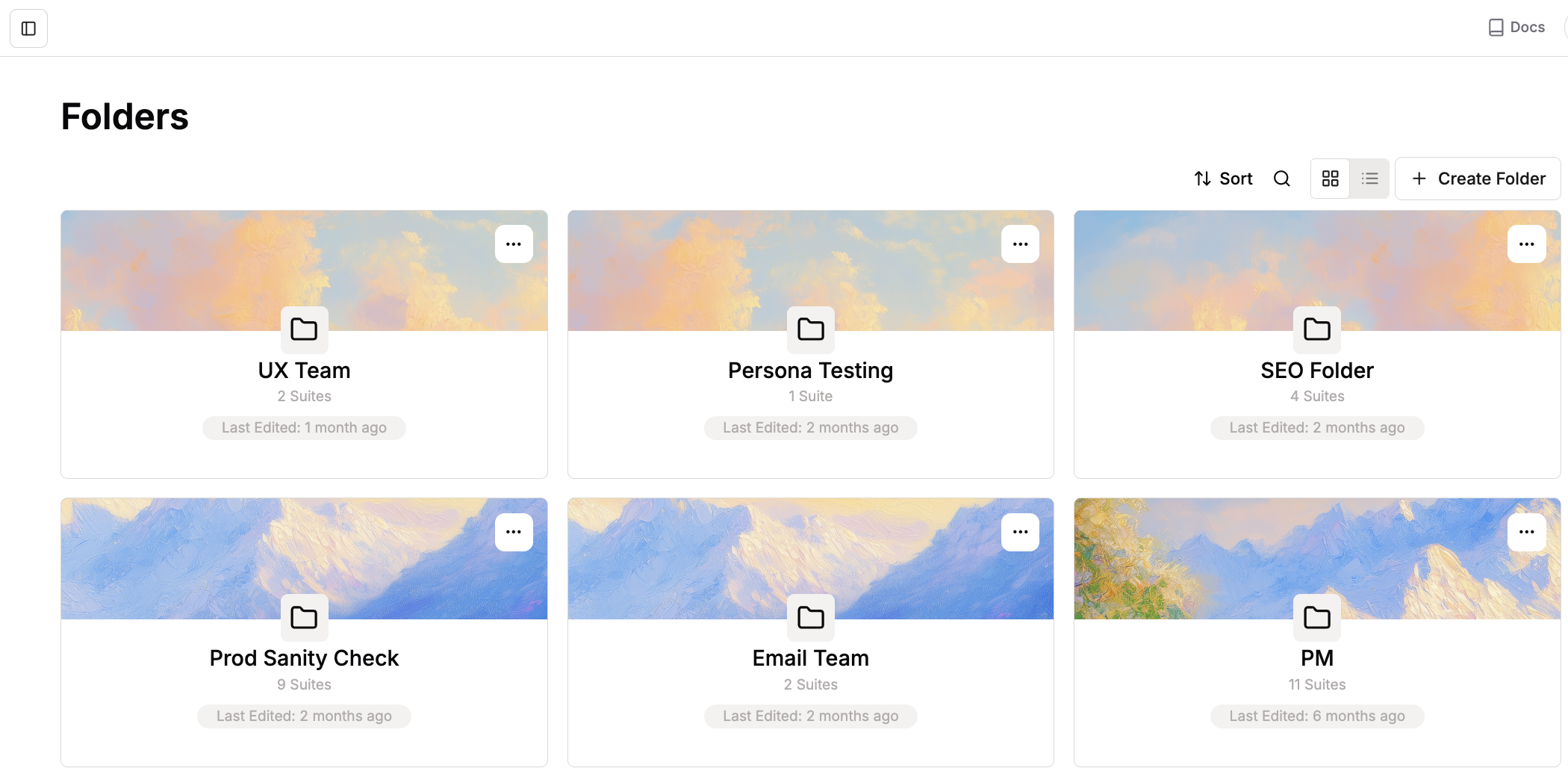
Folders overview showing multiple folders
How to Create Folders
1
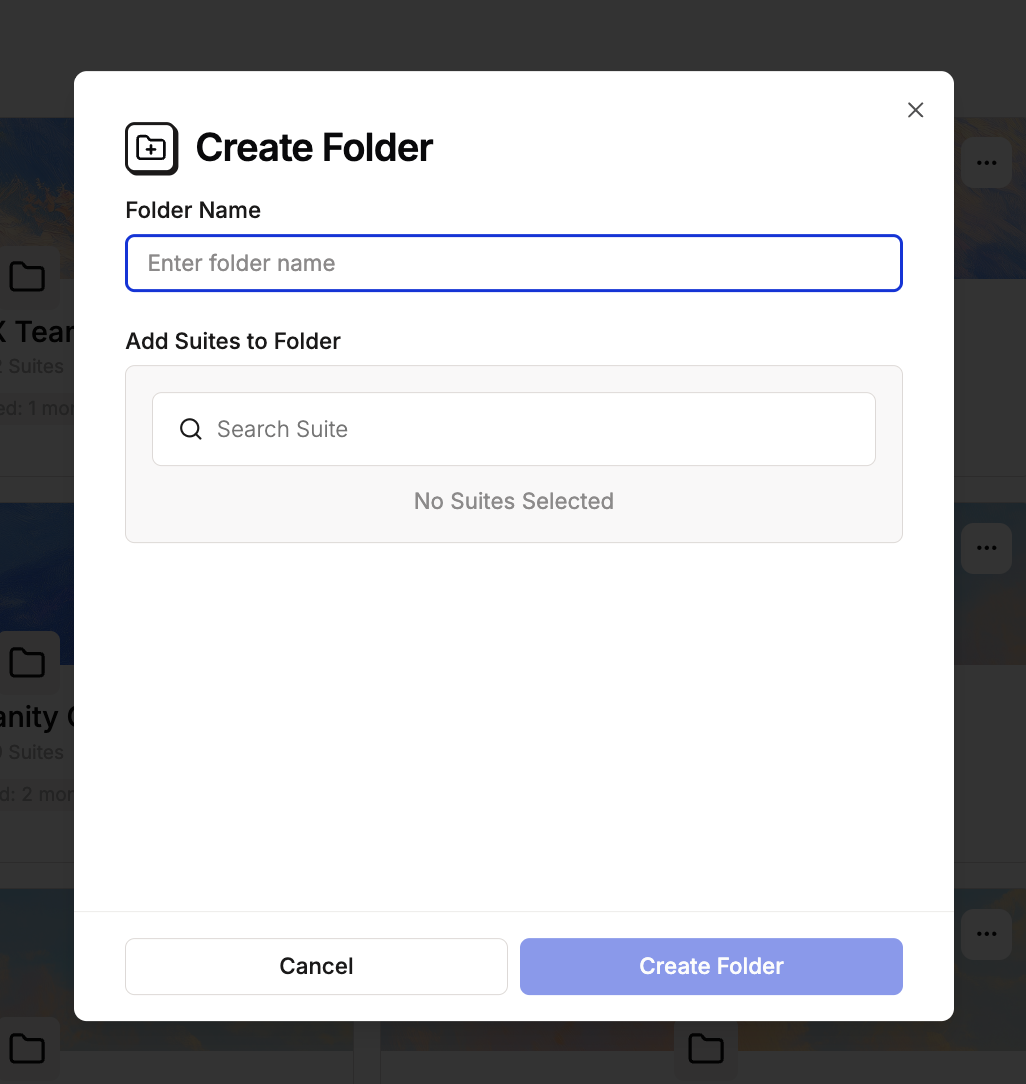
Navigate to Folders under the Tests section in your Spur Dashboard and click Create Folder
2
Enter folder name and select which test suites to add to your folder
Add multiple suites to a folder in a single action but each suite can belong to only one folder at a time.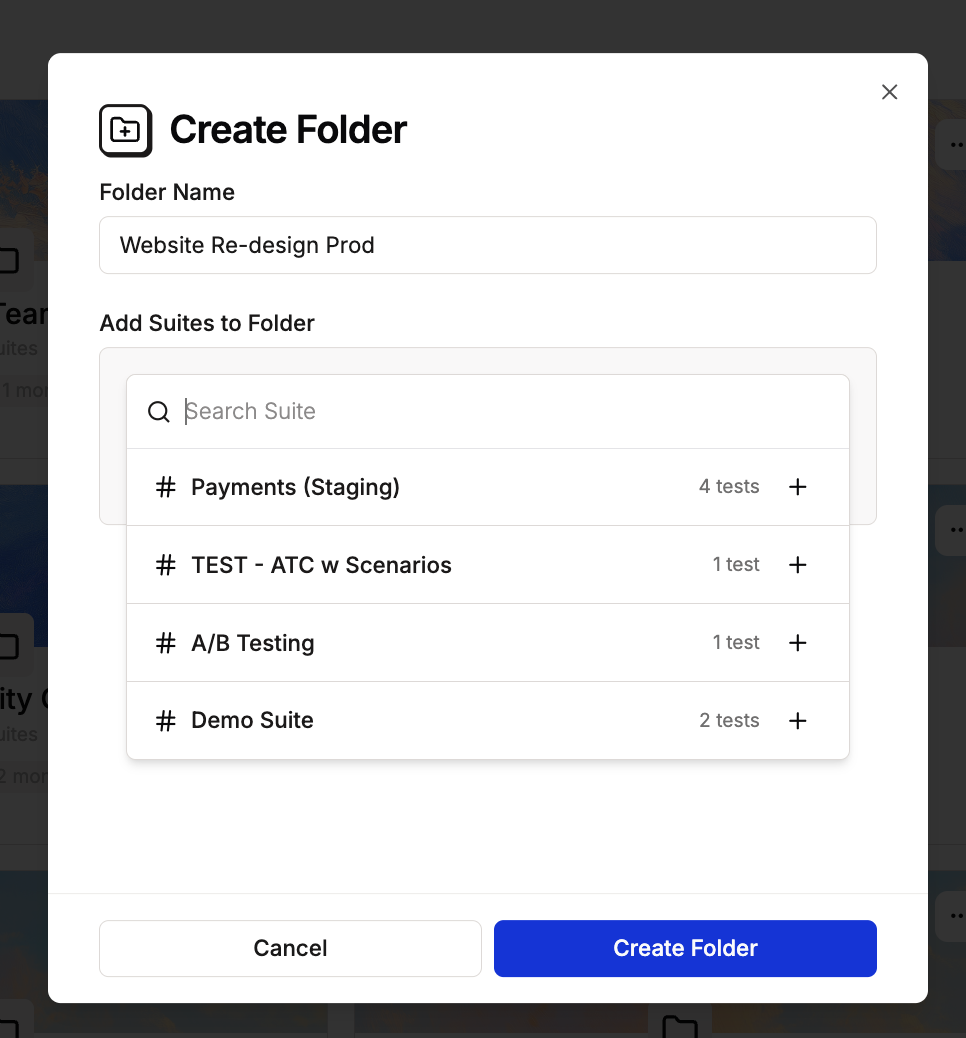
3
Click Create Folder to save
Your folder is now created and accessible from the Folders page
Manage Folder Contents
Open any folder to view all test suites inside. From here, you can add or delete test suites to keep your folders organized.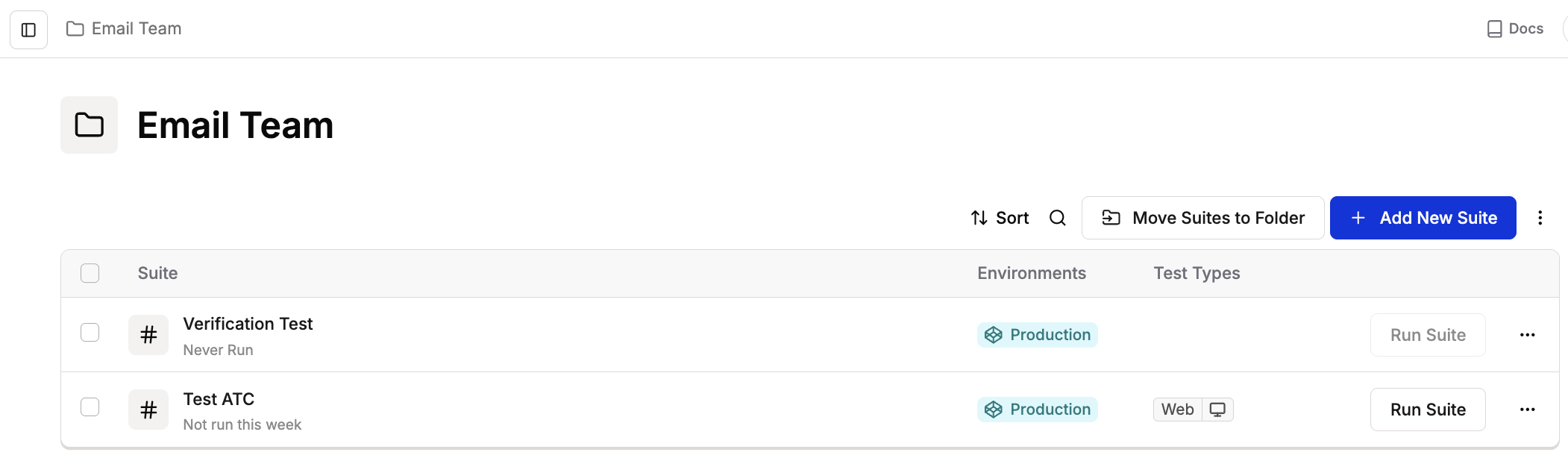
View inside Test Folder
Use Case
Folders are ideal for organizing tests by:Large Flows
Group related test suites that cover end-to-end user journeys.For example:
- Checkout Flow: Cart, payment, confirmation suites
- Onboarding Flow: Signup, email verification, profile setup suites
- Product Discovery Flow: Search, filtering, product detail page suites
Large Components
Organize suites that test major components across your application:
- Navigation Suite: Header, footer, menu navigation tests
- Forms Suite: Login forms, registration forms, contact forms
- Media Suite: Image galleries, video players, carousel components