
Overview
Dependencies ensure tests run in the correct sequence, maintain proper state management, and handle cleanup operations effectively.Dependencies are only contained within a Test Suite. Tests in different suites cannot have dependency relationships.
Types of Dependencies
Parent Dependencies
Parent dependencies ensure tests run sequentially, where child tests only run if the parent test passes.How Parent Dependencies work:
- Tests run in the order specified by the dependency arrows
- Each test can only have one parent
- If a test fails, subsequent tests will not run (except for teardown tests)
- Each test must complete before the next one begins
- This ensures data consistency and proper state management between tests
Teardown Dependencies
Teardown dependencies are cleanup tests that always run regardless of whether their connected test passes or fails.How Teardown Dependencies work:
- Teardown tests can connect to multiple parent tests
- They always run regardless of connected test pass/fail status
- Ensures proper cleanup and resource management
- Prevents resource collision on subsequent test runs
How to Connect Dependencies
1
Navigate to Test Suite
Navigate to your Test Suites and select the suite where you want to add dependency relationships between tests.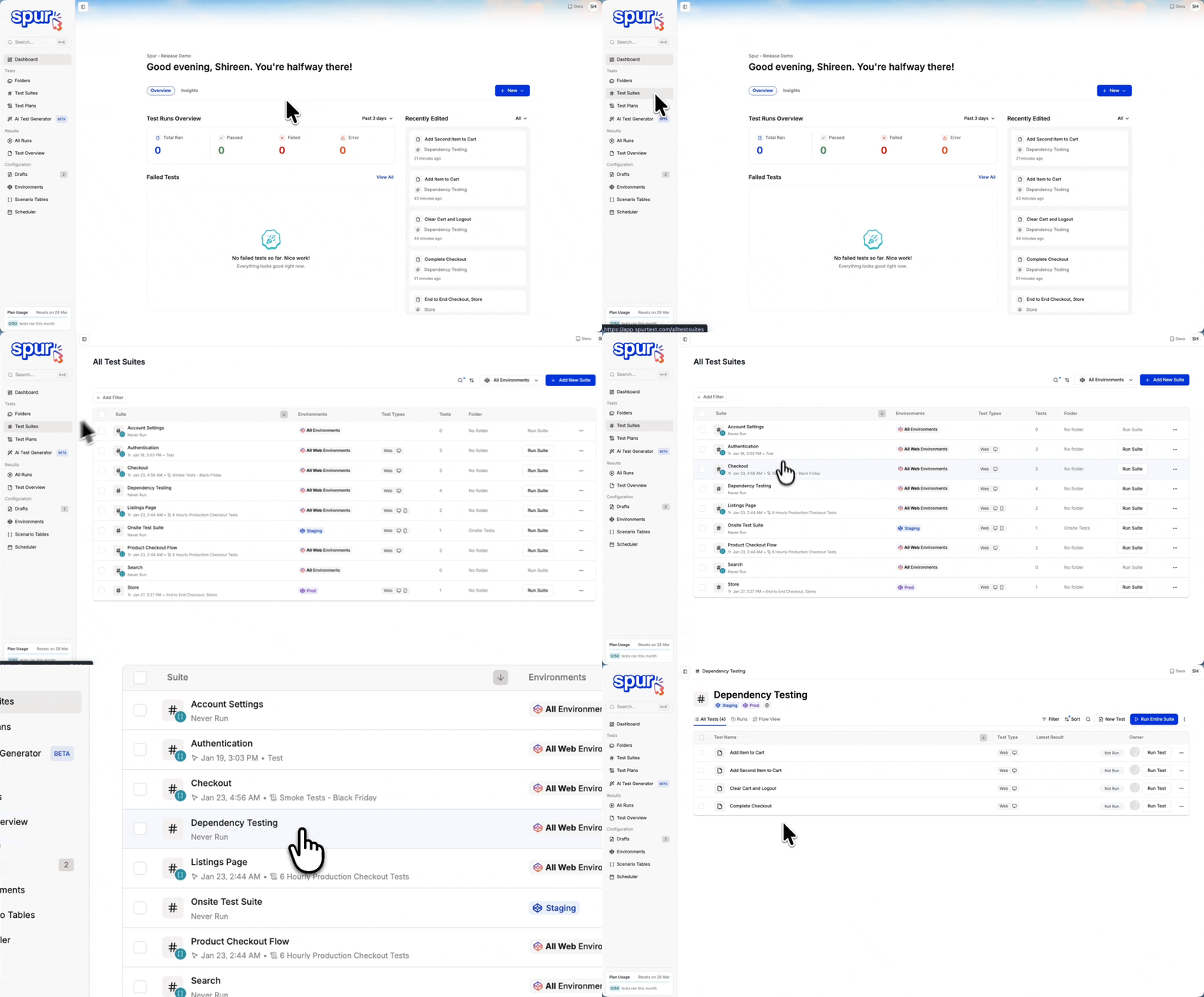
2
Open Test Side Peek
Click on a test to open the test side peek window, which displays the test details.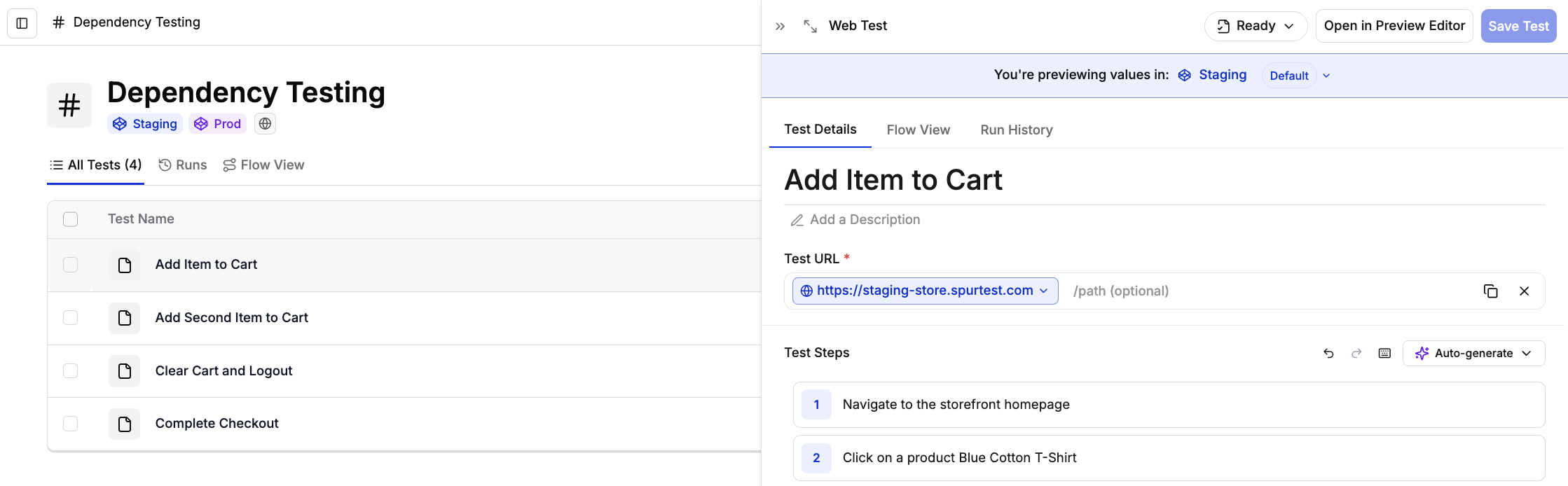
3
Switch to Flow View
From Test Details, switch to the Flow View tab. This is where you configure test dependencies and teardown options.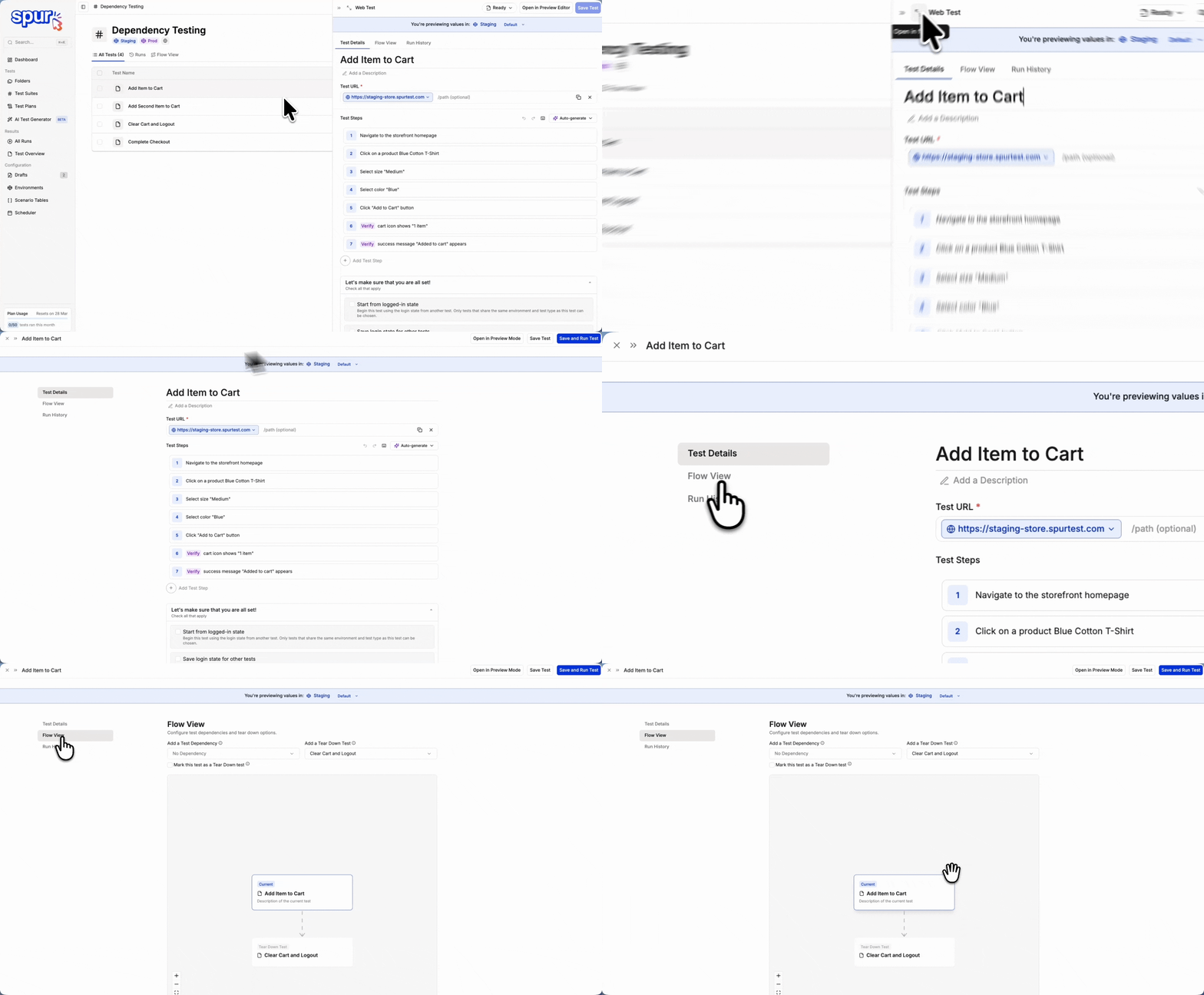
4
Define your Objective
Determine which tests should have dependency relationships.For example, identify your parent test like “Add Items to Cart”, child tests such as “Complete Checkout” and “Add Second Item to Cart”, and your teardown test like “Clear Cart and Logout”.
5
Add Parent Dependency
Configure the parent-child relationship between tests to control execution order.
1
Open Child Test
Open the test you want to add as your child. For example, open “Complete Checkout” test.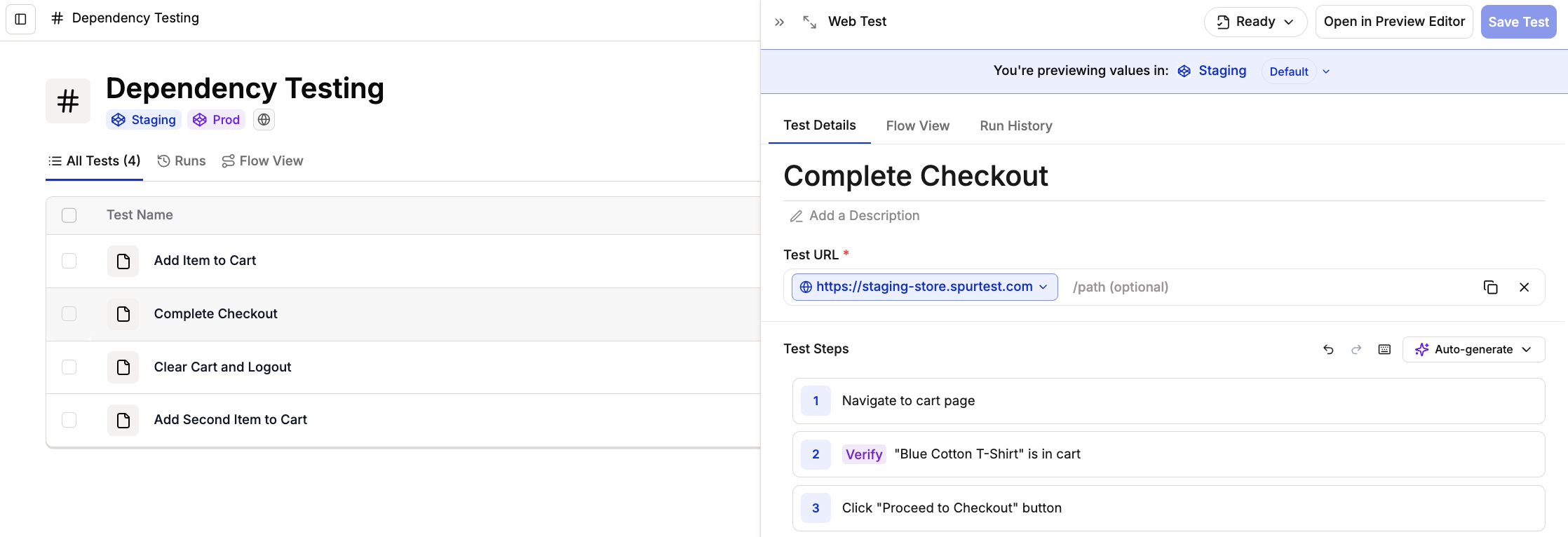
2
Access Flow View
Switch to the Flow View tab within the test side peek window.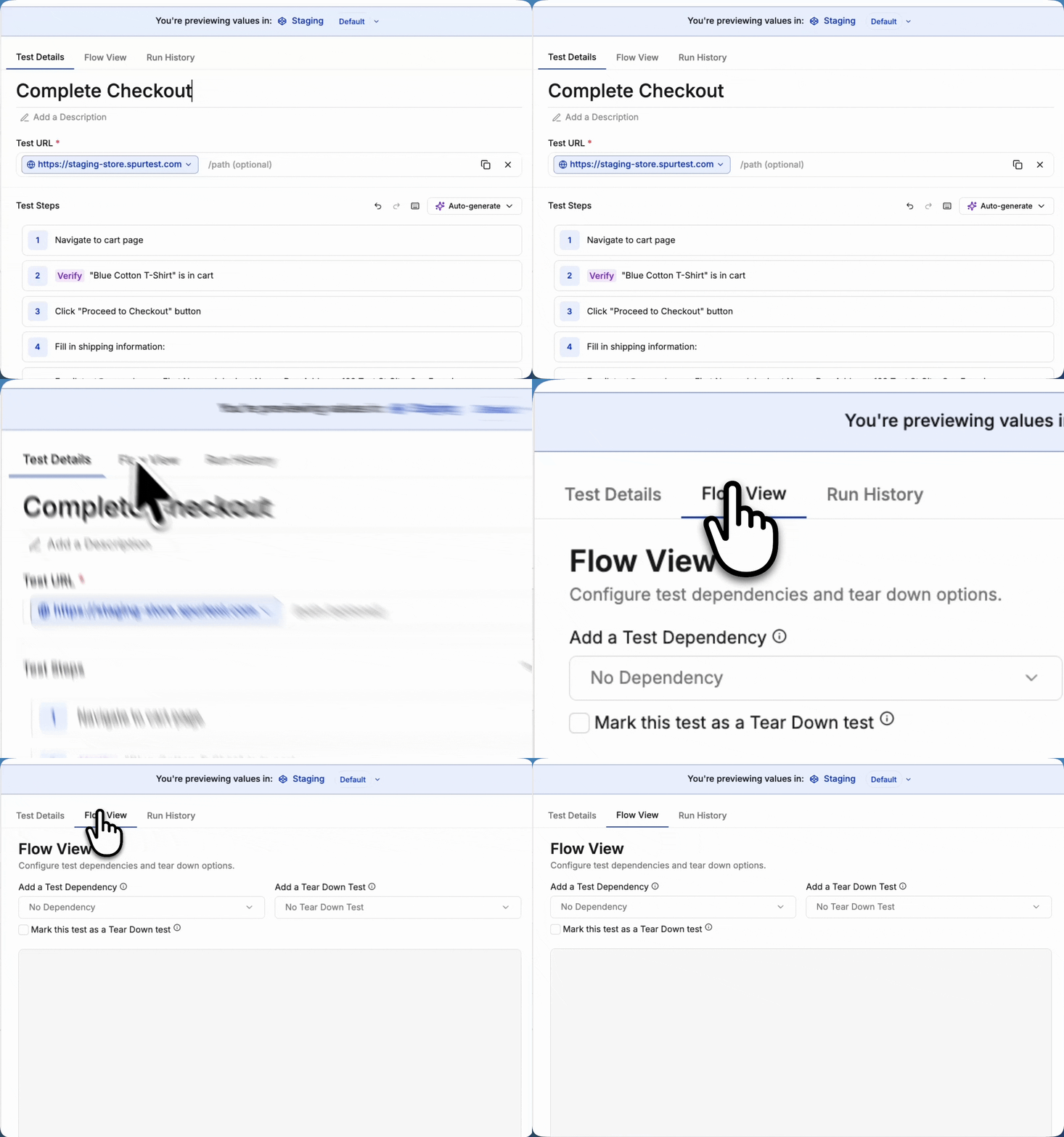
3
Select Parent Test
Click “Add Dependency” and select the test you want to make your parent.For example, select “Add Items to Cart” from the dropdown.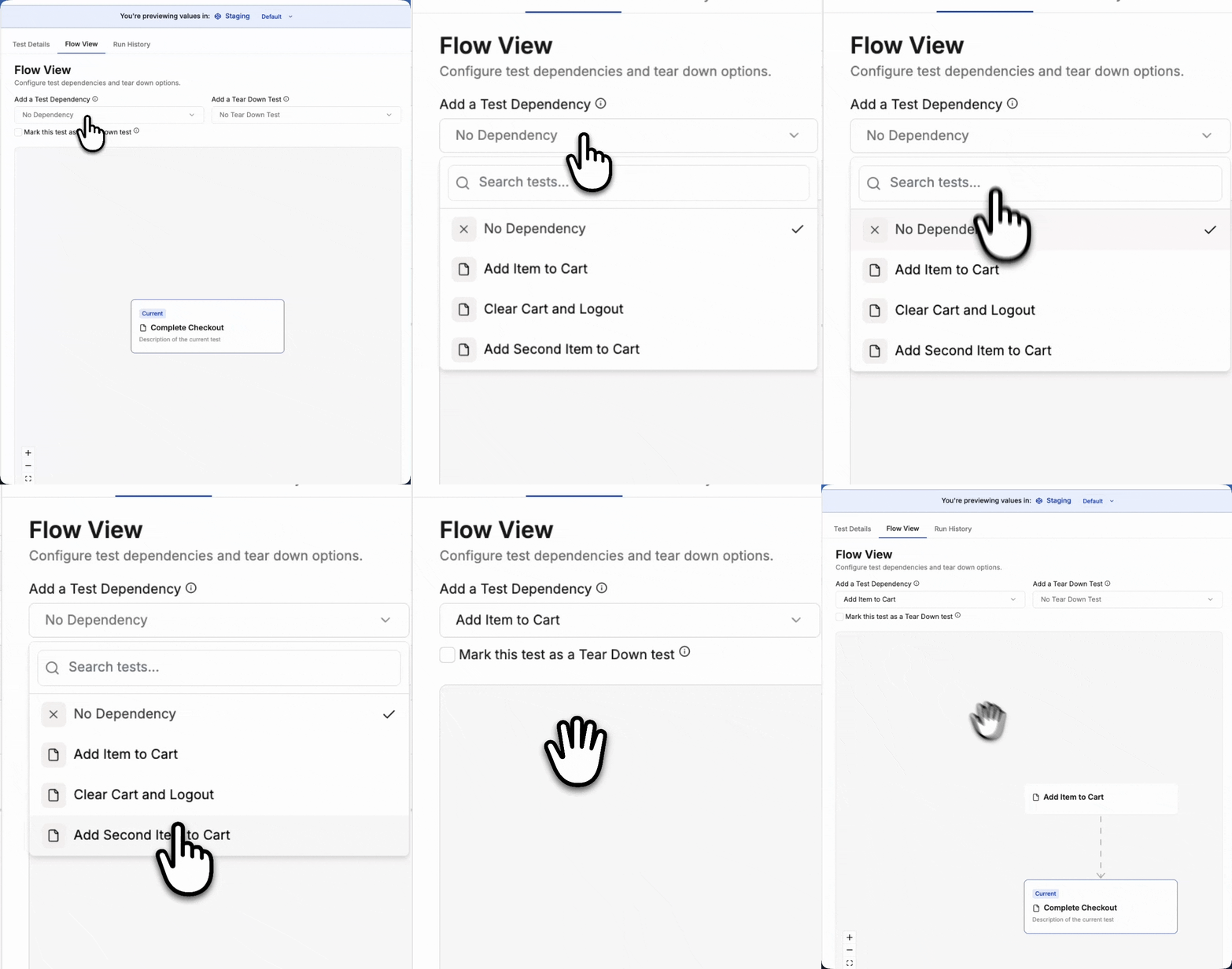
4
Save the Test
Click Save Test to apply the parent dependency configuration.
6
Mark Teardown Test
Configure a test to function as a teardown test that always runs regardless of other test results.
1
Open Teardown Test
Open the test you want to designate as the teardown test. For example, open “Clear Cart and Logout” test.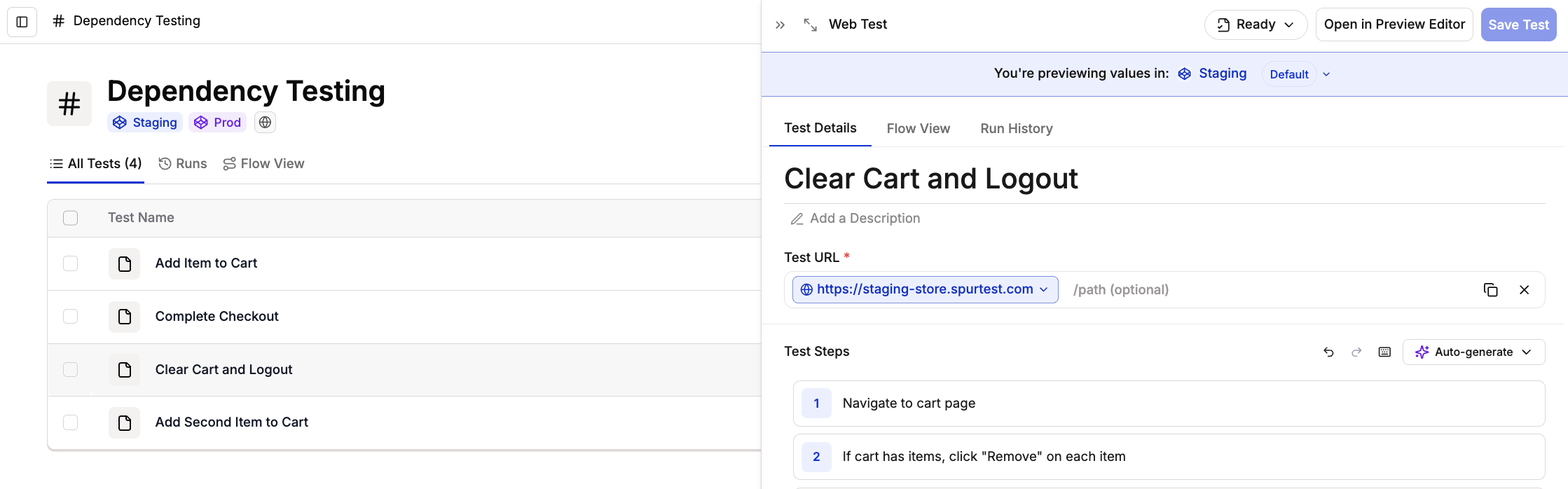
2
Access Flow View and enable Teardown Option
Navigate to the Flow View tab in the test side peek window. Check the box to mark this test as a teardown test and click Save Test to apply the teardown designation.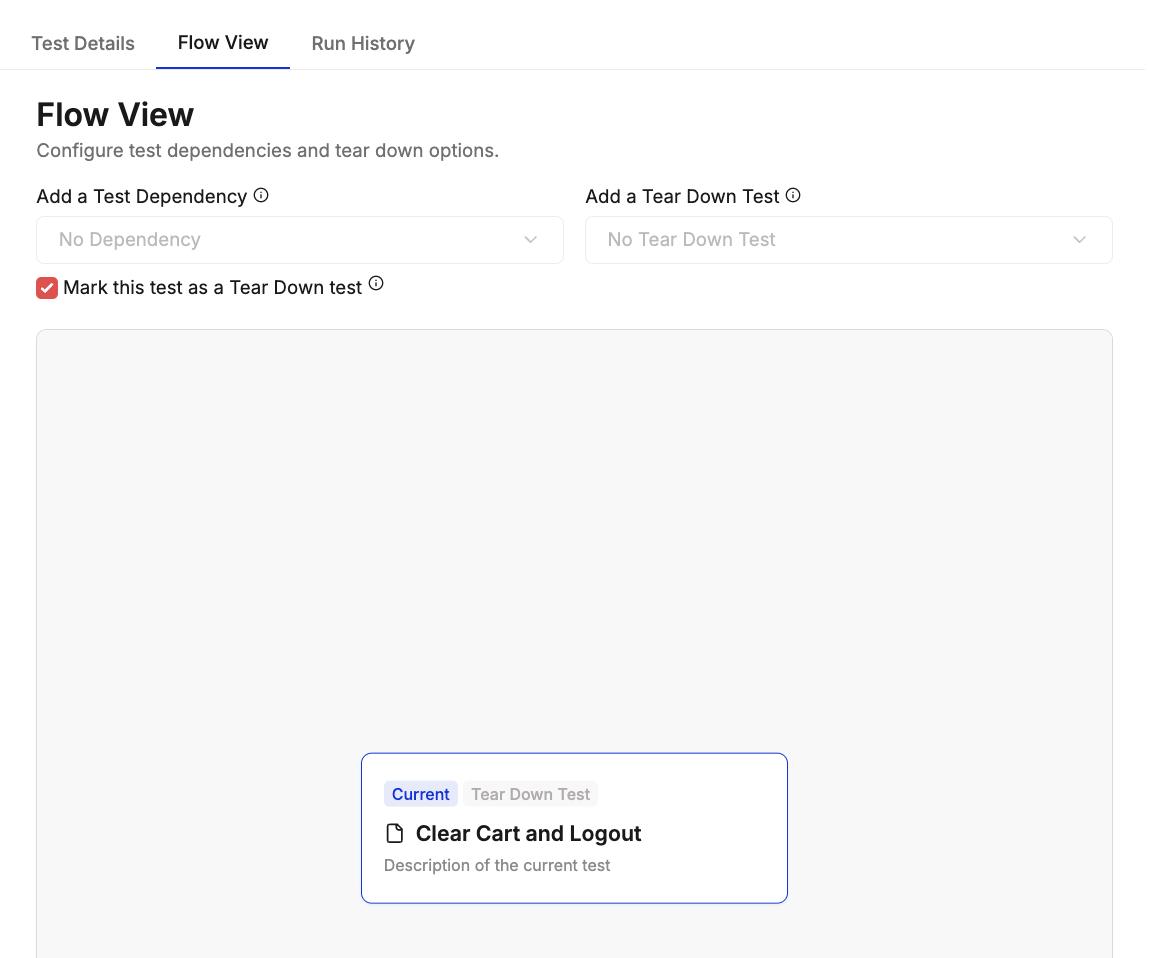
7
Connect Teardown to Parent
Link your teardown test to the tests that need cleanup operations.
1
Open Parent Test and access Flow View
Navigate to the test you want this teardown test to connect to. For example, open “Add Items to Cart” test. Switch to the Flow View tab within the test side peek window.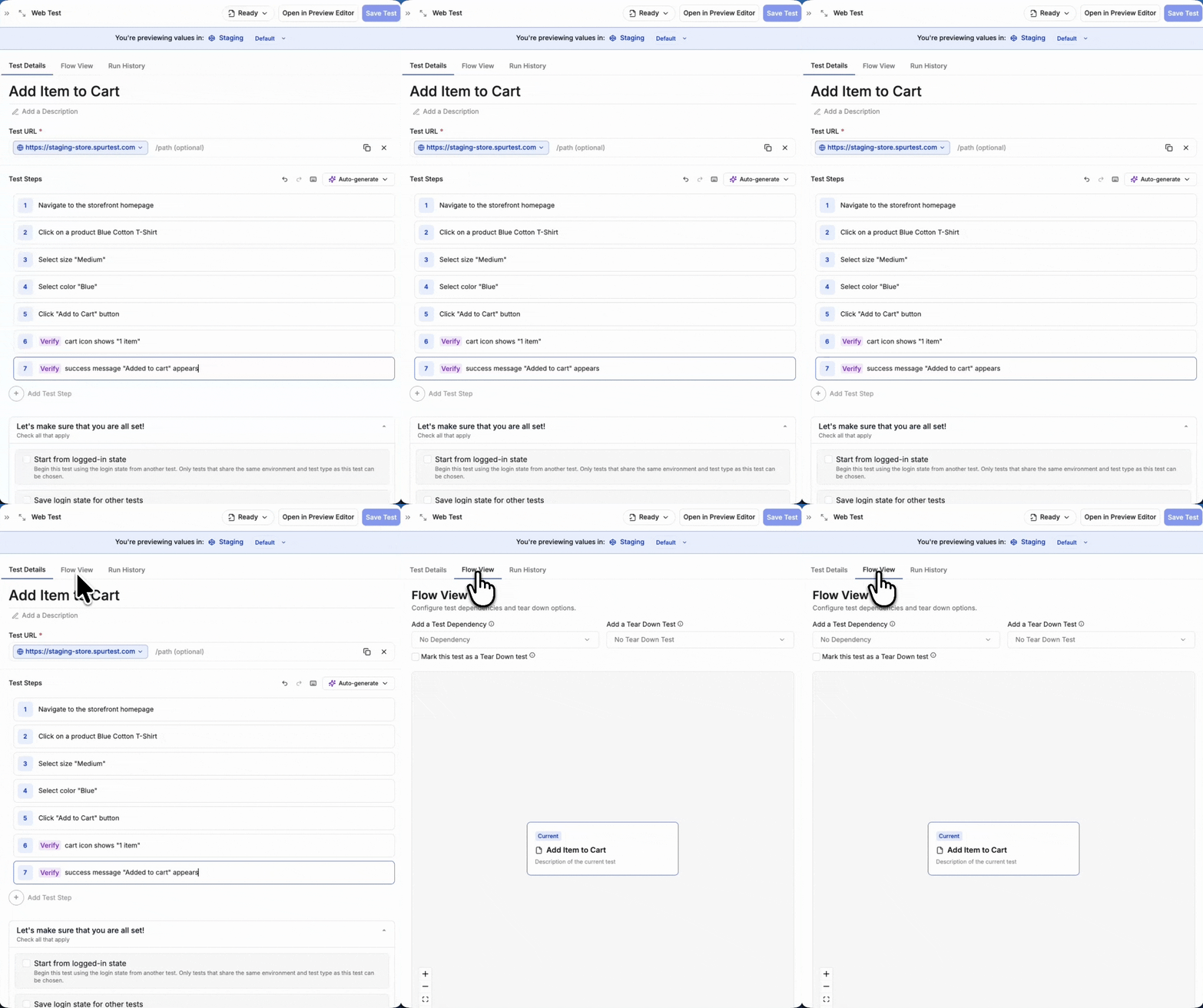
2
Add Teardown Connection
Click the dropdown menu for “Add a Teardown Test” and select your designated teardown test from the list.
3
Save the Test
Click Save Test to establish the teardown connection.
8
View dependencies in Flow View
After saving all tests, navigate to the Flow View of the test suite.You will now see visually how your test dependencies work, showing the execution flow from parent to child tests and teardown connections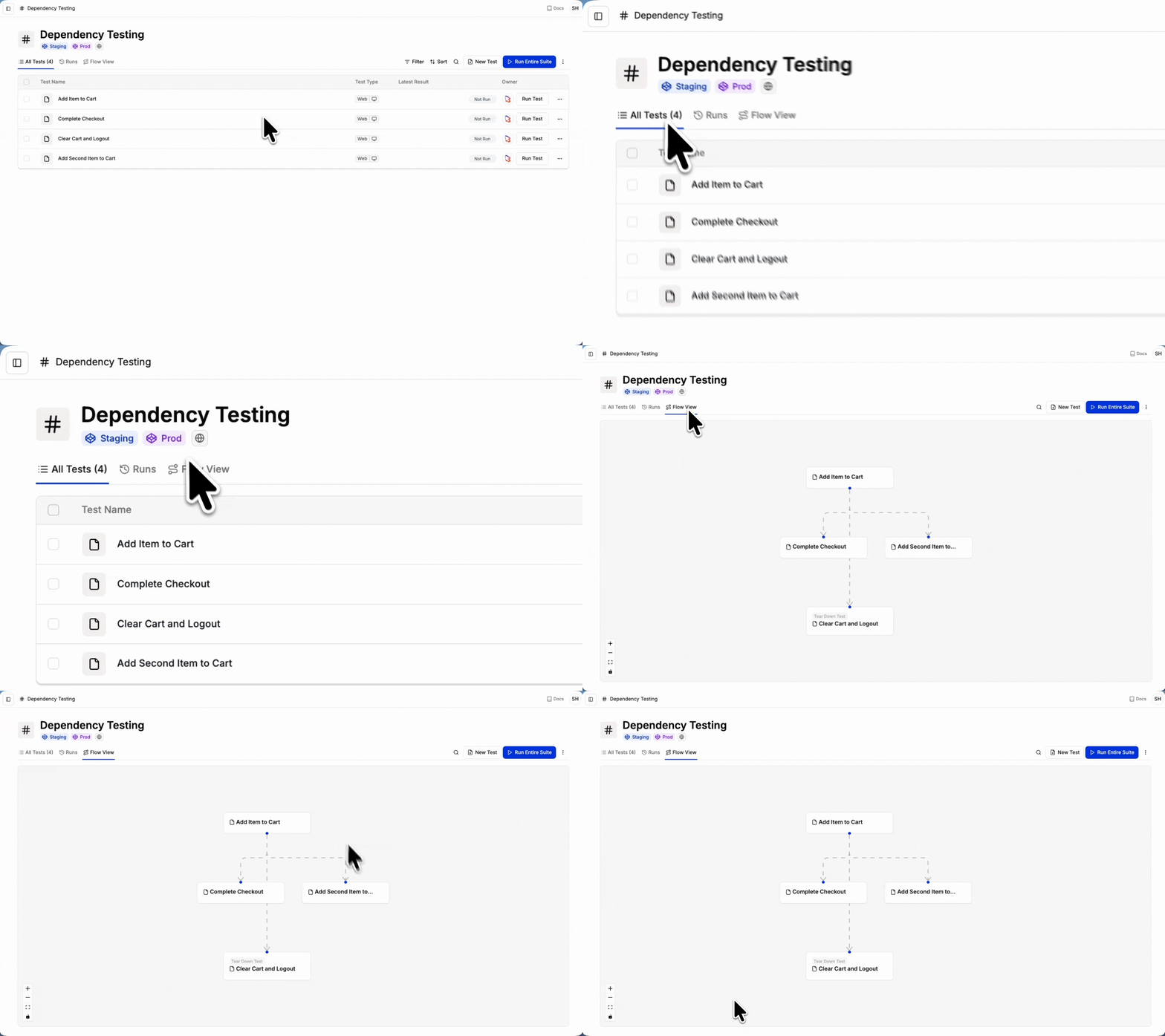
Connection to Snoozed Tests
Snoozed tests are temporarily disabled tests that won’t run in your test suite. When you snooze a test that has dependencies:- Child tests dependent on the snoozed test will not run
- The entire dependency chain below the snoozed test is paused
- This prevents failures from tests that depend on setup from the snoozed test