
Overview
AI Test Generation enables you to create comprehensive test coverage quickly by leveraging existing test suites, uploading documentation or describing tests in plain language. The AI analyzes your inputs and generates structured, executable tests that match your application’s patterns and testing needs.What You Can Generate
Test
Create one or more step-by-step tests from various sources including video recordings, Loom links, files or existing suite patterns
Scenario Table
Generate data-driven scenario tables with variations based on your instructions, enabling parameterized testing across multiple data sets
How to Use AI Test Generation
1
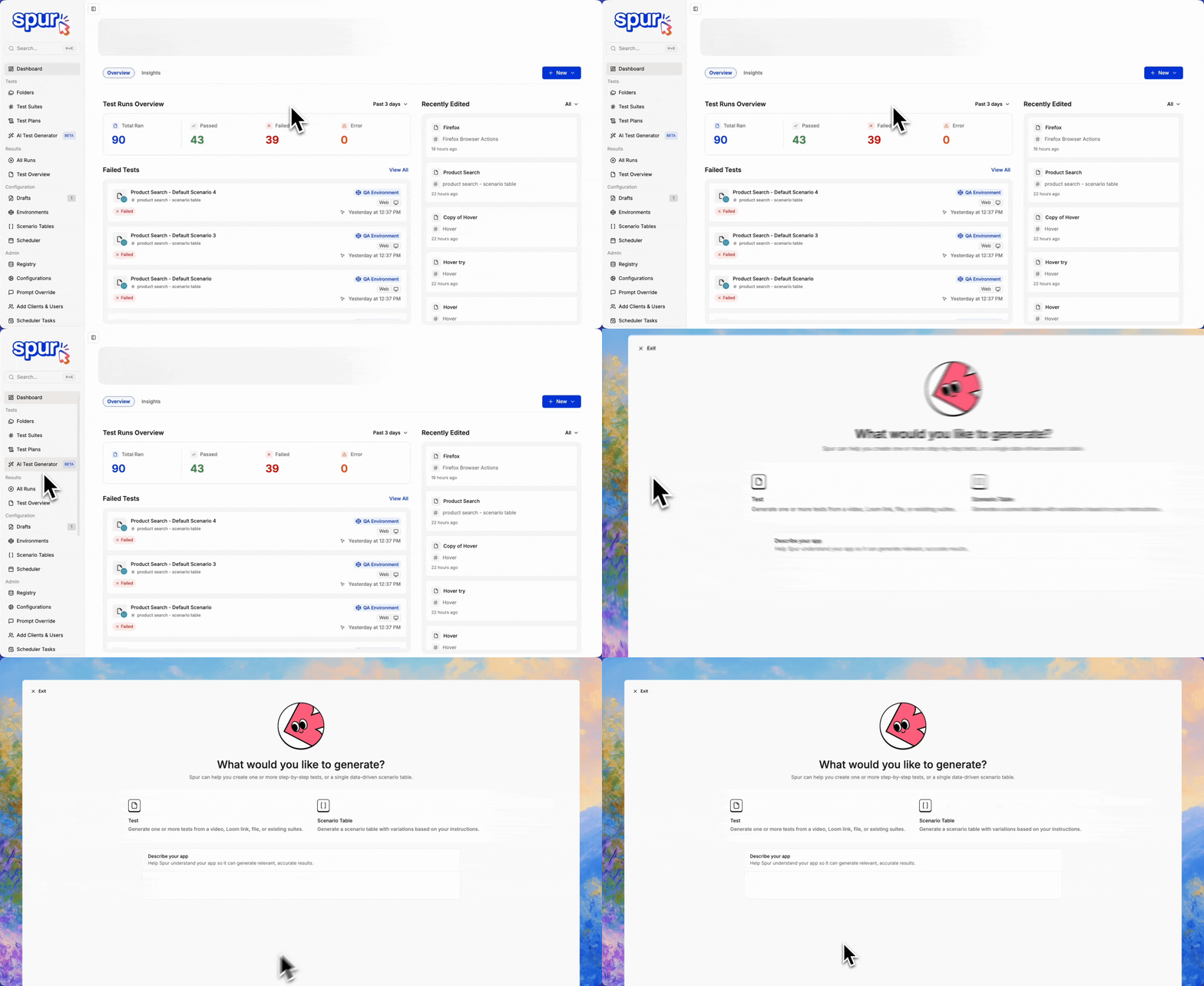
Navigate to AI Test Generator under Tests in Spur Dashboard
2
Choose Your Generation Type
When you open AI Test Generation, select what you want to create - Tests or Scenario Table.Provide context about your application to help Spur generate relevant, accurate results. Include information about your app’s purpose, key features and user workflows.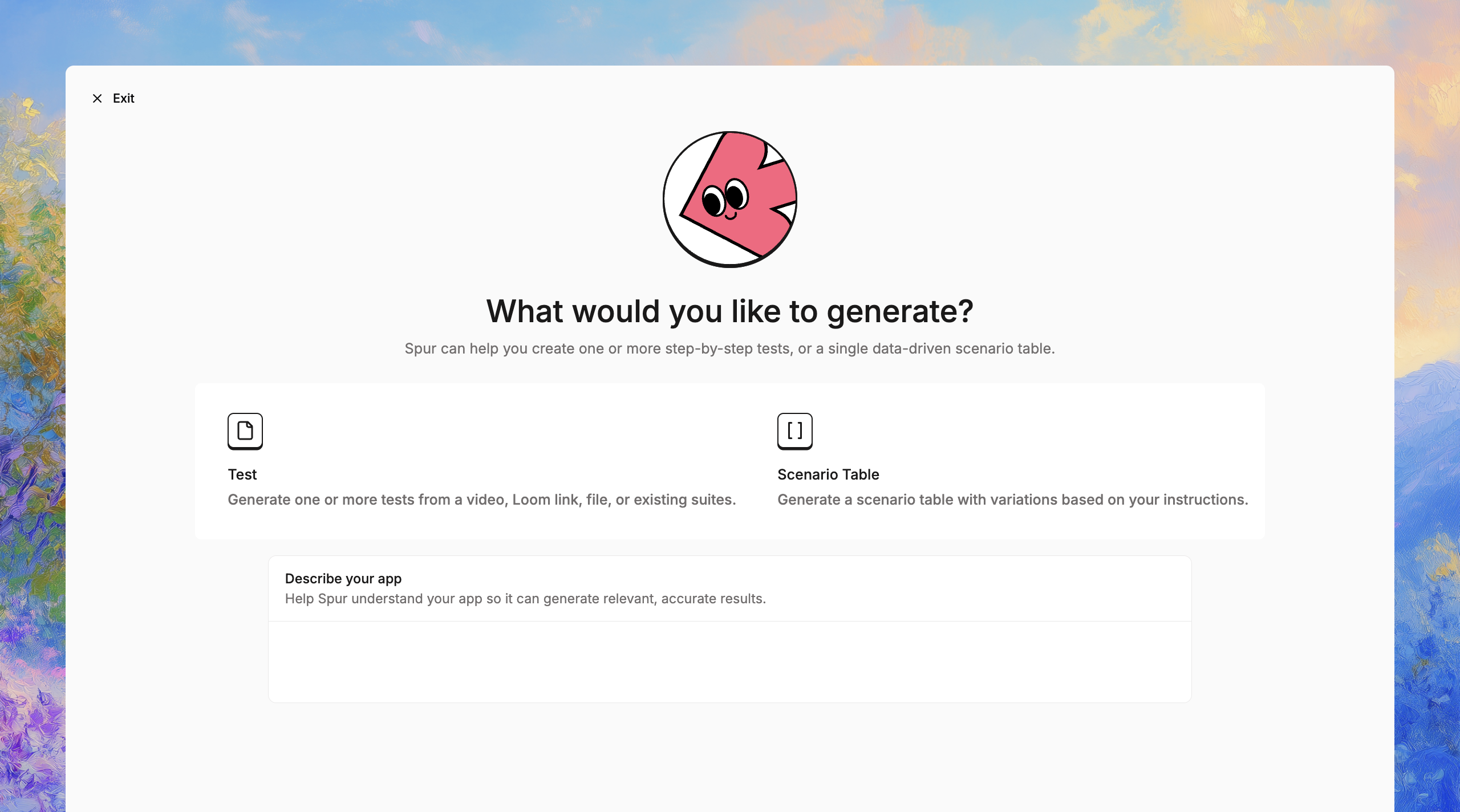
3
Select Your Generation Method
Choose from three methods for generating tests, each suited to different workflows: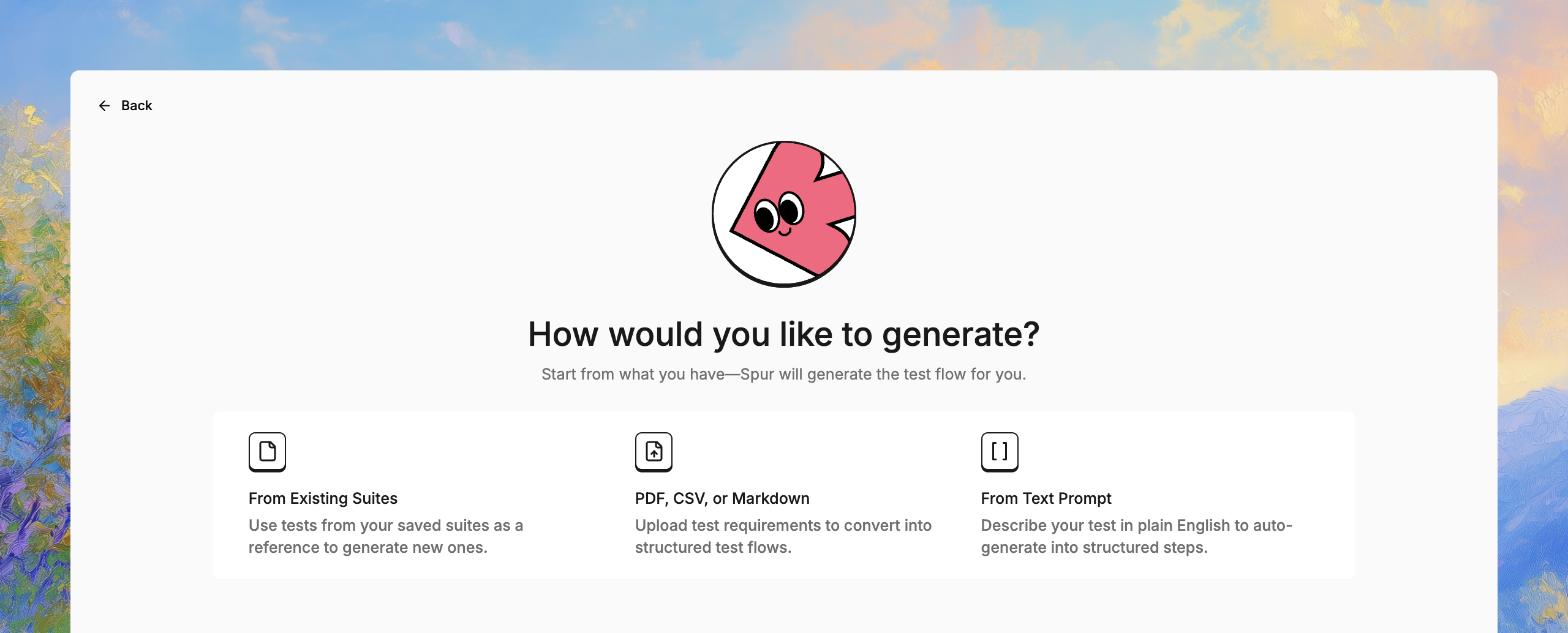
1
a) From Exisiting Suites
Leverage your existing test suite as a foundation for new tests. The AI analyzes your saved suites to understand your testing patterns and generates new tests that follow the same structure and style.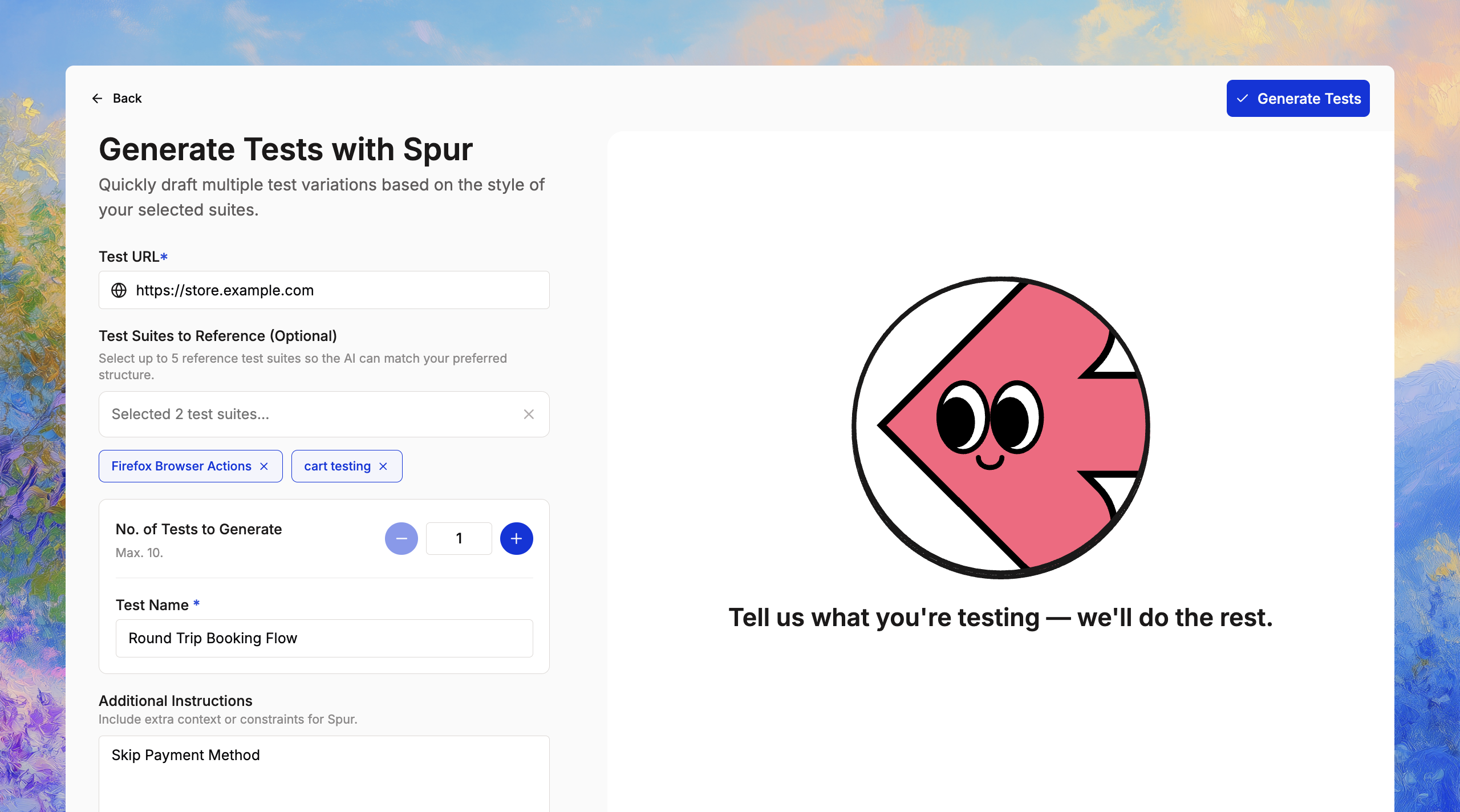
2
b) PDF, CSV or Markdown
Upload test requirements, specifications, or documentation files to convert into structured test flows. The AI extracts test scenarios from your documentation and creates executable tests.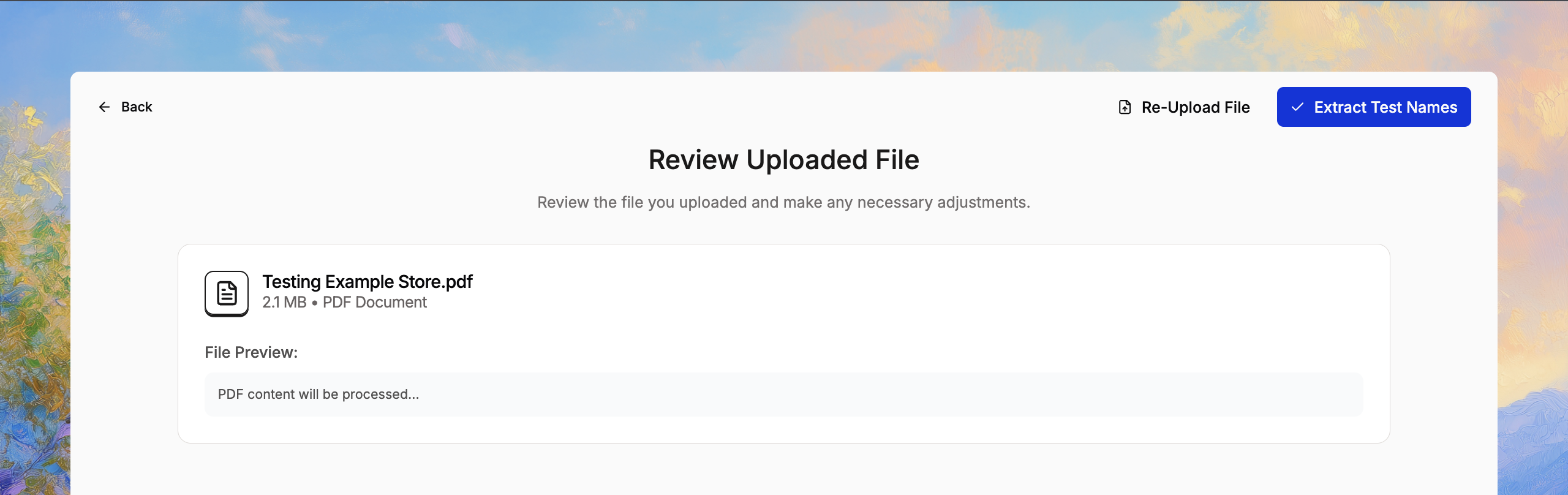
3
c) From Text Prompt
Describe your test in plain English and let the AI generate structured test steps. This method offers maximum flexibility for creating tests from scratch.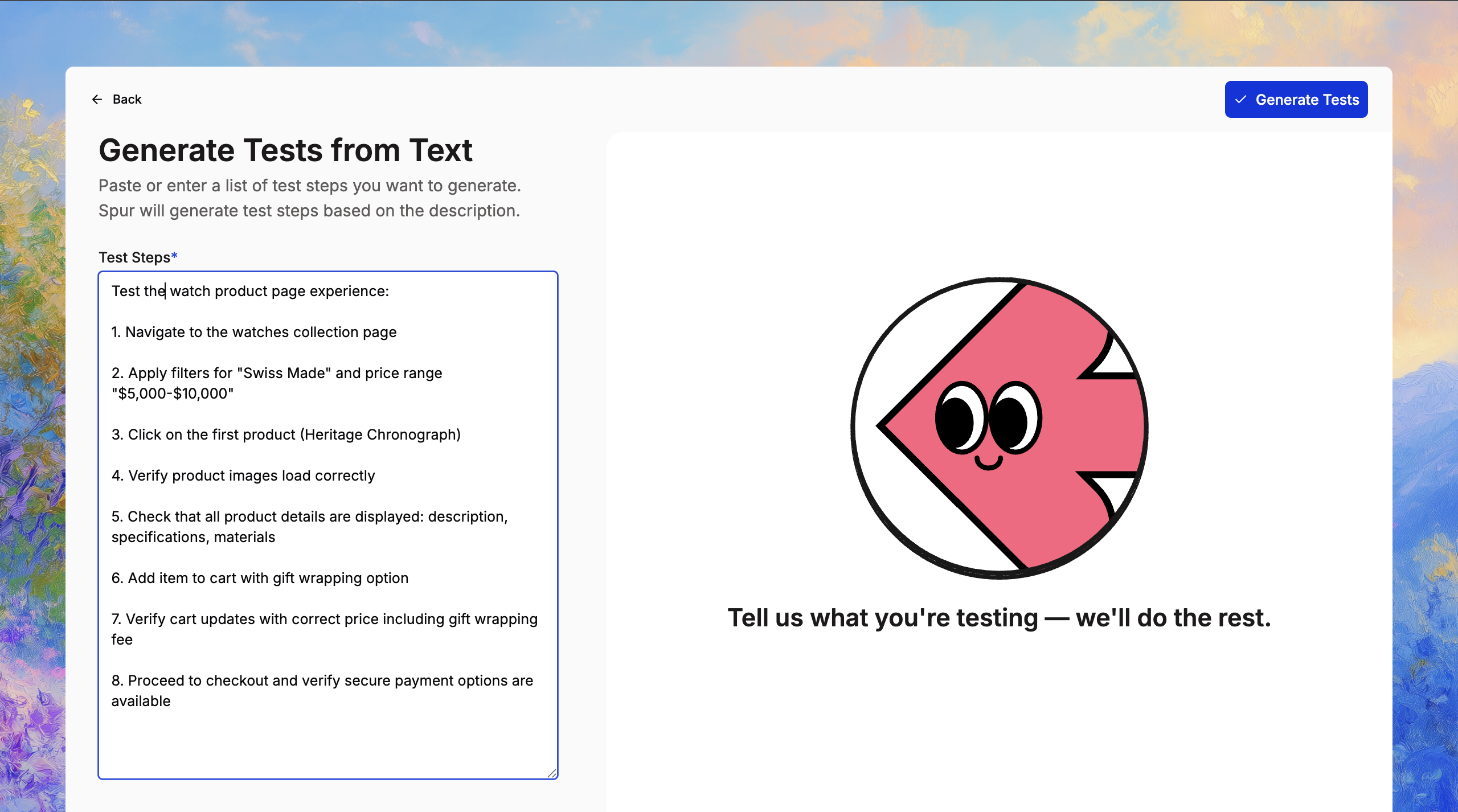
4
Generate Scenario Tables (Optional)
If you selected Scenario Table in step 2, provide instructions for creating data-driven test variations.Scenario tables enable you to run the same test with multiple data sets, validating different user personas, product categories, or input combinations.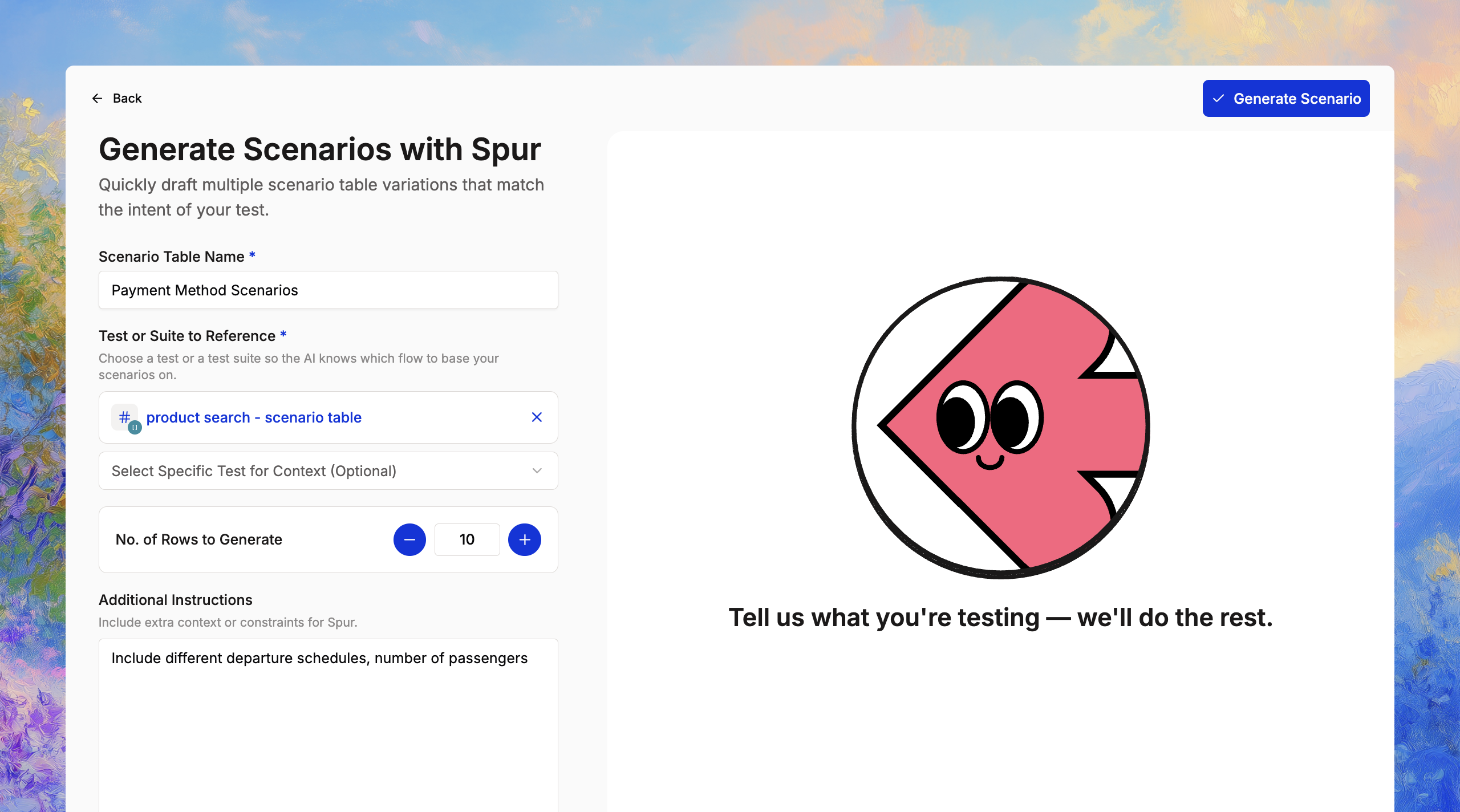
5
Click Generate Tests
The AI processes your inputs and generates structured test steps ready for execution.Review the generated tests, make any necessary adjustments, and click Keep Tests to add them to your test suite..gif?s=26269bfbf36a656d5a3a39e641011dbf)
6
Choose Test Suite
After generation, select which Test Suite to save your test to.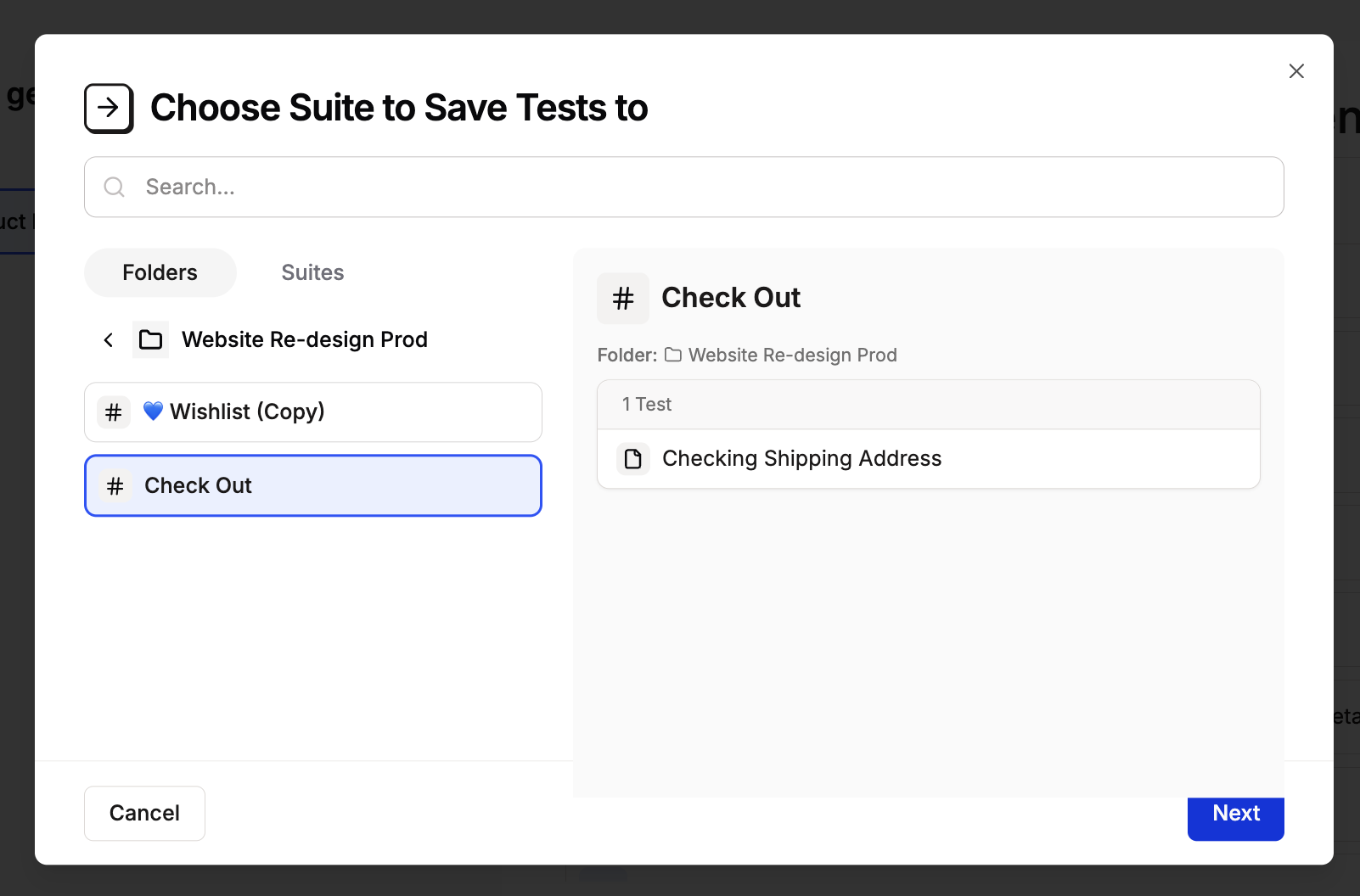
7
Save Tests
Review the generated test, add or verify the Test URL and click Save.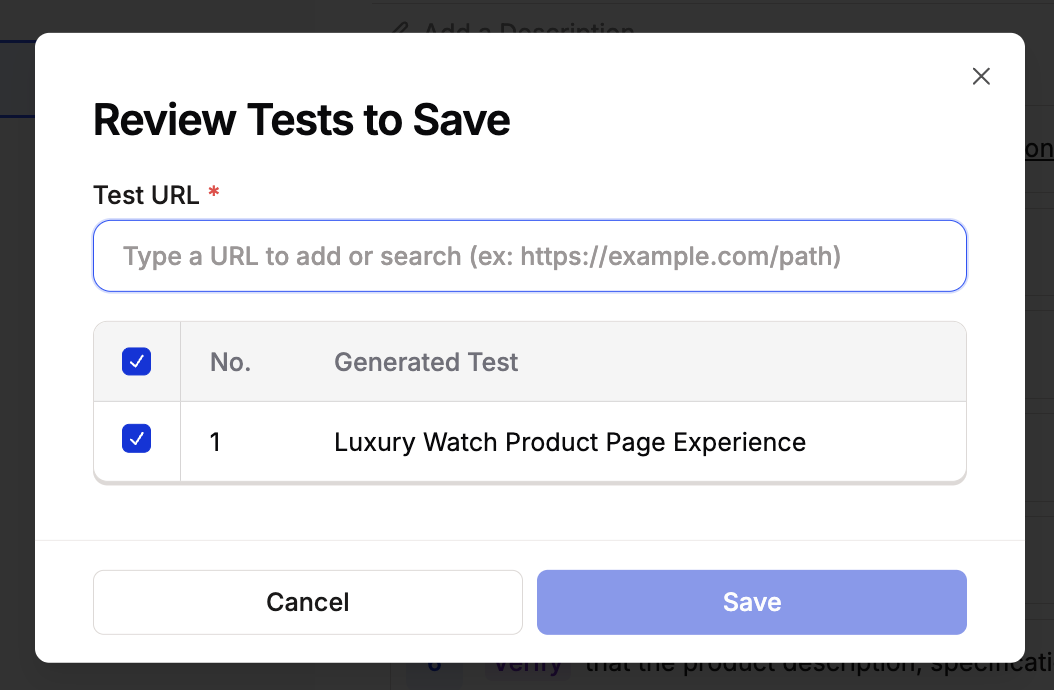
Best Practices
- Be Specific: Provide detailed descriptions and context for more accurate test generation. Include information about expected behaviors, user flows, and validation points.
- Reference Existing Suites: When available, reference similar test suites to help the AI understand your testing patterns and preferred structure.
- Iterate and Refine: Review generated tests and provide feedback through additional instructions to improve results.
- Start Simple: Begin with straightforward test scenarios before generating complex multi-step flows.
- Use Descriptive Names: Clear test names improve organization and make results easier to understand.
Limitations
- Maximum 10 tests per generation run
- Generated tests may require manual review and adjustment
- Complex authentication flows may need additional configuration
- File uploads support PDF, CSV, and Markdown formats only