
What are scenario tables?
Scenario Tables are a powerful feature in Spur that help you simplify and scale your test suites by using parameterized test data. Instead of creating multiple nearly identical tests with different inputs, you can write one test that dynamically runs through multiple scenarios defined in a table.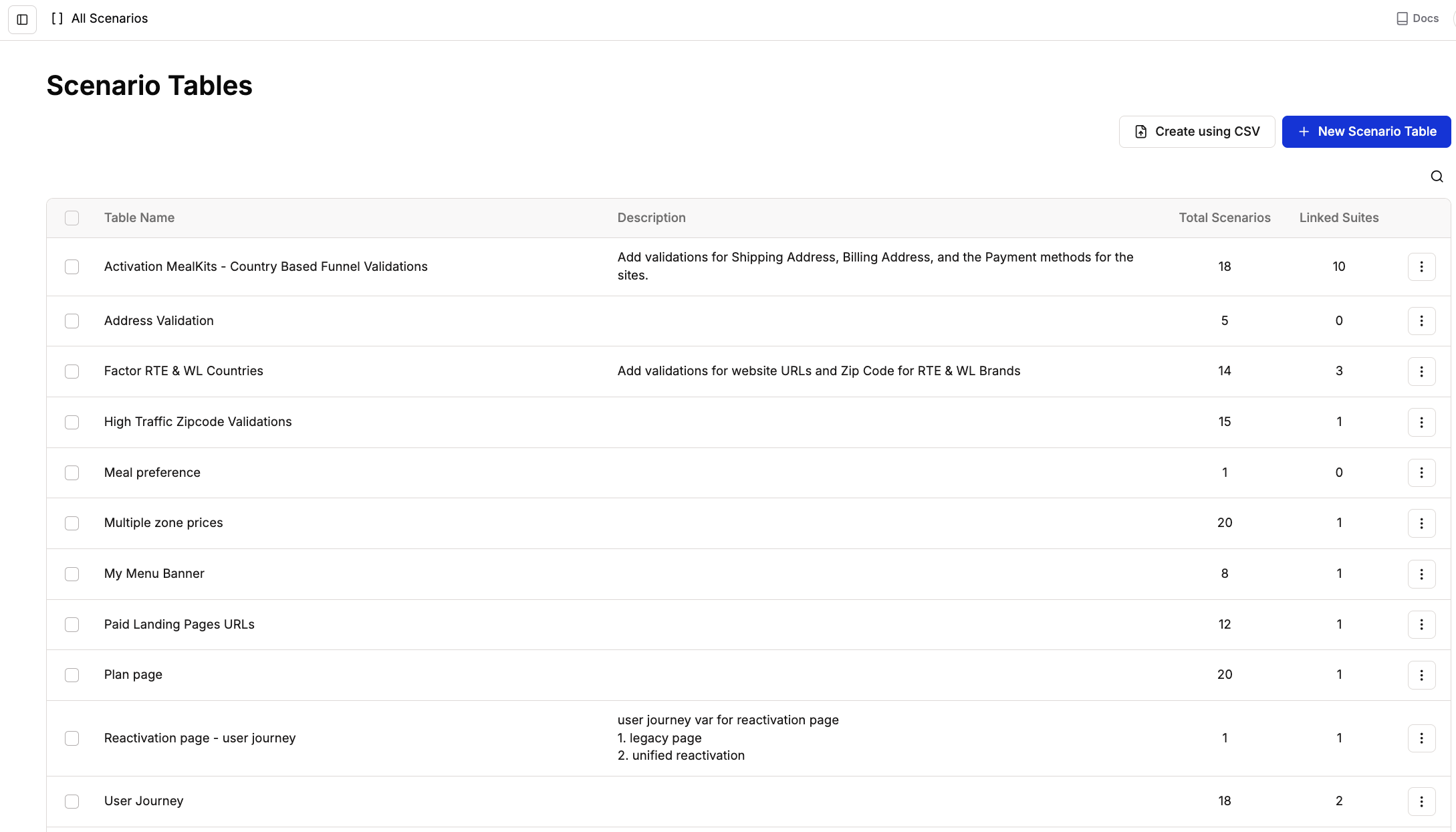
Overview of Scenario Tables
Understanding the structure:
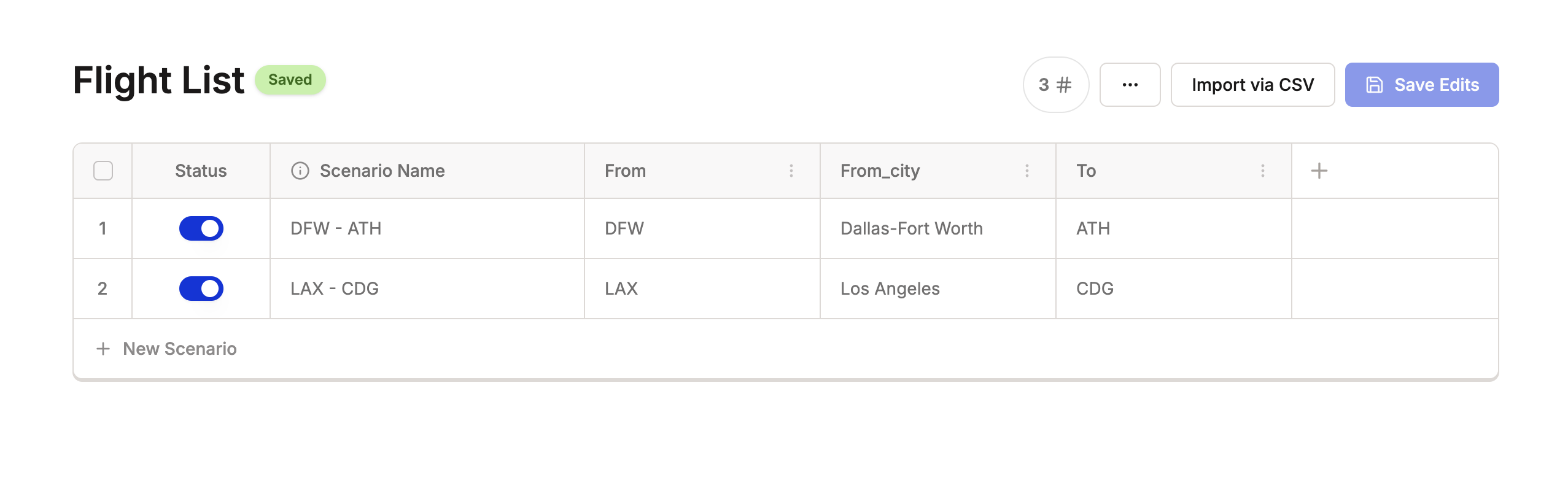
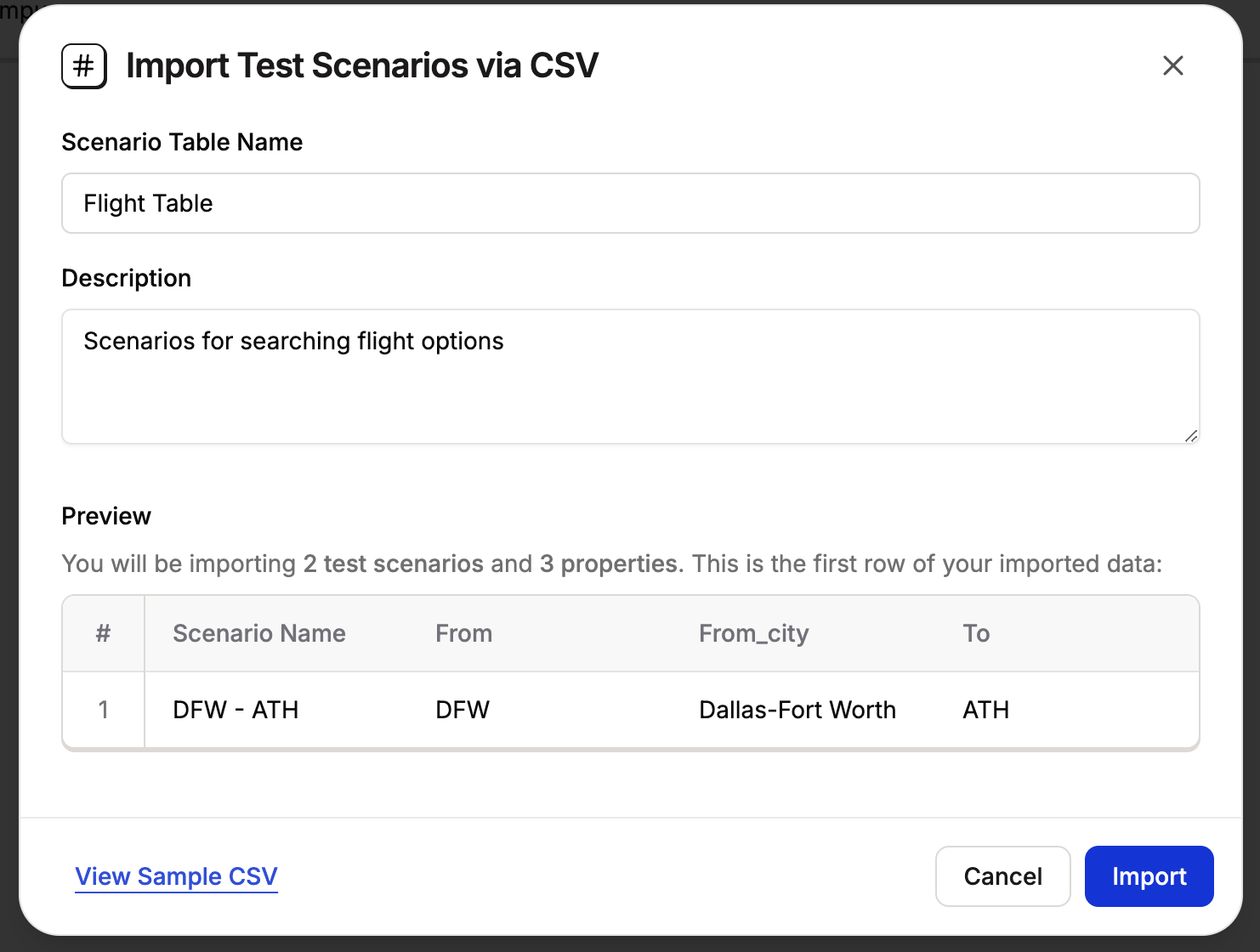
- Each row = one scenario (test variation)
- Each column = one property (variable you’ll use in tests)
How to set up scenario tables
Step 1: Create your scenario table
Navigate to the Scenario Tables section in Spur and choose your preferred method: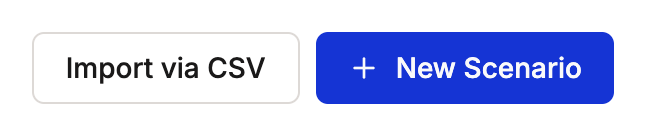
- Manual creation
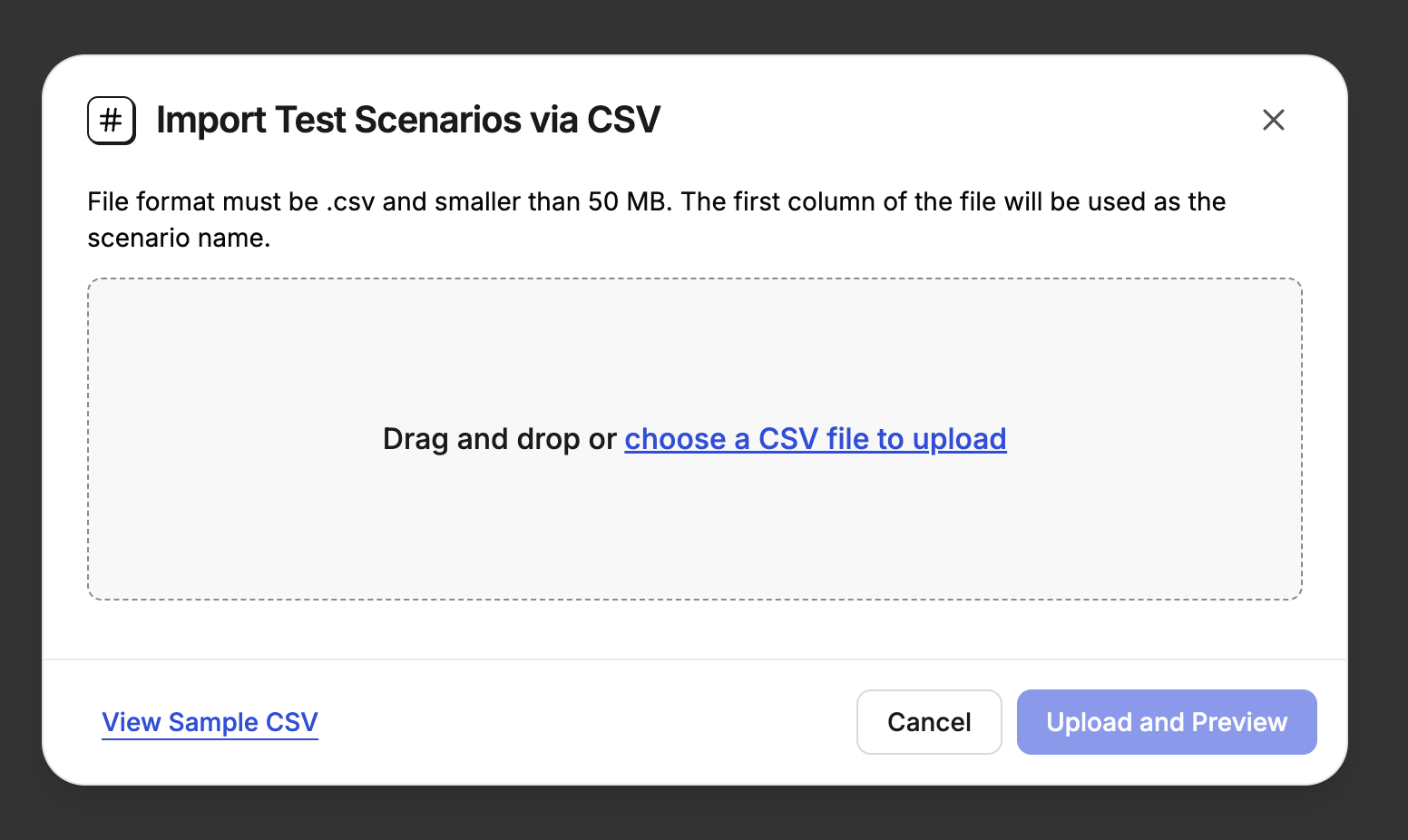
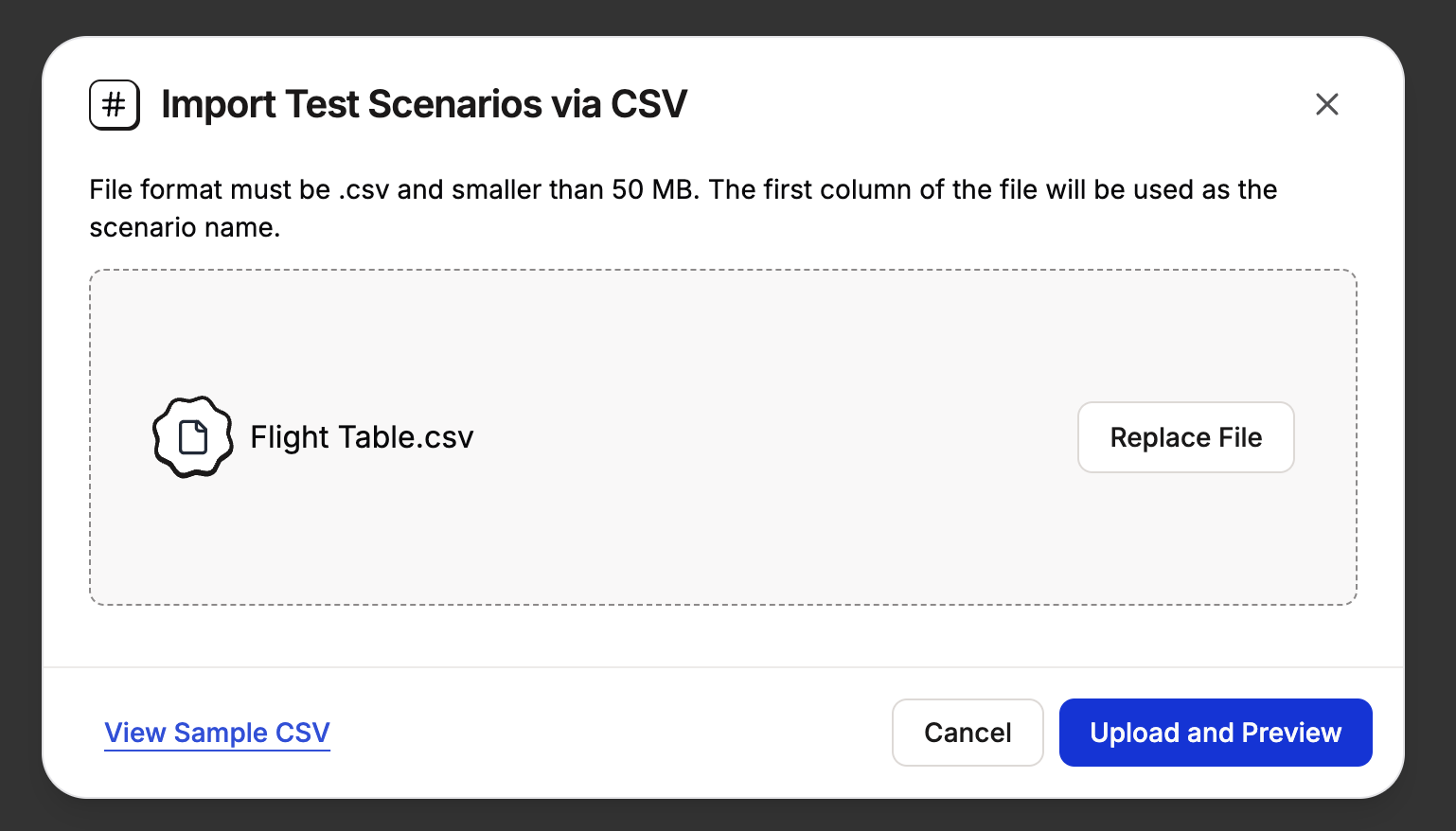
- Import via CSV
Best for small datasets
1
Click 'New Scenario'
Click the New Scenario button
2
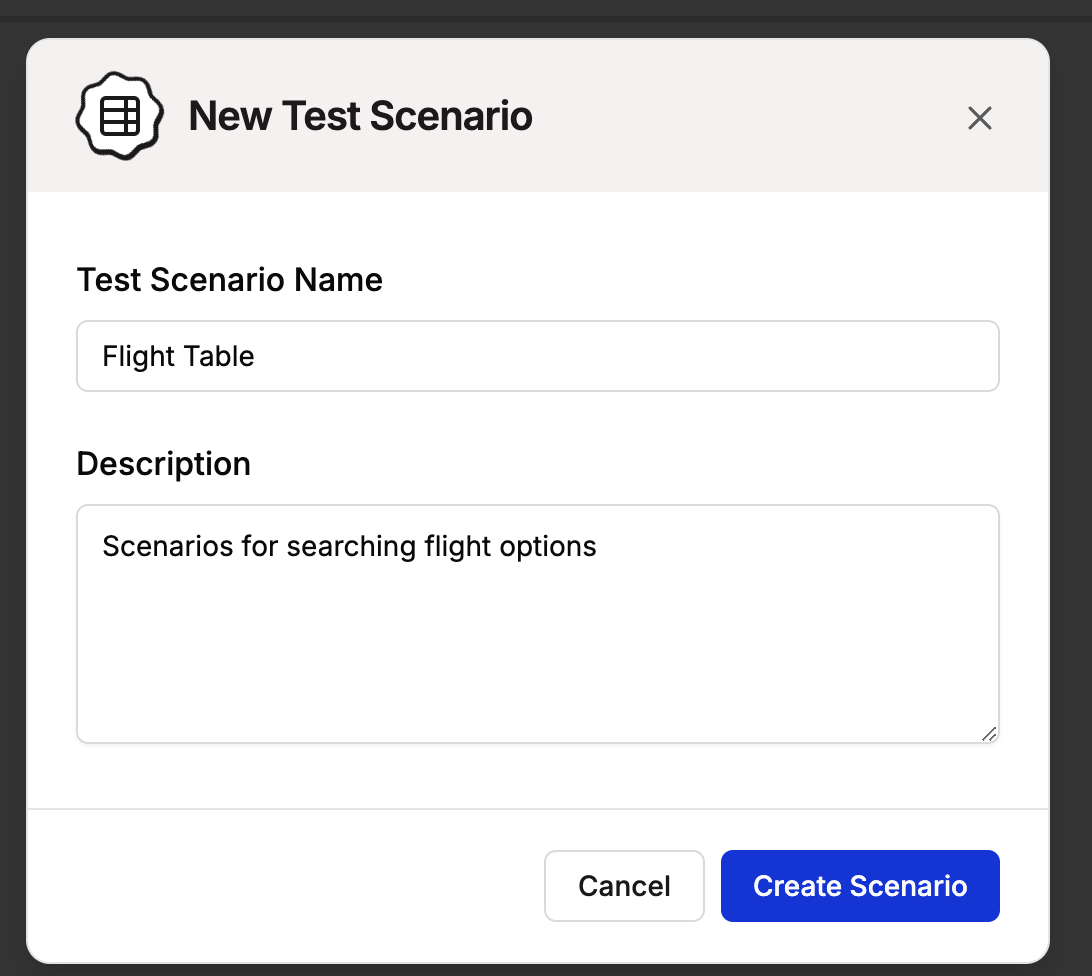
Enter table details
- Scenario Table Name: Choose a descriptive name
-
Description: Explain what scenarios this table covers
3
Create your scenario
Click “Create Scenario”
4
Add your data
Add your data manually in the table editor
5
Save your changes
Click “Save Edits” when finished
Step 2: Connect your table to a test
How it works
- Connect the Scenario Table to a Test Suite
- Use the properties
[property_name]in any test within that suite - Run the suite to execute all scenarios across all tests
Option 1: Through the Test Suites menu
1
Go to Test Suites
Navigate to the Test Suites section
2
Select your test suite
Choose the test suite you want to connect to a scenario table
3
Access suite menu
Click the three-dot menu (⋯) next to your test suite
4
Connect scenario table
Select “Connect Scenario Table” from the dropdown menu
5
Choose your table
Select the scenario table you want to connect to this test suite
Option 2: Through the test editor
1
Create or edit a test
Open the test editor for your chosen test
2
Add scenario variables
In the test editor:
- Type
[to open the scenario variable menu - Select your Scenario Table (e.g., “Flight List Table”)
- Insert properties into test steps (e.g., “Type [From_city]”)
Step 3: Run and monitor your tests
After saving your scenario-based test:1
Execute your test
Click “Run” to execute all scenarios
2
View results
Check results in Run History, broken down by scenario: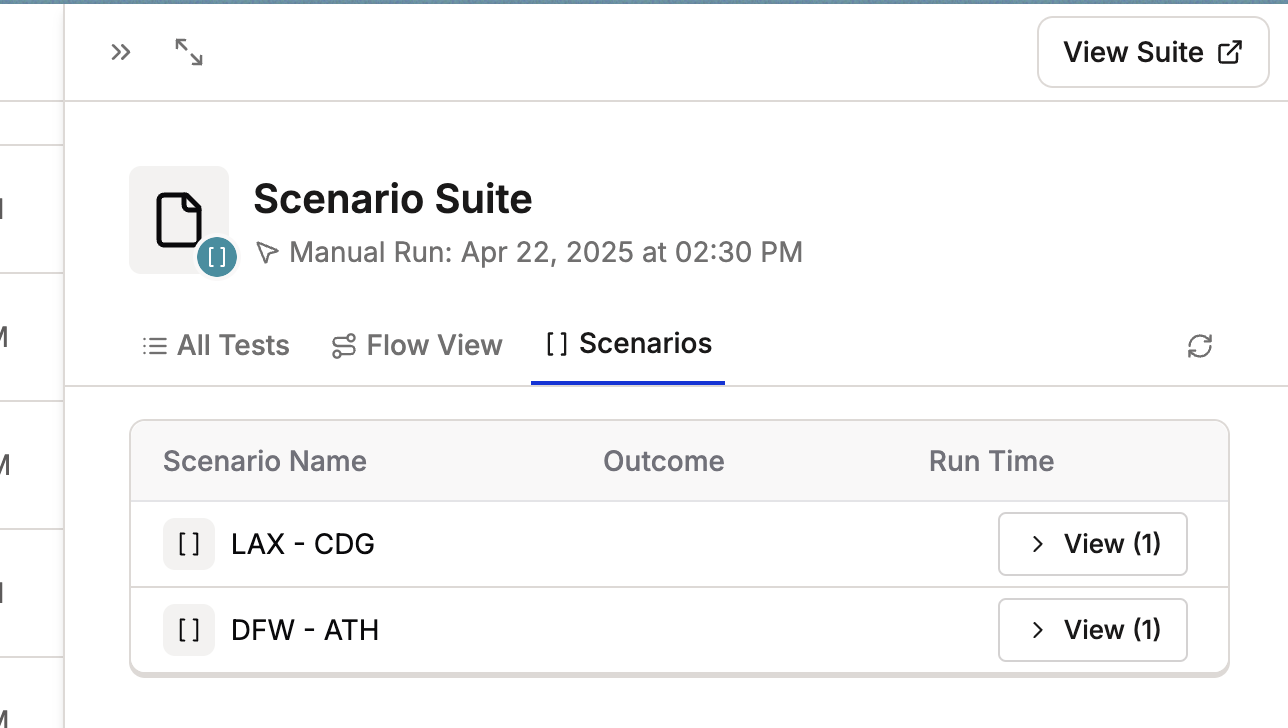
- Example: Separate results for DFZ scenario and LAX scenario
3
Inspect individual scenarios
Click each scenario to inspect individual steps and outcomes 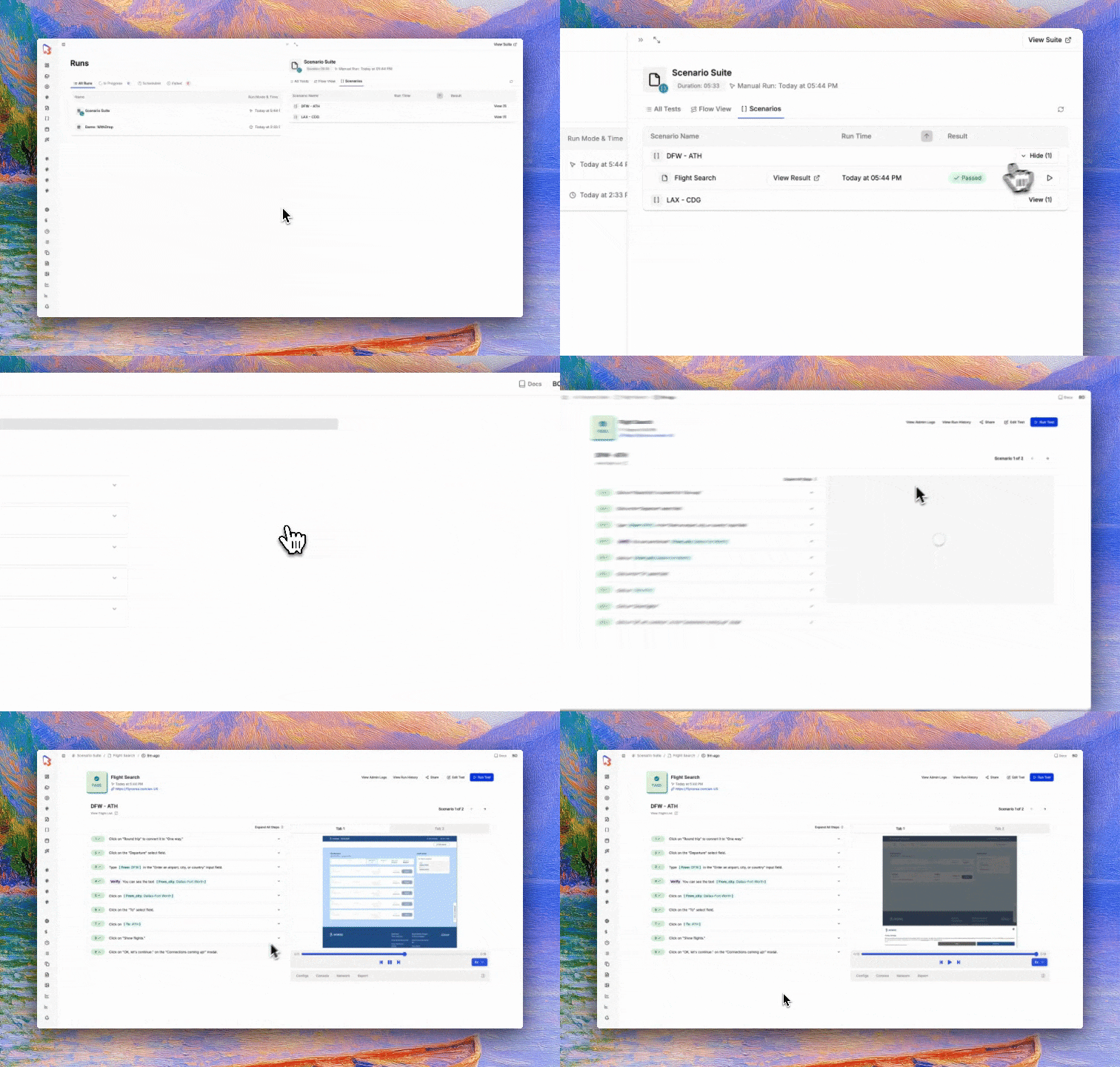
4
Schedule recurring runs
Schedule recurring runs just like regular test suite 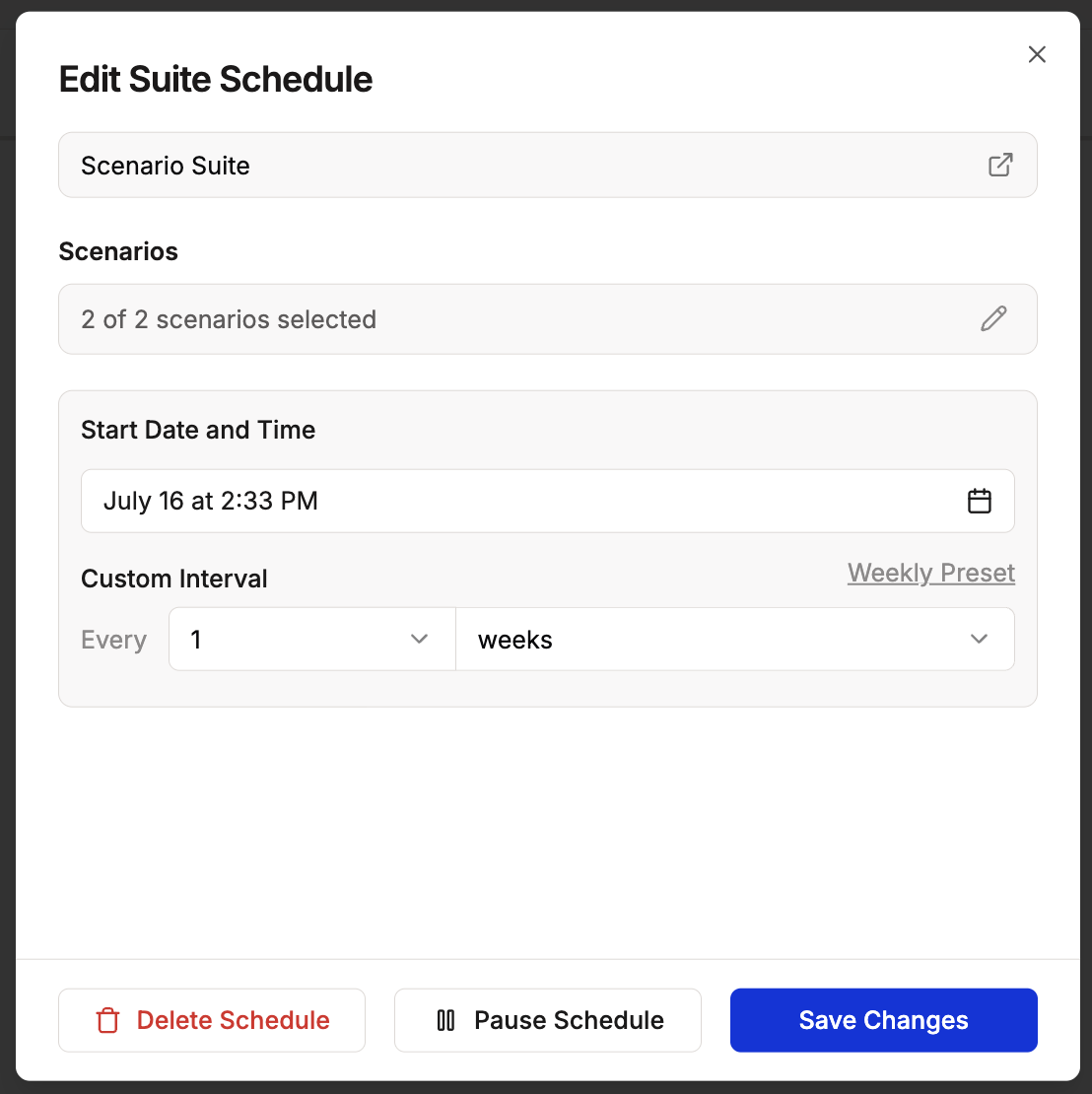
Searching scenarios
When selecting scenarios to run, you can search across all property values — not just the scenario name. Type any value that appears in your table and matching scenarios will be filtered and highlighted instantly.Managing scenarios
Enable/Disable scenarios
Enable/Disable scenarios
Use the toggle switch in the Status column to enable or disable specific scenarios without deleting them. Disabled scenarios won’t run when you execute the test.
Edit scenarios
Edit scenarios
Click any cell in the scenario table to edit values directly. Changes save automatically.
Add new scenarios
Add new scenarios
Click + New Scenario at the bottom of the table or press the keyboard shortcut to add additional scenario rows.
Delete scenarios
Delete scenarios
Select scenarios and use the delete option to remove them from your table.
Best practices
- Start simple: Begin with 2-3 scenarios to validate your test logic before scaling up
- Use descriptive scenario names: Make it easy to identify which scenario failed in test results
- Organize related scenarios together: Group similar test variations in the same scenario table
- Keep variables consistent: Use the same variable names across related tests for easier management
- Test with one scenario first: Verify your test works correctly with a single scenario before adding more
- Document edge cases: Use scenario names to clearly indicate boundary conditions or special cases
Key benefits
Reduce redundancy
Write one test instead of many duplicate tests. A single parameterized test can handle dozens of scenarios without duplicating test logic.
Easier maintenance
Update inputs in one central location. When test data needs to change, modify the scenario table rather than updating multiple individual tests.
Better test coverage
Easily test variations and edge cases. Add new scenarios to your table without modifying test logic, enabling comprehensive coverage of input combinations.
Scalability
Easily test variations and edge cases. Add new scenarios to your table without modifying test logic, enabling comprehensive coverage of input combinations.