
Overview
Script to Test Generation bridges the gap between traditional automation frameworks and Spur’s natural language testing approach. By importing scripts, you can quickly migrate existing test coverage to Spur without manual rewriting, while maintaining the test logic and validation steps you’ve already developed. Supported Script Types:- Playwright scripts (.js, .ts)
- Selenium scripts (.py, .js, .java)
- Cypress scripts (.js)
- Puppeteer scripts (.js)
How to Generate Spur Tests from Scripts
1
Navigate to Dashboard and Create a New Test
Open your Spur Dashboard. Click New and choose Test from the dropdown menu to begin the test creation process.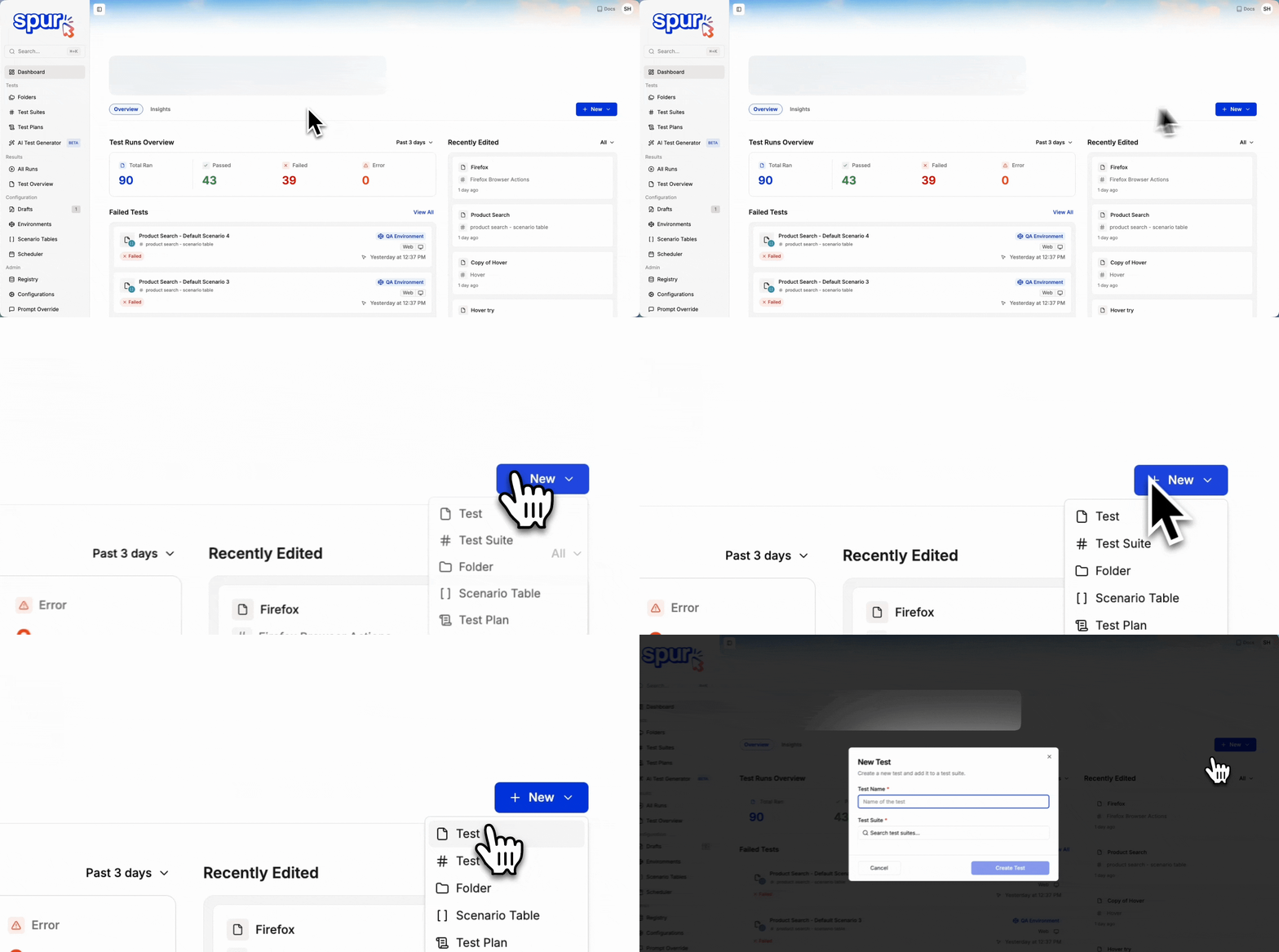
2
Name Your Test and Select Test Suite
Enter a name for your test and add it to an existing Test Suite or create a new one. Click Create Test to proceed.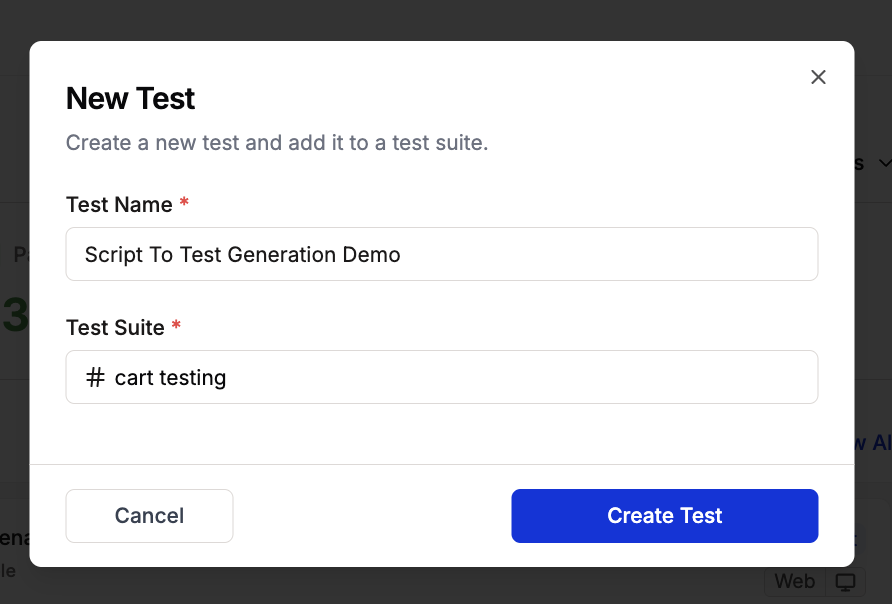
3
Configure Test URL
The Test Editing Side Peek will open and fill in the Test URL field. Reference Environments for configuring environment-specific URLs.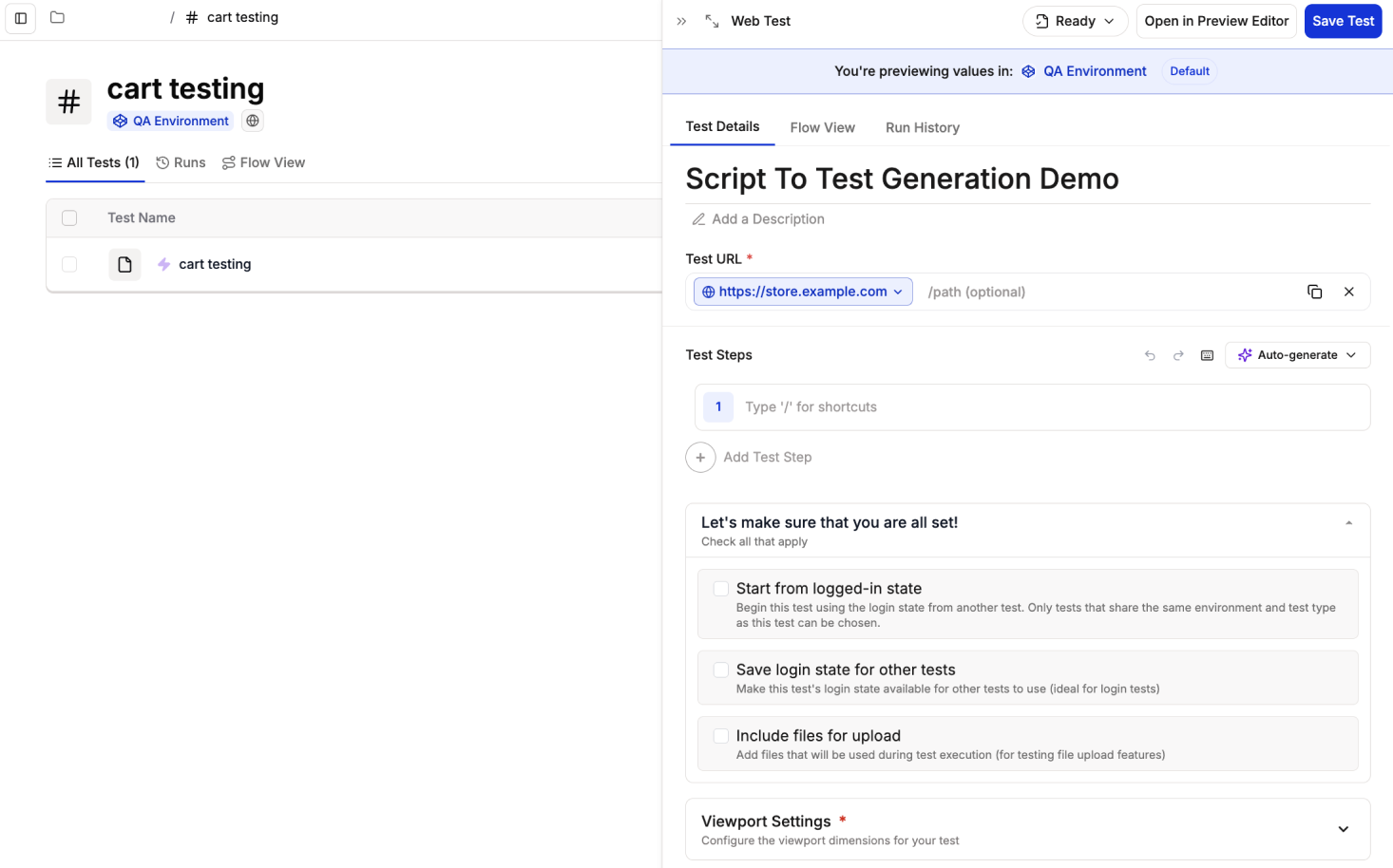
4
Navigate to Auto-Generate and Click From Code
Locate the Auto-generate button in the Test Steps section and click From Code to access the script import feature.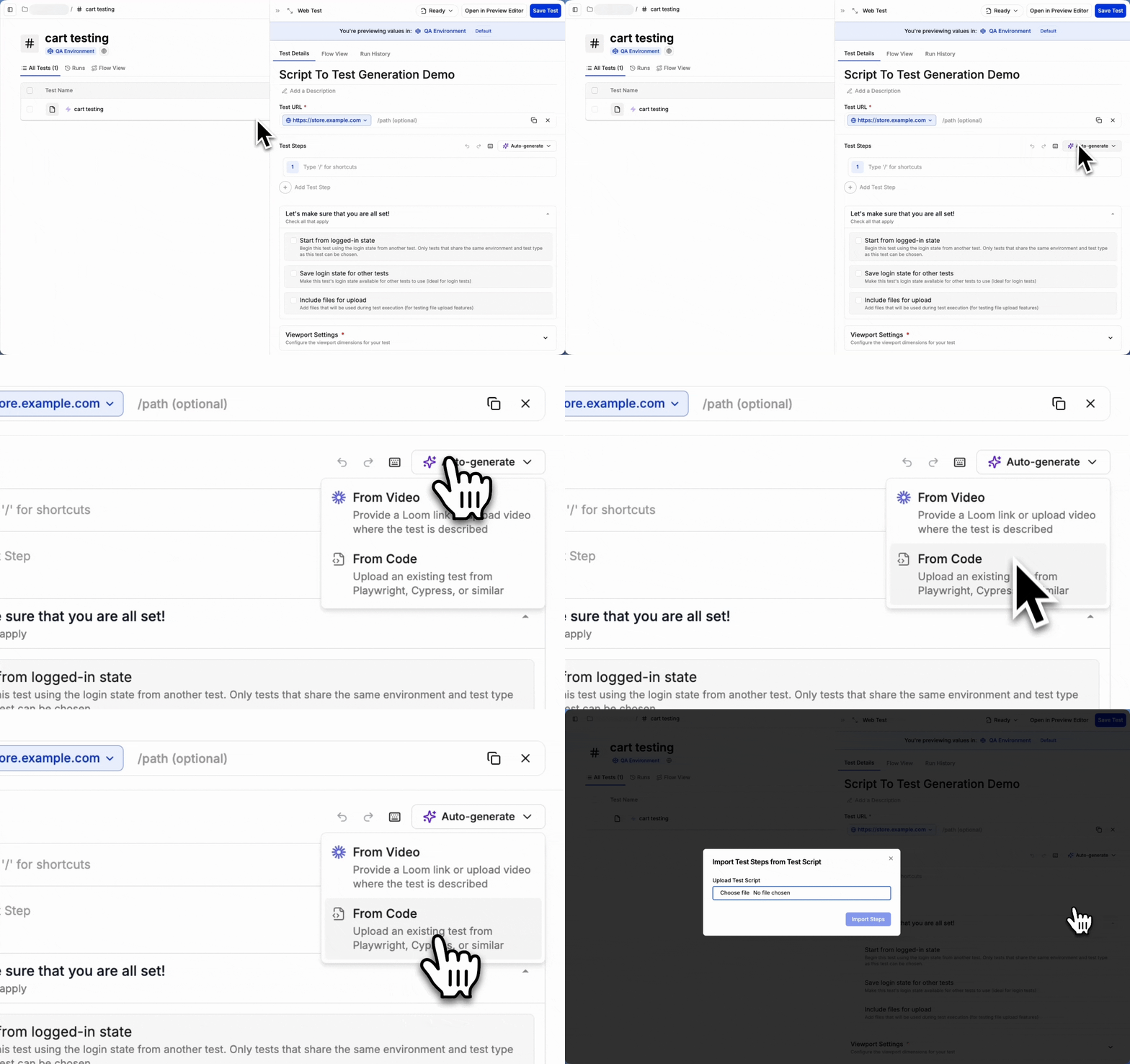
5
Import Your Script
The Import Test from Script modal will appear. Choose your script file and click Import Steps to begin the conversion process.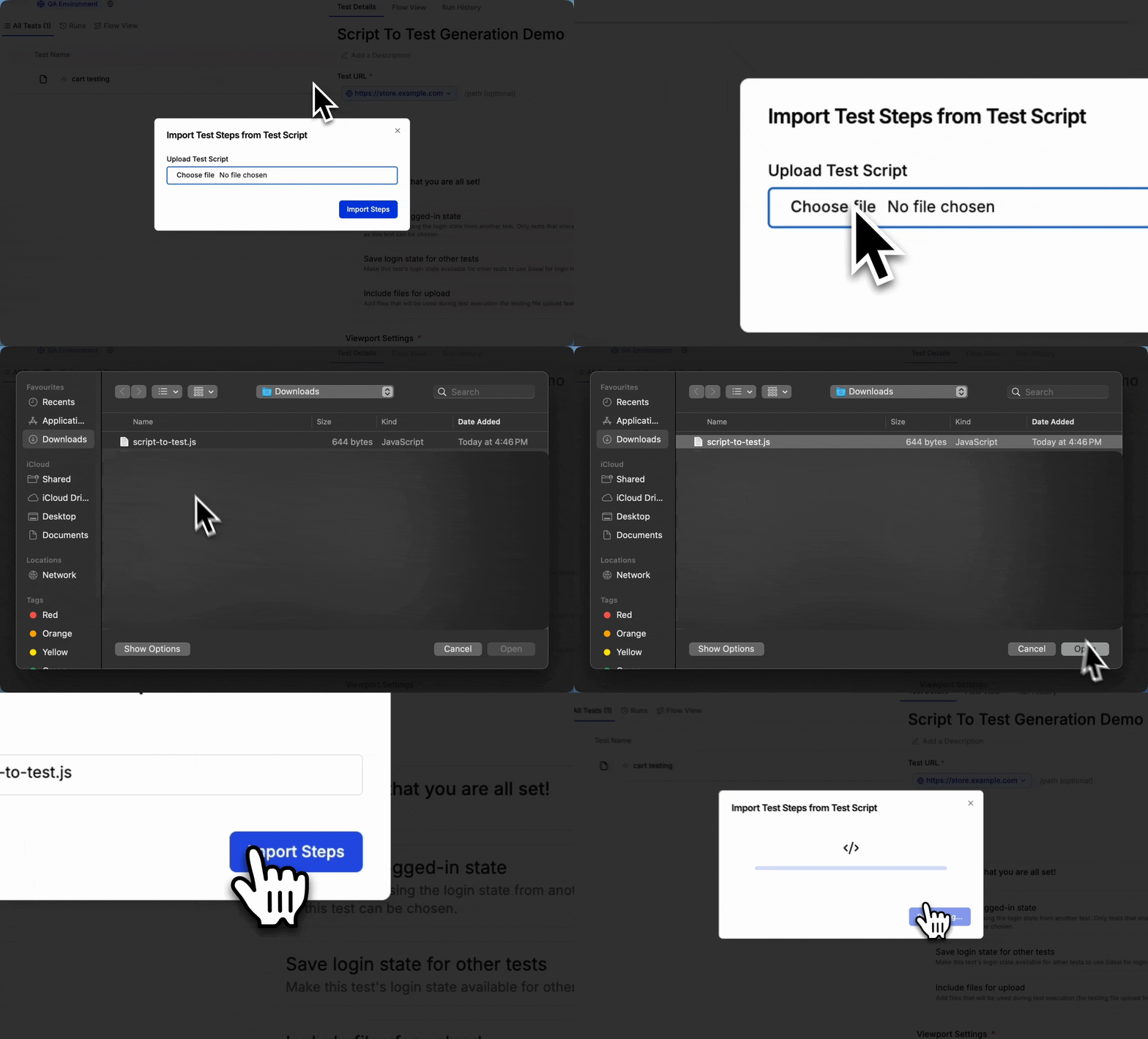
6
Configure and Save
All imported test steps now appear in the Test Editing Side Peek. Configure viewport settings, Advanced Configurations, and caching options as needed. Reference Create Your First Test for detailed guidance on these settings.Click Save Test when complete.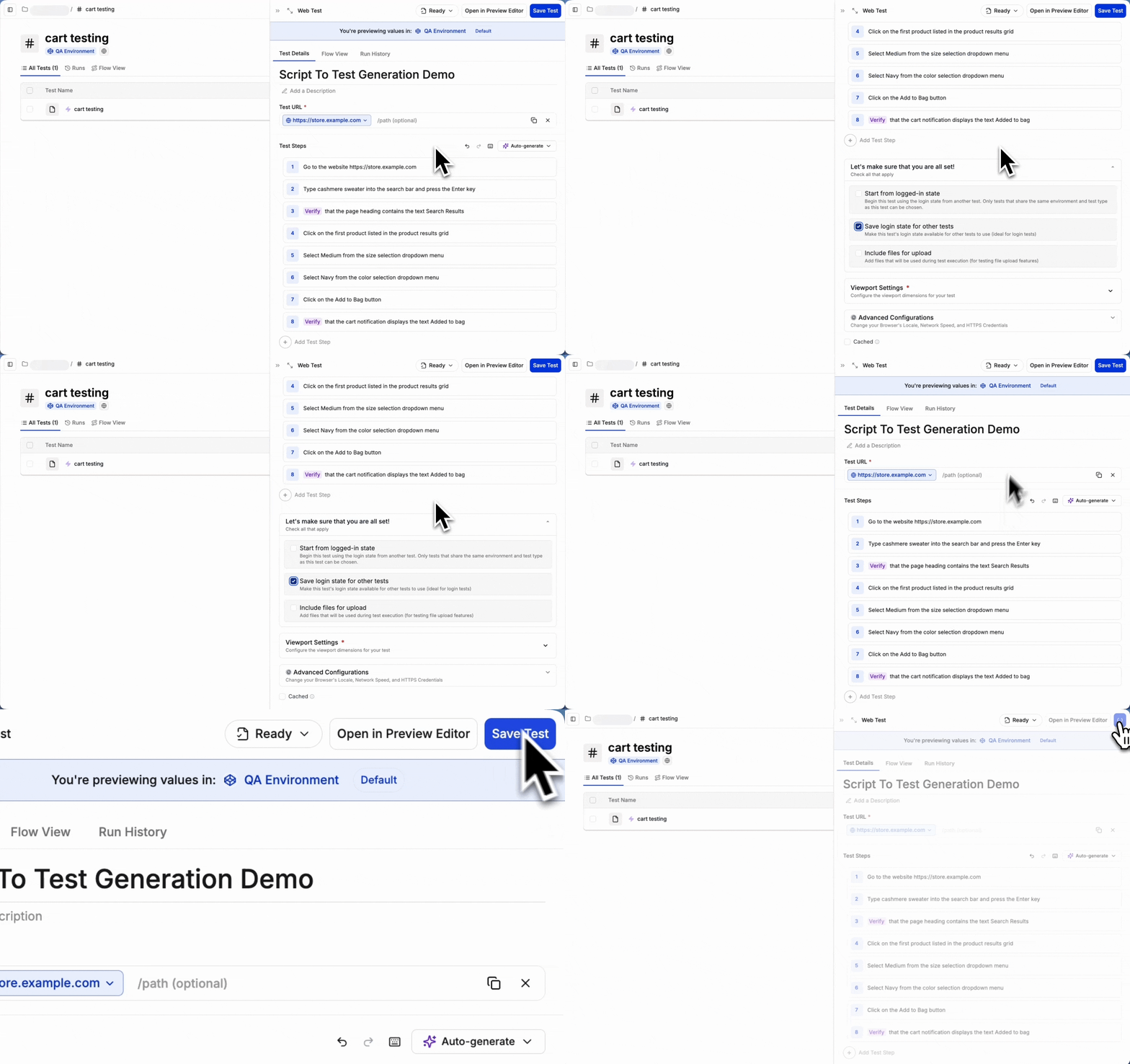
7
View Your Created Test
Your test from script has been created successfully. Navigate to the test suite where you saved your test to view, run, or edit it.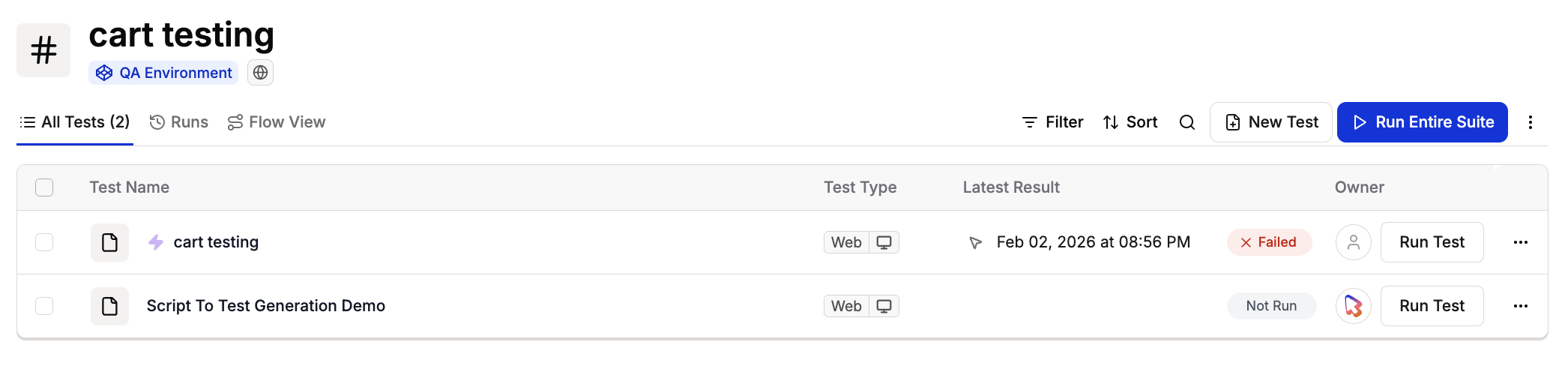
Best Practices
- Review all imported steps: Always verify that converted steps match your testing intent. The AI conversion is highly accurate but may require minor adjustments.
- Leverage Preview Editor: After import, use the Preview Editor to validate and refine test steps with live browser feedback.
- Maintain test organization: Import scripts into appropriate test suites to maintain clear test organization and facilitate team collaboration.