
Overview
Viewports define the screen dimensions and browser configurations the Spur Agent uses when running tests. By testing with the same viewport settings your customers use, you ensure accurate visual regression detection and functional validation across devices. Spur supports four test types:- Web Desktop — browser-based tests at desktop screen sizes
- Web Mobile — browser-based tests at mobile screen sizes
- Native Android — tests running on Android emulators
- Native iOS — tests running on iOS simulators
Key benefit: You can run the same test across multiple viewports simultaneously when your test uses intent-based instructions rather than pixel-specific coordinates.
Default viewport values
When you create a new test, Spur applies the following defaults:Desktop viewport is enabled by default. Mobile, Android, and iOS are disabled until you explicitly enable them.
Configure web viewport settings
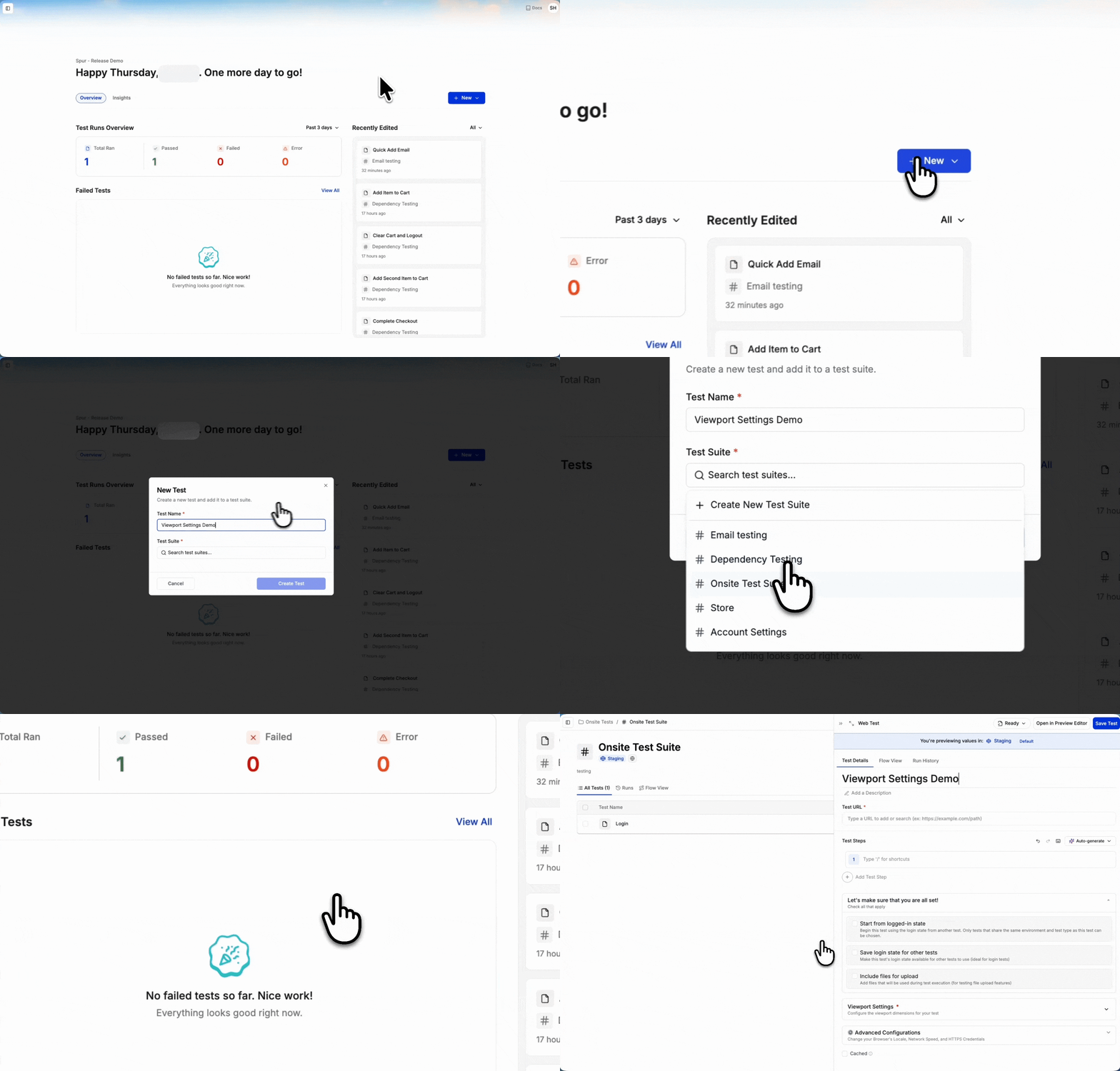
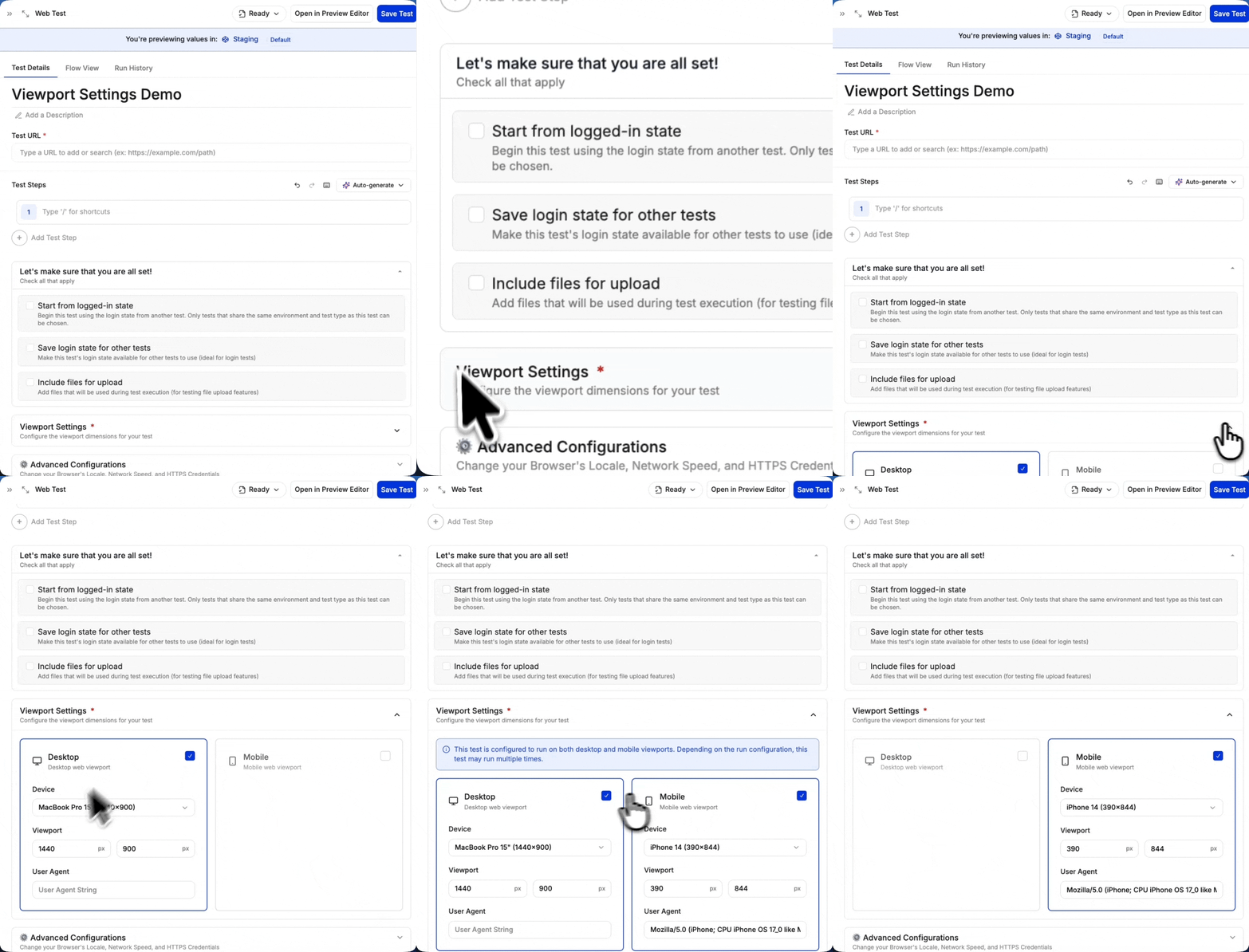
When creating or editing a test, scroll to the Viewport section and choose Desktop, Mobile, or both.1
Create or edit a test
2
Scroll to viewport settings
3
Choose from desktop and mobile web viewports
Enable Desktop, Mobile, or both by toggling the checkbox on each card.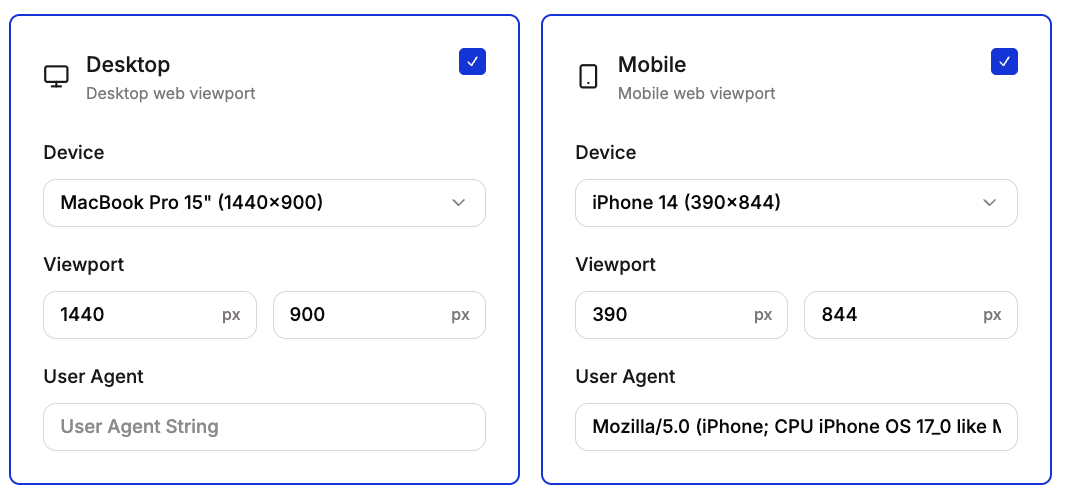
A test can be configured to run on both desktop and mobile viewports. When both are enabled, the test runs twice — once per viewport.
4
Choose dimensions
Select a preset device or choose Custom to enter specific dimensions.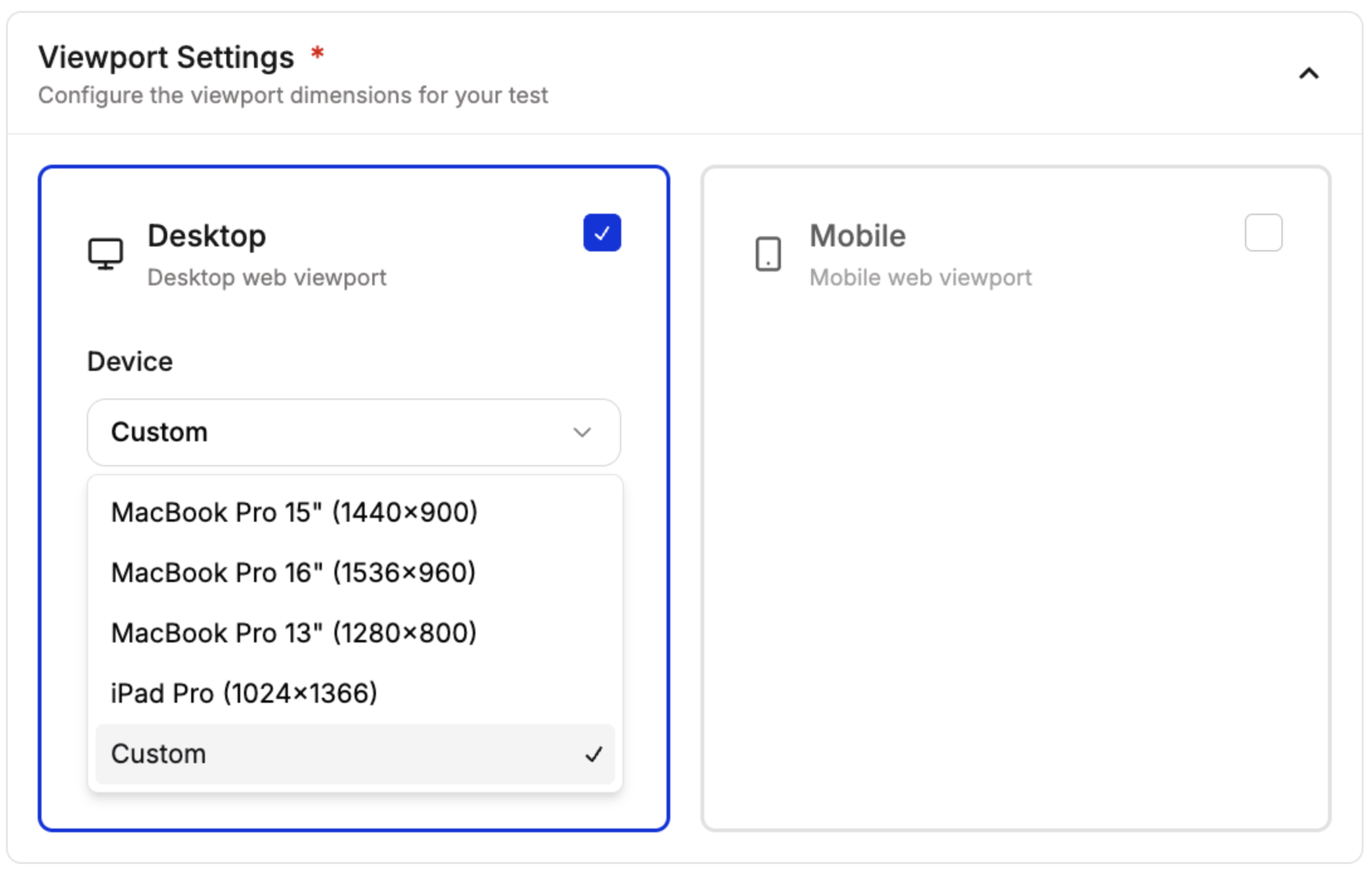
Desktop presets
- MacBook Pro 15” (1440 × 900)
- MacBook Pro 16” (1536 × 960)
- MacBook Pro 13” (1280 × 800)
- iPad Pro (1024 × 1366)
- Custom
Mobile presets
- iPhone 14 Pro Max (430 × 932)
- iPhone 14 (390 × 844)
- Samsung Galaxy S24 Ultra (412 × 915)
- Samsung Galaxy S23 Ultra (412 × 915)
- Google Pixel 8 Pro (412 × 915)
- Google Pixel 7 Pro (412 × 915)
- Samsung Galaxy S24 (360 × 800)
- Google Pixel 8 (412 × 914)
- Custom
You can enter custom viewport dimensions for any width and height in pixels.
5
Set user agent
Each preset comes with a matching user agent string. You can also set a custom user agent.Default desktop user agent:Default mobile user agent:
6
Save your test
After saving, tests configured with multiple viewports display both desktop and mobile icons in the Test Type column, making it easy to identify cross-device tests at a glance.
Configure native device settings
For native Android and iOS tests, the viewport section changes to Device Settings where you configure the target device and OS version.Native Android
Select an Android device and OS version to run your test on an emulator.The default Android configuration is Pixel 4a running Android 35.
Native iOS
Select an iOS device and OS version to run your test on a simulator.The default iOS configuration is iPhone 17 running iOS 26.
Default viewport fallback
When you open a test that has no viewport configuration saved, Spur automatically applies your application’s default run configuration as a fallback. This ensures every test displays sensible viewport dimensions in the editor, even if you never explicitly configured them.How it works
- You open an existing web test that has no viewport settings enabled (neither desktop nor mobile).
- Spur checks your application’s default run configuration for viewport dimensions and user agent strings.
- The matching viewport is pre-filled based on the test’s type:
- A desktop test receives the default desktop viewport and user agent.
- A mobile test receives the default mobile viewport and user agent.
- A desktop + mobile test receives both.
- These pre-filled values appear in the Viewport Settings section so you can review them immediately.
The fallback only applies when editing an existing web test. Native app tests and newly created tests are not affected.
Unsaved changes indicator
Because the fallback values are auto-filled, Spur is careful not to flag them as unsaved changes. If you open a test with no viewport configuration, see the fallback values, and close without editing, Spur does not prompt you to save. Once you manually edit any viewport setting after the fallback is applied — for example, changing the device preset or adjusting the dimensions — Spur recognizes the change and treats it as an unsaved modification, prompting you to save when navigating away.Testing multiple viewports
When you select both Desktop and Mobile viewports, Spur runs your test twice — once for each configuration. This is particularly valuable for responsive design testing.When testing multiple viewports, your test consumes 2 test runs. Each viewport configuration counts as a separate execution.
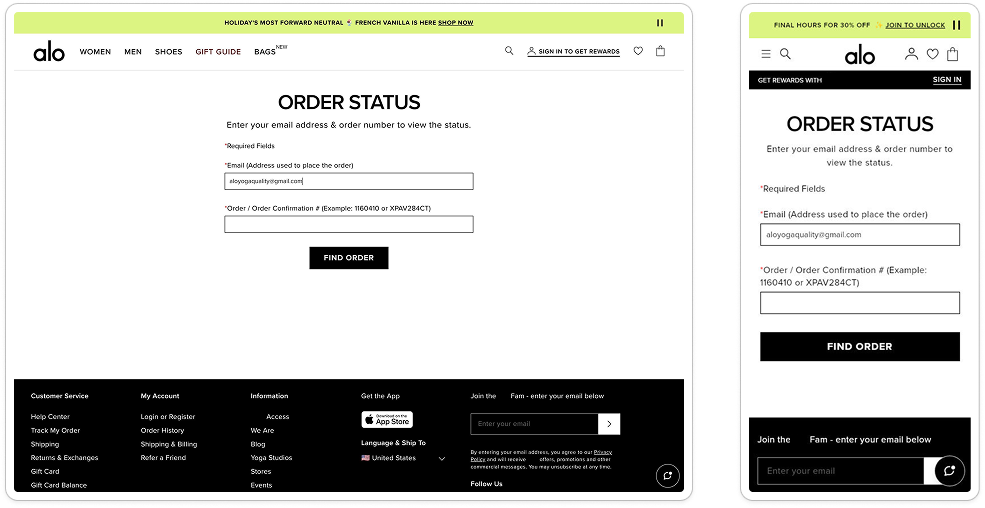
Desktop and Mobile viewport comparison showing the same page rendered at different screen dimensions