Run Spur test plans on demand or on a schedule with saved environment and browser configurations, email alert notifications, and automatic retries on failure.
Test Plans are the recommended way to run tests at scale. Unlike manual runs, which require you to select environments, browsers, and scenarios each time, a Test Plan saves those selections so every run uses the same settings automatically. This makes Test Plans ideal for scheduled runs, CI/CD pipelines, and any workflow where consistency matters.
Test plans already contain run configurations. Running them does not require manual setup.
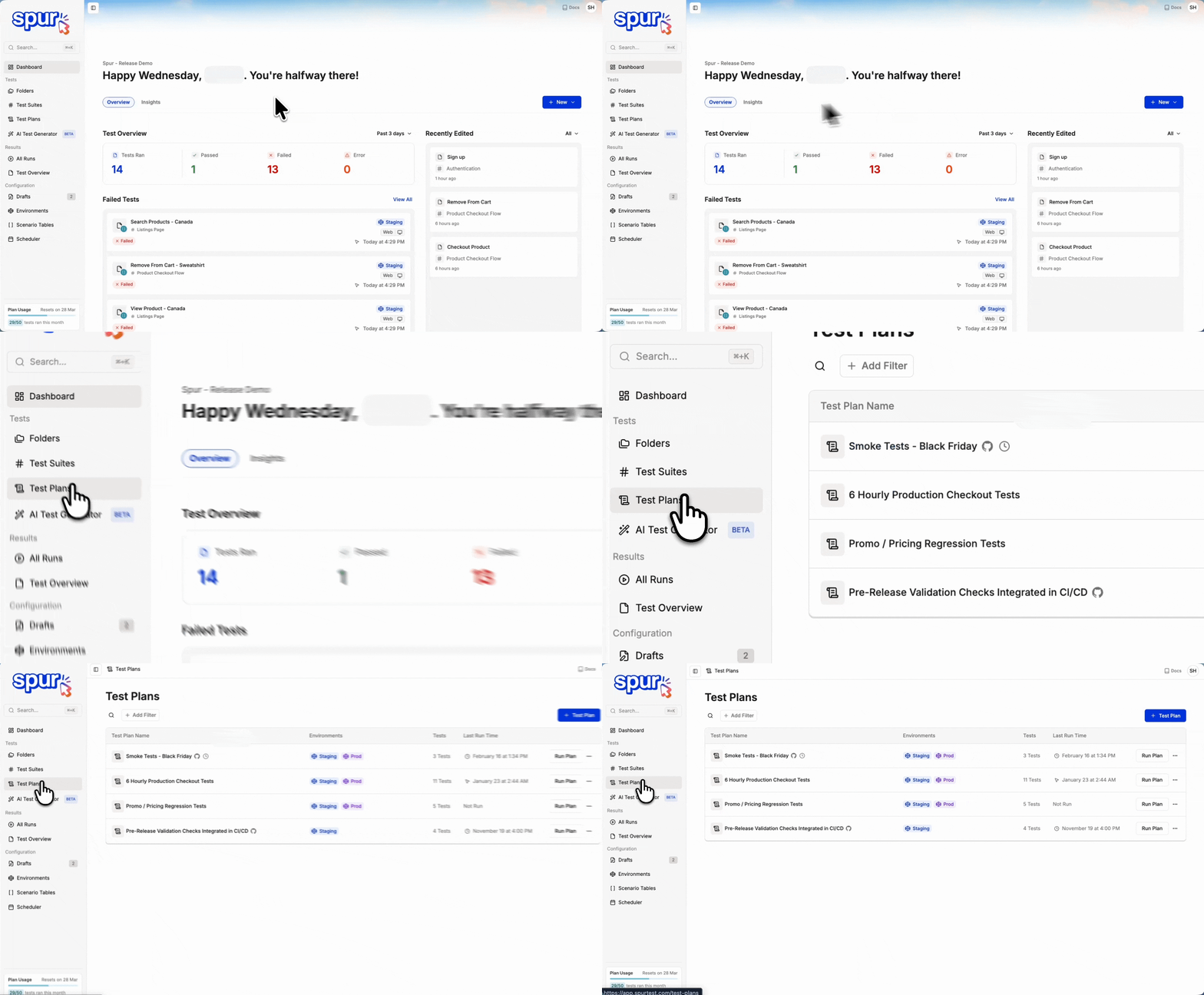
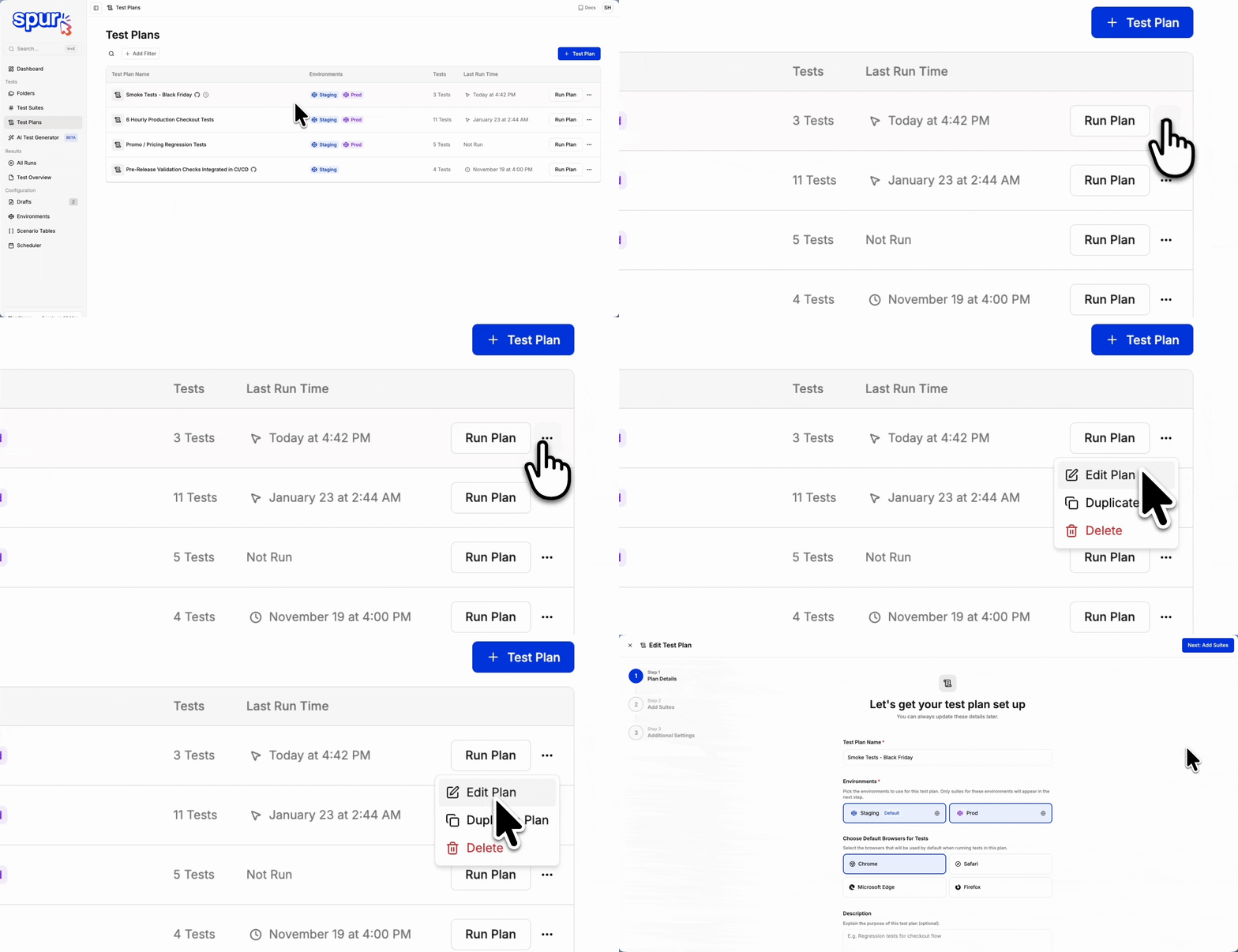
Open your Spur dashboard and click Test Plans in the left navigation.
Navigate to Test Plans from the left navigation
2
Run a Test Plan
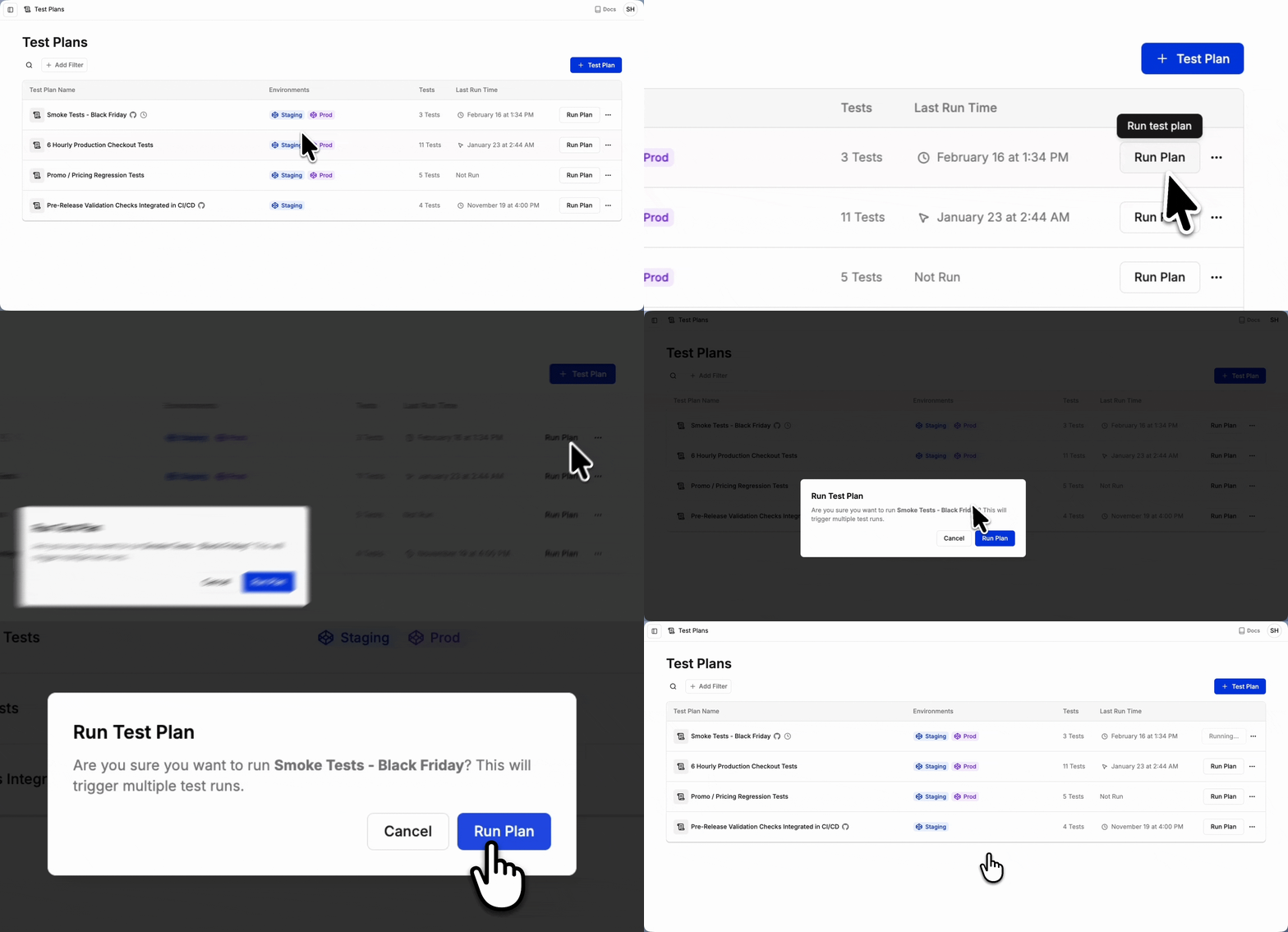
Find the Test Plan you want to run and click Run Plan to trigger an immediate run using the saved configuration.
Click Run Plan to start an immediate run
3
View results
Results appear in the Test Plan’s run history as they complete, with a breakdown by suite, environment, and test. Use the Test Plan Review flow to triage failures and warnings systematically.
Test Plans can also be triggered automatically via the Scheduler or your CI/CD pipeline without any manual action.
Add one or more recipients to receive a summary email about the Test Plan run. The email shows the total runs, the classification breakdown from the review, and highlights the tests classified as bugs, with links back to each run. If the run has been reviewed, the email also names the reviewer.Each recipient has a mode that controls when their email is sent:
On finish — Spur sends the email automatically after the Test Plan run reaches a terminal state.
After review — you send the email manually from the Test Plan Review flow once a reviewer has classified the run. Use this when you want stakeholders to see only the triaged results, not raw pass/fail noise.
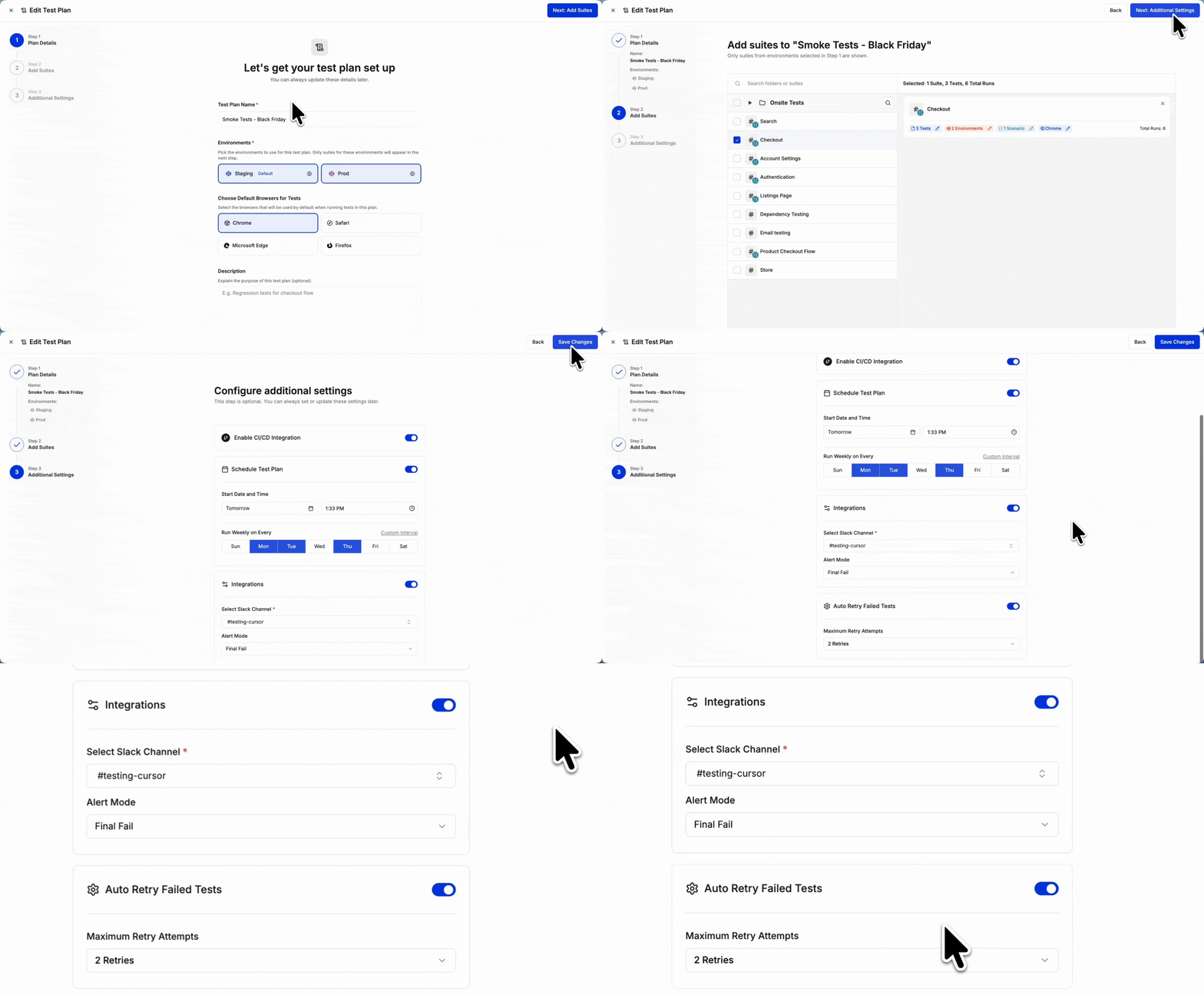
Configure recipients and their modes in the Test Plan’s Additional Settings tab. To change them on an existing plan, edit your Test Plan.
If no recipients are configured, no automatic email is sent.
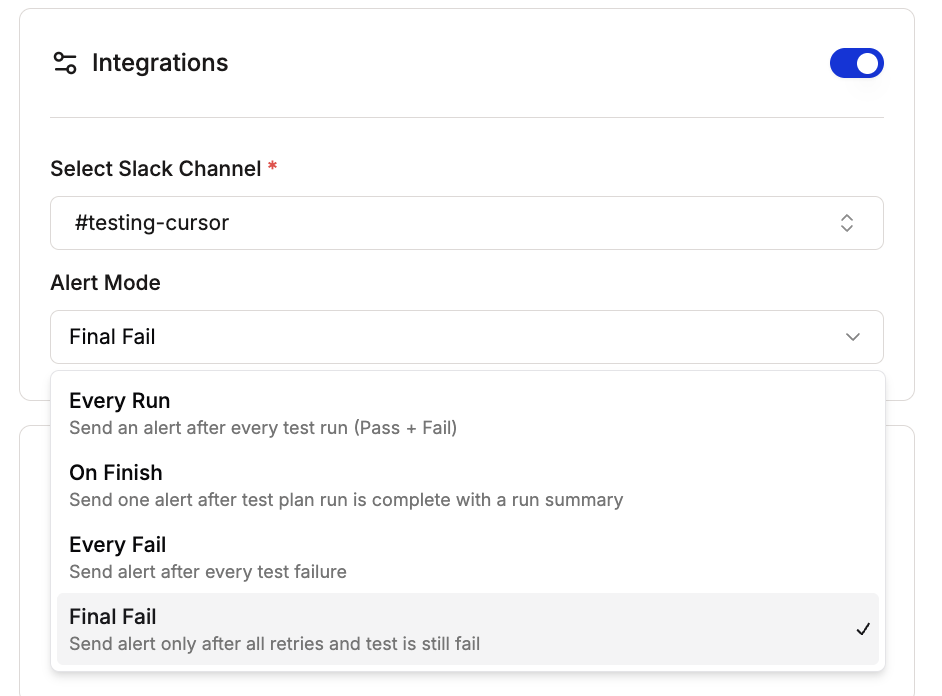
Email alerts are independent from Slack alerts; you can enable either, both, or neither.
When sending an After review email, you can also add a one-off recipient who is not in the configured list.
Per-test and per-fail email alert modes are not currently supported for Test Plans. For per-suite email notifications outside of Test Plans, see the Email integration.
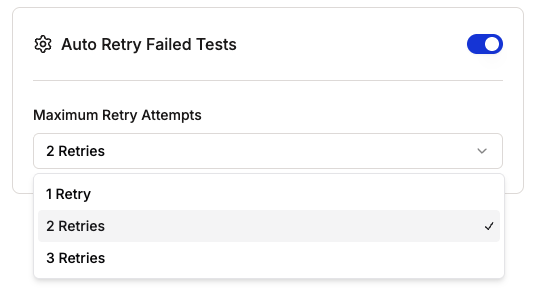
Auto Retry helps you distinguish genuine bugs from flaky test results. When enabled, Spur automatically re-runs any failed test up to a set number of attempts before marking it as failed. Retries continue until the test passes or the maximum is reached.
Choose from 1, 2, or 3 retry attempts
Maximum is 3 retry attempts (auto retry is off by default)
Auto Retry configuration in Additional Settings
If a test fails once out of three attempts, it is more likely an environmental blip than a real bug. Auto Retry surfaces only the consistent failures worth investigating.
If a test that has dependencies fails, Spur re-runs the entire dependency chain, not just the failed test. This ensures the retry starts from a clean state.For example, if your tests are chained as Test A > Test B > Test C and Test B fails:
Spur re-runs Test A > Test B, then continues to Test C
Test A may appear with a retry badge in the results even though it originally passed, because it was re-run as part of the dependency chain
In some cases, a test that originally passed can fail on the retry
This means you may see retry badges on tests that were not the original point of failure. This is expected behavior when retrying tests with dependencies.
To enable this on an existing Test Plan, edit your Test Plan and go to the Additional Settings tab.