
Documentation Index
Fetch the complete documentation index at: https://docs.spurtest.com/llms.txt
Use this file to discover all available pages before exploring further.
Overview
A manual run lets you execute a test on demand. When you click Run on a test, you walk through a series of selections to define exactly how that run should behave: which environments to target, which browsers to use, which viewports to test against, and which scenarios to include. Each selection multiplies the number of runs. Selecting two environments and two browsers, for example, produces four parallel runs for that test.What You Can Select
Environments
Select one or more environments to run your test against. Tests run in parallel across all selected environments. At least one environment is required to start a run.
Browsers
Choose which browsers to run your test in: Chrome, Firefox, Safari, or Edge. Selecting multiple browsers runs your test in each one in parallel.
Viewports
Choose desktop, mobile, or both. Viewport selection only affects tests configured to support multiple viewports.
Scenarios
For tests with scenario tables, choose which rows to include. Scenarios can be made environment-specific so different environments run different data sets.
How to Run a Test
Select a test to run
Navigate to your test suite and click Run on the test you want to execute. This opens a step-by-step flow where you make your selections before starting the run.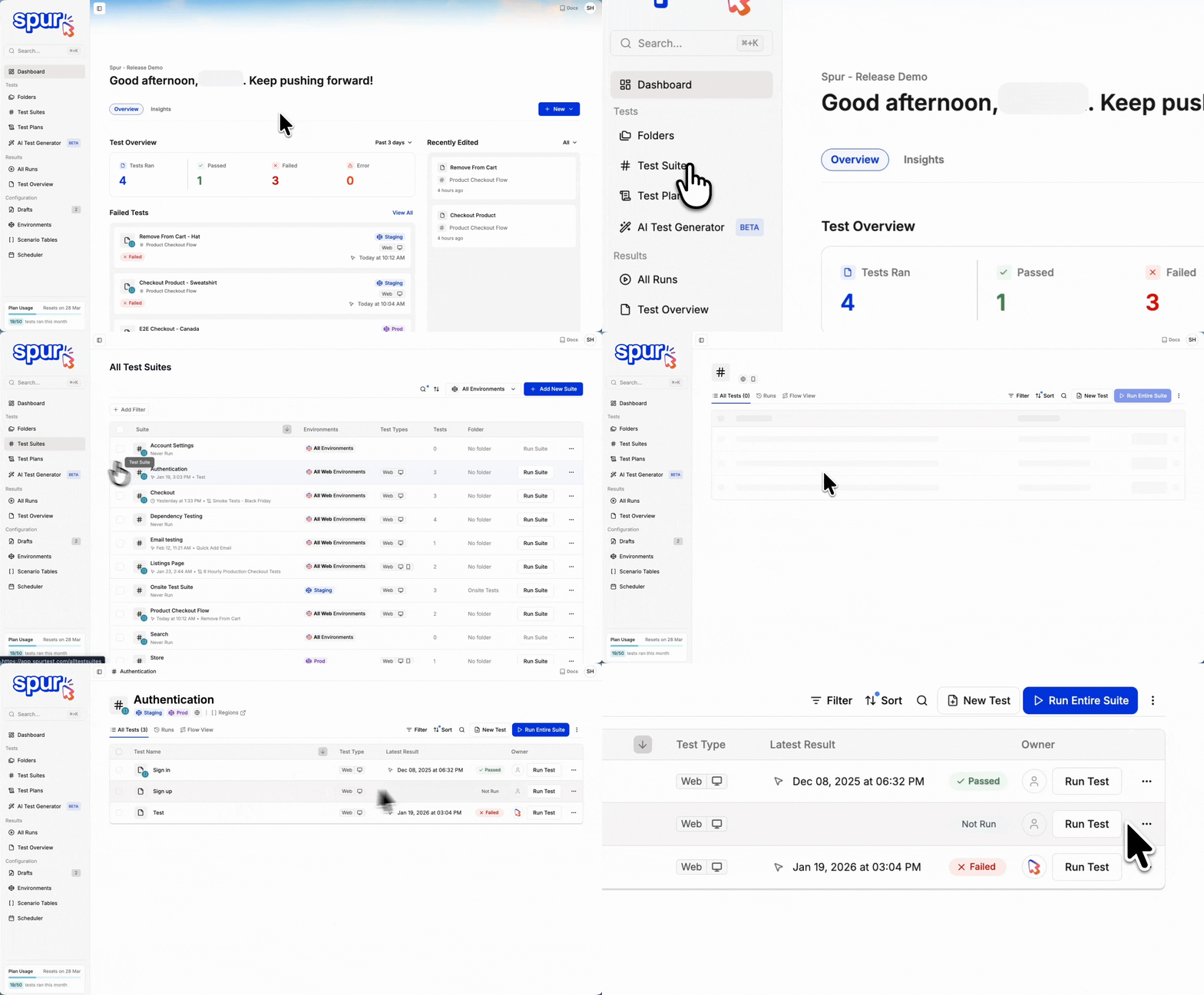
Choose Environments
Select one or more environments to run your test in. Each selected environment will receive its own parallel run. You can only select environments that the suite is configured for. To learn more about how environments work, see Environments. Click Next when ready.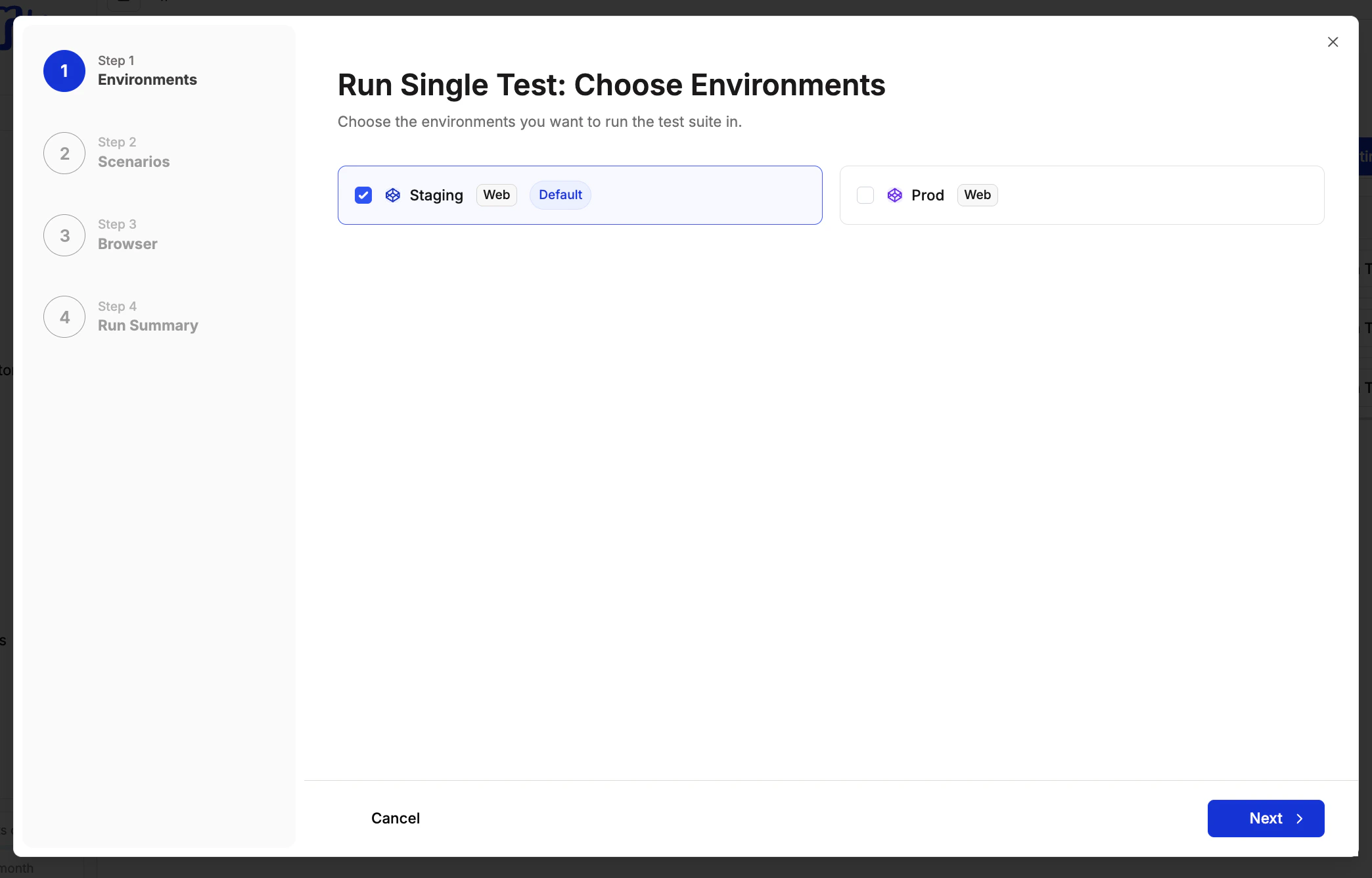
Tests can only run in environments the suite is configured for. If you need to add an environment, update the suite settings first.
Choose Scenarios
If your test has a scenario table, you’ll see all available scenarios for each selected environment. Select the rows you want to include. Each environment only shows the scenarios enabled for it, so different environments can run different data sets. Click Next when ready.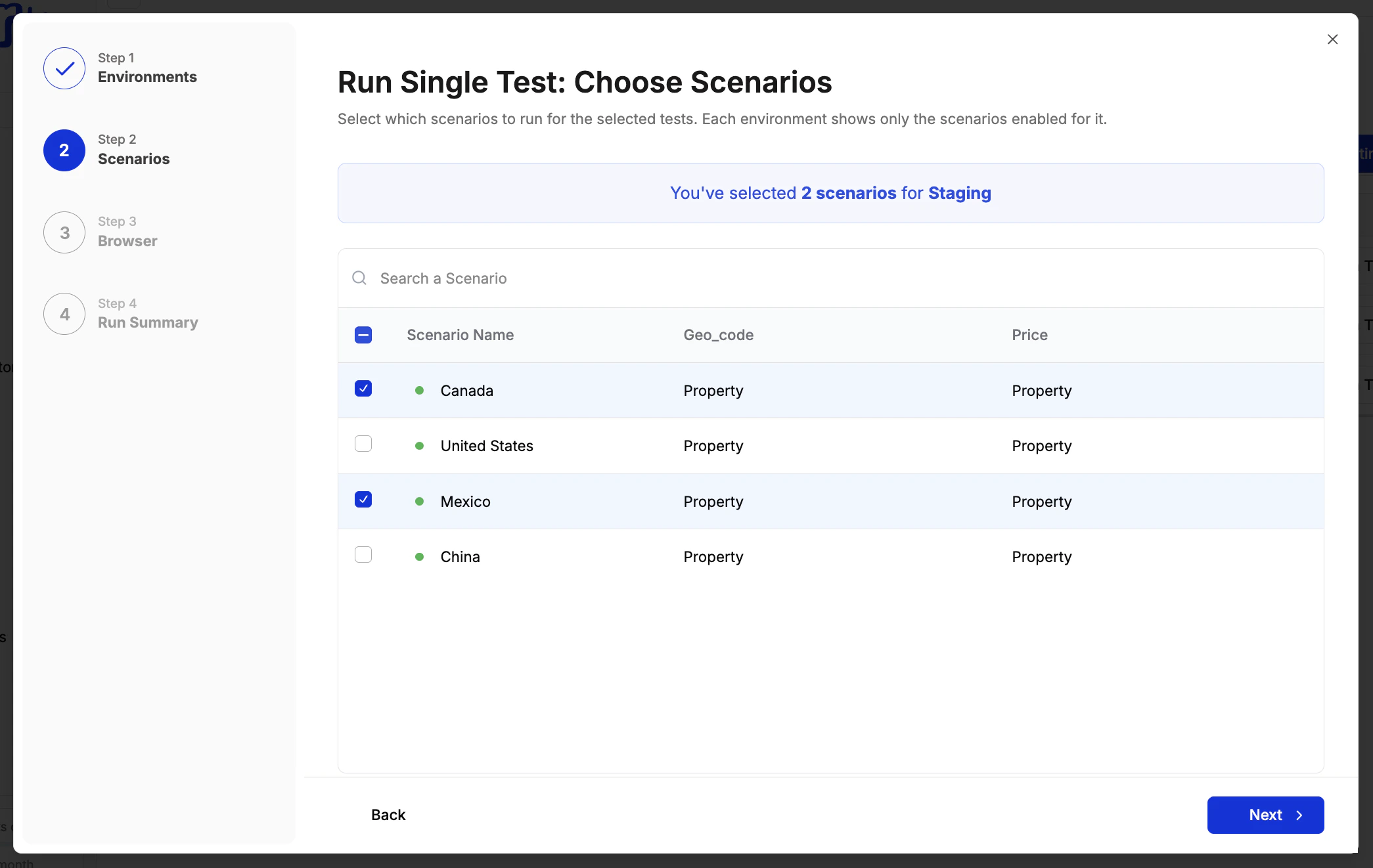
Scenarios can be made environment-specific directly in the scenario table. See Scenarios for how to set this up.
Choose Viewports
If your suite contains tests configured for multiple viewports, you’ll see viewport selection here. Choose desktop, mobile, or both. Click Next when ready.Your viewport selection only applies to tests that support multiple viewports. Tests locked to a single viewport always run on that viewport regardless of what you select here. For example, if your suite contains: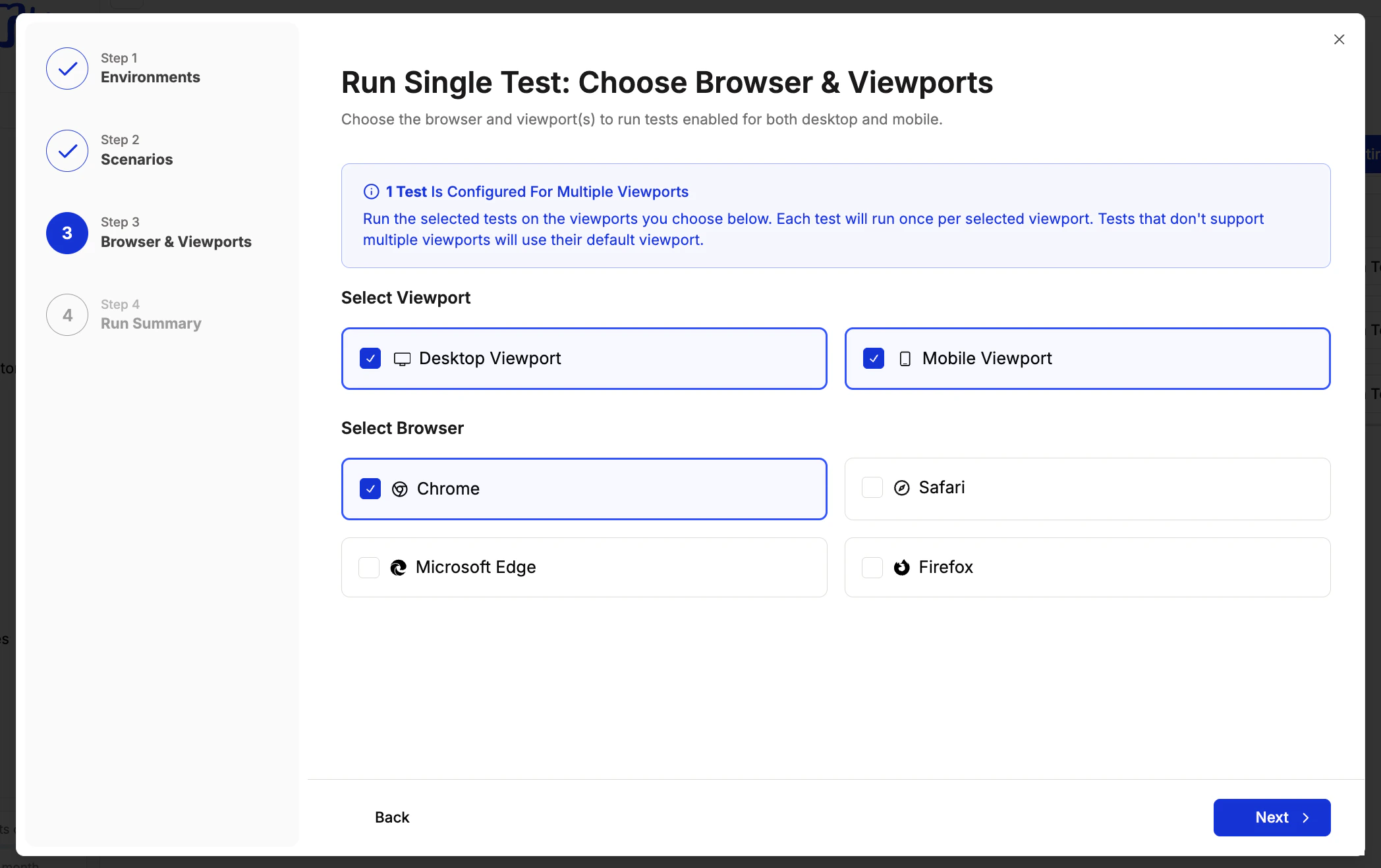
- Test A — Desktop only
- Test B — Mobile only
- Test C — Desktop and Mobile
This step only appears when at least one test in your suite supports multiple viewports. To enable this on a test, see Viewports.
Choose Browser
Select which browsers to run the test in. You can pick one or more from Chrome, Safari, Firefox, and Microsoft Edge. Each selected browser adds a parallel run per environment. Click Next when ready.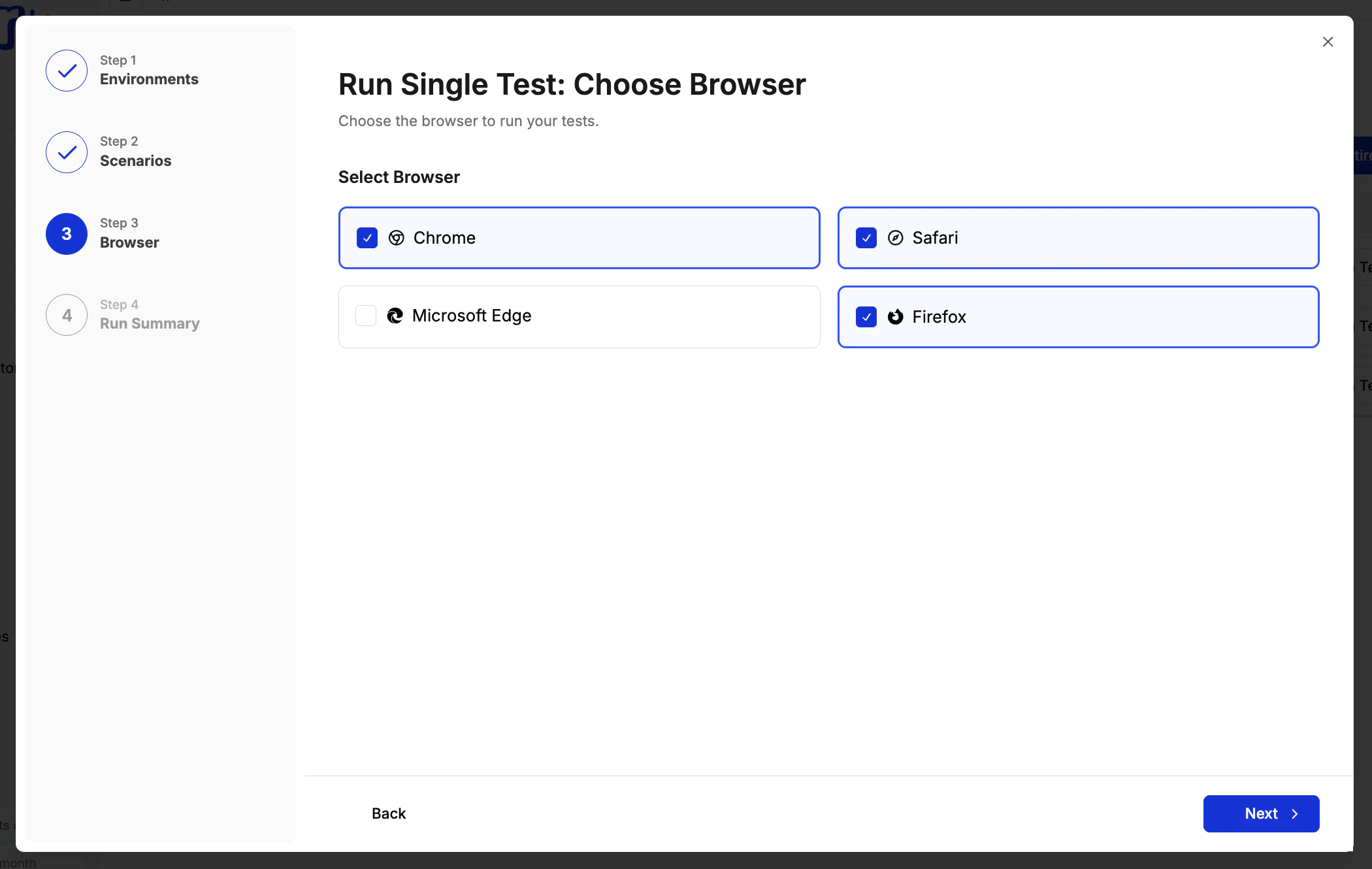
Review the Run Summary and Start
The Run Summary shows a breakdown of the total runs about to be created, grouped by environment, test name, scenarios, and run count. You can click any previous step to make changes before starting. When you’re ready, click Start Runs.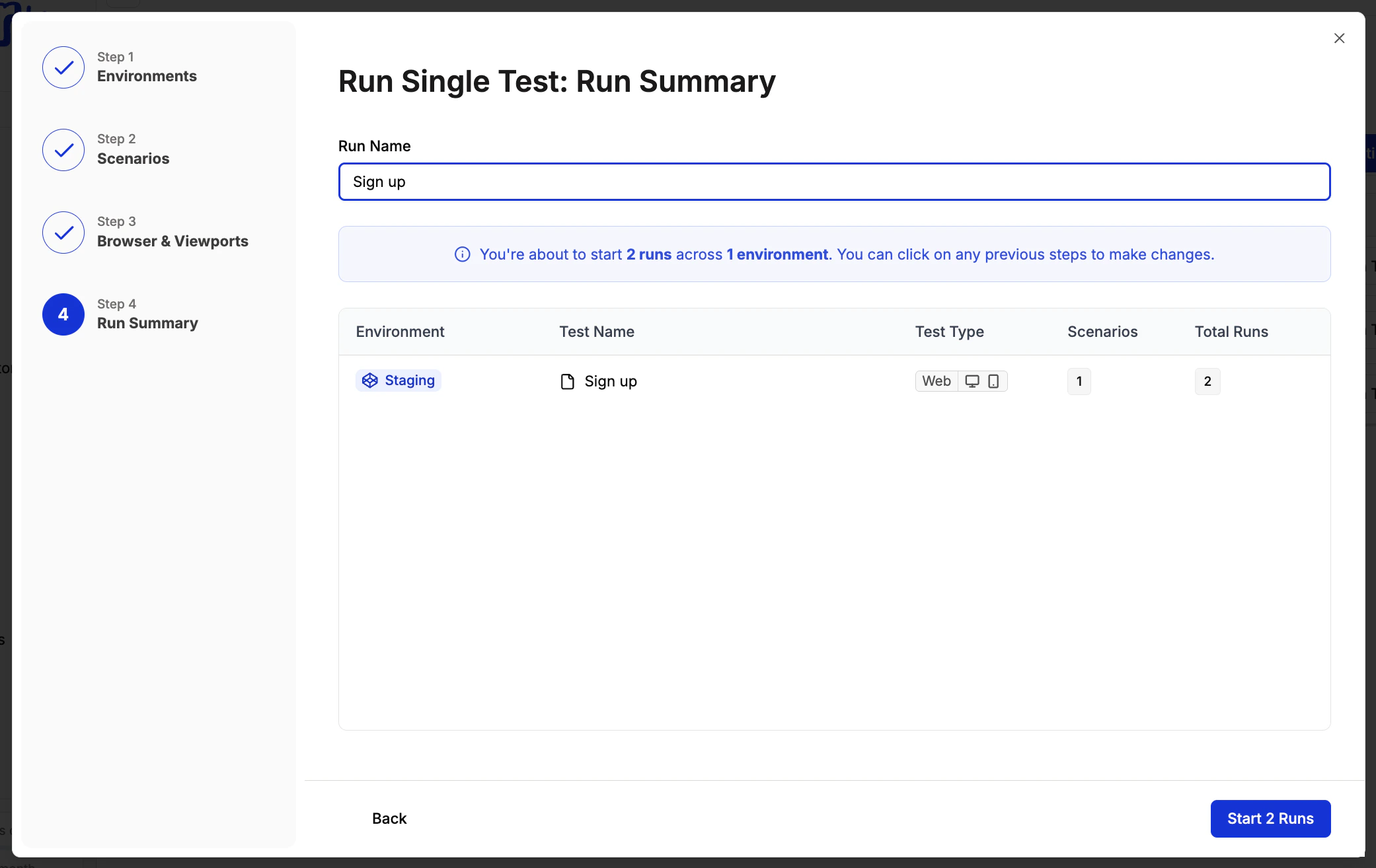
Every combination of environment, browser, and scenario produces a separate parallel run. For example: 2 environments x 2 browsers x 3 scenarios = 12 runs.