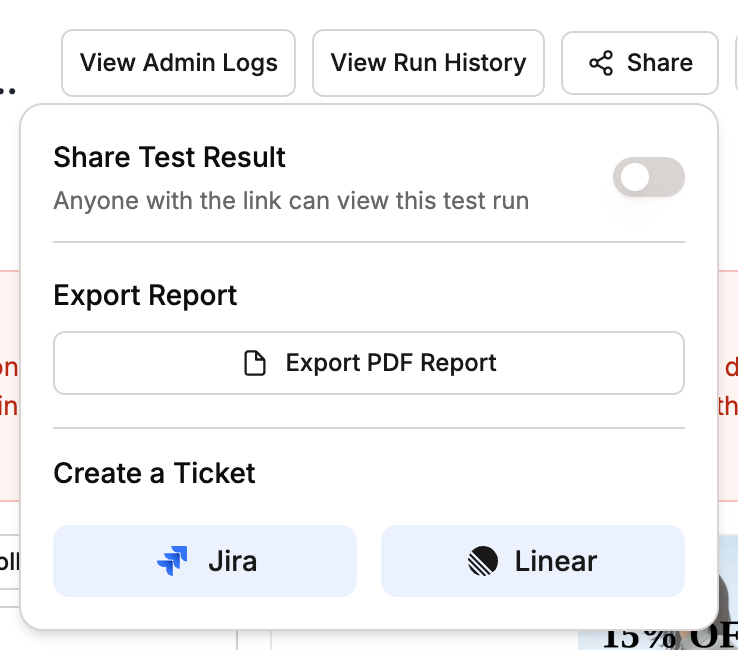
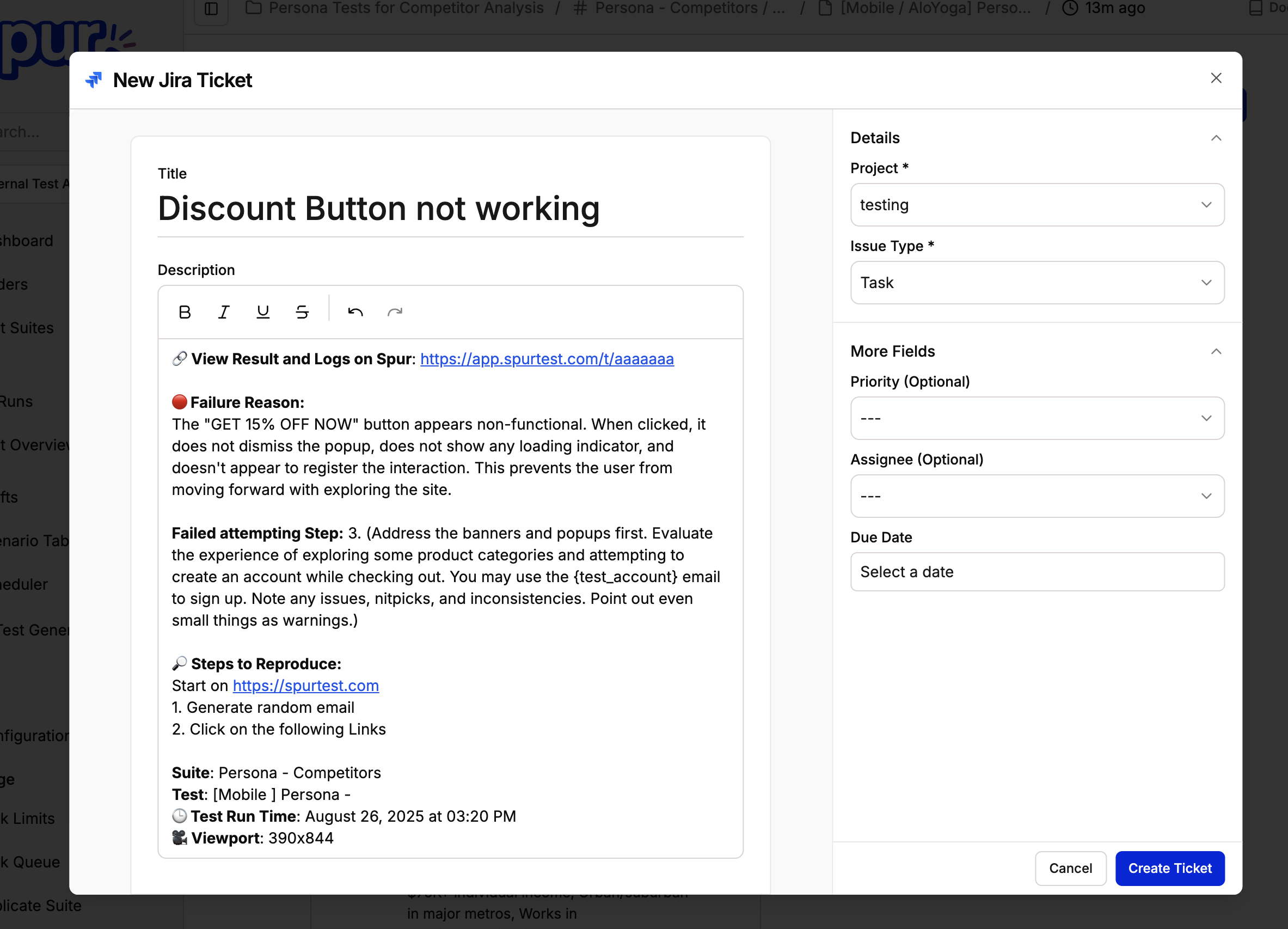
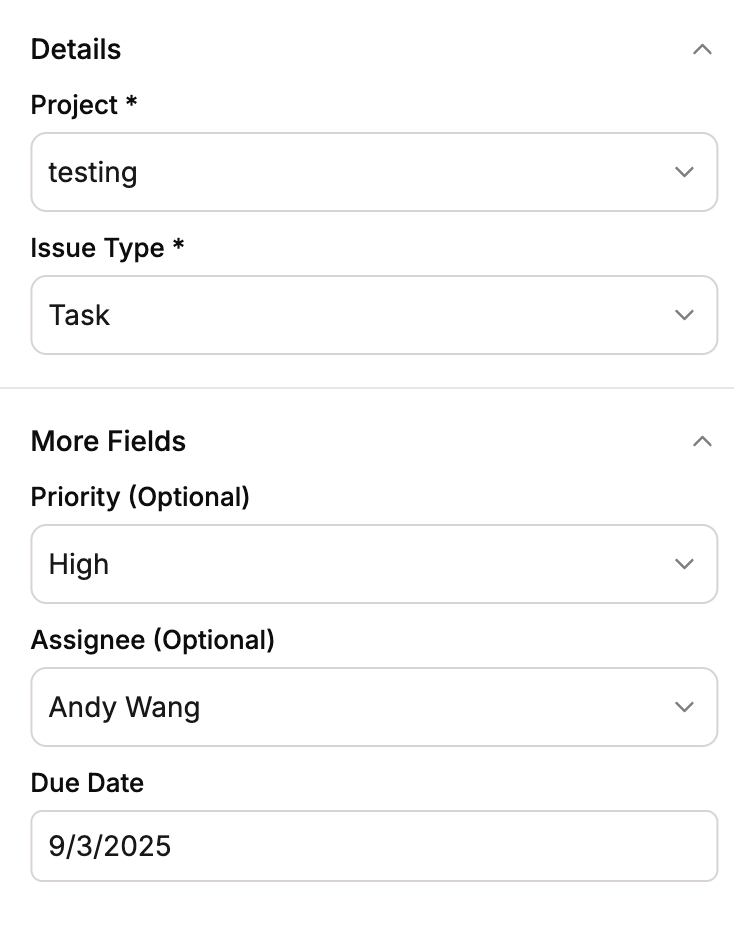
Connecting to our Jira integration allows you to create bug tickets directly from test failures. You can choose which project to send tickets to, along with details such as priority and assignee.
When you authorize the integration, Spur requests the following Jira OAuth scopes. Each one maps directly to a feature of the integration:
Scope
Why Spur needs it
read:jira-work
Lists your projects, issue types, and issue fields so the ticket creation modal is pre-populated with your project’s setup. Also used to fetch issue details for tickets linked to Spur tests.
write:jira-work
Creates bug tickets from test failures and attaches supporting evidence, such as test videos and screenshots, to the ticket.
read:jira-user
Fetches the names and avatars of assignable users so you can pick an assignee when creating a ticket.
manage:jira-configuration
Reads your Jira configuration — available priorities, statuses, and fields — so the ticket creation form matches your instance. Atlassian gates read access to these configuration objects behind this scope; Spur never creates or modifies projects, workflows, or custom fields.
offline_access
Keeps the integration connected by refreshing access tokens, so you don’t have to re-authorize Spur.
Spur only acts on your Jira workspace when you create a ticket from a test failure. It never modifies your Jira configuration or deletes data on its own.
Each linked ticket shows a status pill reflecting its current Jira workflow state—for example, Open, In Progress, or Done. The status is displayed alongside the ticket key so you can see the current state at a glance without leaving Spur.