
Setup
If you have not integrated Spur with Linear, follow the setup process here.Overview
Connecting to our Linear integration allows you to create bug tickets directly from test failures. You can choose which team and project to send issues to, along with details such as priority, assignee, and labels.Creating a Ticket Manually from a Test Failure
1
Reviewing a Test and Initiating a Bug Report
After reviewing a test run, open the Share menu and click the “Create a Ticket” button to open the Linear issue creation modal: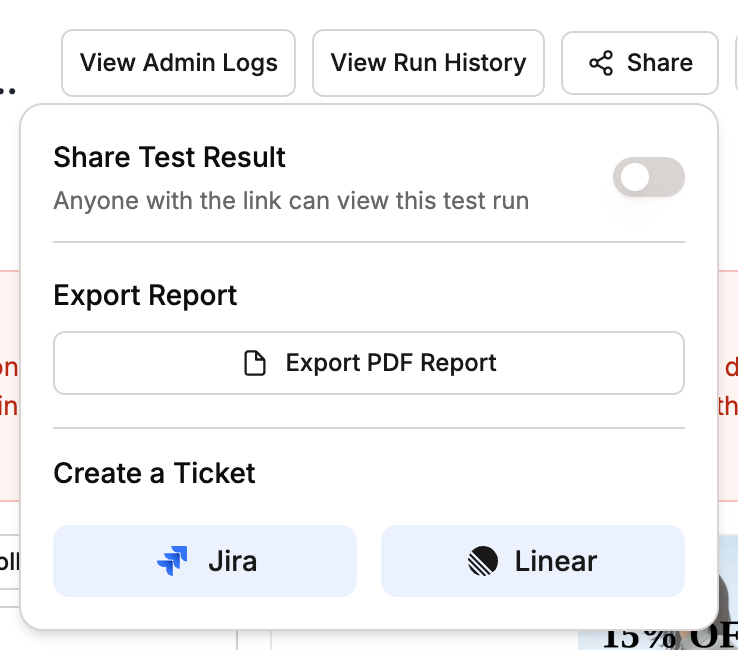
Bug report initiation showing the Share menu and the Create a Ticket options
2
Linear Issue Creation Modal
The modal opens with pre-populated information from the test failure: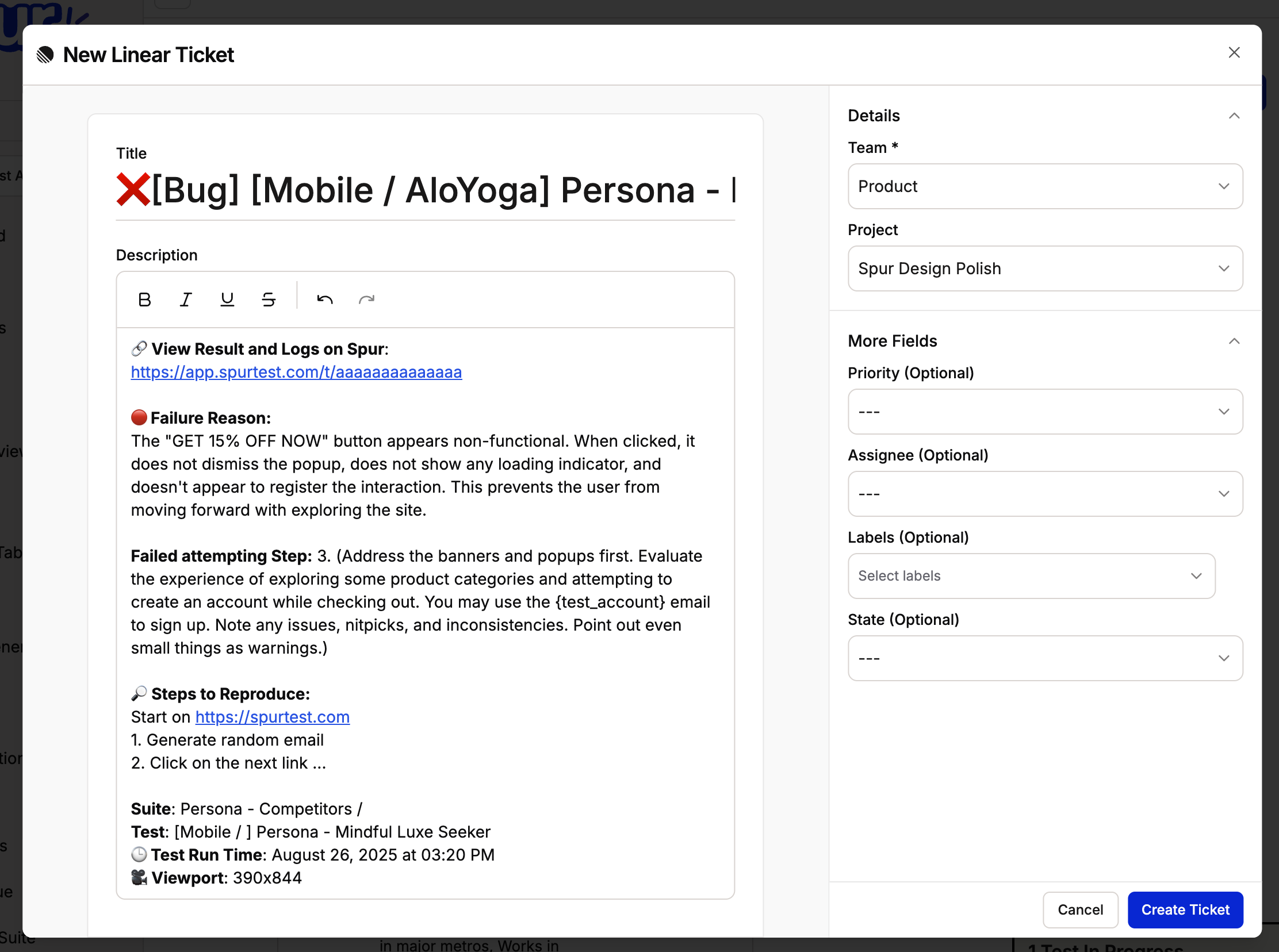
Linear issue creation modal with auto-generated content
- Title: Name of the Test
- Description: Detailed bug report including:
- Failure Reason
- Reproduction steps
- Test name and execution details
- Team: The default team, if chosen in the Integrations page.
3
Customize Issue Details
Edit the title and description, if necessary. Choose additional issue details.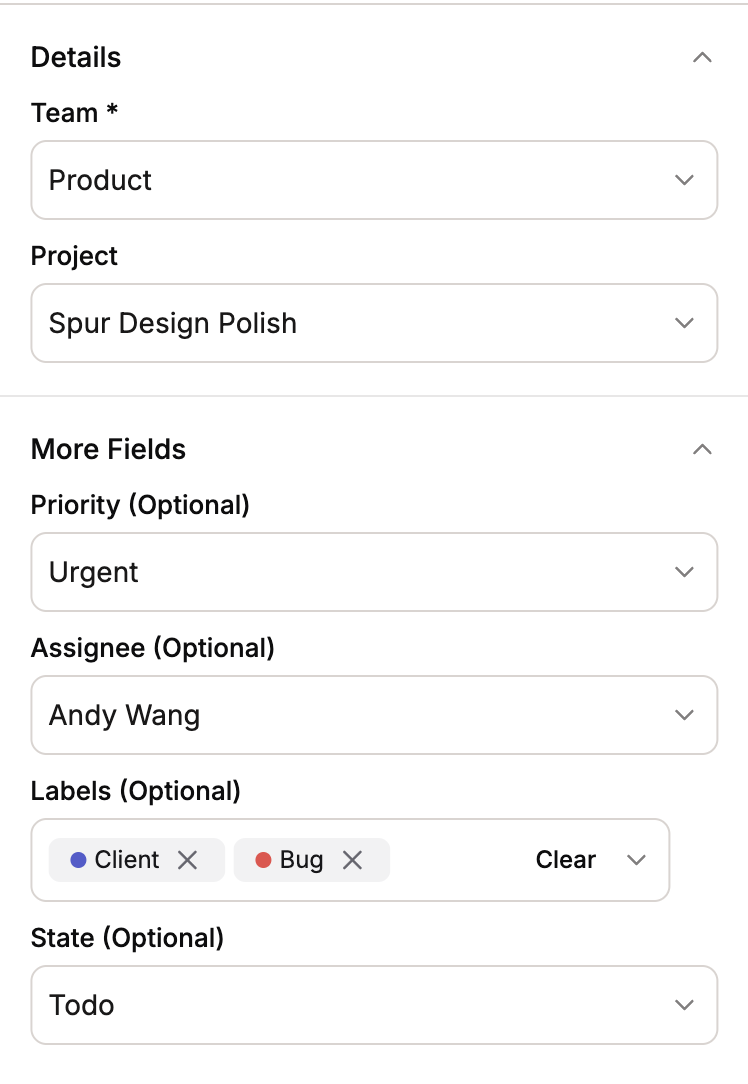
Customizing issue details with additional information
- Project: Which project should this ticket be in? This is optional.
- Assignee: Set who should handle the issue
- Priority: What is the urgency of this bug?
- Labels: Attach any labels that are allowed within the selected team.
- State: Choose the current status of the issue
4
Submit and Track
Create the issue!
Troubleshooting
Common Issues
If fields are missing:- Your integration permissions may not be set properly. Try reintegrating from the Integrations page.
- Confirm you have chosen a proper team
- Check required field configurations
- If your Linear workspace has custom required fields, contact the Spur team for assistance with your integration setup.