
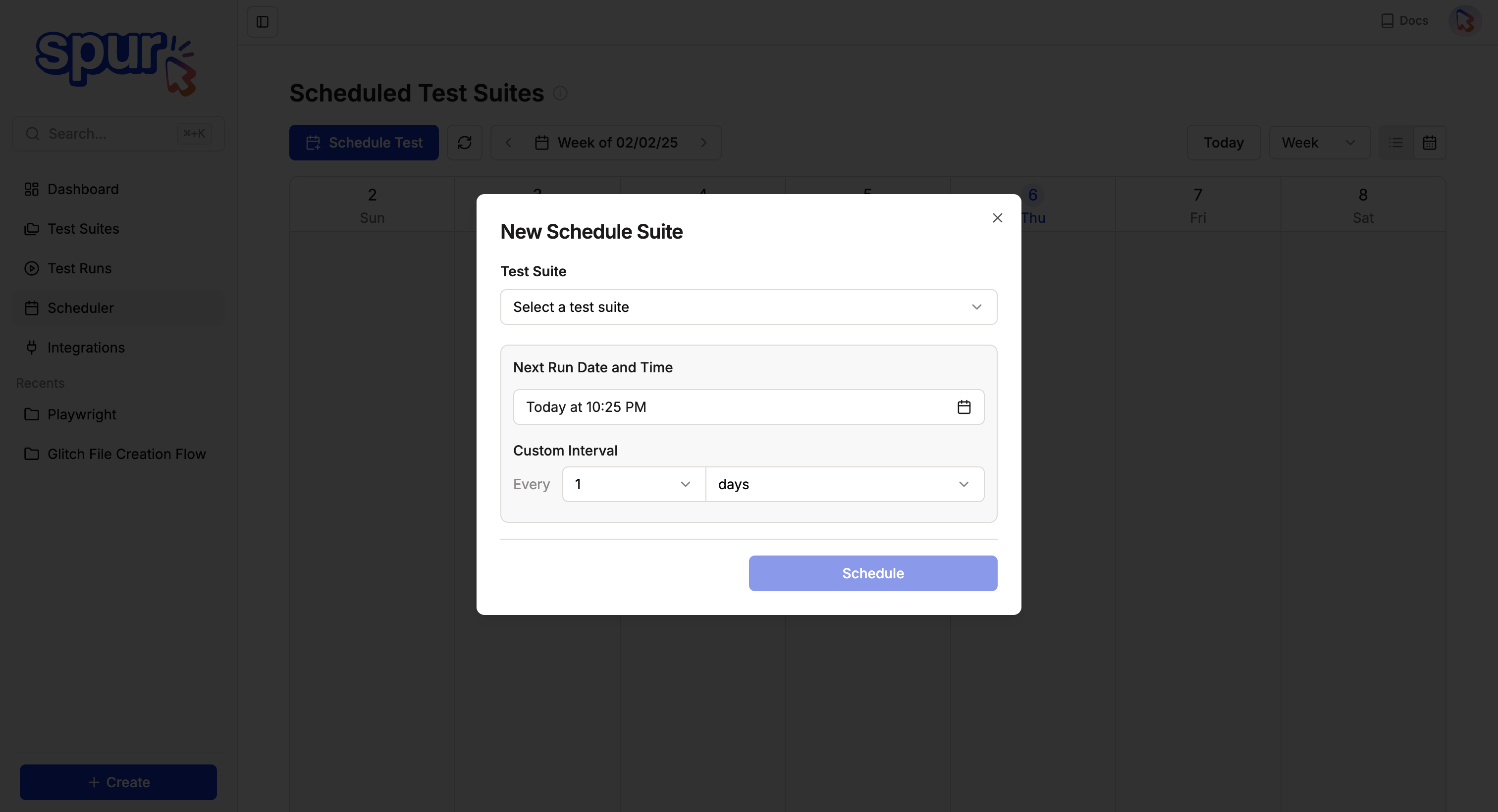
Creating a Schedule
Select Test or Test Plan
Choose what to schedule:
- Individual test
- Test suite
- Test plan (for comprehensive testing)
Choose Schedule Frequency
Select how often to run:
- Hourly - Run every 1-23 hours
- Daily - Run once per day at a specified time
- Weekly - Run on selected days of the week
- Monthly - Run on specific dates each month
Configure Environments
Select which environments to test:
- Single environment (e.g., Production monitoring)
- Multiple environments (e.g., Dev + Staging regression)
- Different schedules for different environments
Set Browser Configuration
Choose browsers and devices:
- Desktop browsers (Chrome, Safari, Firefox)
- Mobile browsers
- Custom viewports
Select Scenarios
For tests with data tables:
- Run all scenarios
- Select specific scenarios
- Environment-specific scenarios
The first scheduled run occurs approximately one hour after creation. Subsequent runs follow your specified schedule.
Schedule Frequency Options
Hourly
Run tests every 1-23 hours:- Use cases: Production monitoring, rapid feedback loops
- Example: Every 2 hours for critical path monitoring
Daily
Run once per day at a specific time:- Use cases: Nightly regression, daily smoke tests
- Example: Every day at 2 AM for full regression suite
Weekly
Run on selected days of the week:- Use cases: Regular comprehensive testing, pre-release validation
- Example: Monday, Wednesday, Friday at 8 PM
Monthly
Run on specific dates each month:- Use cases: Monthly compliance checks, extensive regression
- Example: 1st and 15th of each month
Environment-Specific Scheduling
Create different schedules for different environments:
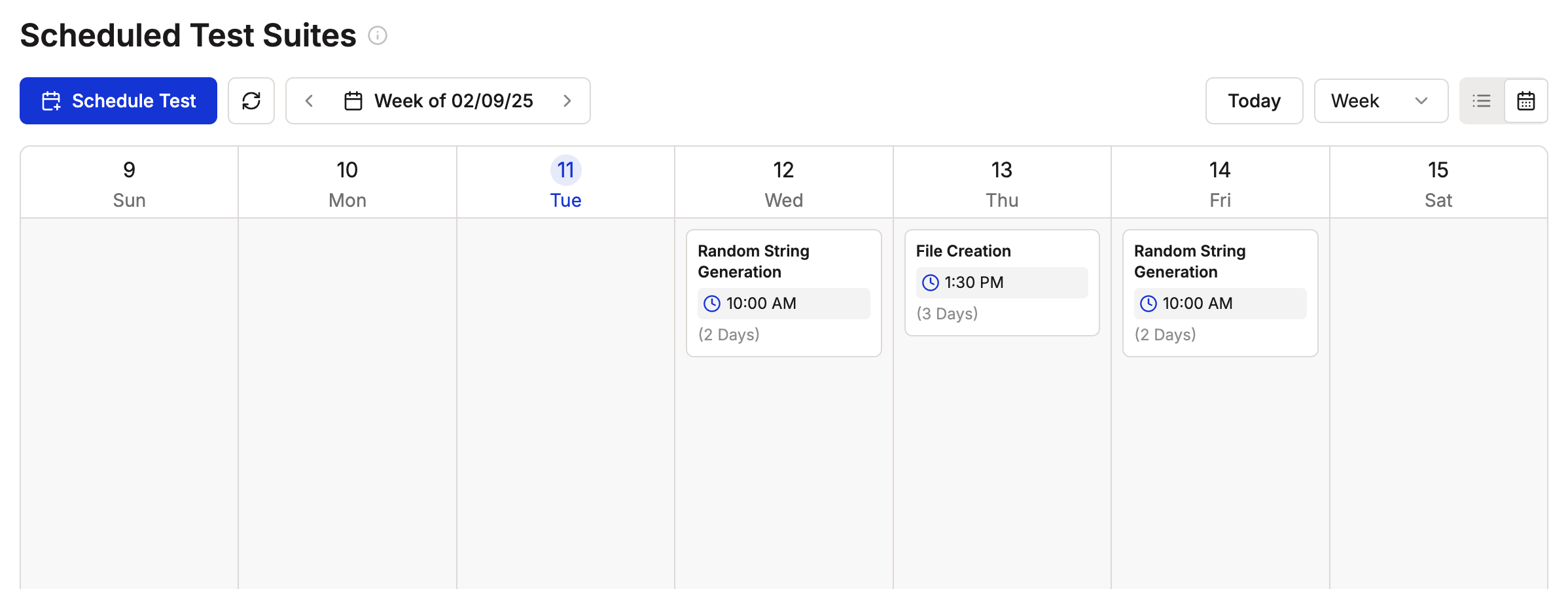
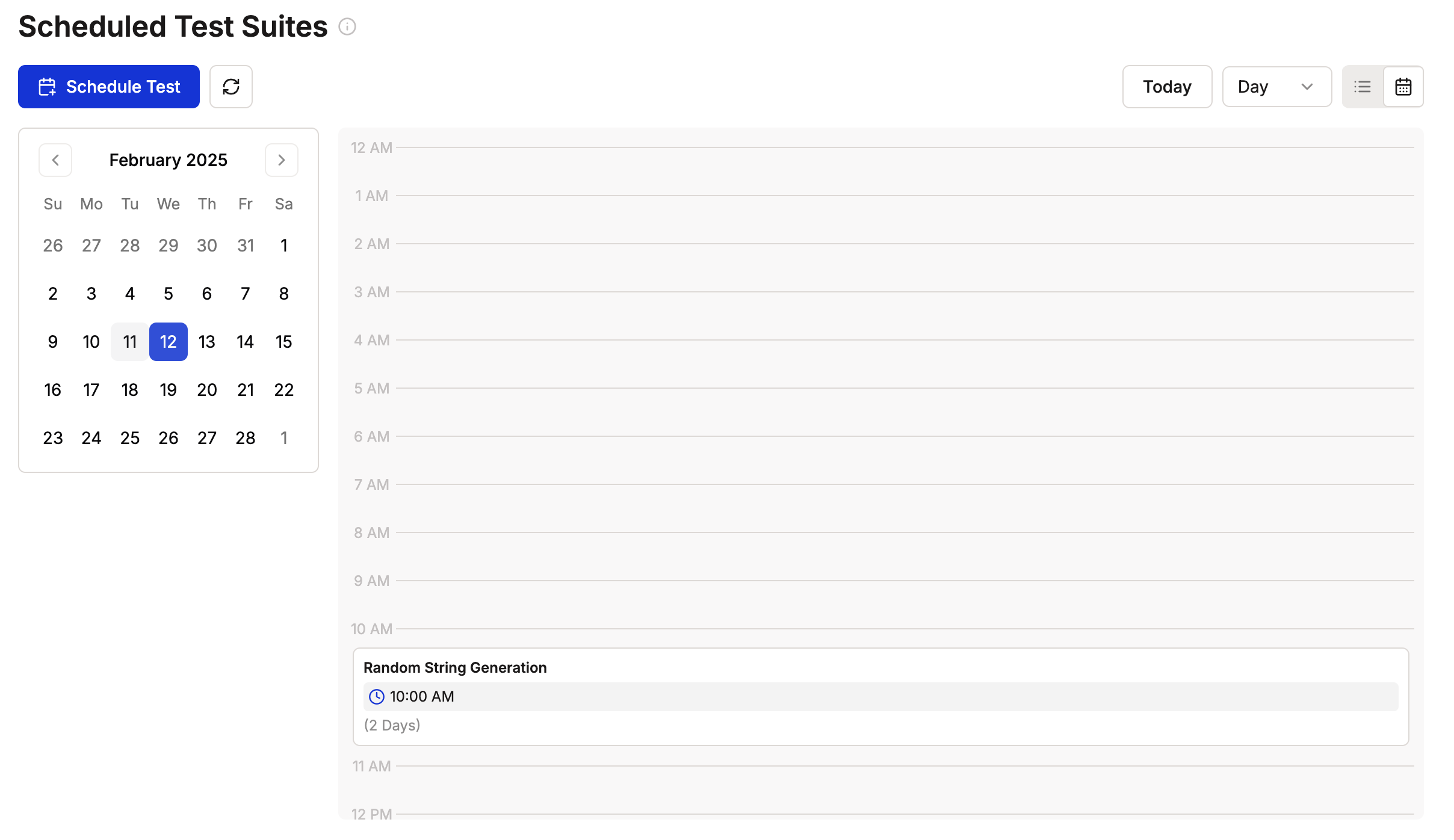
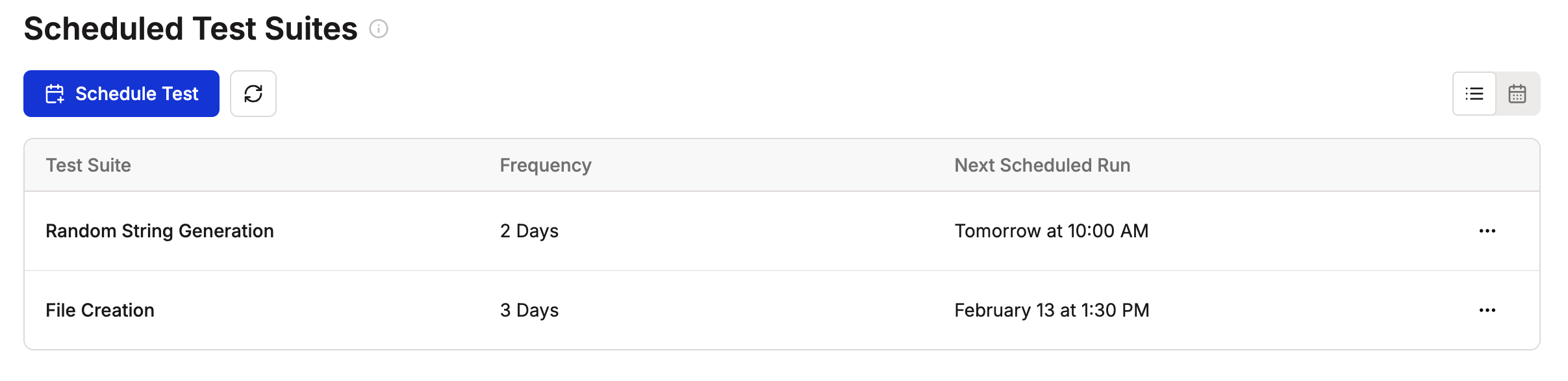
Scheduled Tests Dashboard
The Scheduled Tests page provides comprehensive management:Overview
- All active schedules
- Schedule status (active, paused, failed)
- Next execution times
- Recent run history
- Success/failure trends
Schedule Management
- Pause Schedule - Temporarily stop execution
- Edit Schedule - Modify frequency or configuration
- Duplicate Schedule - Copy to create similar schedules
- Delete Schedule - Remove schedule permanently
History and Analytics
- Execution history with results
- Pass/fail trends over time
- Environment-specific statistics
- Performance metrics
Schedule Configuration Options
Run Configuration
- Environments - Which deployments to test
- Browsers - Desktop and mobile browsers
- Scenarios - Specific test scenarios to run
- Parallel Execution - Run multiple environments simultaneously
Notification Settings
Configure alerts via:- Slack - Post to channels
- Email - Send to team members
- Linear/Jira - Create tickets for failures
- Webhooks - Custom integrations
Retry Configuration
- Retry on Failure - Automatically retry failed tests
- Retry Attempts - Number of retries (1-3)
- Retry Delay - Time between retries
Pausing and Resuming Schedules
Temporarily stop a schedule without deleting it:
Common reasons to pause:
- During maintenance windows
- When environment is unavailable
- During major deployments
- For debugging or test updates
Best Practices
1. Schedule Strategically
Production Monitoring2. Choose Appropriate Frequencies
- High-frequency (every 30min - 2hr): Critical production monitoring
- Daily: Regression suites, comprehensive testing
- Weekly: Full browser matrix, extensive scenarios
- Monthly: Compliance checks, archival testing
3. Environment Isolation
- Use separate schedules for production vs pre-production
- Different notification channels per environment
- More conservative testing in production
4. Manage Test Data
- Ensure test data is available at scheduled times
- Use data cleanup scripts for pre-production
- Avoid tests that depend on time-sensitive data
5. Monitor Schedule Health
- Review pass/fail trends regularly
- Investigate consistently failing tests
- Update schedules as application changes
- Remove obsolete schedules
Common Scheduling Patterns
Continuous Production Monitoring
Monitor critical paths around the clock:- Schedule: Every 30 minutes
- Environment: Production
- Tests: Login, Search, Checkout
- Notifications: Immediate alerts on failure
Nightly Regression Suite
Comprehensive testing overnight:- Schedule: Daily at 2 AM
- Environments: Dev, Staging, Production
- Tests: All test suites
- Browsers: Chrome, Safari, Mobile
- Notifications: Morning summary email
Pre-Release Validation
Validate before deployment:- Schedule: On-demand via CI/CD
- Environment: Staging
- Tests: Smoke tests + regression
- Notifications: Block release on failure
Weekly Deep Testing
Extensive testing weekly:- Schedule: Sundays at midnight
- Environments: All environments
- Tests: Full test plan with all scenarios
- Browsers: All browsers and devices
- Notifications: Weekly report
Managing Multiple Schedules
When you have many schedules:-
Use Naming Conventions
[ENV] - [FREQUENCY] - [PURPOSE]- Example:
Prod - Hourly - Critical Path
-
Organize by Environment
- Filter schedules by environment
- Color-code by priority
- Group related schedules
-
Document Schedule Purpose
- Add descriptions to schedules
- Note owner and contact
- Link to related test plans
-
Review Regularly
- Monthly schedule audit
- Remove unused schedules
- Update frequencies as needed
Schedule Conflicts and Dependencies
Handling Overlapping Schedules
When multiple schedules might overlap:- Spur queues tests automatically
- Tests run when resources are available
- View queue status in real-time
Test Dependencies
For tests with dependencies:- Use test suites to maintain order
- Consider test plans for complex flows
- Avoid circular dependencies
Scheduled tests respect test dependencies within test suites, ensuring proper execution order.
Troubleshooting
Schedule not executing
Schedule not executing
Check:
- Schedule is not paused
- Environment is accessible
- No required configuration is missing
- Schedule time is correct (check timezone)
Tests failing on schedule but passing manually
Tests failing on schedule but passing manually
Likely causes:
- Time-dependent test logic
- Environment state changes
- Data cleanup issues
- Resource contention
Schedule running at wrong time
Schedule running at wrong time
Check:
- Timezone settings
- Daylight saving time adjustments
- Schedule frequency configuration
Not receiving notifications
Not receiving notifications
Check:
- Notification settings in schedule
- Integration configuration (Slack, email)
- Notification filters (e.g., failures only)
Scheduling with Test Plans
For comprehensive automated testing, use Test Plans with scheduling: Benefits:- Run multiple test suites together
- Test across all environments simultaneously
- Comprehensive browser coverage
- Unified results and notifications
Viewing Scheduled Test Results
Recent Runs
View recent scheduled executions:- Run timestamp
- Pass/fail status
- Duration
- Environment tested
- Quick access to detailed results
Historical Analysis
Track trends over time:- Success rate by environment
- Common failure patterns
- Performance trends
- Browser-specific issues
Failure Investigation
When a scheduled test fails:- Review failure screenshot and error
- Check if it’s environment-specific
- Compare with manual run results
- Investigate recent deployments or changes

Next Steps
- Configure Environments for your schedules
- Create Test Plans for comprehensive scheduled testing
- Set up Slack notifications for schedule alerts
- Integrate with CI/CD for deployment-triggered testing
Need help designing an effective testing schedule? Contact us at [email protected] for consultation on your testing strategy.