
Understanding the Result
When a Log step completes, Spur expands the result to show exactly how it verified your assertion. Here’s what each part means: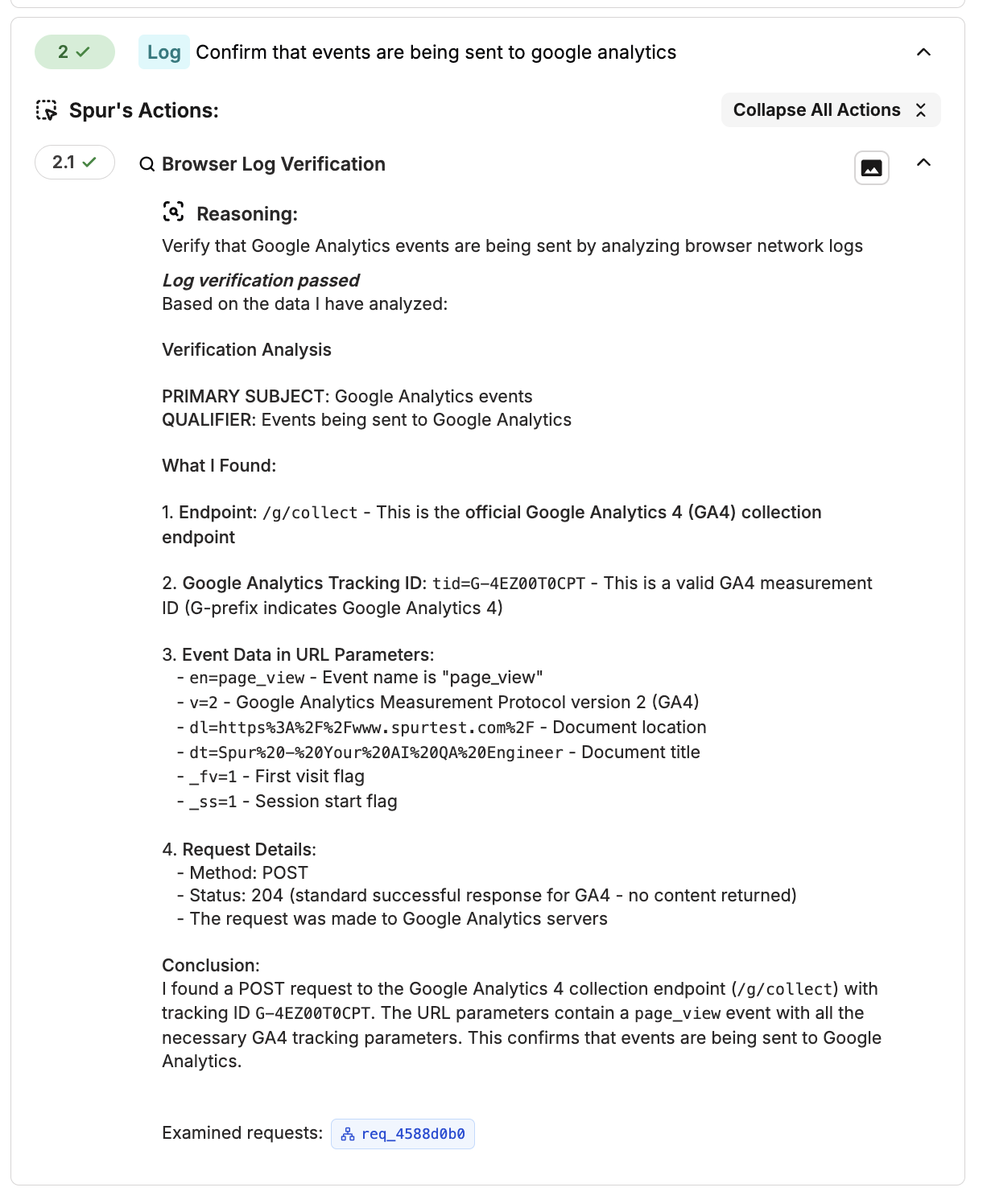
A passing Log step result with full verification details
- Reasoning — The agent restates your assertion to confirm what it set out to verify.
- Verification Analysis — The agent breaks your assertion into a primary subject (the request or event type to find) and a qualifier (the specific condition to check within it). This is how the agent decides where to look and what to look for.
- What I Found — A detailed breakdown of the matching evidence, including the endpoint, request method, status code, URL parameters, and any relevant payload data. This is the raw proof that supports the result.
- Conclusion — A plain-language summary of whether the assertion passed or failed and why.
- Examined requests — A clickable badge linking to the specific network request the agent inspected. Click it to jump directly to the full request details in the Network Logs panel.
Use Cases
Event & Analytics Tracking
Analytics, tracking pixels, and third-party event calls break silently — they don’t affect the UI, so regressions go unnoticed. Log steps let you confirm these events fire correctly during key user flows.Check tracking events
Check tracking events

Confirming a tracking event was sent to the expected endpoint
Check external service calls
Check external service calls

Confirming an external service was called during test execution
Validate API Status Codes & Responses
The UI might show a success message even when the backend returns an error or unexpected data. Log steps let you check the actual API responses your application receives.Check status codes
Check status codes

Confirming a specific API call returned the expected status code
Check response body fields
Check response body fields

Validating specific fields in an API response body
Detect server errors
Detect server errors

Catching server errors that the UI might gracefully hide
Validate Request Payloads
Confirm that your application sends the correct data to the backend — not just that the form submitted successfully.Check submitted data
Check submitted data

Confirming the correct data was sent in the request body
Check request headers
Check request headers

Ensuring requests include the correct headers
What Data Is Available
During every test run, Spur captures all network requests and browser console output from your application. The Log step agent searches through this data to evaluate your assertions, and you can also inspect it directly from the test results view.Network Requests
- URL, method, and status code
- Request and response headers
- Request body (POST data)
- Response body
- Timing and duration
- Error details (HTTP and network errors)
Console Logs
- Log messages (
console.log,console.warn,console.error) - JavaScript errors and stack traces
- Source file locations
- Timestamps
Viewing Logs in Test Results
After a test run completes, you can inspect the raw network and console data directly from the results view.Network Logs
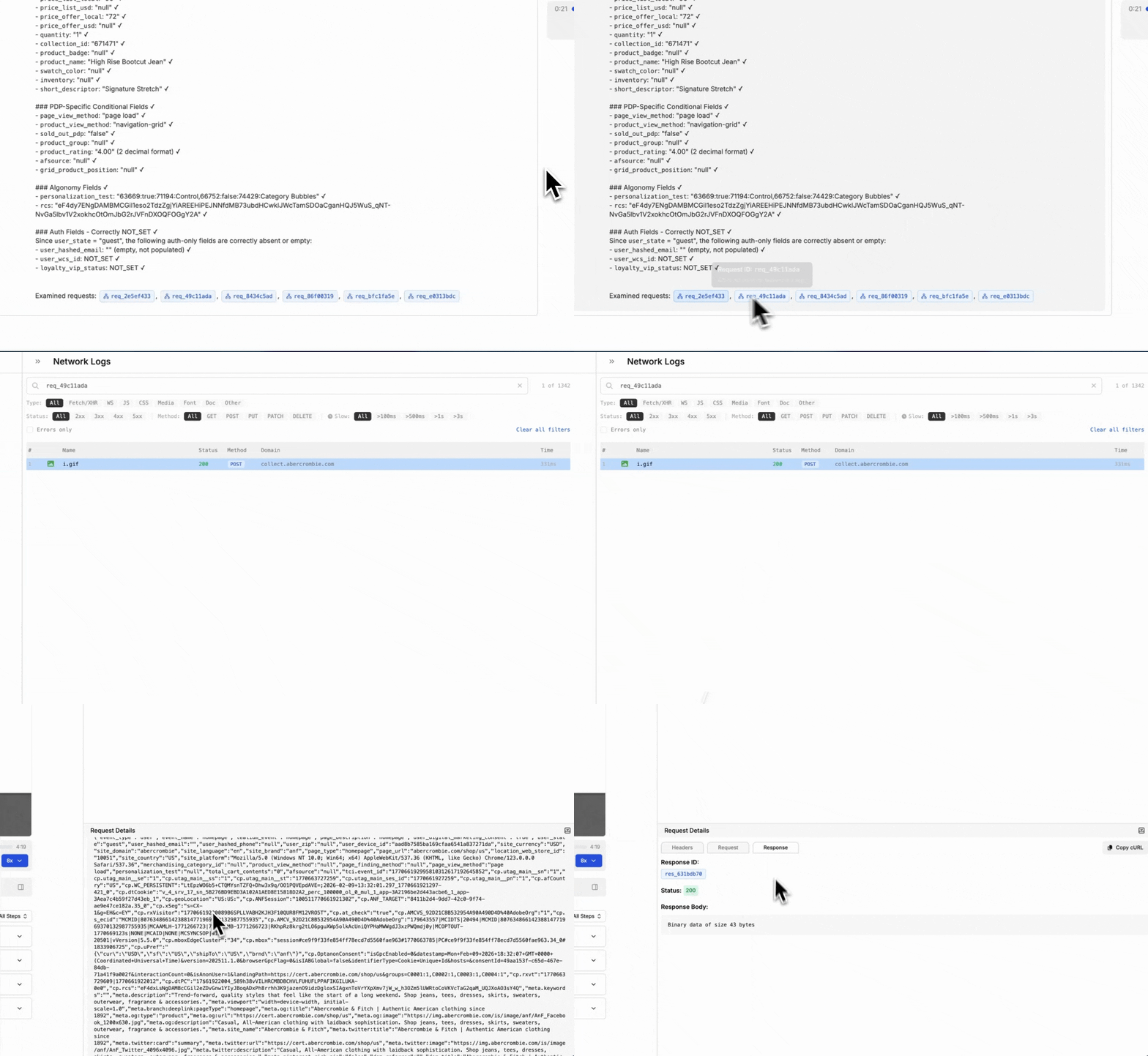
Inspect network logs by clicking the examined request in the step result
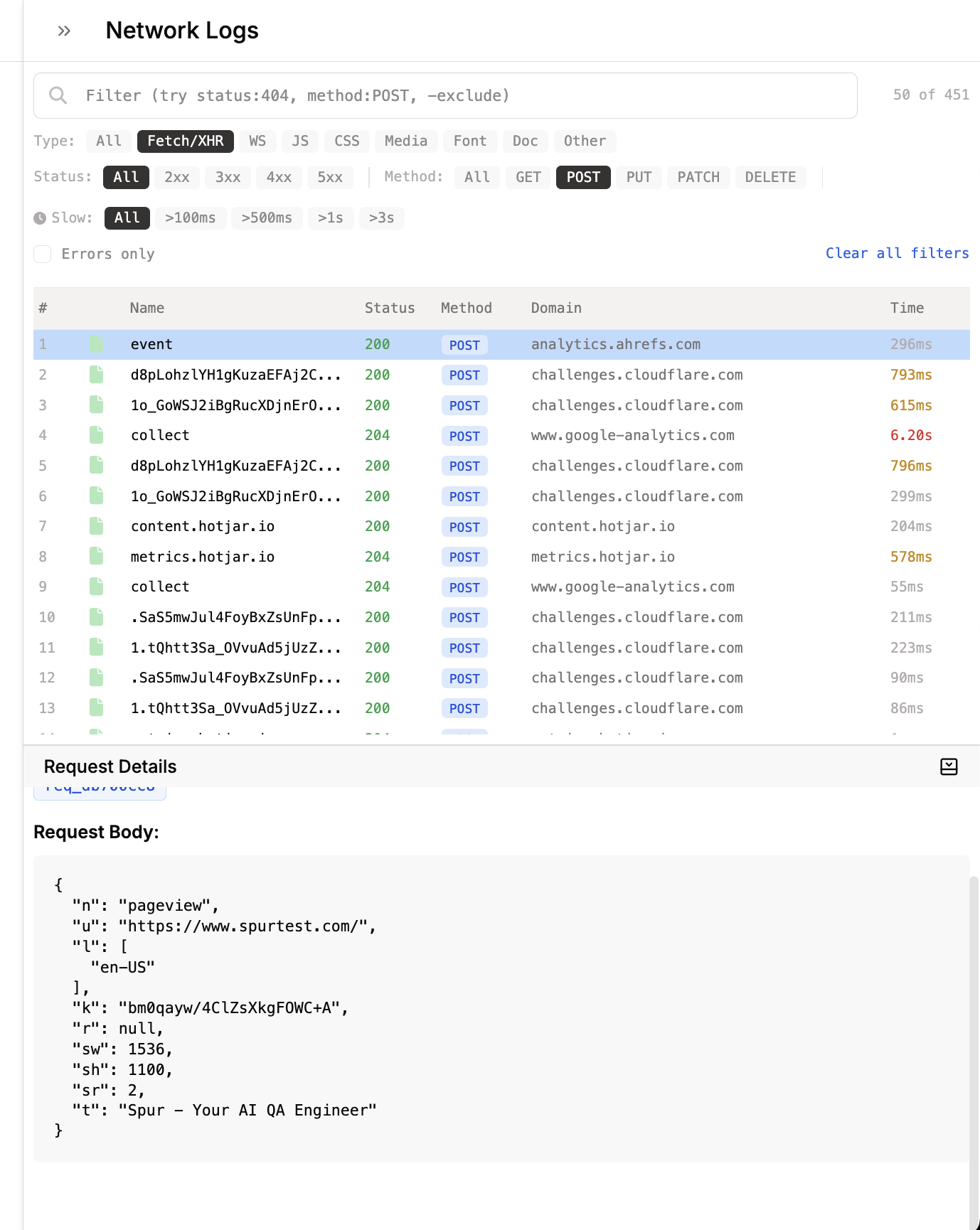
The Network Logs panel shows every HTTP request captured during the test
Console Logs
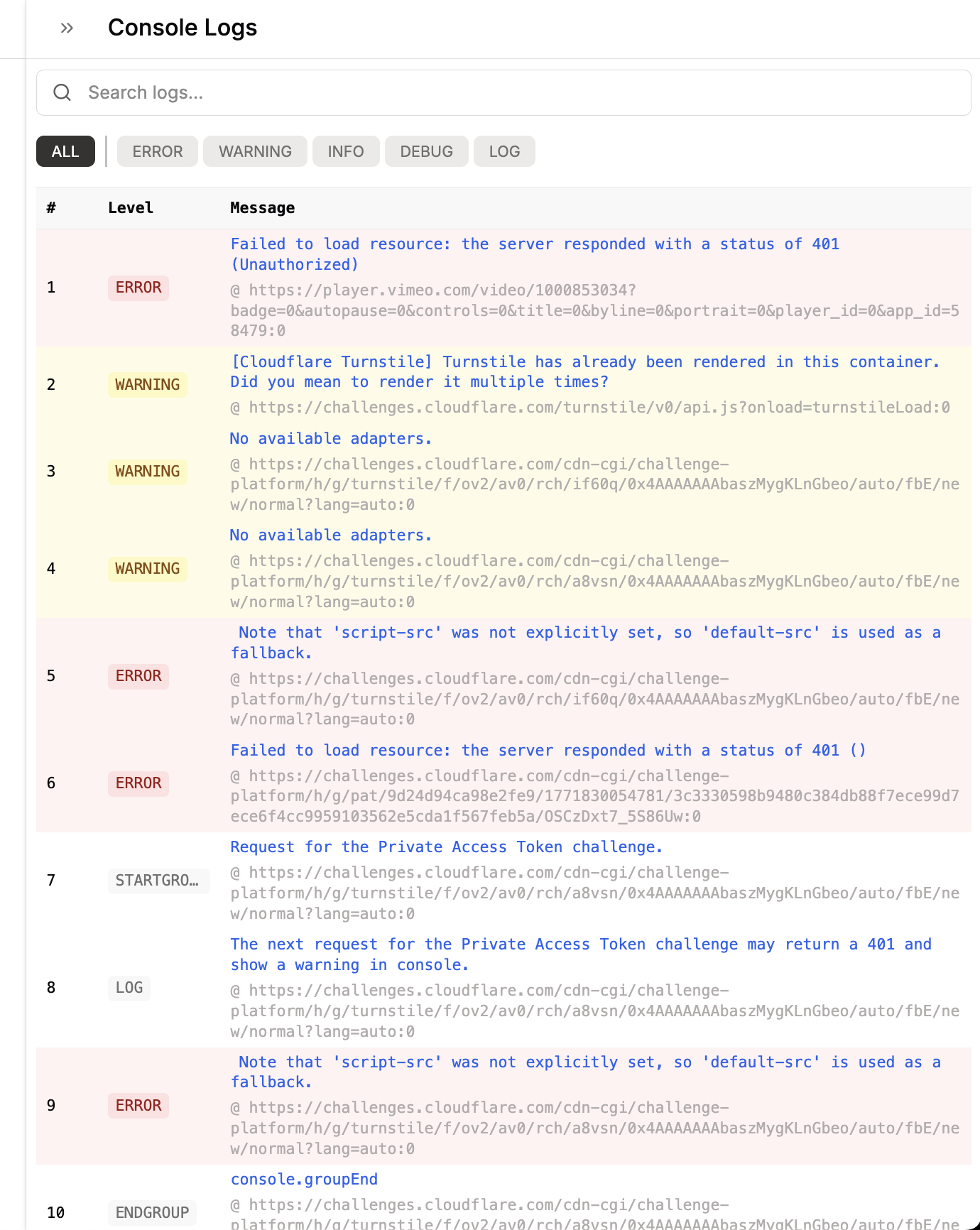
The Console Logs panel shows all browser console output with log levels
Best Practices
Writing Effective Assertions
Pair with Verify Steps

Give Context When You Can
One Assertion per Step

The Agent Handles the Rest
When to Use Log Steps
Add to Regression Suites
Catch What Users Can't See
Guard Critical Flows
Monitor Third-Party Integrations
Limitations
- Logs are analyzed after capture, not in real-time. The agent evaluates network and console data that has already been recorded during the test run. It does not monitor logs as they stream in.
- Late-firing requests may not be captured. If a network request or event fires after the test step has finished executing, it may not be included in the data the agent searches through. This can affect assertions on deferred or asynchronous calls that take a long time to complete.
Troubleshooting
Log step reports Not Found but the request was made
Log step reports Not Found but the request was made
Log step passes but shouldn't have
Log step passes but shouldn't have
Log step fails but the UI looks correct
Log step fails but the UI looks correct
Cannot find the Log step type
Cannot find the Log step type