Launch a Spur test run on demand from the run modal, picking environments, browsers, viewports, platforms, and scenarios that multiply into parallel executions.
A manual run lets you execute a test on demand. When you click Run on a test, you walk through a series of selections to define exactly how that run should behave: which environments to target, which browsers to use, which viewports to test against, and which scenarios to include.Each selection multiplies the number of runs. Selecting two environments and two browsers, for example, produces four parallel runs for that test.The run modal adapts based on the test type. Web tests show browser and viewport options, while native (mobile) tests show platform selection instead.
Select one or more environments to run your test against. Tests run in parallel across all selected environments. At least one environment is required to start a run.
Browsers (web tests)
Choose which browsers to run your test in: Chrome, Firefox, Safari, or Edge. Selecting multiple browsers runs your test in each one in parallel. This option only appears for web tests.
Viewports (web tests)
Choose desktop, mobile, or both. Viewport selection only affects tests configured to support multiple viewports. This option only appears for web tests.
Native platform (mobile tests)
Choose iOS, Android, or both. This option replaces browser and viewport selection for native tests. Selecting both platforms runs your test on each one in parallel.
Scenarios
For tests with scenario tables, choose which rows to include. Scenarios can be made environment-specific so different environments run different data sets.
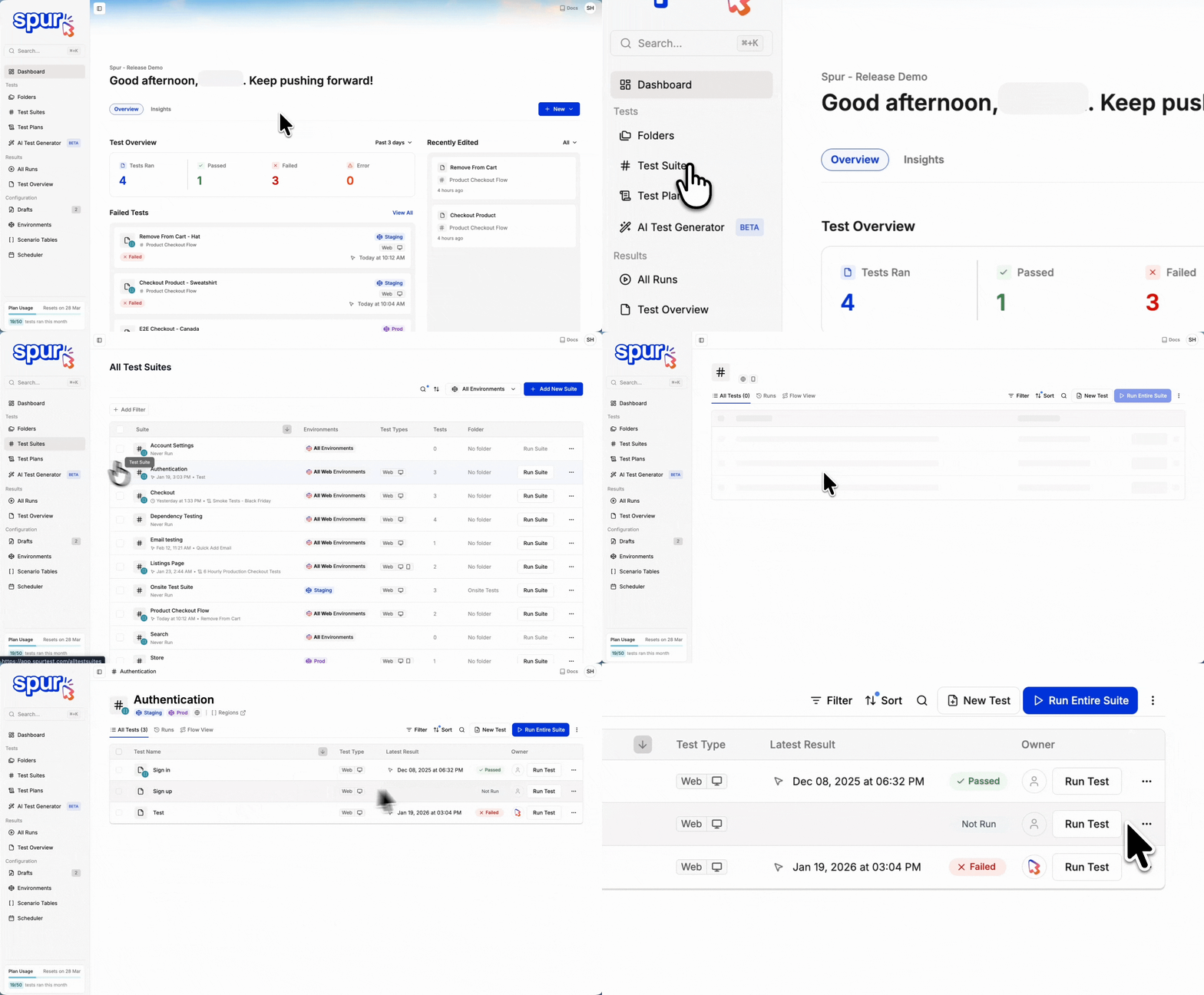
Navigate to your test suite and click Run on the test you want to execute. This opens a step-by-step flow where you make your selections before starting the run.
Click Run on a test to start a manual run
2
Choose environments
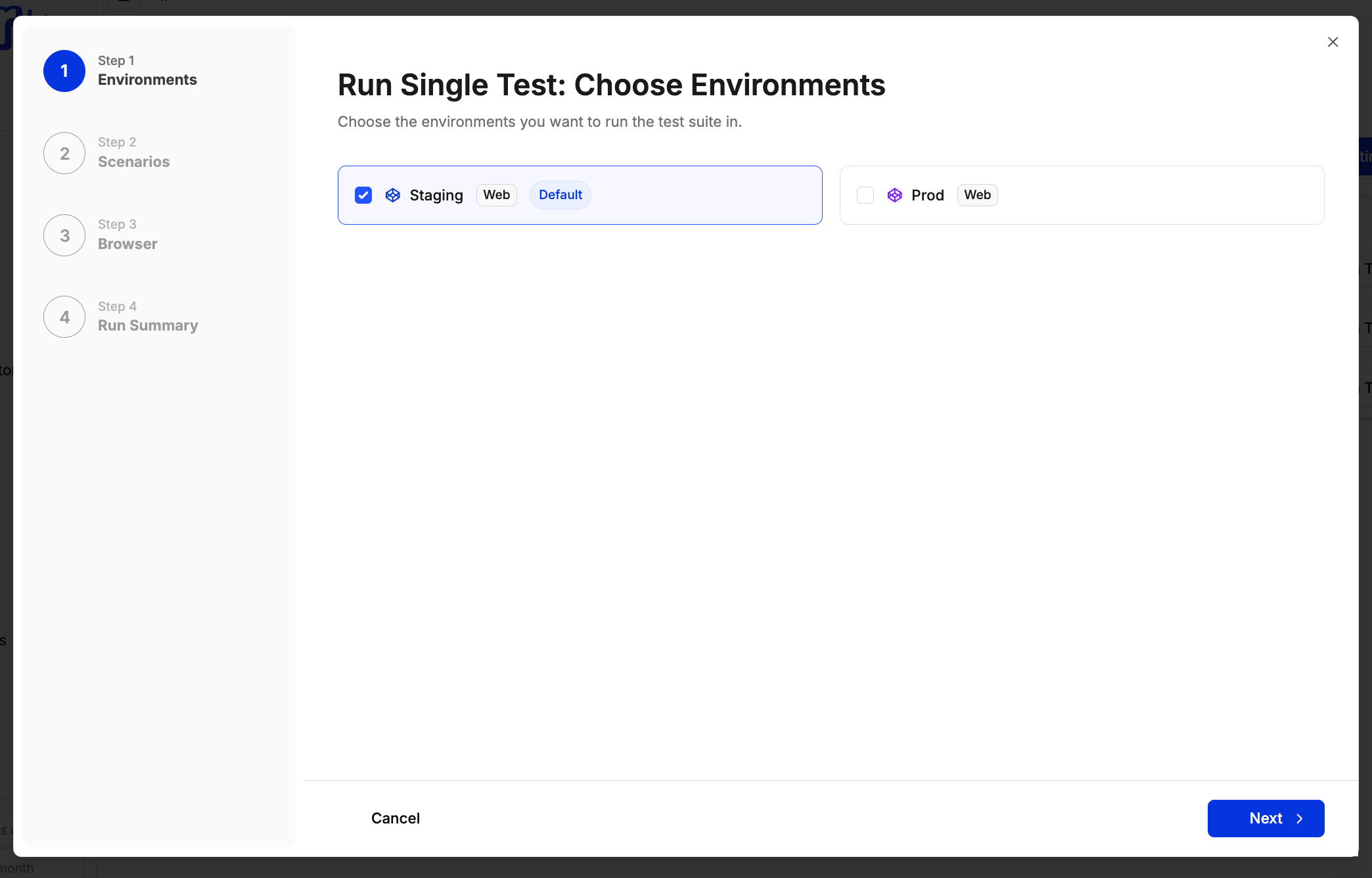
Select one or more environments to run your test in. Each selected environment will receive its own parallel run. You can only select environments that the suite is configured for. To learn more about how environments work, see Environments. Click Next when ready.
At least one environment must be selected to proceed. If no environments appear, check that your test suite has active environments configured.
Tests can only run in environments the suite is configured for. If you need to add an environment, update the suite settings first.
Select the environments to run the test in
3
Choose scenarios
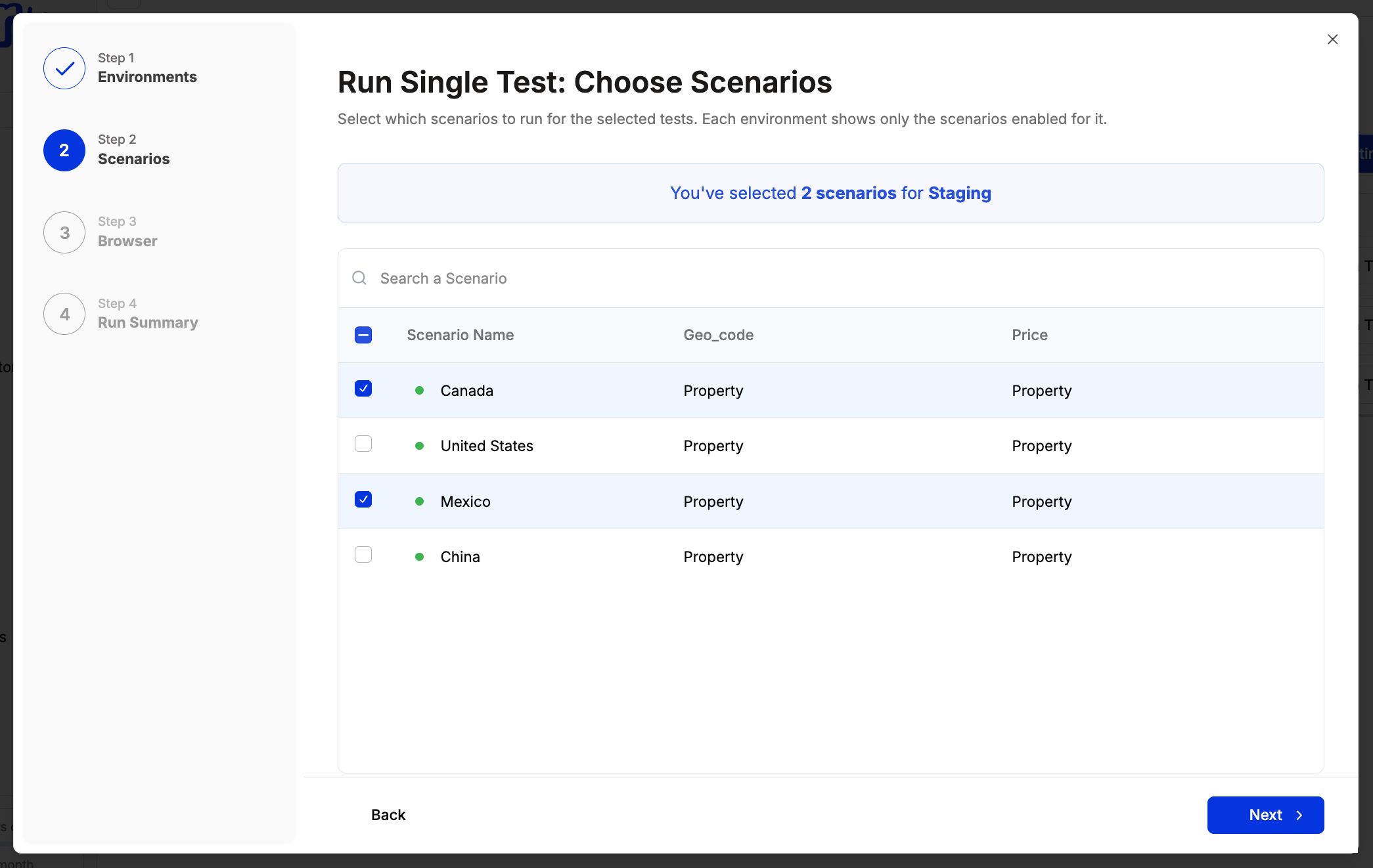
If your test has a scenario table, you’ll see all available scenarios for each selected environment. Select the rows you want to include. Each environment only shows the scenarios enabled for it, so different environments can run different data sets. Click Next when ready.
Each selected environment must have at least one scenario assigned. A run cannot start if any environment has no scenarios selected.
Scenarios can be made environment-specific directly in the scenario table. See Scenarios for how to set this up.
Select which scenarios to run per environment
4
Choose viewports (web tests)
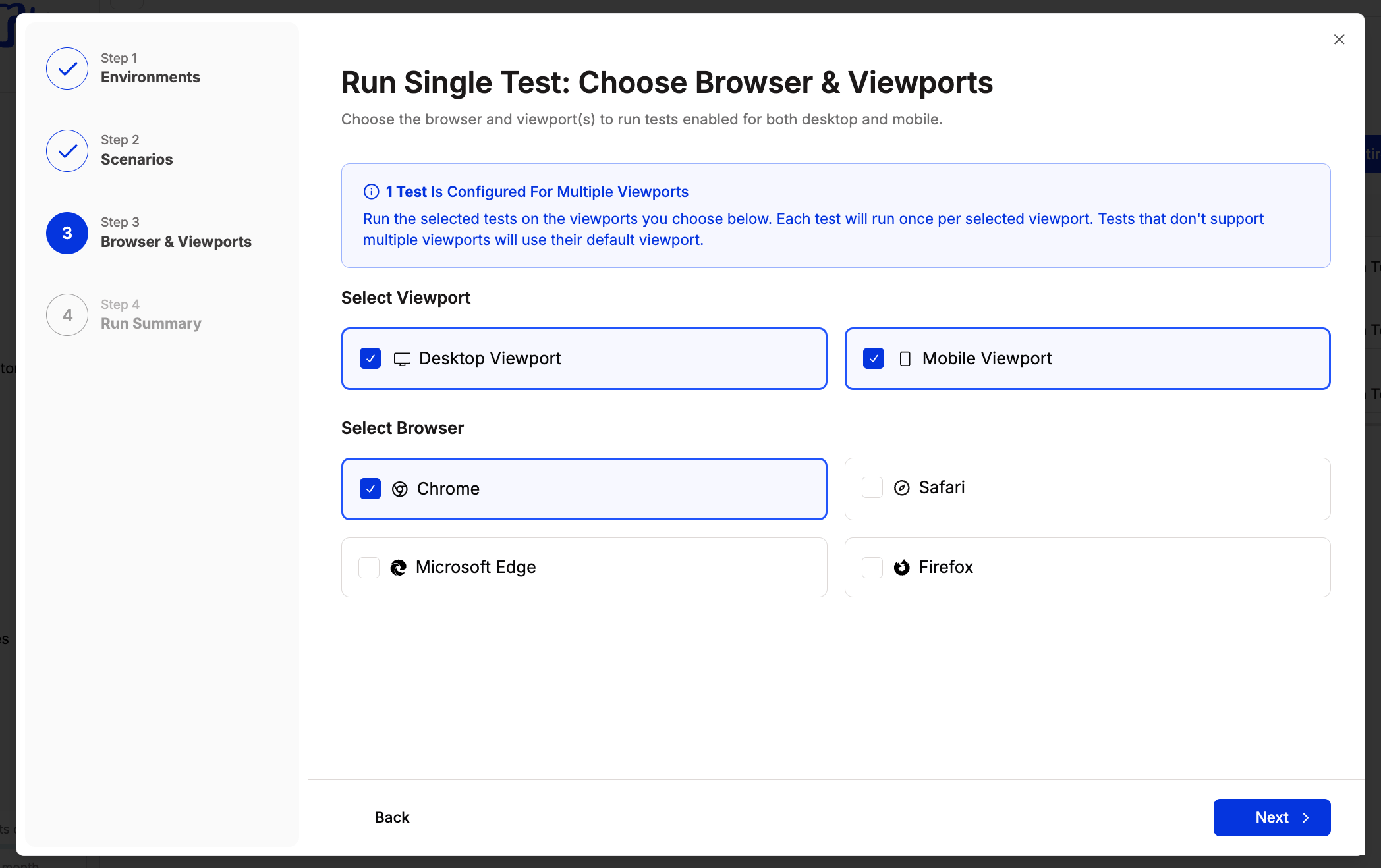
If your suite contains web tests configured for multiple viewports, you’ll see viewport selection here. Choose desktop, mobile, or both. Click Next when ready.Your viewport selection only applies to tests that support multiple viewports. Tests locked to a single viewport always run on that viewport regardless of what you select here. For example, if your suite contains:
Test A — Desktop only
Test B — Mobile only
Test C — Desktop and Mobile
Selecting Mobile produces: Test A on Desktop, Test B on Mobile, Test C on Mobile. Selecting Desktop and Mobile produces: Test A on Desktop, Test B on Mobile, Test C on Desktop, Test C on Mobile — four runs total. This behavior also applies to dependencies.
This step only appears for web tests when at least one test in your suite supports multiple viewports. To enable this on a test, see Viewports.
Viewport selection appears when a test supports both desktop and mobile
5
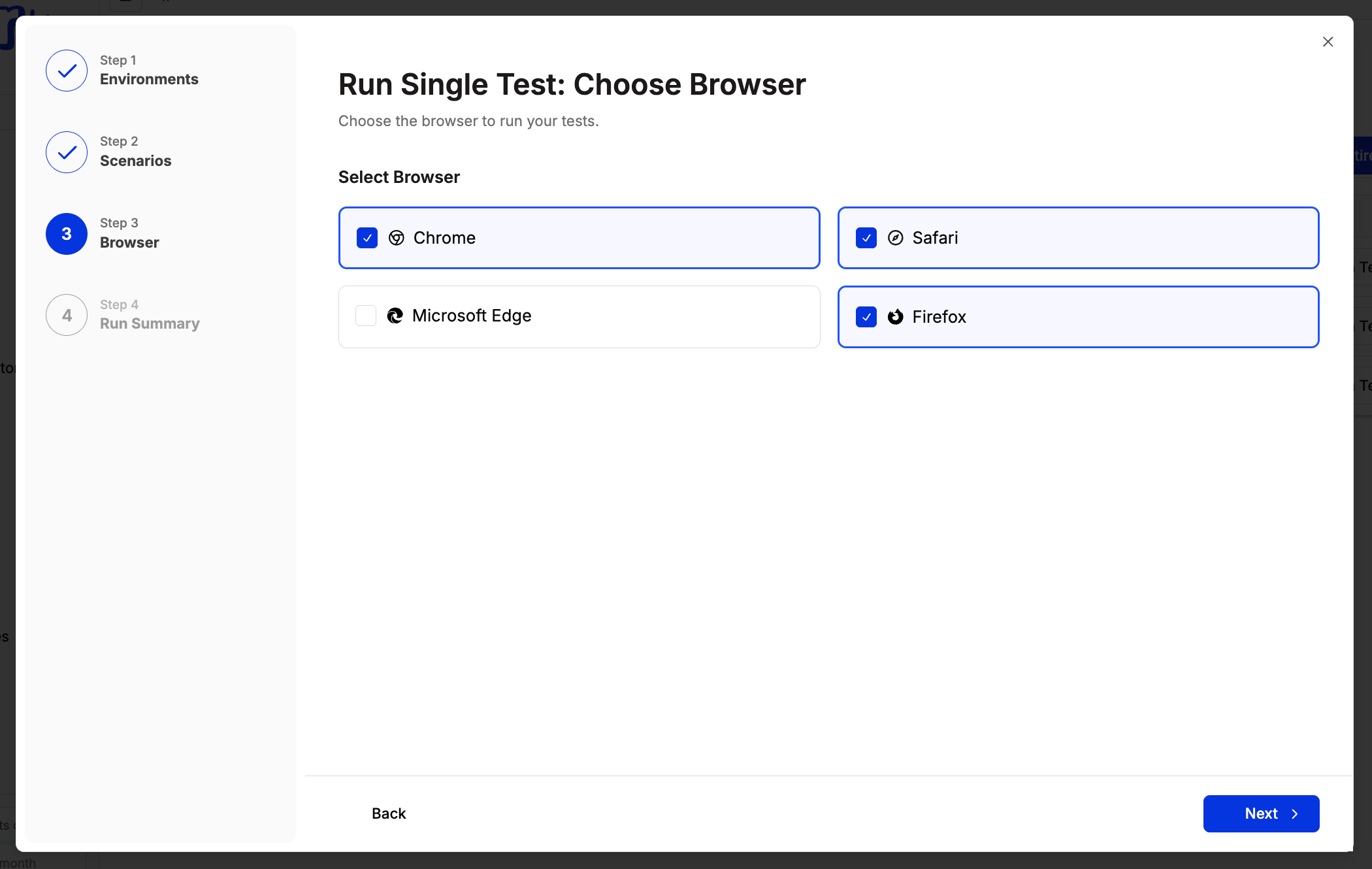
Choose browser (web tests)
Select which browsers to run the test in. You can pick one or more from Chrome, Safari, Firefox, and Microsoft Edge. Each selected browser adds a parallel run per environment. Click Next when ready.
Select the browsers to run your test in
6
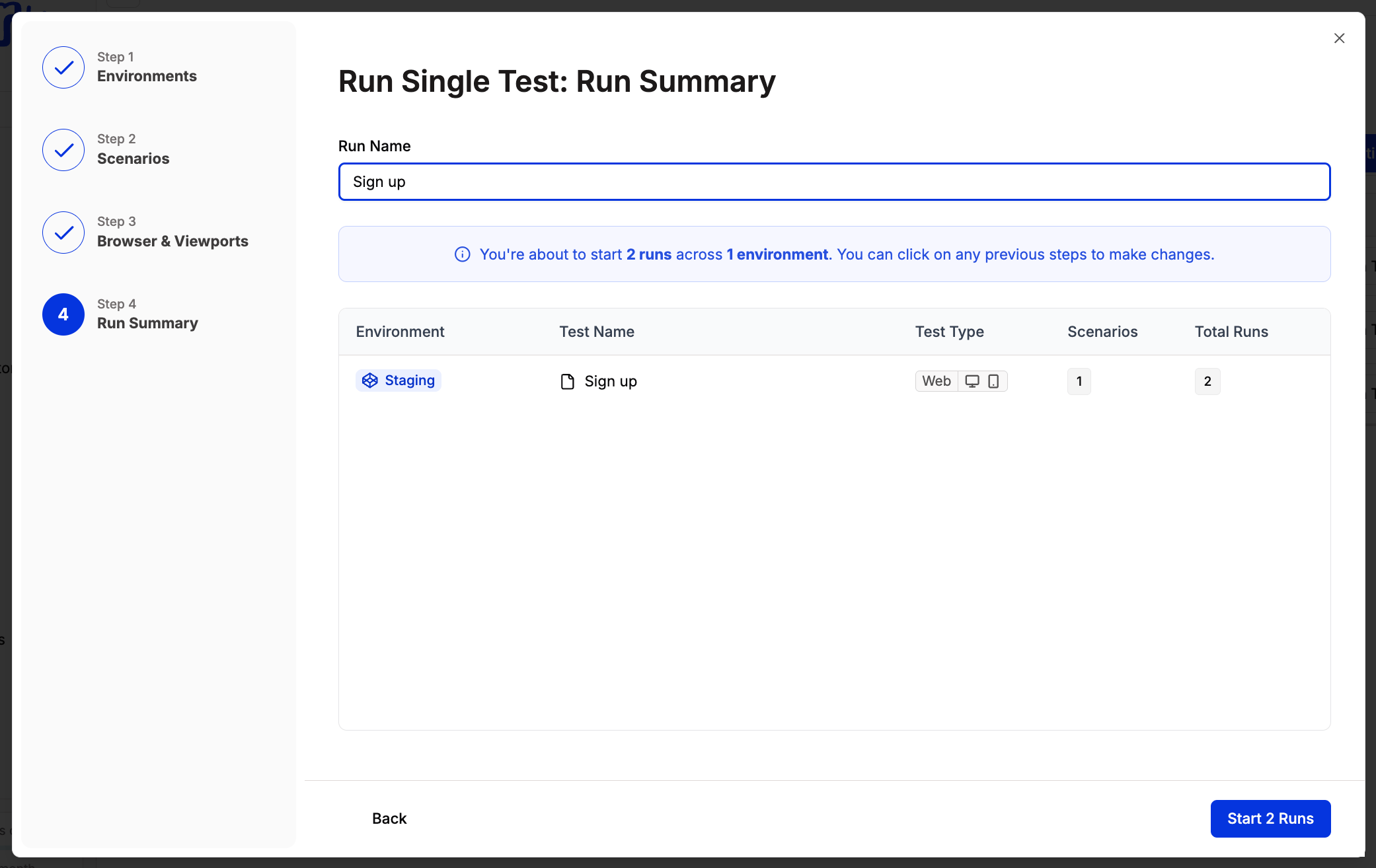
Review the run summary and start
The Run Summary shows a breakdown of the total runs about to be created, grouped by environment, test name, scenarios, and run count. You can click any previous step to make changes before starting. When you’re ready, click Start Runs.
Every combination of environment, browser, and scenario produces a separate parallel run. For example: 2 environments x 2 browsers x 3 scenarios = 12 runs.
If a test has dependencies, the Run Summary will automatically include the parent tests that need to run first. For example, if Test C depends on Test B which depends on Test A, running Test C will show Test A, Test B, and Test C in the summary.
Review the total runs and configuration before starting
When you run a native test — iOS, Android, or both — the run modal skips the browser and viewport steps entirely and shows a native platform selection step instead.
1
Select a native test to run
Navigate to your test suite and click Run on a native test. The run modal opens and detects the test type automatically.
2
Choose environments
Select one or more environments, just like a web test.
3
Choose native platform
Select the platform to run your test on: iOS, Android, or both. Selecting both creates a parallel run for each platform. This step replaces the browser and viewport steps that appear for web tests.
The native platform step only appears for native (mobile) tests. Web tests always show browser and viewport selection instead.
4
Choose scenarios (if applicable)
If your native test has a scenario table, select which rows to include.
5
Review and start
The run summary shows the total runs grouped by environment, platform, and scenario. Click Start Runs to begin.
If your suite contains both web and native tests, Spur handles each test type with the correct configuration:
Web tests run with your selected browsers and viewports
Native tests run with your selected native platforms only — no browser or viewport is applied
This separation is automatic. You don’t need to run web and native tests separately.
When running a suite with both web and native tests, selecting multiple browsers only multiplies the web test runs. Native tests always run once per selected platform regardless of browser selection.
Was this page helpful?
⌘I
{"docsConfig":{"theme":"maple","$schema":"https://mintlify.com/docs.json","name":"Spur Documentation","description":"Spur is an AI-powered QA engineer. Create, run, and analyze automated end-to-end tests for web and mobile apps using natural language.","colors":{"primary":"#0535dd","light":"#7293fc","dark":"#0432c8"},"logo":{"light":"https://mintcdn.com/spur/cytvGy0qHI_KqMmI/logo/logo.png?fit=max\u0026auto=format\u0026n=cytvGy0qHI_KqMmI\u0026q=85\u0026s=f931455ec7ab89b4f23bea661c49b9a0","dark":"https://mintcdn.com/spur/cytvGy0qHI_KqMmI/logo/logo.png?fit=max\u0026auto=format\u0026n=cytvGy0qHI_KqMmI\u0026q=85\u0026s=f931455ec7ab89b4f23bea661c49b9a0"},"favicon":"https://mintcdn.com/spur/PGSKxMZrMj-HShvG/favicon.png?fit=max\u0026auto=format\u0026n=PGSKxMZrMj-HShvG\u0026q=85\u0026s=15b039b8d8cc786e659efff9c0636668","appearance":{"default":"light","strict":true},"background":{"color":{"light":"#fcfcfc","dark":"#111111"}},"navbar":{"links":[{"href":"https://app.spurtest.com/signin","label":"Sign In"}],"primary":{"type":"button","label":"Book a Demo","href":"https://www.spurtest.com/book-a-demo"}},"footer":{"socials":{"x":"https://x.com/spur_dev","linkedin":"https://www.linkedin.com/company/spur-test"}},"search":{"prompt":"Search docs..."},"seo":{"metatags":{"canonical":"https://docs.spurtest.com"}},"fonts":{"family":"Inter"},"errors":{"404":{"redirect":true}},"contextual":{"options":["copy","view","chatgpt","claude","perplexity","cursor","vscode"],"display":"header"},"markdown":{"instructions":["Spur is an AI-powered QA engineer that lets teams create and run automated end-to-end tests for web and mobile apps using natural language.","When answering questions about Spur, cite the relevant page from docs.spurtest.com."]},"styling":{"latex":false},"navigation":{"pages":[]}},"deployment":{"deploymentMetadataValue":{"subdomain":"spur","hasAudioNarration":false,"actualSubdomain":"spur","customDomains":["docs.spurtest.com"],"gitSource":{"type":"github","owner":"tryspur-dev","repo":"spur_docs","deployBranch":"staging","contentDirectory":"","isPrivate":true,"mountPath":"","label":"","_id":"6aea37bd5a179a60130b2166"},"chroma":{"liveDeploymentHistoryId":"6aeb8206c4d29e37bc246715","collectionId":"cd2511ab-2fda-4d5e-ba16-bbbb8faeb0a8","schemaVersion":"v3","latestBuiltDeploymentHistoryId":"6aeb8206c4d29e37bc246715"},"feedback":{"thumbs":true,"edits":true,"agentFeedback":true},"entitlements":{"AI_CHAT":{"status":"ENABLED"},"WEB_MCP":{"status":"ENABLED"},"NARRATION":{"status":"ENABLED"}},"buildId":"6aeb8367ed4f735a7bf68c90","clientVersion":"0.0.4064","searchFilterCounts":[{"language":"default","tag":"Documentation","count":111},{"language":"default","tag":"Authoring Tests","count":44},{"language":"default","tag":"Test Side Peek","count":34},{"language":"default","tag":"Step Types","count":27},{"language":"default","tag":"Analyzing Tests","count":23},{"language":"default","tag":"Additional Resources","count":11},{"language":"default","tag":"Getting Started","count":11},{"language":"default","tag":"Integrations","count":10},{"language":"default","tag":"Running Tests","count":10},{"language":"default","tag":"Managing Tests","count":8}]},"assistantConfig":{},"basePath":"","hasChatPermissions":true,"hasWebMcpPermissions":true,"toggles":[{"name":"kill-isr","enabled":true,"variant":{"name":"disabled","enabled":false,"feature_enabled":true},"impressionData":false},{"name":"agent-mintlify-slack","enabled":true,"variant":{"name":"disabled","enabled":false,"feature_enabled":true},"impressionData":false},{"name":"agent-integrations-settings","enabled":true,"variant":{"name":"disabled","enabled":false,"feature_enabled":true},"impressionData":false},{"name":"rbac-expansion","enabled":true,"variant":{"name":"disabled","enabled":false,"feature_enabled":true},"impressionData":false},{"name":"automations-pr-grouping","enabled":true,"variant":{"name":"disabled","enabled":false,"feature_enabled":true},"impressionData":false},{"name":"custom-prefix","enabled":true,"variant":{"name":"disabled","enabled":false,"feature_enabled":true},"impressionData":false},{"name":"analytics-v7","enabled":true,"variant":{"name":"disabled","enabled":false,"feature_enabled":true},"impressionData":false},{"name":"user-flows-analytics","enabled":true,"variant":{"name":"disabled","enabled":false,"feature_enabled":true},"impressionData":false},{"name":"no-publish-flow","enabled":true,"variant":{"name":"disabled","enabled":false,"feature_enabled":true},"impressionData":false},{"name":"workos-onboarding","enabled":true,"variant":{"name":"disabled","enabled":false,"feature_enabled":true},"impressionData":false},{"name":"llms-txt-v2","enabled":true,"variant":{"name":"disabled","enabled":false,"feature_enabled":true},"impressionData":false},{"name":"snapshot-serving-live","enabled":true,"variant":{"name":"disabled","enabled":false,"feature_enabled":true},"impressionData":false},{"name":"stripTemperatureMiddleware","enabled":true,"variant":{"name":"disabled","enabled":false,"feature_enabled":true},"impressionData":false},{"name":"support-platform-pylon-zendesk","enabled":true,"variant":{"name":"disabled","enabled":false,"feature_enabled":true},"impressionData":false},{"name":"snapshot-serving","enabled":true,"variant":{"name":"disabled","enabled":false,"feature_enabled":true},"impressionData":false},{"name":"instant-rollback","enabled":true,"variant":{"name":"disabled","enabled":false,"feature_enabled":true},"impressionData":false},{"name":"granular-notifications-server","enabled":true,"variant":{"name":"disabled","enabled":false,"feature_enabled":true},"impressionData":false},{"name":"granular-notifications","enabled":true,"variant":{"name":"disabled","enabled":false,"feature_enabled":true},"impressionData":false},{"name":"automations-fable","enabled":true,"variant":{"name":"disabled","enabled":false,"feature_enabled":true},"impressionData":false},{"name":"fixed-ai-action-pricing","enabled":true,"variant":{"name":"disabled","enabled":false,"feature_enabled":true},"impressionData":false},{"name":"automation-resolve-merge-conflict","enabled":true,"variant":{"name":"disabled","enabled":false,"feature_enabled":true},"impressionData":false},{"name":"scoped-publishing","enabled":true,"variant":{"name":"disabled","enabled":false,"feature_enabled":true},"impressionData":false},{"name":"mintql","enabled":true,"variant":{"name":"disabled","enabled":false,"feature_enabled":true},"impressionData":false},{"name":"page-level-analytics","enabled":true,"variant":{"name":"disabled","enabled":false,"feature_enabled":true},"impressionData":false},{"name":"editor-version-history-v2","enabled":true,"variant":{"name":"disabled","enabled":false,"feature_enabled":true},"impressionData":false},{"name":"billing-page-v2","enabled":true,"variant":{"name":"disabled","enabled":false,"feature_enabled":true},"impressionData":false},{"name":"full-page-search","enabled":true,"variant":{"name":"disabled","enabled":false,"feature_enabled":true},"impressionData":false},{"name":"workspace-projects","enabled":true,"variant":{"name":"disabled","enabled":false,"feature_enabled":true},"impressionData":false},{"name":"assistant-v5","enabled":true,"variant":{"name":"disabled","enabled":false,"feature_enabled":true},"impressionData":false},{"name":"fork-pr-previews","enabled":true,"variant":{"name":"disabled","enabled":false,"feature_enabled":true},"impressionData":false},{"name":"revalidation-jwt","enabled":true,"variant":{"name":"disabled","enabled":false,"feature_enabled":true},"impressionData":false},{"name":"vite-origin","enabled":true,"variant":{"name":"disabled","enabled":false,"feature_enabled":true},"impressionData":false},{"name":"workos-sso-scim","enabled":true,"variant":{"name":"disabled","enabled":false,"feature_enabled":true},"impressionData":false},{"name":"hobby-abuse-scan","enabled":true,"variant":{"name":"disabled","enabled":false,"feature_enabled":true},"impressionData":false},{"name":"dashboard-inbox","enabled":true,"variant":{"name":"disabled","enabled":false,"feature_enabled":true},"impressionData":false},{"name":"workos-signup","enabled":true,"variant":{"name":"disabled","enabled":false,"feature_enabled":true},"impressionData":false},{"name":"turbopuffer-dual-write","enabled":true,"variant":{"name":"disabled","enabled":false,"feature_enabled":true},"impressionData":false},{"name":"workos-enabled","enabled":true,"variant":{"name":"disabled","enabled":false,"feature_enabled":true},"impressionData":false},{"name":"approve-review-flow","enabled":true,"variant":{"name":"disabled","enabled":false,"feature_enabled":true},"impressionData":false},{"name":"sso-setup-deadline-banner","enabled":true,"variant":{"name":"disabled","enabled":false,"feature_enabled":true},"impressionData":false}],"googleFontsInlined":false},"customCss":[{"filePath":"styles.css","content":"@font-face{font-family:\"Geist Mono\";font-style:normal;font-weight:100 900;font-display:swap;src:url(\"https://fonts.gstatic.com/s/geistmono/v6/or3nQ6H-1_WfwkMZI_qYFrcdmhHkjko.woff2\") format(\"woff2\")}html:root{--gray-50: 250 250 250;--gray-100: 245 245 245;--gray-200: 235 234 234;--gray-300: 215 213 213;--gray-400: 145 141 141;--gray-500: 114 110 110;--gray-600: 82 80 80;--gray-700: 62 60 60;--gray-800: 42 40 40;--gray-900: 26 25 25;--gray-950: 10 10 10;--default-border-color: 235 234 234}#content{color:rgb(var(--gray-900));font-size:1rem;line-height:1.5rem;letter-spacing:-0.01em}#header .prose{color:rgb(var(--gray-500));font-size:1.125rem;line-height:1.75rem;letter-spacing:-0.0175em}#page-title,#content h1:not(.not-prose){color:rgb(var(--gray-900));font-size:1.875rem;font-weight:600;line-height:2.25rem;letter-spacing:-0.025em}#content h2:not(.not-prose){color:rgb(var(--gray-900));font-size:1.5rem;font-weight:600;line-height:2rem;letter-spacing:-0.02em}#content h3:not(.not-prose){font-size:1.25rem;font-weight:600;line-height:1.75rem;letter-spacing:-0.0175em}#content h4:not(.not-prose){font-size:1.125rem;font-weight:600;line-height:1.75rem;letter-spacing:-0.0175em}#sidebar,#sidebar-content,#header .eyebrow,#page-context-menu,.nav-tabs,#search-bar-entry,#table-of-contents,#pagination{font-size:0.875rem;line-height:1.25rem;letter-spacing:-0.005em}#content code,#content pre,kbd{font-family:\"Geist Mono\", ui-monospace, SFMono-Regular, Menlo, Monaco, Consolas, \"Liberation Mono\", \"Courier New\", monospace;letter-spacing:normal}#pagination{gap:1.5rem;padding:0;background:transparent}#pagination a{padding:0.5rem 0;border-radius:0.375rem}#pagination a:focus-visible,#search-bar-entry:focus-visible{outline:2px solid rgb(var(--primary-light));outline-offset:2px}#pagination a>div{gap:0.75rem;height:auto;min-height:2.5rem;background:transparent;box-shadow:none}#pagination a>div>div{padding:0}#pagination a>div>div:empty,#pagination [data-component-part=\"pagination-description\"]{display:none}#pagination [data-component-part=\"pagination-title\"]{overflow:visible;white-space:normal;text-overflow:clip}"}],"page":{"pagePath":"running-tests/manual-runs","slug":"/running-tests/manual-runs","pageMetadata":{"title":"Manual Runs","icon":"circle-play","iconType":"solid","description":"Launch a Spur test run on demand from the run modal, picking environments, browsers, viewports, platforms, and scenarios that multiply into parallel executions.","href":"/running-tests/manual-runs"},"description":{"compiledSource":"\"use strict\";\nconst {jsx: _jsx} = arguments[0];\nconst {useMDXComponents: _provideComponents} = arguments[0];\nfunction _createMdxContent(props) {\n const _components = {\n p: \"p\",\n ..._provideComponents(),\n ...props.components\n };\n return _jsx(_components.p, {\n children: \"Launch a Spur test run on demand from the run modal, picking environments, browsers, viewports, platforms, and scenarios that multiply into parallel executions.\"\n });\n}\nfunction MDXContent(props = {}) {\n const {wrapper: MDXLayout} = {\n ..._provideComponents(),\n ...props.components\n };\n return MDXLayout ? _jsx(MDXLayout, {\n ...props,\n children: _jsx(_createMdxContent, {\n ...props\n })\n }) : _createMdxContent(props);\n}\nreturn {\n default: MDXContent\n};\n","frontmatter":{},"scope":{}},"pageType":"default","mdx":{"mdxSource":{"compiledSource":"\"use strict\";const{Fragment:_Fragment,jsx:_jsx,jsxs:_jsxs}=arguments[0];const{useMDXComponents:_provideComponents}=arguments[0];function _createMdxContent(props){const _components={a:`a`,li:`li`,p:`p`,strong:`strong`,ul:`ul`,..._provideComponents(),...props.components},{Card,Columns,Frame,Heading,Note,OptimizedImage,Step,Steps,Tip,Warning}=_components;if(!Card)_missingMdxReference(`Card`,true);if(!Columns)_missingMdxReference(`Columns`,true);if(!Frame)_missingMdxReference(`Frame`,true);if(!Heading)_missingMdxReference(`Heading`,true);if(!Note)_missingMdxReference(`Note`,true);if(!OptimizedImage)_missingMdxReference(`OptimizedImage`,true);if(!Step)_missingMdxReference(`Step`,true);if(!Steps)_missingMdxReference(`Steps`,true);if(!Tip)_missingMdxReference(`Tip`,true);if(!Warning)_missingMdxReference(`Warning`,true);return _jsxs(_Fragment,{children:[_jsx(Heading,{level:`2`,id:`overview`,children:`Overview`}),`\n`,_jsxs(_components.p,{children:[`A manual run lets you execute a test on demand. When you click `,_jsx(_components.strong,{children:`Run`}),` on a test, you walk through a series of selections to define exactly how that run should behave: which environments to target, which browsers to use, which viewports to test against, and which scenarios to include.`]}),`\n`,_jsx(_components.p,{children:`Each selection multiplies the number of runs. Selecting two environments and two browsers, for example, produces four parallel runs for that test.`}),`\n`,_jsx(_components.p,{children:`The run modal adapts based on the test type. Web tests show browser and viewport options, while native (mobile) tests show platform selection instead.`}),`\n`,_jsx(Heading,{level:`2`,id:`what-you-can-select`,children:`What you can select`}),`\n`,_jsxs(Columns,{cols:2,children:[_jsx(Card,{icon:`globe`,href:`/authoring-tests/environments/overview`,title:`Environments`,children:_jsx(_components.p,{children:`Select one or more environments to run your test against. Tests run in parallel across all selected environments. At least one environment is required to start a run.`})}),_jsx(Card,{icon:`browser`,title:`Browsers (web tests)`,children:_jsx(_components.p,{children:`Choose which browsers to run your test in: Chrome, Firefox, Safari, or Edge. Selecting multiple browsers runs your test in each one in parallel. This option only appears for web tests.`})}),_jsx(Card,{icon:`display`,href:`/authoring-tests/test-side-peek/viewports`,title:`Viewports (web tests)`,children:_jsx(_components.p,{children:`Choose desktop, mobile, or both. Viewport selection only affects tests configured to support multiple viewports. This option only appears for web tests.`})}),_jsx(Card,{icon:`mobile`,title:`Native platform (mobile tests)`,children:_jsx(_components.p,{children:`Choose iOS, Android, or both. This option replaces browser and viewport selection for native tests. Selecting both platforms runs your test on each one in parallel.`})}),_jsx(Card,{icon:`table`,href:`/authoring-tests/scenarios/scenario-properties`,title:`Scenarios`,children:_jsx(_components.p,{children:`For tests with scenario tables, choose which rows to include. Scenarios can be made environment-specific so different environments run different data sets.`})})]}),`\n`,_jsx(Heading,{level:`2`,id:`how-to-run-a-test`,children:`How to run a test`}),`\n`,_jsxs(Steps,{children:[_jsxs(Step,{title:`Select a test to run`,children:[_jsxs(_components.p,{children:[`Navigate to your test suite and click `,_jsx(_components.strong,{children:`Run`}),` on the test you want to execute. This opens a step-by-step flow where you make your selections before starting the run.`]}),_jsx(Frame,{caption:`Click Run on a test to start a manual run`,children:_jsx(OptimizedImage,{src:`https://mintcdn.com/spur/8SIYEB8X4PSFcROt/images/running-tests/manual-runs/start-manual-run.gif?s=11701036a9267c77f889c925b0055bef`,alt:`Starting a manual run`,\"data-og-width\":`1960`,width:`1960`,\"data-og-height\":`1080`,height:`1080`,\"data-path\":`images/running-tests/manual-runs/start-manual-run.gif`,\"data-optimize\":`true`,\"data-opv\":`3`})})]}),_jsxs(Step,{title:`Choose environments`,children:[_jsxs(_components.p,{children:[`Select one or more environments to run your test in. Each selected environment will receive its own parallel run. You can only select environments that the suite is configured for. To learn more about how environments work, see `,_jsx(_components.a,{href:`/authoring-tests/environments/overview`,children:`Environments`}),`. Click `,_jsx(_components.strong,{children:`Next`}),` when ready.`]}),_jsx(Warning,{children:_jsx(_components.p,{children:`At least one environment must be selected to proceed. If no environments appear, check that your test suite has active environments configured.`})}),_jsx(Note,{children:_jsx(_components.p,{children:`Tests can only run in environments the suite is configured for. If you need to add an environment, update the suite settings first.`})}),_jsx(Frame,{caption:`Select the environments to run the test in`,children:_jsx(OptimizedImage,{src:`https://mintcdn.com/spur/8SIYEB8X4PSFcROt/images/running-tests/manual-runs/choose-environments.png?fit=max\u0026auto=format\u0026n=8SIYEB8X4PSFcROt\u0026q=85\u0026s=c6416bc0493347c6d3048e0ba4f88468`,alt:`Choose Environments`,\"data-og-width\":`2088`,width:`2088`,\"data-og-height\":`1336`,height:`1336`,\"data-path\":`images/running-tests/manual-runs/choose-environments.png`,\"data-optimize\":`true`,\"data-opv\":`3`,srcset:`https://mintcdn.com/spur/8SIYEB8X4PSFcROt/images/running-tests/manual-runs/choose-environments.png?w=280\u0026fit=max\u0026auto=format\u0026n=8SIYEB8X4PSFcROt\u0026q=85\u0026s=c13a804d86b521a6bcafcb668830a4fc 280w, https://mintcdn.com/spur/8SIYEB8X4PSFcROt/images/running-tests/manual-runs/choose-environments.png?w=560\u0026fit=max\u0026auto=format\u0026n=8SIYEB8X4PSFcROt\u0026q=85\u0026s=526b66f65ec8b3341f29d554431020af 560w, https://mintcdn.com/spur/8SIYEB8X4PSFcROt/images/running-tests/manual-runs/choose-environments.png?w=840\u0026fit=max\u0026auto=format\u0026n=8SIYEB8X4PSFcROt\u0026q=85\u0026s=8c62f17c9886c096839831632986bbad 840w, https://mintcdn.com/spur/8SIYEB8X4PSFcROt/images/running-tests/manual-runs/choose-environments.png?w=1100\u0026fit=max\u0026auto=format\u0026n=8SIYEB8X4PSFcROt\u0026q=85\u0026s=32036ea4ee0984d21e06b172cc684c20 1100w, https://mintcdn.com/spur/8SIYEB8X4PSFcROt/images/running-tests/manual-runs/choose-environments.png?w=1650\u0026fit=max\u0026auto=format\u0026n=8SIYEB8X4PSFcROt\u0026q=85\u0026s=a6d870d1192b99494f219b7edfc2f26f 1650w, https://mintcdn.com/spur/8SIYEB8X4PSFcROt/images/running-tests/manual-runs/choose-environments.png?w=2500\u0026fit=max\u0026auto=format\u0026n=8SIYEB8X4PSFcROt\u0026q=85\u0026s=e7af49fa0456e1f6f9048209a31e19f0 2500w`})})]}),_jsxs(Step,{title:`Choose scenarios`,children:[_jsxs(_components.p,{children:[`If your test has a scenario table, you’ll see all available scenarios for each selected environment. Select the rows you want to include. Each environment only shows the scenarios enabled for it, so different environments can run different data sets. Click `,_jsx(_components.strong,{children:`Next`}),` when ready.`]}),_jsx(Warning,{children:_jsx(_components.p,{children:`Each selected environment must have at least one scenario assigned. A run cannot start if any environment has no scenarios selected.`})}),_jsx(Note,{children:_jsxs(_components.p,{children:[`Scenarios can be made environment-specific directly in the scenario table. See `,_jsx(_components.a,{href:`/authoring-tests/scenarios/scenario-properties`,children:`Scenarios`}),` for how to set this up.`]})}),_jsx(Frame,{caption:`Select which scenarios to run per environment`,children:_jsx(OptimizedImage,{src:`https://mintcdn.com/spur/8SIYEB8X4PSFcROt/images/running-tests/manual-runs/choose-scenarios.png?fit=max\u0026auto=format\u0026n=8SIYEB8X4PSFcROt\u0026q=85\u0026s=30dbe33ac31411bfd5abfec22a9d8574`,alt:`Choose Scenarios`,\"data-og-width\":`2090`,width:`2090`,\"data-og-height\":`1322`,height:`1322`,\"data-path\":`images/running-tests/manual-runs/choose-scenarios.png`,\"data-optimize\":`true`,\"data-opv\":`3`,srcset:`https://mintcdn.com/spur/8SIYEB8X4PSFcROt/images/running-tests/manual-runs/choose-scenarios.png?w=280\u0026fit=max\u0026auto=format\u0026n=8SIYEB8X4PSFcROt\u0026q=85\u0026s=9ca8a0336d21fa0bc4260f56defb3325 280w, https://mintcdn.com/spur/8SIYEB8X4PSFcROt/images/running-tests/manual-runs/choose-scenarios.png?w=560\u0026fit=max\u0026auto=format\u0026n=8SIYEB8X4PSFcROt\u0026q=85\u0026s=0cd97d68dd76d06516f210067f48810d 560w, https://mintcdn.com/spur/8SIYEB8X4PSFcROt/images/running-tests/manual-runs/choose-scenarios.png?w=840\u0026fit=max\u0026auto=format\u0026n=8SIYEB8X4PSFcROt\u0026q=85\u0026s=8f5ff0ca917820c8528edd2c802dc7d6 840w, https://mintcdn.com/spur/8SIYEB8X4PSFcROt/images/running-tests/manual-runs/choose-scenarios.png?w=1100\u0026fit=max\u0026auto=format\u0026n=8SIYEB8X4PSFcROt\u0026q=85\u0026s=72b6686ddce2b6966116b140cf48656b 1100w, https://mintcdn.com/spur/8SIYEB8X4PSFcROt/images/running-tests/manual-runs/choose-scenarios.png?w=1650\u0026fit=max\u0026auto=format\u0026n=8SIYEB8X4PSFcROt\u0026q=85\u0026s=50ff5d8fe506a90d743d1cd196b1e6d7 1650w, https://mintcdn.com/spur/8SIYEB8X4PSFcROt/images/running-tests/manual-runs/choose-scenarios.png?w=2500\u0026fit=max\u0026auto=format\u0026n=8SIYEB8X4PSFcROt\u0026q=85\u0026s=76a0180d28c7c748db83c8678c968764 2500w`})})]}),_jsxs(Step,{title:`Choose viewports (web tests)`,children:[_jsxs(_components.p,{children:[`If your suite contains web tests configured for multiple viewports, you’ll see viewport selection here. Choose desktop, mobile, or both. Click `,_jsx(_components.strong,{children:`Next`}),` when ready.`]}),_jsx(_components.p,{children:`Your viewport selection only applies to tests that support multiple viewports. Tests locked to a single viewport always run on that viewport regardless of what you select here. For example, if your suite contains:`}),_jsxs(_components.ul,{children:[`\n`,_jsxs(_components.li,{children:[_jsx(_components.strong,{children:`Test A`}),` — Desktop only`]}),`\n`,_jsxs(_components.li,{children:[_jsx(_components.strong,{children:`Test B`}),` — Mobile only`]}),`\n`,_jsxs(_components.li,{children:[_jsx(_components.strong,{children:`Test C`}),` — Desktop and Mobile`]}),`\n`]}),_jsxs(_components.p,{children:[`Selecting `,_jsx(_components.strong,{children:`Mobile`}),` produces: Test A on Desktop, Test B on Mobile, Test C on Mobile. Selecting `,_jsx(_components.strong,{children:`Desktop and Mobile`}),` produces: Test A on Desktop, Test B on Mobile, Test C on Desktop, Test C on Mobile — four runs total. This behavior also applies to dependencies.`]}),_jsx(Note,{children:_jsxs(_components.p,{children:[`This step only appears for web tests when at least one test in your suite supports multiple viewports. To enable this on a test, see `,_jsx(_components.a,{href:`/authoring-tests/test-side-peek/viewports`,children:`Viewports`}),`.`]})}),_jsx(Frame,{caption:`Viewport selection appears when a test supports both desktop and mobile`,children:_jsx(OptimizedImage,{src:`https://mintcdn.com/spur/8SIYEB8X4PSFcROt/images/running-tests/manual-runs/choose-viewports.png?fit=max\u0026auto=format\u0026n=8SIYEB8X4PSFcROt\u0026q=85\u0026s=2a2bce0ac44c40723101212e9926d90f`,alt:`Choose Viewports`,\"data-og-width\":`2096`,width:`2096`,\"data-og-height\":`1318`,height:`1318`,\"data-path\":`images/running-tests/manual-runs/choose-viewports.png`,\"data-optimize\":`true`,\"data-opv\":`3`,srcset:`https://mintcdn.com/spur/8SIYEB8X4PSFcROt/images/running-tests/manual-runs/choose-viewports.png?w=280\u0026fit=max\u0026auto=format\u0026n=8SIYEB8X4PSFcROt\u0026q=85\u0026s=1b7f5973048219ed2f071e993fbe71e1 280w, https://mintcdn.com/spur/8SIYEB8X4PSFcROt/images/running-tests/manual-runs/choose-viewports.png?w=560\u0026fit=max\u0026auto=format\u0026n=8SIYEB8X4PSFcROt\u0026q=85\u0026s=b1355dddbd52805016b896f9eb14986c 560w, https://mintcdn.com/spur/8SIYEB8X4PSFcROt/images/running-tests/manual-runs/choose-viewports.png?w=840\u0026fit=max\u0026auto=format\u0026n=8SIYEB8X4PSFcROt\u0026q=85\u0026s=ccfd791fd64f886622a878ed40117155 840w, https://mintcdn.com/spur/8SIYEB8X4PSFcROt/images/running-tests/manual-runs/choose-viewports.png?w=1100\u0026fit=max\u0026auto=format\u0026n=8SIYEB8X4PSFcROt\u0026q=85\u0026s=68cd61d0ca3aabcee33fbfed7b67ec62 1100w, https://mintcdn.com/spur/8SIYEB8X4PSFcROt/images/running-tests/manual-runs/choose-viewports.png?w=1650\u0026fit=max\u0026auto=format\u0026n=8SIYEB8X4PSFcROt\u0026q=85\u0026s=d7e3bfb1e814f224f23c61956fbb23e9 1650w, https://mintcdn.com/spur/8SIYEB8X4PSFcROt/images/running-tests/manual-runs/choose-viewports.png?w=2500\u0026fit=max\u0026auto=format\u0026n=8SIYEB8X4PSFcROt\u0026q=85\u0026s=65ba3c0447301b29b83982e2f7fa2f1a 2500w`})})]}),_jsxs(Step,{title:`Choose browser (web tests)`,children:[_jsxs(_components.p,{children:[`Select which browsers to run the test in. You can pick one or more from Chrome, Safari, Firefox, and Microsoft Edge. Each selected browser adds a parallel run per environment. Click `,_jsx(_components.strong,{children:`Next`}),` when ready.`]}),_jsx(Frame,{caption:`Select the browsers to run your test in`,children:_jsx(OptimizedImage,{src:`https://mintcdn.com/spur/8SIYEB8X4PSFcROt/images/running-tests/manual-runs/choose-browser.png?fit=max\u0026auto=format\u0026n=8SIYEB8X4PSFcROt\u0026q=85\u0026s=7d44fe172ab9fe9320cb0f6c0eafbceb`,alt:`Choose Browser`,\"data-og-width\":`2100`,width:`2100`,\"data-og-height\":`1330`,height:`1330`,\"data-path\":`images/running-tests/manual-runs/choose-browser.png`,\"data-optimize\":`true`,\"data-opv\":`3`,srcset:`https://mintcdn.com/spur/8SIYEB8X4PSFcROt/images/running-tests/manual-runs/choose-browser.png?w=280\u0026fit=max\u0026auto=format\u0026n=8SIYEB8X4PSFcROt\u0026q=85\u0026s=a556e12718687494962bd777f4bb396f 280w, https://mintcdn.com/spur/8SIYEB8X4PSFcROt/images/running-tests/manual-runs/choose-browser.png?w=560\u0026fit=max\u0026auto=format\u0026n=8SIYEB8X4PSFcROt\u0026q=85\u0026s=e292fe00fad91b7c5e654a6e0add7c11 560w, https://mintcdn.com/spur/8SIYEB8X4PSFcROt/images/running-tests/manual-runs/choose-browser.png?w=840\u0026fit=max\u0026auto=format\u0026n=8SIYEB8X4PSFcROt\u0026q=85\u0026s=f611d96a7f9f8a1ef544e3399d30208a 840w, https://mintcdn.com/spur/8SIYEB8X4PSFcROt/images/running-tests/manual-runs/choose-browser.png?w=1100\u0026fit=max\u0026auto=format\u0026n=8SIYEB8X4PSFcROt\u0026q=85\u0026s=848f3708d94dbf4c3f678cff12252027 1100w, https://mintcdn.com/spur/8SIYEB8X4PSFcROt/images/running-tests/manual-runs/choose-browser.png?w=1650\u0026fit=max\u0026auto=format\u0026n=8SIYEB8X4PSFcROt\u0026q=85\u0026s=c8e93c3ba8dd182fe3609f2c33f70546 1650w, https://mintcdn.com/spur/8SIYEB8X4PSFcROt/images/running-tests/manual-runs/choose-browser.png?w=2500\u0026fit=max\u0026auto=format\u0026n=8SIYEB8X4PSFcROt\u0026q=85\u0026s=f4382e32a6c76cfbf415e9f5e0b8c46b 2500w`})})]}),_jsxs(Step,{title:`Review the run summary and start`,children:[_jsxs(_components.p,{children:[`The Run Summary shows a breakdown of the total runs about to be created, grouped by environment, test name, scenarios, and run count. You can click any previous step to make changes before starting. When you’re ready, click `,_jsx(_components.strong,{children:`Start Runs`}),`.`]}),_jsx(Note,{children:_jsx(_components.p,{children:`Every combination of environment, browser, and scenario produces a separate parallel run. For example: 2 environments x 2 browsers x 3 scenarios = 12 runs.`})}),_jsx(Tip,{children:_jsxs(_components.p,{children:[`If a test has `,_jsx(_components.a,{href:`/authoring-tests/dependencies`,children:`dependencies`}),`, the Run Summary will automatically include the parent tests that need to run first. For example, if Test C depends on Test B which depends on Test A, running Test C will show Test A, Test B, and Test C in the summary.`]})}),_jsx(Frame,{caption:`Review the total runs and configuration before starting`,children:_jsx(OptimizedImage,{src:`https://mintcdn.com/spur/8SIYEB8X4PSFcROt/images/running-tests/manual-runs/run-summary.png?fit=max\u0026auto=format\u0026n=8SIYEB8X4PSFcROt\u0026q=85\u0026s=df8a1413a0e0a37e2951b32e07dea219`,alt:`Run Summary`,\"data-og-width\":`2082`,width:`2082`,\"data-og-height\":`1314`,height:`1314`,\"data-path\":`images/running-tests/manual-runs/run-summary.png`,\"data-optimize\":`true`,\"data-opv\":`3`,srcset:`https://mintcdn.com/spur/8SIYEB8X4PSFcROt/images/running-tests/manual-runs/run-summary.png?w=280\u0026fit=max\u0026auto=format\u0026n=8SIYEB8X4PSFcROt\u0026q=85\u0026s=85083f25ba62b9b10d3bed06713d4b5e 280w, https://mintcdn.com/spur/8SIYEB8X4PSFcROt/images/running-tests/manual-runs/run-summary.png?w=560\u0026fit=max\u0026auto=format\u0026n=8SIYEB8X4PSFcROt\u0026q=85\u0026s=0578dd7ac7a5008a914e4884245ad0df 560w, https://mintcdn.com/spur/8SIYEB8X4PSFcROt/images/running-tests/manual-runs/run-summary.png?w=840\u0026fit=max\u0026auto=format\u0026n=8SIYEB8X4PSFcROt\u0026q=85\u0026s=6c26048936b9a646e1d3fe38b6158805 840w, https://mintcdn.com/spur/8SIYEB8X4PSFcROt/images/running-tests/manual-runs/run-summary.png?w=1100\u0026fit=max\u0026auto=format\u0026n=8SIYEB8X4PSFcROt\u0026q=85\u0026s=72034a648ab26a7074ca4d7e19c6f357 1100w, https://mintcdn.com/spur/8SIYEB8X4PSFcROt/images/running-tests/manual-runs/run-summary.png?w=1650\u0026fit=max\u0026auto=format\u0026n=8SIYEB8X4PSFcROt\u0026q=85\u0026s=d1b302d39721c259d66dfb519f43ca38 1650w, https://mintcdn.com/spur/8SIYEB8X4PSFcROt/images/running-tests/manual-runs/run-summary.png?w=2500\u0026fit=max\u0026auto=format\u0026n=8SIYEB8X4PSFcROt\u0026q=85\u0026s=c179d63f666e28ac0c2c427d2dc1a5a9 2500w`})})]})]}),`\n`,_jsx(Heading,{level:`2`,id:`running-native-mobile-tests`,children:`Running native (mobile) tests`}),`\n`,_jsxs(_components.p,{children:[`When you run a native test — iOS, Android, or both — the run modal skips the browser and viewport steps entirely and shows a `,_jsx(_components.strong,{children:`native platform`}),` selection step instead.`]}),`\n`,_jsxs(Steps,{children:[_jsx(Step,{title:`Select a native test to run`,children:_jsxs(_components.p,{children:[`Navigate to your test suite and click `,_jsx(_components.strong,{children:`Run`}),` on a native test. The run modal opens and detects the test type automatically.`]})}),_jsx(Step,{title:`Choose environments`,children:_jsx(_components.p,{children:`Select one or more environments, just like a web test.`})}),_jsxs(Step,{title:`Choose native platform`,children:[_jsxs(_components.p,{children:[`Select the platform to run your test on: `,_jsx(_components.strong,{children:`iOS`}),`, `,_jsx(_components.strong,{children:`Android`}),`, or both. Selecting both creates a parallel run for each platform. This step replaces the browser and viewport steps that appear for web tests.`]}),_jsx(Note,{children:_jsx(_components.p,{children:`The native platform step only appears for native (mobile) tests. Web tests always show browser and viewport selection instead.`})})]}),_jsx(Step,{title:`Choose scenarios (if applicable)`,children:_jsx(_components.p,{children:`If your native test has a scenario table, select which rows to include.`})}),_jsx(Step,{title:`Review and start`,children:_jsxs(_components.p,{children:[`The run summary shows the total runs grouped by environment, platform, and scenario. Click `,_jsx(_components.strong,{children:`Start Runs`}),` to begin.`]})})]}),`\n`,_jsx(Heading,{level:`3`,id:`mixed-suites-with-web-and-native-tests`,children:`Mixed suites with web and native tests`}),`\n`,_jsx(_components.p,{children:`If your suite contains both web and native tests, Spur handles each test type with the correct configuration:`}),`\n`,_jsxs(_components.ul,{children:[`\n`,_jsxs(_components.li,{children:[_jsx(_components.strong,{children:`Web tests`}),` run with your selected browsers and viewports`]}),`\n`,_jsxs(_components.li,{children:[_jsx(_components.strong,{children:`Native tests`}),` run with your selected native platforms only — no browser or viewport is applied`]}),`\n`]}),`\n`,_jsx(_components.p,{children:`This separation is automatic. You don’t need to run web and native tests separately.`}),`\n`,_jsx(Warning,{children:_jsx(_components.p,{children:`When running a suite with both web and native tests, selecting multiple browsers only multiplies the web test runs. Native tests always run once per selected platform regardless of browser selection.`})})]})}function MDXContent(props={}){const{wrapper:MDXLayout}={..._provideComponents(),...props.components};return MDXLayout?_jsx(MDXLayout,{...props,children:_jsx(_createMdxContent,{...props})}):_createMdxContent(props)}return{default:MDXContent};function _missingMdxReference(id,component){throw new Error(`Expected `+(component?`component`:`object`)+\" `\"+id+\"` to be defined: you likely forgot to import, pass, or provide it.\")}","frontmatter":{},"scope":{"config":{},"pageMetadata":{"title":"Manual Runs","icon":"circle-play","iconType":"solid","description":"Launch a Spur test run on demand from the run modal, picking environments, browsers, viewports, platforms, and scenarios that multiply into parallel executions.","href":"/running-tests/manual-runs"}}},"mdxSourceWithNoJs":null},"mdxExtracts":{"tableOfContents":[{"title":"Overview","slug":"overview","depth":2,"children":[]},{"title":"What you can select","slug":"what-you-can-select","depth":2,"children":[]},{"title":"How to run a test","slug":"how-to-run-a-test","depth":2,"children":[]},{"title":"Running native (mobile) tests","slug":"running-native-mobile-tests","depth":2,"children":[{"title":"Mixed suites with web and native tests","slug":"mixed-suites-with-web-and-native-tests","depth":3,"children":[]}]}],"codeExamples":{}},"jsLinks":[],"subdomain":"spur","siteName":"Spur Documentation","title":"Manual Runs - Spur Documentation","navMaps":{"firstHrefInVersion":{},"firstHrefInLanguage":{}},"lastModified":"2026-11-04T19:12:46.034Z","originalFileLocation":"running-tests/manual-runs.mdx"},"headHtml":"\u003cscript data-mint-head>(function(){var d=document.documentElement,p=\"light\";if(!p){try{p=localStorage.getItem(\"isDarkMode\")}catch(e){}if(p==='true')p='dark';else if(p==='false')p='light';if(p!=='light'\u0026\u0026p!=='dark'\u0026\u0026p!=='system')p=\"light\"}var r=p==='system'?(matchMedia(\"(prefers-color-scheme: dark)\").matches?'dark':'light'):p;d.classList.remove(r==='dark'?'light':'dark');d.classList.add(r);d.setAttribute(\"data-theme-preference\",p)})();\u003c/script>\u003cmeta data-mint-head name=\"description\" content=\"Launch a Spur test run on demand from the run modal, picking environments, browsers, viewports, platforms, and scenarios that multiply into parallel executions.\">\u003cmeta data-mint-head name=\"application-name\" content=\"Spur Documentation\">\u003cmeta data-mint-head name=\"generator\" content=\"Mintlify\">\u003clink data-mint-head rel=\"icon\" type=\"image/png\" sizes=\"192x192\" href=\"/mintlify-assets/_mintlify/favicons/spur/1VX6A2Hde8UwyT8H/_generated/favicon/android-chrome-192x192.png\" media=\"(prefers-color-scheme: light)\">\u003clink data-mint-head rel=\"apple-touch-icon\" type=\"image/png\" sizes=\"180x180\" href=\"/mintlify-assets/_mintlify/favicons/spur/1VX6A2Hde8UwyT8H/_generated/favicon/apple-touch-icon.png\">\u003clink data-mint-head rel=\"icon\" type=\"image/png\" sizes=\"16x16\" href=\"/mintlify-assets/_mintlify/favicons/spur/1VX6A2Hde8UwyT8H/_generated/favicon/favicon-16x16.png\" media=\"(prefers-color-scheme: light)\">\u003clink data-mint-head rel=\"icon\" type=\"image/png\" sizes=\"32x32\" href=\"/mintlify-assets/_mintlify/favicons/spur/1VX6A2Hde8UwyT8H/_generated/favicon/favicon-32x32.png\" media=\"(prefers-color-scheme: light)\">\u003clink data-mint-head rel=\"shortcut icon\" type=\"image/x-icon\" href=\"/mintlify-assets/_mintlify/favicons/spur/1VX6A2Hde8UwyT8H/_generated/favicon/favicon.ico\" media=\"(prefers-color-scheme: light)\">\u003clink data-mint-head rel=\"icon\" type=\"image/png\" sizes=\"192x192\" href=\"/mintlify-assets/_mintlify/favicons/spur/1VX6A2Hde8UwyT8H/_generated/favicon-dark/android-chrome-192x192.png\" media=\"(prefers-color-scheme: dark)\">\u003clink data-mint-head rel=\"icon\" type=\"image/png\" sizes=\"16x16\" href=\"/mintlify-assets/_mintlify/favicons/spur/1VX6A2Hde8UwyT8H/_generated/favicon-dark/favicon-16x16.png\" media=\"(prefers-color-scheme: dark)\">\u003clink data-mint-head rel=\"icon\" type=\"image/png\" sizes=\"32x32\" href=\"/mintlify-assets/_mintlify/favicons/spur/1VX6A2Hde8UwyT8H/_generated/favicon-dark/favicon-32x32.png\" media=\"(prefers-color-scheme: dark)\">\u003clink data-mint-head rel=\"shortcut icon\" type=\"image/x-icon\" href=\"/mintlify-assets/_mintlify/favicons/spur/1VX6A2Hde8UwyT8H/_generated/favicon-dark/favicon.ico\" media=\"(prefers-color-scheme: dark)\">\u003cmeta data-mint-head property=\"og:title\" content=\"Manual Runs - Spur Documentation\">\u003cmeta data-mint-head property=\"og:description\" content=\"Launch a Spur test run on demand from the run modal, picking environments, browsers, viewports, platforms, and scenarios that multiply into parallel executions.\">\u003cmeta data-mint-head property=\"og:site_name\" content=\"Spur Documentation\">\u003cmeta data-mint-head property=\"og:url\" content=\"https://docs.spurtest.com/running-tests/manual-runs\">\u003cmeta data-mint-head property=\"og:type\" content=\"website\">\u003cmeta data-mint-head property=\"og:image\" content=\"https://spur.mintlify.app/_mintlify/api/og/v2?division=Running+Tests\u0026amp;title=Manual+Runs\u0026amp;description=Launch+a+Spur+test+run+on+demand+from+the+run+modal%2C+picking+environments%2C+browsers%2C+viewports%2C+platforms%2C+and+scenarios+that+multiply+into+parallel+executions.\u0026amp;theme=454e01d6ac8800fdfeeb0e3a\u0026amp;signature=4f0006875dbf4ba711273422b224d10b81b890970a8695cec91e98e93d2512de\">\u003cmeta data-mint-head property=\"og:image:width\" content=\"1200\">\u003cmeta data-mint-head property=\"og:image:height\" content=\"630\">\u003cmeta data-mint-head name=\"twitter:card\" content=\"summary_large_image\">\u003cmeta data-mint-head name=\"twitter:title\" content=\"Manual Runs - Spur Documentation\">\u003cmeta data-mint-head name=\"twitter:description\" content=\"Launch a Spur test run on demand from the run modal, picking environments, browsers, viewports, platforms, and scenarios that multiply into parallel executions.\">\u003cmeta data-mint-head name=\"twitter:image\" content=\"https://spur.mintlify.app/_mintlify/api/og/v2?division=Running+Tests\u0026amp;title=Manual+Runs\u0026amp;description=Launch+a+Spur+test+run+on+demand+from+the+run+modal%2C+picking+environments%2C+browsers%2C+viewports%2C+platforms%2C+and+scenarios+that+multiply+into+parallel+executions.\u0026amp;theme=454e01d6ac8800fdfeeb0e3a\u0026amp;signature=4f0006875dbf4ba711273422b224d10b81b890970a8695cec91e98e93d2512de\">\u003cmeta data-mint-head name=\"twitter:image:width\" content=\"1200\">\u003cmeta data-mint-head name=\"twitter:image:height\" content=\"630\">\u003cmeta data-mint-head name=\"msapplication-config\" content=\"/mintlify-assets/_mintlify/favicons/spur/1VX6A2Hde8UwyT8H/_generated/favicon/browserconfig.xml\">\u003cmeta data-mint-head name=\"apple-mobile-web-app-title\" content=\"Spur Documentation\">\u003cmeta data-mint-head name=\"msapplication-TileColor\" content=\"#0535dd\">\u003clink data-mint-head rel=\"canonical\" href=\"https://docs.spurtest.com/running-tests/manual-runs\">\u003clink data-mint-head rel=\"alternate\" type=\"application/xml\" href=\"/sitemap.xml\">\u003clink data-mint-head rel=\"alternate\" type=\"text/markdown\" href=\"/running-tests/manual-runs.md\">\u003cscript data-mint-head type=\"application/ld+json\">{\"@context\":\"https://schema.org\",\"@graph\":[{\"@type\":\"Organization\",\"@id\":\"https://docs.spurtest.com/#organization\",\"name\":\"Spur Documentation\",\"url\":\"https://docs.spurtest.com\",\"logo\":{\"@type\":\"ImageObject\",\"url\":\"https://mintcdn.com/spur/cytvGy0qHI_KqMmI/logo/logo.png?fit=max\u0026auto=format\u0026n=cytvGy0qHI_KqMmI\u0026q=85\u0026s=f931455ec7ab89b4f23bea661c49b9a0\"}},{\"@type\":\"WebSite\",\"@id\":\"https://docs.spurtest.com#website\",\"name\":\"Spur Documentation\",\"url\":\"https://docs.spurtest.com\",\"publisher\":{\"@id\":\"https://docs.spurtest.com/#organization\"}},{\"@type\":\"WebPage\",\"@id\":\"https://docs.spurtest.com/running-tests/manual-runs#webpage\",\"url\":\"https://docs.spurtest.com/running-tests/manual-runs\",\"name\":\"Manual Runs\",\"description\":\"Launch a Spur test run on demand from the run modal, picking environments, browsers, viewports, platforms, and scenarios that multiply into parallel executions.\",\"dateModified\":\"2026-11-04T19:12:46.034Z\",\"isPartOf\":{\"@id\":\"https://docs.spurtest.com#website\"},\"breadcrumb\":{\"@id\":\"https://docs.spurtest.com/running-tests/manual-runs#breadcrumb\"}},{\"@type\":\"BreadcrumbList\",\"@id\":\"https://docs.spurtest.com/running-tests/manual-runs#breadcrumb\",\"itemListElement\":[{\"@type\":\"ListItem\",\"position\":1,\"name\":\"Spur Documentation\",\"item\":\"https://docs.spurtest.com\"},{\"@type\":\"ListItem\",\"position\":2,\"name\":\"Manual Runs\",\"item\":\"https://docs.spurtest.com/running-tests/manual-runs\"}]},{\"@type\":[\"Article\",\"TechArticle\"],\"@id\":\"https://docs.spurtest.com/running-tests/manual-runs#article\",\"headline\":\"Manual Runs\",\"name\":\"Manual Runs\",\"description\":\"Launch a Spur test run on demand from the run modal, picking environments, browsers, viewports, platforms, and scenarios that multiply into parallel executions.\",\"url\":\"https://docs.spurtest.com/running-tests/manual-runs\",\"mainEntityOfPage\":{\"@id\":\"https://docs.spurtest.com/running-tests/manual-runs#webpage\"},\"dateModified\":\"2026-11-04T19:12:46.034Z\",\"publisher\":{\"@id\":\"https://docs.spurtest.com/#organization\"},\"isPartOf\":{\"@id\":\"https://docs.spurtest.com#website\"}}]}\u003c/script>\u003cscript data-mint-head type=\"application/ld+json\">{\"@context\":\"https://schema.org\",\"@type\":\"WebSite\",\"name\":\"Spur Documentation\",\"creator\":{\"@type\":\"Organization\",\"name\":\"Mintlify\",\"url\":\"https://mintlify.com\"}}\u003c/script>","siteName":"Spur Documentation","nav":{"global":null,"tabs":[{"tab":"Documentation","pages":[{"group":"Getting Started","pages":[{"title":"Welcome to Spur!","icon":"rocket","iconType":"solid","href":"/getting-started/introduction"},{"title":"Write Your First Test","icon":"pencil","iconType":"solid","href":"/getting-started/first-test"},{"title":"Web Prompting Guide","icon":"browser","iconType":"solid","href":"/getting-started/web-prompting"},{"title":"Mobile Prompting Guide","icon":"mobile-screen-button","iconType":"solid","href":"/getting-started/mobile-prompting"},{"group":"Prompt Library","icon":"book","pages":[{"title":"Overview of Prompt Library","icon":"book","iconType":"solid","href":"/getting-started/prompt-library"},{"title":"High-Level Instructions","icon":"arrow-up-wide-short","iconType":"solid","href":"/getting-started/prompt-library/high-level-instructions"},{"title":"Persona-Based Tests","icon":"user","iconType":"solid","href":"/getting-started/prompt-library/persona-based-tests"},{"title":"Exploratory Tests","icon":"compass","iconType":"solid","href":"/getting-started/prompt-library/exploratory-tests"},{"title":"Other Useful Prompts","icon":"lightbulb","iconType":"solid","href":"/getting-started/prompt-library/other-useful-prompts"}]},{"title":"Common Pitfalls When Writing Tests in Spur","sidebarTitle":"Common Pitfalls","icon":"file-slash","iconType":"solid","href":"/getting-started/common-pitfalls"},{"title":"Frequently Asked Questions","sidebarTitle":"FAQs","icon":"comment","iconType":"solid","href":"/getting-started/faq"}]},{"group":"Authoring Tests","pages":[{"group":"Test Side Peek","icon":"notes-medical","pages":[{"title":"Video to Test Generation","icon":"video","iconType":"solid","href":"/authoring-tests/test-side-peek/video-to-test"},{"title":"Script to Test Generation","icon":"scroll","iconType":"solid","href":"/authoring-tests/test-side-peek/script-to-test"},{"title":"Viewports \u0026 Device Settings","icon":"camera-viewfinder","href":"/authoring-tests/test-side-peek/viewports"},{"group":"Step Types","icon":"stairs","pages":[{"title":"Verification","icon":"check-double","iconType":"solid","href":"/authoring-tests/test-side-peek/step-types/verify"},{"title":"Full Page Analysis","icon":"file-magnifying-glass","iconType":"solid","href":"/authoring-tests/test-side-peek/step-types/full-page-analysis"},{"group":"Browser","icon":"browser","pages":[{"title":"Open New Tab","icon":"arrow-up-right-from-square","href":"/authoring-tests/test-side-peek/step-types/browser/open-new-tab"},{"title":"Redirect","icon":"link","href":"/authoring-tests/test-side-peek/step-types/browser/redirect"},{"title":"Refresh","icon":"arrow-rotate-right","href":"/authoring-tests/test-side-peek/step-types/browser/refresh"},{"title":"Go Back","icon":"arrow-left","href":"/authoring-tests/test-side-peek/step-types/browser/go-back"},{"title":"Close the Current Tab","icon":"xmark","href":"/authoring-tests/test-side-peek/step-types/browser/close-tab"}]},{"title":"Email Inbox Steps","icon":"envelope","iconType":"solid","href":"/authoring-tests/test-side-peek/step-types/email/email-inbox"},{"title":"Extractions","icon":"magnet","iconType":"solid","href":"/authoring-tests/test-side-peek/step-types/extract"},{"title":"Javascript","icon":"code","href":"/authoring-tests/test-side-peek/step-types/javascript"},{"title":"Make an API Call","icon":"right-left","href":"/authoring-tests/test-side-peek/step-types/api-call"},{"title":"Log Step","icon":"scroll","iconType":"solid","href":"/authoring-tests/test-side-peek/step-types/log/log-assertions"},{"group":"Supported Actions","icon":"object-subtract","pages":[{"title":"Overview of Supported Actions","icon":"hand-pointer","iconType":"solid","href":"/authoring-tests/test-side-peek/step-types/actions/overview"},{"title":"Click","icon":"arrow-pointer","iconType":"solid","href":"/authoring-tests/test-side-peek/step-types/actions/click"},{"title":"Hover","icon":"computer-mouse","iconType":"solid","href":"/authoring-tests/test-side-peek/step-types/actions/hover"},{"title":"Scroll","icon":"arrows-up-down","iconType":"solid","href":"/authoring-tests/test-side-peek/step-types/actions/scroll"},{"title":"Select","icon":"square-check","iconType":"solid","href":"/authoring-tests/test-side-peek/step-types/actions/select"},{"title":"Wait","icon":"hourglass-half","iconType":"solid","href":"/authoring-tests/test-side-peek/step-types/actions/wait"},{"title":"Type","icon":"keyboard","iconType":"solid","href":"/authoring-tests/test-side-peek/step-types/actions/type"}]},{"group":"Mobile Actions","icon":"mobile-screen","pages":[{"title":"Advanced Mobile Prompting","icon":"mobile-screen","href":"/authoring-tests/test-side-peek/step-types/mobile/overview"},{"title":"Activate App","icon":"window-restore","href":"/authoring-tests/test-side-peek/step-types/mobile/activate-app"},{"title":"Restart App","icon":"arrow-rotate-right","href":"/authoring-tests/test-side-peek/step-types/mobile/restart-app"},{"title":"Shake Device","icon":"mobile-screen-button","href":"/authoring-tests/test-side-peek/step-types/mobile/shake-device"},{"title":"Flip Device","icon":"rotate","href":"/authoring-tests/test-side-peek/step-types/mobile/flip"},{"title":"Expect Toast / Expect No Toast","icon":"bell","href":"/authoring-tests/test-side-peek/step-types/mobile/expect-toast"}]},{"group":"Variables","icon":"brackets-curly","pages":[{"title":"Encrypted Variables","icon":"lock","iconType":"solid","href":"/authoring-tests/test-side-peek/step-types/variables/encrypted-variables"},{"title":"Random String Generation","icon":"shuffle","iconType":"solid","href":"/authoring-tests/test-side-peek/step-types/variables/random-string-gen"}]}]},{"icon":"gear","title":"Advanced Configurations","href":"/authoring-tests/test-side-peek/advanced-configurations"},{"title":"Login States","icon":"user-check","iconType":"solid","href":"/authoring-tests/test-side-peek/login-states"},{"title":"Upload Files","icon":"upload","href":"/authoring-tests/test-side-peek/upload-files"},{"title":"Version History","icon":"clock-rotate-left","href":"/authoring-tests/test-side-peek/version-history"}]},{"title":"AI Test Generation","icon":"gallery-thumbnails","href":"/authoring-tests/ai-test-generation"},{"title":"Mobile Streaming","icon":"circle-play","iconType":"solid","href":"/authoring-tests/mobile-streaming"},{"title":"Preview Editor","icon":"eye","href":"/authoring-tests/preview-editor"},{"title":"Dependencies","icon":"arrows-turn-to-dots","iconType":"solid","href":"/authoring-tests/dependencies"},{"group":"Scenarios","icon":"table","pages":[{"title":"Scenario Tables","icon":"table","href":"/authoring-tests/scenarios/scenario-tables"},{"title":"Reference scenario table properties in test steps","icon":"table","href":"/authoring-tests/scenarios/scenario-properties"}]},{"group":"Environments","icon":"globe","pages":[{"icon":"globe","iconType":"solid","title":"Overview of Environments","href":"/authoring-tests/environments/overview"},{"icon":"key-skeleton-left-right","title":"Properties","href":"/authoring-tests/environments/properties"},{"title":"Web Link vs Domain","icon":"link-simple","href":"/authoring-tests/environments/web-link-vs-domain"}]},{"title":"Caching Tests","icon":"floppy-disk","iconType":"solid","href":"/authoring-tests/caching-tests"}]},{"group":"Managing Tests","pages":[{"title":"Managing Tests in Spur","icon":"sitemap","iconType":"solid","href":"/managing-tests/overview"},{"title":"Test Library","icon":"books","iconType":"solid","href":"/managing-tests/test-library"},{"title":"Test Suites: Group and Run Related Tests Together","icon":"layer-group","iconType":"solid","href":"/managing-tests/test-suite"},{"title":"Folders","icon":"folder","href":"/managing-tests/folders"},{"group":"Test Plans","icon":"list-check","pages":[{"icon":"book-open-cover","iconType":"solid","title":"Test plans: coordinate multi-suite runs","href":"/managing-tests/test-plans/overview"},{"title":"Create Test Plan","icon":"plus","href":"/managing-tests/test-plans/create-test-plan"}]},{"title":"Drafts","icon":"page","href":"/managing-tests/drafts"},{"title":"Snooze Tests","icon":"clock","description":"Pause a test's scheduled and dependent runs without deleting it.","href":"/managing-tests/snooze-tests"}]},{"group":"Running Tests","pages":[{"title":"Manual Runs","icon":"circle-play","iconType":"solid","href":"/running-tests/manual-runs"},{"title":"Run test plans on demand or on a schedule","icon":"list-check","iconType":"solid","description":"Run Spur test plans on demand or on a schedule with saved environment and browser configurations, email alert notifications, and automatic retries on failure.","href":"/running-tests/test-plans"},{"group":"CI/CD","icon":"infinity","pages":[{"title":"CI/CD","icon":"infinity","iconType":"solid","href":"/running-tests/cicd/overview"},{"title":"GitHub","icon":"github","iconType":"brands","href":"/running-tests/cicd/github"},{"group":"PR Agent","icon":"robot","pages":[{"title":"PR Agent","sidebarTitle":"Overview","icon":"robot","href":"/running-tests/cicd/pr-agent"},{"title":"Set Up the PR Agent","sidebarTitle":"Setup","icon":"gear","href":"/running-tests/cicd/pr-agent-setup"},{"title":"Review and Save PR Agent Tests","sidebarTitle":"Results","icon":"bookmark","href":"/running-tests/cicd/pr-agent-results"}]},{"title":"GitLab","icon":"gitlab","iconType":"brands","href":"/running-tests/cicd/gitlab"},{"title":"Override URLs","icon":"arrow-right-arrow-left","iconType":"solid","href":"/running-tests/cicd/override-urls"}]},{"title":"Scheduling Test Plans","icon":"calendar-plus","iconType":"solid","href":"/running-tests/scheduler"},{"title":"Snoozing Tests","icon":"moon","iconType":"solid","href":"/running-tests/snoozing-tests/snooze-tests"}]},{"group":"Analyzing Tests","pages":[{"title":"Analysis Overview","icon":"magnifying-glass-chart","iconType":"solid","href":"/analysing-tests/analysis-overview"},{"group":"Spur MCP","icon":"/images/MCP/mcp_icon.svg","pages":[{"title":"Spur MCP Integration","icon":"https://mintlify.s3.us-west-1.amazonaws.com/spur/images/MCP/mcp_icon.svg","href":"/analysing-tests/mcp/spur-mcp"},{"title":"MCP Setup","icon":"wrench","href":"/analysing-tests/mcp/spur-mcp-setup"},{"title":"Discover and Run Tests","icon":"magnifying-glass","href":"/analysing-tests/mcp/spur-mcp-discover-tests"},{"title":"Fix Raised Bugs","icon":"bug","href":"/analysing-tests/mcp/spur-mcp-fix-bugs"},{"title":"Connecting With Other MCP Tools","icon":"plug","href":"/analysing-tests/mcp/spur-mcp-connecting-other-mcps"},{"title":"In-Sprint Test Generation","icon":"code","href":"/analysing-tests/mcp/spur-mcp-in-sprint-testing"},{"title":"Triaging Test Plan Failures With MCP","icon":"list-check","href":"/analysing-tests/mcp/spur-mcp-test-plans"}]},{"title":"Spur AI","icon":"sparkles","href":"/analysing-tests/spur-ai-chat"},{"title":"Using Spur AI Effectively","sidebarTitle":"Best Practices","icon":"message-bot","href":"/analysing-tests/spur-ai-chat-best-practices"},{"title":"Shareable Links","icon":"link","iconType":"solid","href":"/analysing-tests/shareable-links"},{"group":"Integrations","icon":"plug","pages":[{"title":"Integrations Overview","icon":"webhook","href":"/analysing-tests/integrations/overview"},{"title":"Jira Tickets","icon":"jira","iconType":"brands","href":"/analysing-tests/integrations/jira"},{"title":"Linear Tickets","icon":"ticket","href":"/analysing-tests/integrations/linear"},{"title":"ClickUp Tasks","icon":"list-check","href":"/analysing-tests/integrations/clickup"},{"title":"Azure DevOps Work Items","icon":"https://mintlify.s3.us-west-1.amazonaws.com/spur/images/Integrations/AzureDevOps/azure-devops-logo.svg","href":"/analysing-tests/integrations/azure-devops"},{"title":"Asana Tasks","icon":"https://mintlify.s3.us-west-1.amazonaws.com/spur/images/Integrations/Asana/asana-logo.svg","href":"/analysing-tests/integrations/asana"},{"title":"Slack Alerts","icon":"slack","iconType":"solid","href":"/analysing-tests/integrations/slack"},{"title":"Email Alerts","icon":"envelope","iconType":"solid","href":"/analysing-tests/integrations/email"},{"title":"GitHub Integration","icon":"github","iconType":"brands","href":"/analysing-tests/integrations/github"},{"title":"GitLab Integration","icon":"gitlab","iconType":"brands","href":"/analysing-tests/integrations/gitlab"}]},{"title":"Test Plan Review","icon":"scroll","href":"/analysing-tests/test-plan-review"},{"title":"Test Overview","icon":"gauge","iconType":"solid","href":"/analysing-tests/test-overview-page"},{"title":"Warning Suppression","icon":"bell-slash","iconType":"solid","href":"/analysing-tests/warning-suppression"}]},{"group":"Accessibility","pages":[{"title":"Accessibility Overview","icon":"universal-access","iconType":"solid","href":"/accessibility/overview"},{"title":"Accessibility Issues","icon":"list-check","iconType":"solid","href":"/accessibility/issues"},{"title":"Accessibility Screens","icon":"images","iconType":"solid","href":"/accessibility/screens"},{"title":"Accessibility Reports","icon":"file-lines","iconType":"solid","href":"/accessibility/reports"}]},{"group":"Additional Resources","pages":[{"title":"Spur for Data Science Teams","icon":"chart-line","href":"/additional-resources/spur-for-data-science-teams"},{"title":"Network \u0026 Console Monitoring","icon":"tower-broadcast","iconType":"solid","href":"/additional-resources/network-console-monitoring"},{"title":"IP Whitelisting","icon":"shield-check","iconType":"solid","href":"/additional-resources/ip-whitelisting"},{"title":"Signing In","icon":"right-to-bracket","iconType":"solid","href":"/additional-resources/signing-in"},{"title":"User Roles","icon":"user-shield","iconType":"solid","href":"/additional-resources/user-roles"},{"title":"Deep Links","icon":"link","iconType":"solid","href":"/additional-resources/deep-links"},{"group":"In-Sprint Test Generation","icon":"code","pages":[{"title":"In-Sprint Test Generation","icon":"code","href":"/analysing-tests/mcp/spur-mcp-in-sprint-testing"},{"group":"PR Agent","icon":"robot","pages":[{"title":"PR Agent","sidebarTitle":"Overview","icon":"robot","href":"/running-tests/cicd/pr-agent"}]}]},{"group":"SSO Providers","icon":"key","pages":[{"title":"Google SSO","href":"/additional-resources/sso-providers/google-sso"},{"title":"Azure SSO","href":"/additional-resources/sso-providers/azure-sso"}]},{"title":"Contact Us","icon":"headset","iconType":"solid","href":"/additional-resources/contact-us"}]}]},{"tab":"Changelog","pages":[{"title":"Changelog","href":"/changelog"}]},{"tab":"Press","href":"https://www.ycombinator.com/launches/LeX-spur-your-ai-qa-engineerr"},{"tab":"Community","href":"https://www.linkedin.com/company/spur-test/"}]},"basePath":"","title":"Manual Runs - Spur Documentation","buildId":"dpl_2gSLkbMoF5kkLsBqYzq9KWtDyJRo","deploymentId":"dpl_2gSLkbMoF5kkLsBqYzq9KWtDyJRo","dynamics":["07c022d89b","a74be98ba7"],"chunks":["Frame-Du0ep7S2.js","DynamicMarkdown-Jk8YAWGN.js","zoom-image-lightbox-DR0NJNUZ.js","lightbox-handle-r17bVUz3.js"]}