
Every test must be in a suite. If you’re just trying things out, create a “Playground” suite.
Find your tests
Open Test Library in the left sidebar. All Suites lists every suite with its environments, test count, and latest result. Folders on the left group suites together.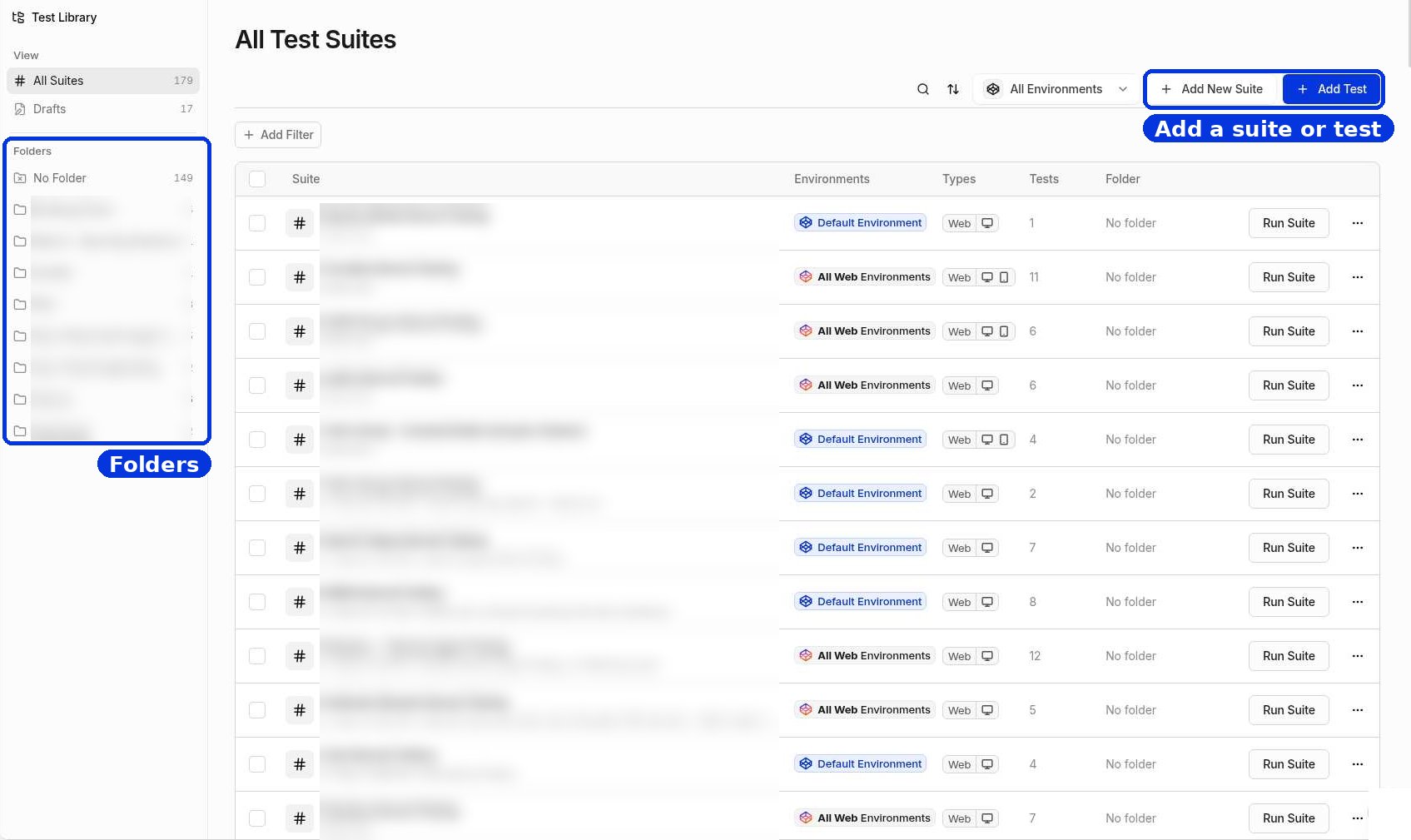
The Test Library
- Click Add New Suite to create a suite.
- Click Add Test to create a test inside a suite.
- To create a folder, use Create > Folder on the dashboard.
Name things so your team can scan them
Name suites after the feature or journey they cover. Clear names make Test Plan results much easier to read later.Run one test with many data sets
A Scenario Table runs the same test with different data, such as a list of products, coupon codes, or countries. Each row is one run.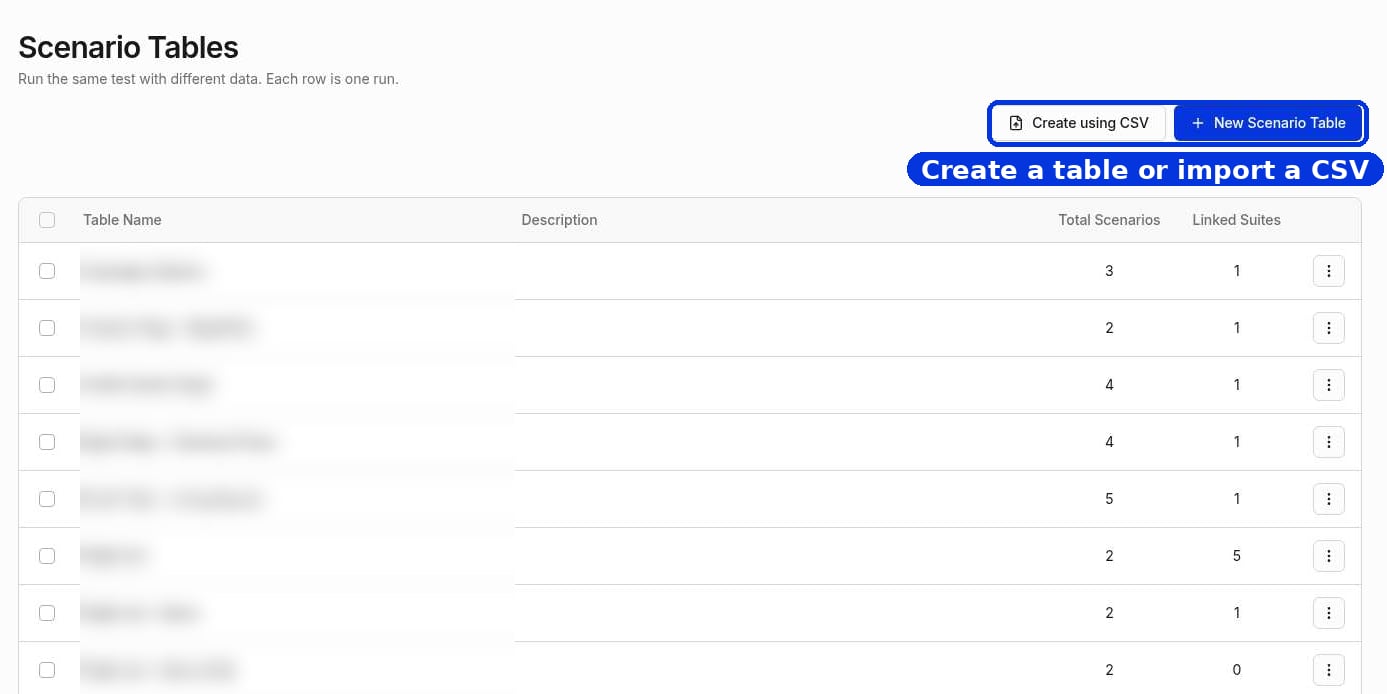
Open Scenario Tables from the left sidebar
- Click New Scenario Table to build one, or Create using CSV to import a spreadsheet.
- Each suite connects to one Scenario Table.