
Creating an Email Inbox
SpurMail is used under the hood. To get started, you can create an inbox in one of two ways:- Type
@in the beginning of a step - Use the
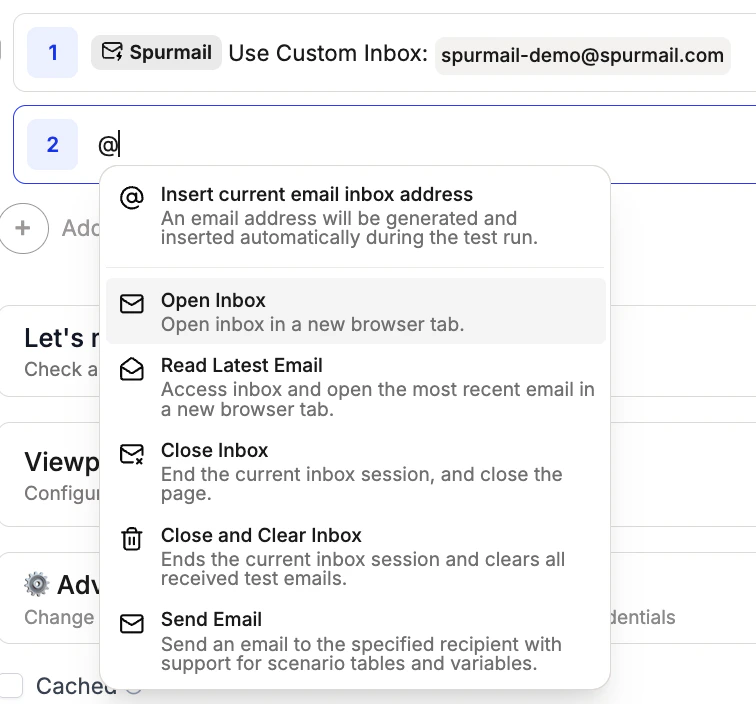
/menu and select Email
- Automatically generate a Quick Inbox (random email per test run)
- Define a Custom Inbox (persistent, named inbox)
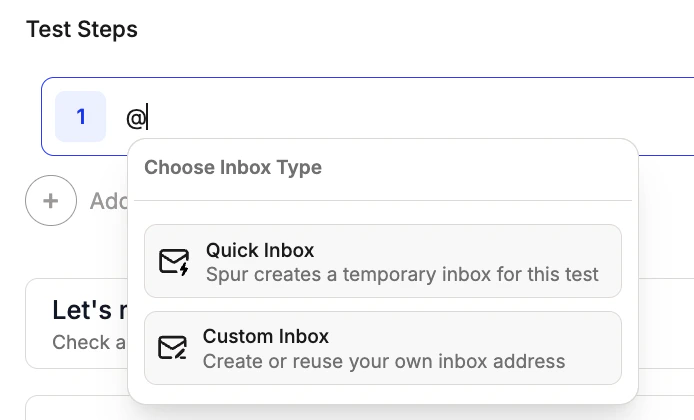
Quick Inbox
Generates a new random email address for each test run. Use case: Great for testing flows that require a fresh email for every sign-up.
Custom Inbox
Specify a named inbox you can reference across test steps. Use case: Adds consistency and specificity in the email address.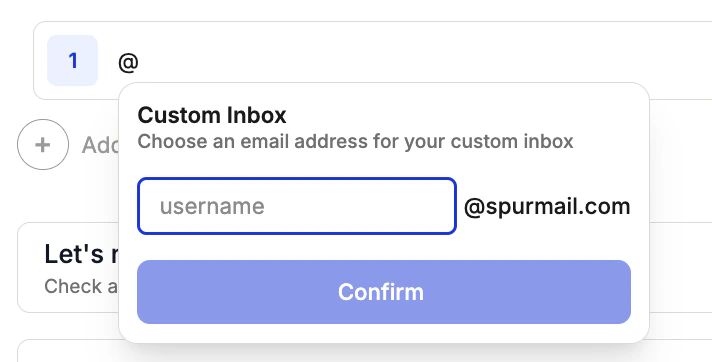

Available Actions
Once you create an inbox, several actions are available to you:- Navigate to inbox – opens the inbox in a new tab
- Open latest email – jumps directly to the most recent message
- Close inbox – closes the inbox tab and continues the test
- Close & clear inbox – clears inbox contents and resets for the next run
- Send email – sends an email to a specified address with a subject and body
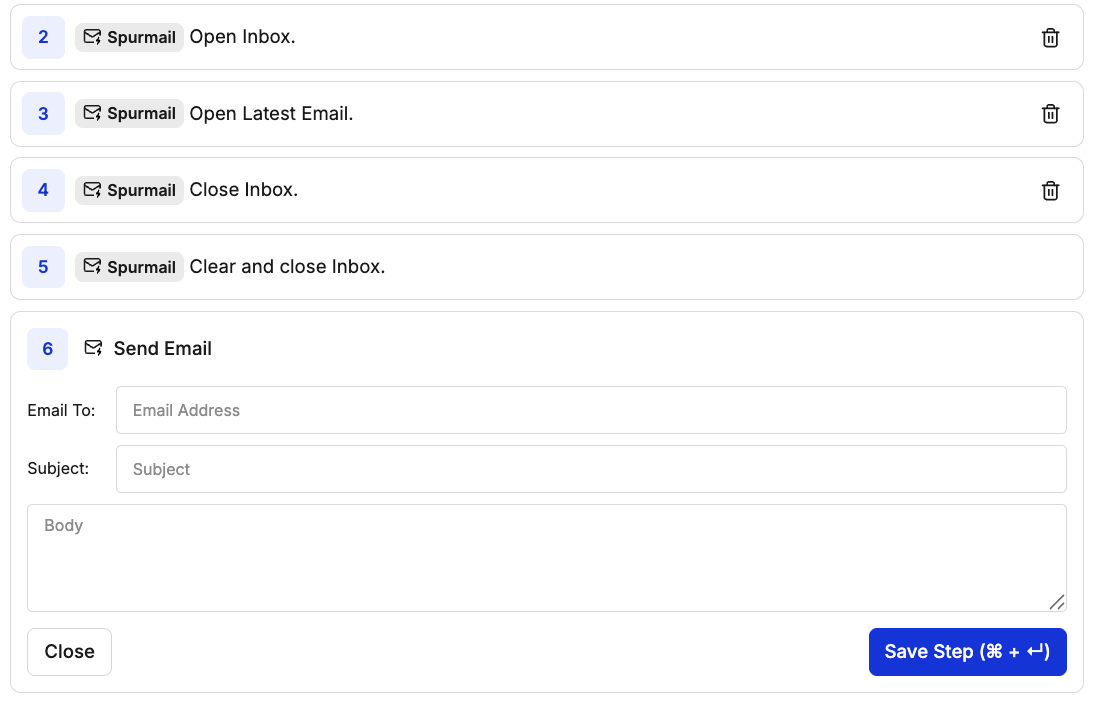
Send Email
The Send Email action lets you send an email directly from your test. This is useful for testing inbound email flows — for example, verifying that your app correctly processes an incoming support request, forwards a message, or triggers an automation when an email is received.You must create an inbox before using Send Email. The email is sent from your SpurMail inbox address.
- Email To — the recipient email address
- Subject — the email subject line
- Body — the email body content
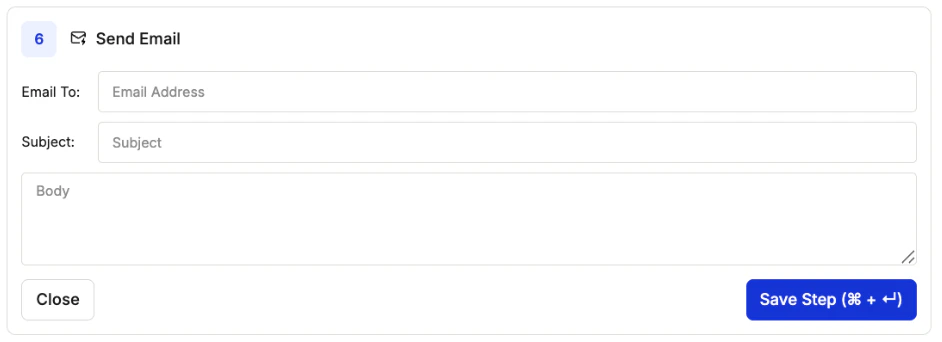
The Send Email step in the test editor
Using Your Inbox Email Address
Inserting the Email in Test Steps
You can insert the generated inbox address dynamically in your test steps in two ways: Method 1: Type@ symbol. Simply type @ anywhere in your test step where you want the email address to appear. This will automatically insert the current inbox email address.
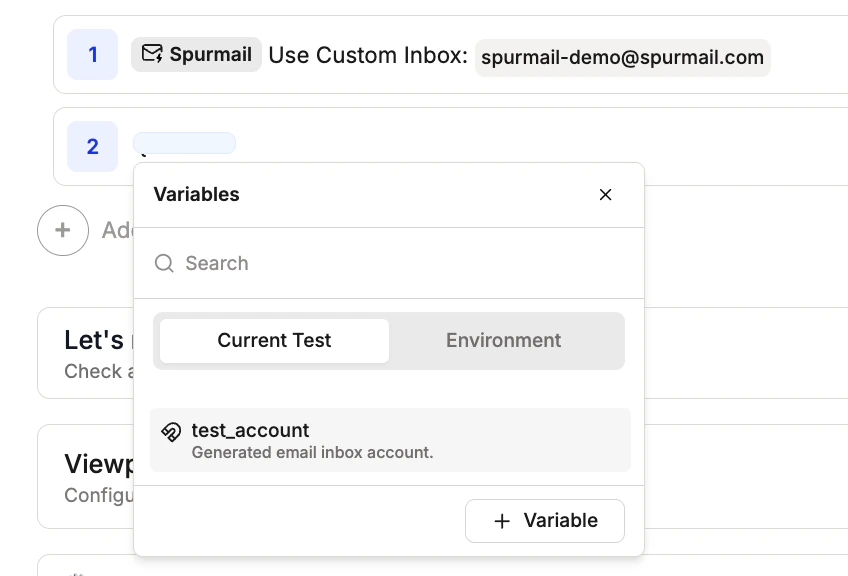
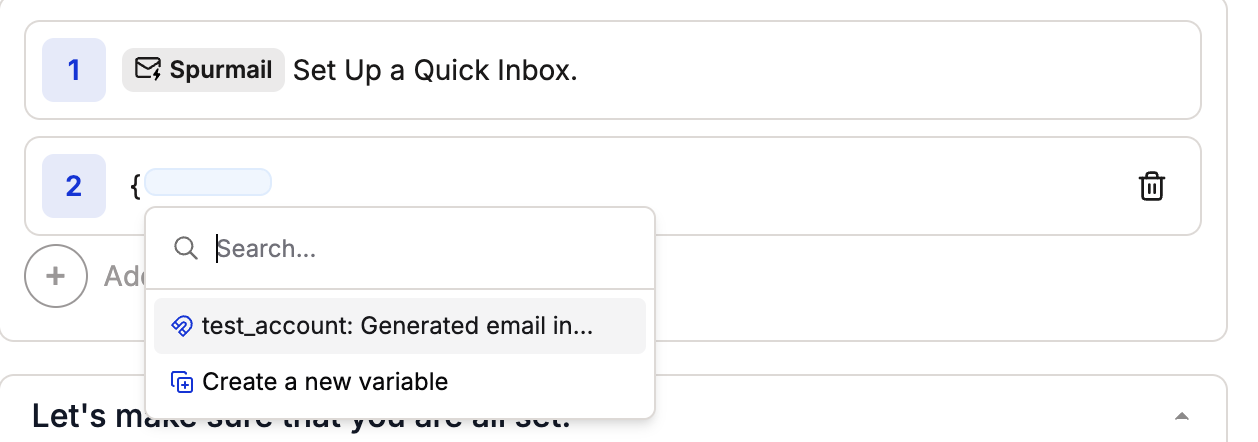
{ and selecting from the test_account variable options.
Accessing Your Inbox on the Web
You can also view your inbox directly in a web browser:- During test execution: Use the “Navigate to inbox” action to open the inbox in a new tab
- In the Test Editor: Navigate to https://spurmail.com, type your inbox username (e.g.
test_account) into the address bar, and press Enter—no extra browser action needed.
Accessing Email Content
Once you’ve navigated to the spurmail.com inbox, you can access different parts of an email by clicking on the appropriate tabs in the email interface.
The options for each email
Example Test
Here is an example for a test that types a randomly generated inbox into a field on the page and verifies the contents of the received email.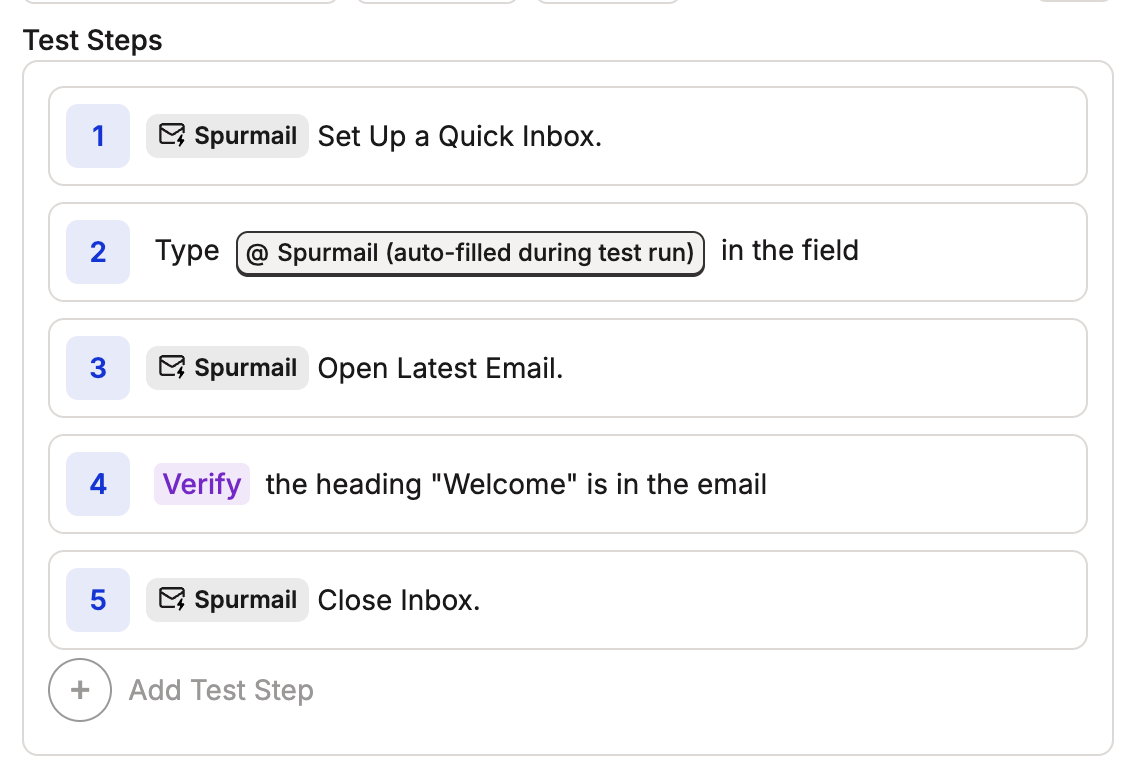
Tips
Example Use Cases
SpurMail has been used in various testing scenarios including:- User Registration: Test confirmation emails and verification links
- Password Reset: Verify reset instructions and link functionality
- OTP Verification: Test delivery and validation of one-time passwords
- Marketing Emails: Verify promotional content and unsubscribe functionality
- Transactional Emails: Test order confirmations, shipping notifications, and invoices
- Multi-step Workflows: Automate processes that include verifying against an email
Helpful Notes
- You can use multiple email addresses in the same test
- It can be useful to write a Clear Inbox teardown for your email, for ease of use.